Table of Contents
We have added the option to take notes with Sticky Notes Studio, which supports many more features beyond simple note taking.
You can find many note-taking applications on the computer, and you can also take advantage of Notepad or Sticky Notes available on the system to support the work process. In this guide, the article has added the option to take notes with Sticky Notes Studio, which supports many more features than just simple note-taking. Below are instructions for using the Sticky Notes Studio application.
Instructions for using the Sticky Notes Studio application
Step 1:
Click on the link below to download the Sticky Notes Studio application for Windows computers.
- Download Sticky Notes Studio Windows
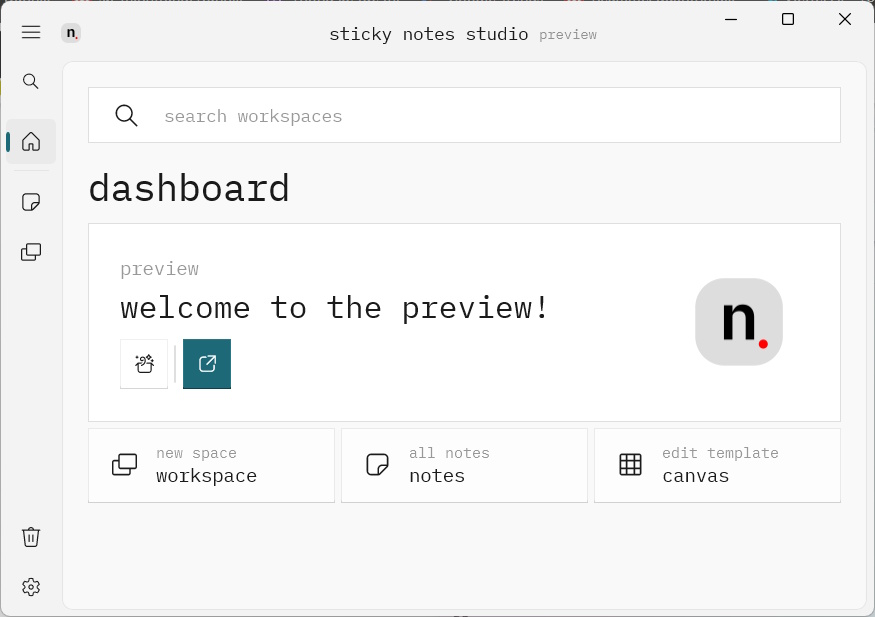
Here is the interface of the Sticky Notes Studio application. The application interface is straightforward, the features include creating new notes, different workspaces, and managing notes. Click On the workspace To create a new note.
Step 2:
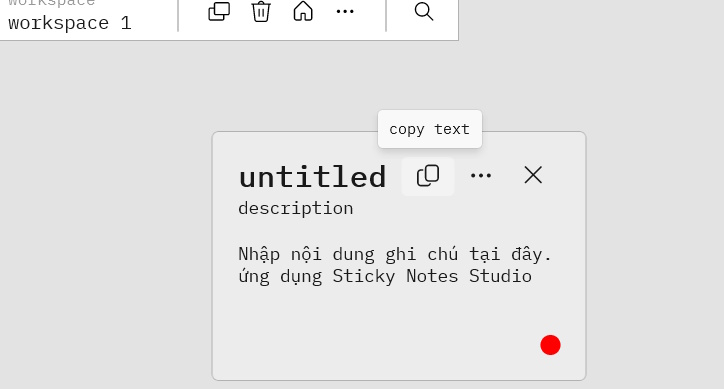
Click Create To create a new note. The note entry interface appears. You manually enter the note as usual. There is also A copy text icon To copy the content of the note to the computer clipboard.
Step 3:
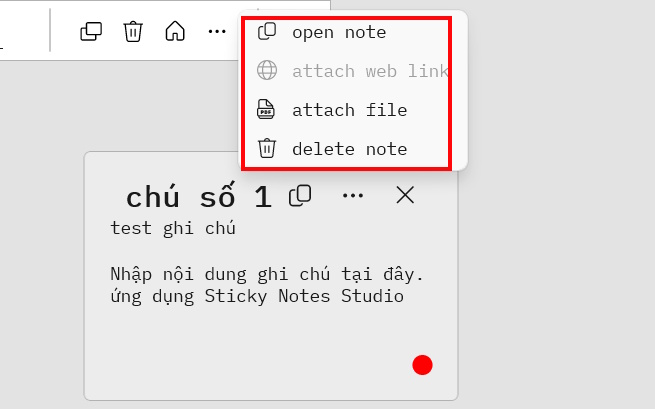
Continue to name the note, enter a description. Click on The 3 dots icon in the note To display more options for the content. You can attach files to the note, for example.
Step 4:
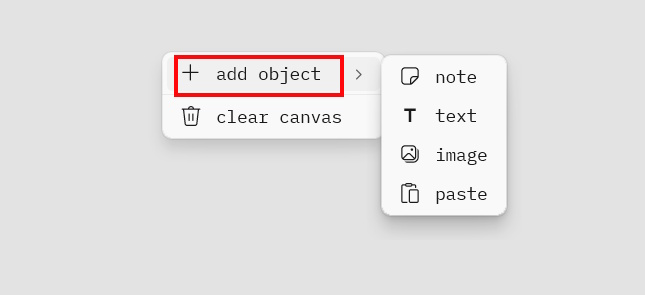
To Add notes or other content To the workspace, Right-click on the interface , select Add object , and then select the content you want to add to Sticky Notes Studio.
Step 5:
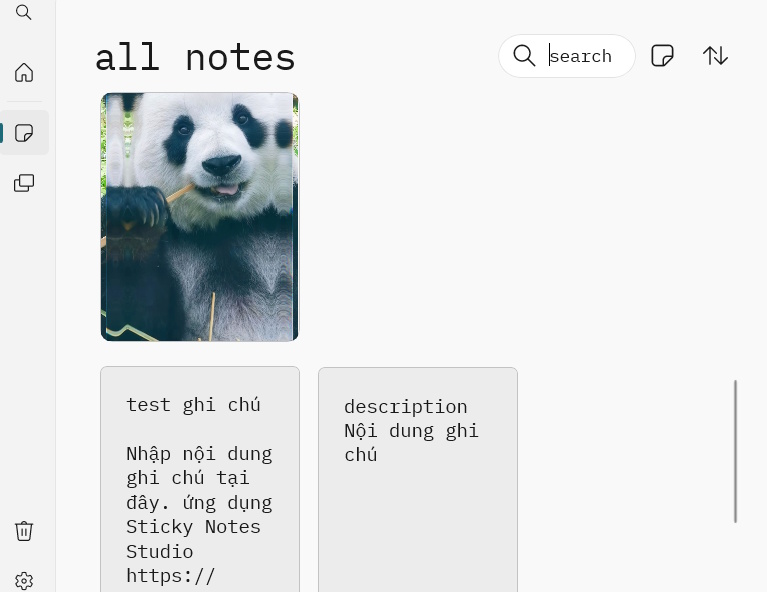
On the Left side of the interface , when you click on The Notes icon, You will see the interface to manage the content created in Sticky Notes Studio. In this interface, you can enter any keyword to search for notes faster.
Step 5:
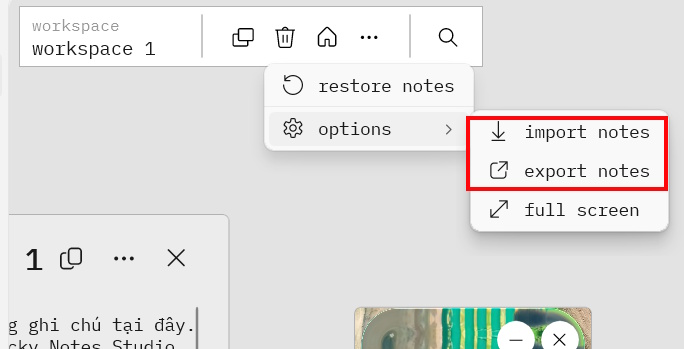
Also, the Sticky Notes Studio application also supports Exporting and importing notes According to user needs. Click on The 3-dot icon above , select Options , then select import or export notes.
FAQ
What should you know about sticky notes studio?
In practical terms, we have added the option to take notes with Sticky Notes Studio, which supports many more features beyond simple note taking.
Why does sticky notes studio matter?
The article highlights that below are instructions for using the Sticky Notes Studio application.
What is the main takeaway?
The main takeaway is that instructions for using the Sticky Notes Studio application Step 1: Click on the link below to download the Sticky Notes Studio application for Windows computers.
Related Articles
 How to Use Windows Sticky Notes as the Ultimate Productivity Tool6 minutes read
 Tips for Using Sticky Notes in Windows13 minutes read
 Microsoft Launched a New Version for Sticky Notes on Windows 10 with a Different Experience3 minutes read
 How to Write Notes on Easy Sticky Notes Pro Windows 103 minutes read
 Instructions on How to Type Vietnamese on Sticky Notes4 minutes read
 Free Note-Taking Software for Windows 7 and 8: Desktop Note Software4 minutes read
Reader Comments 0
Sign in with email or Google to join the discussion.