Table of Contents
After entering information into a spreadsheet, you may want to format your data as a table. Just like regular formatting, tables can improve the look and feel of your workbook, help organize content, and make your data easier to use. Excel includes several predefined table tools and styles, allowing you to create tables quickly and easily.
How to format data as a table
1. Select the cells you want to format as a table. For example, we would select the range of cells A2:D9.
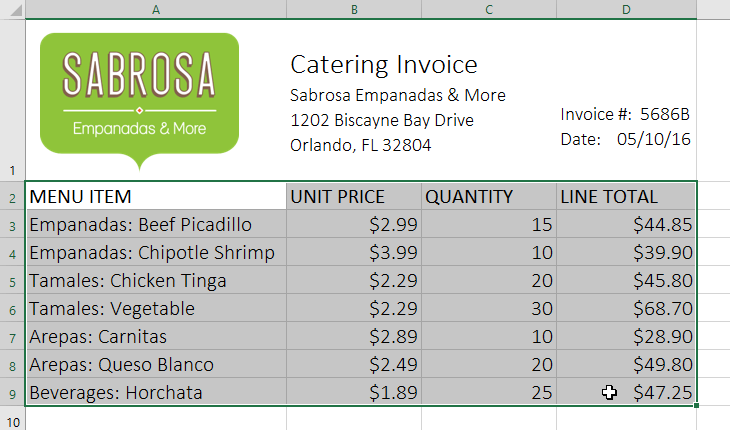
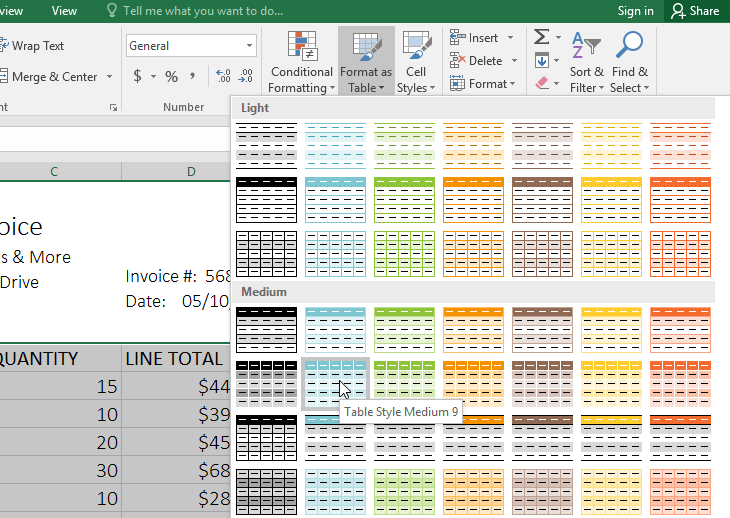
2. From the Home tab , click the Format as Table command in the Styles group.

3. Choose a table style from the drop-down menu.
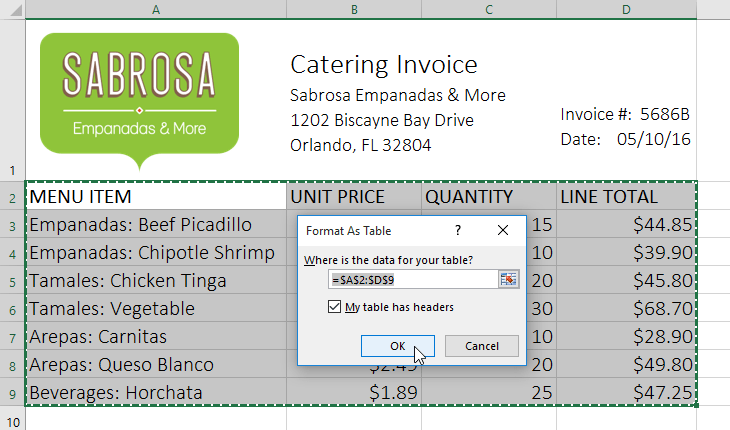
4. A dialog box will appear, confirming the selected cell range for the table.
5. If the table has headers, select the box next to My table has headers , and then click OK.
6. The range of cells will be formatted according to the selected table style.
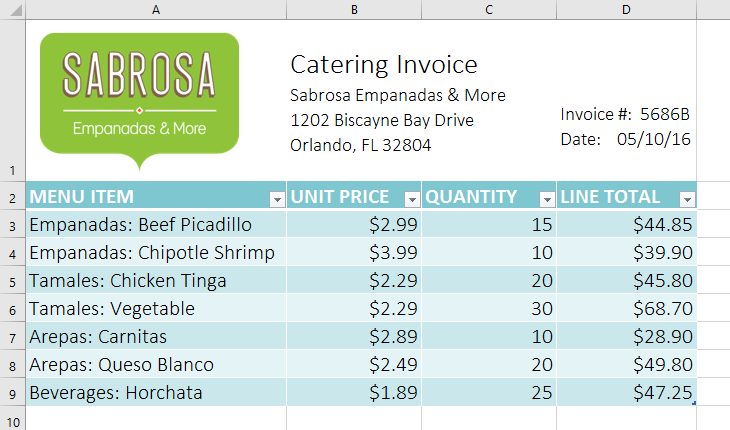
The tables include filtering by default. You can filter your data at any time using the drop-down arrows in the header cells. To learn more, see the article: Filtering Data .
Edit table
It's easy to modify the appearance of any table after adding it to a spreadsheet. Excel includes several options for customizing tables, including adding rows or columns and changing the table style.
How to add rows or columns to a table
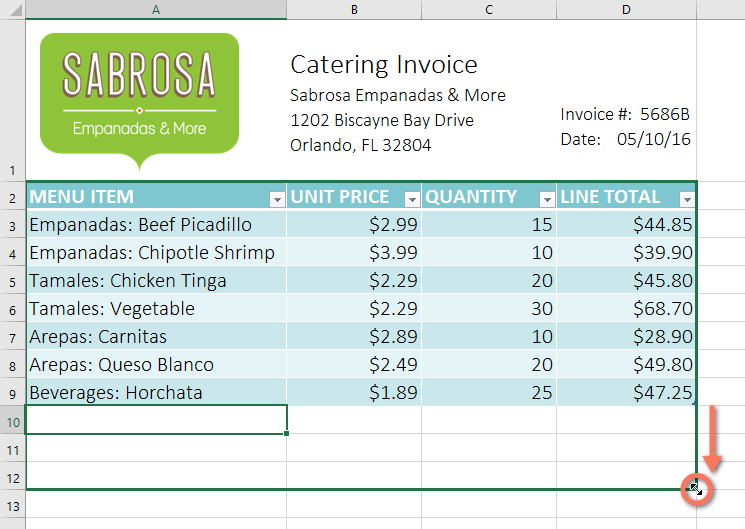
If you need to fit more content into your table, you can resize it by adding extra rows and columns. There are two simple ways to resize a table:
Enter new content into any adjacent row or column. The row or column will be automatically transferred to the table.
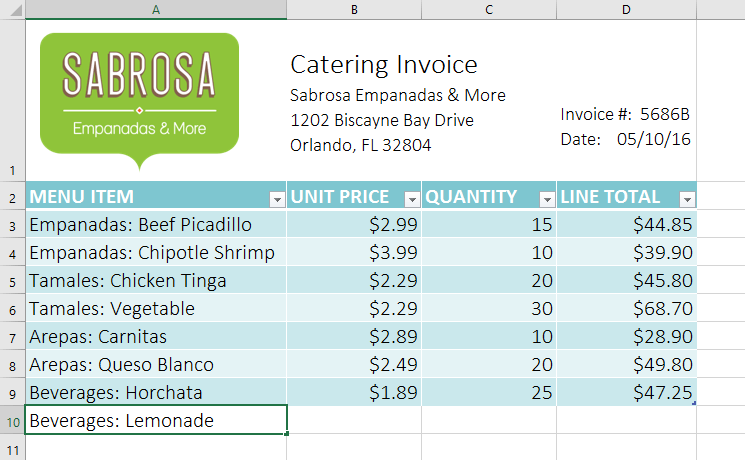
Click and drag the bottom right corner of the table to create additional rows or columns.
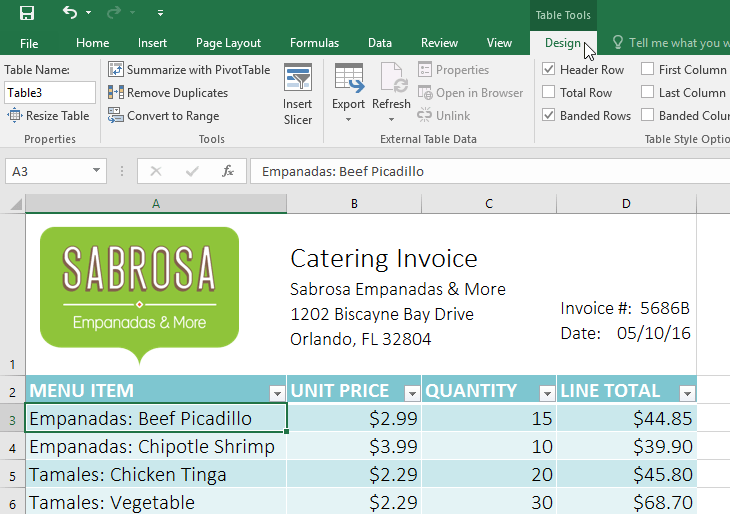
How to change the table style
1. Select any cell in the table, then click the Design tab.
2. Find the Table Styles group , then click the More drop-down arrow to see all the available table styles.
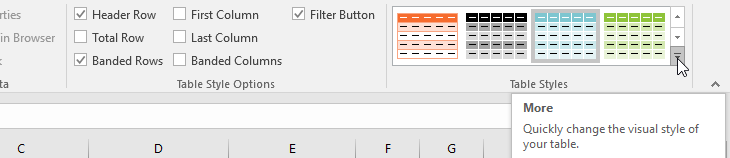
3. Choose your desired table style.
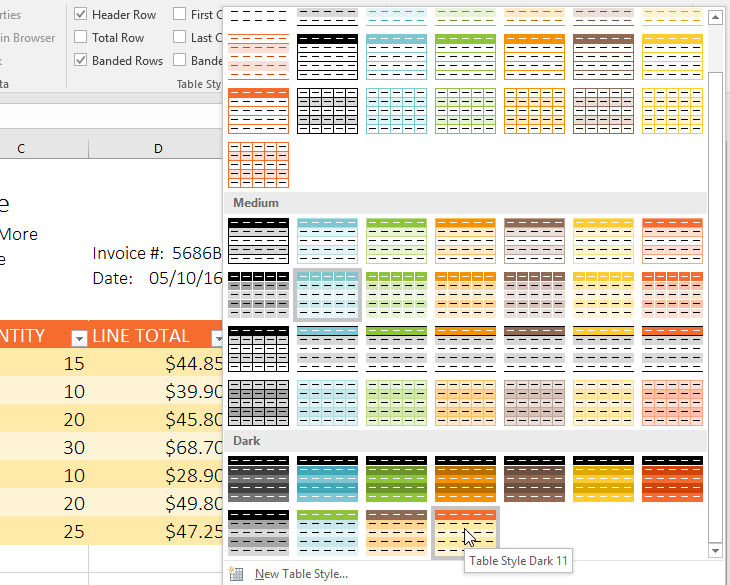
4. The type of table to be used.
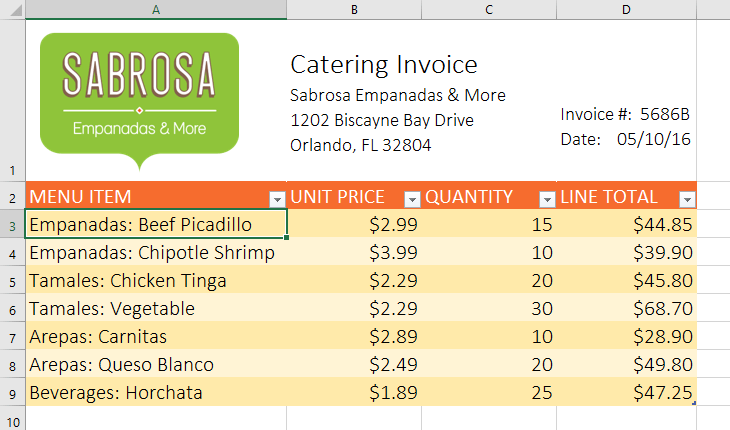
How to modify table style options
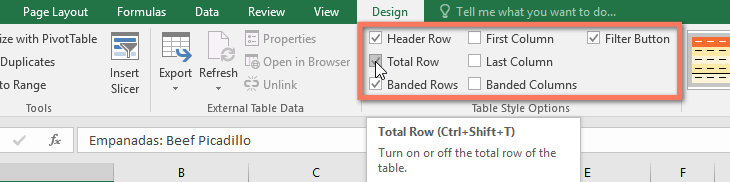
You can enable or disable various options to change the appearance of any table. There are several options: Header Row, Total Row, Banded Rows, First Column, Last Column, Banded Columns , and Filter Button .
1. Select any cell in the table, then click the Design tab.
2. Select or deselect the desired options in the Table Style Options group . For example, select Total Row to automatically include the total for the table.
3. The table style will be modified. In the example, a new row has been added to the table with a formula that automatically calculates the sum of the values in column D.
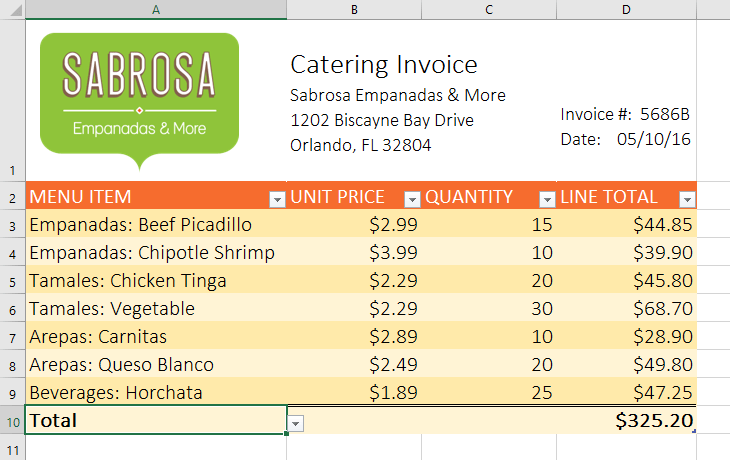
Depending on the type of content you have—and the type of table you've chosen—these options can affect the appearance of your table in various ways. You may need to experiment with several options to find the exact style you want.
How to delete a table
It is possible to delete a table from a workbook without losing any data. However, this may cause issues with certain formatting, including colors, fonts, and rows. Before using this option, be prepared to reformat the cells if necessary.
1. Select any cell in the table, then click the Design tab.
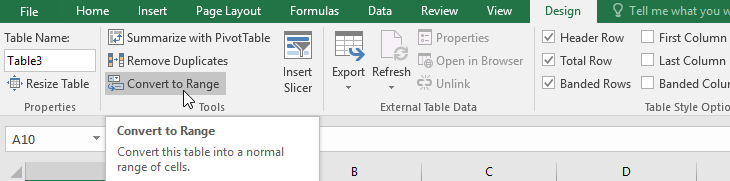
2. Click the Convert to Range command in the Tools group.
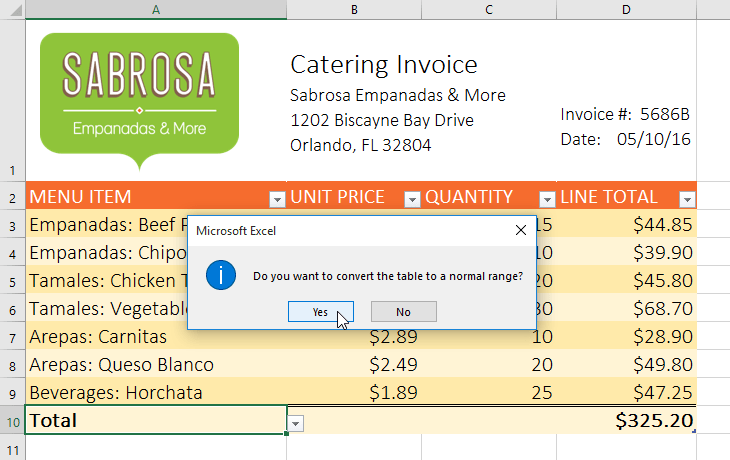
3. A dialog box will appear. Click Yes.
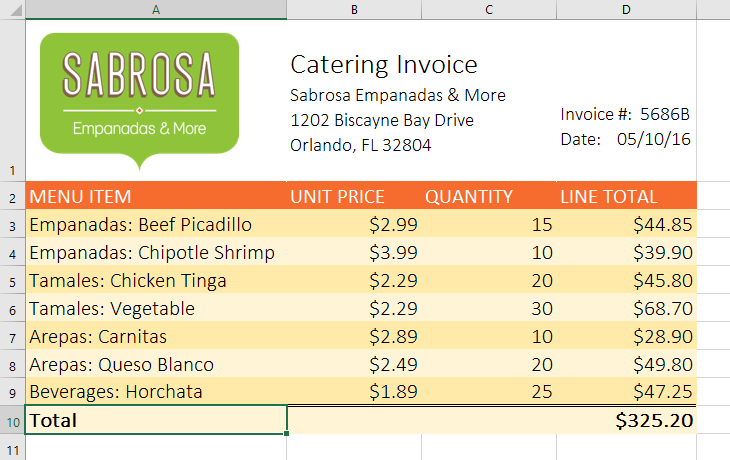
4. The range will no longer be a table, but the cells will retain their data and formatting.
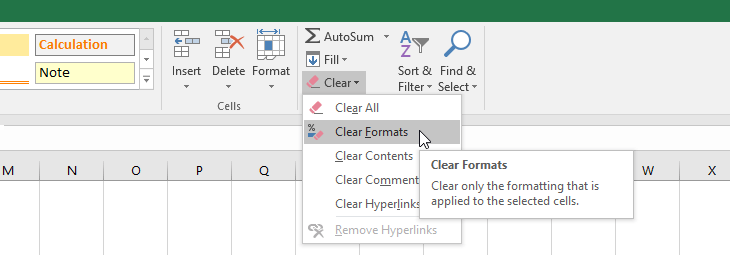
To begin reformatting from scratch, click the Clear command on the Home tab. Next, select Clear Formats from the menu.
Related Articles
 How to Create an Excel Table, Insert a Table in Excel7 minutes read
 How to Create and Delete Tables in Excel4 minutes read
 How to Format Borders and Background Colors for Excel Tables5 minutes read
 Steps to Create Relationships Between Multiple Tables Using9 minutes read
 The Most Detailed Way to Format Borders for Excel Tables3 minutes read
 Instructions to Delete 0, Hide 0 in Excel: Excel Tips5 minutes read
Reader Comments 0
Sign in with email or Google to join the discussion.