Table of Contents
What is the function to extract the middle character in Excel ? How do you extract the two middle characters in Excel ? Let's find out together with TipsMake.com!
MID is one of the text functions that Microsoft Excel provides for processing text strings. At its most basic level, it is used to extract a substring in the middle of a text string or to help you get the middle two characters in Excel. If you find it useful, let's explore how to use the MID function in Microsoft Excel with TipsMake.com!
In Excel, the LEFT, RIGHT, and MID functions are essential and fundamental for processing characters within a data string. The LEFT function extracts characters from the left, the RIGHT function extracts characters from the right, and the MID function extracts characters from the middle of the string, according to the user's requirements. The method of using these functions is similar: you enter the command, then select the number of characters you want to extract from the data. This article will guide you on how to use the MID function in Excel to extract characters from the middle of the string.
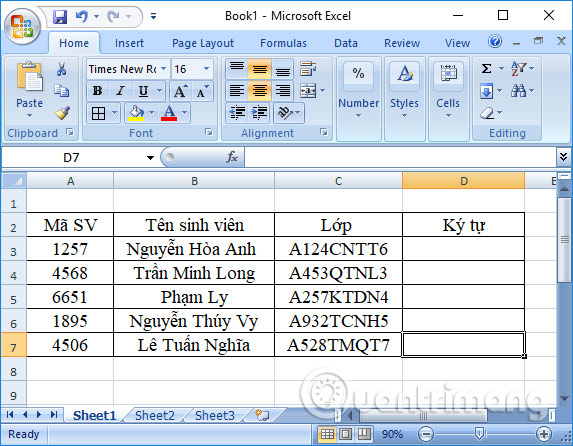
We will proceed to extract the character string using the table below. The requirement of that table is to filter out the major code from the student's class name. This corresponds to the first two characters starting from the fifth character in the class name.
The MID function will extract n characters from a string starting from position m.
Step 1:
The syntax for executing the MID function is =MID(text,m,n) .
In there:
- text: the string of characters to be extracted.
- m: The starting position for trimming the string of characters.
- n: The number of characters to extract from the string.
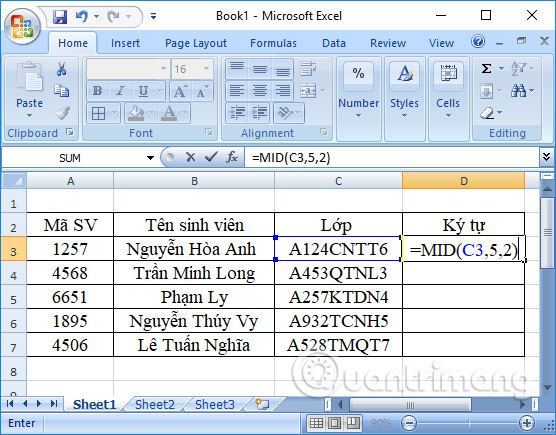
In cell D3, we will enter the formula =MID(C3,5,2) and press Enter . This means we will take the 2 characters starting from the 5th character in cell C3 and fill the result character into cell D3.
Step 2:
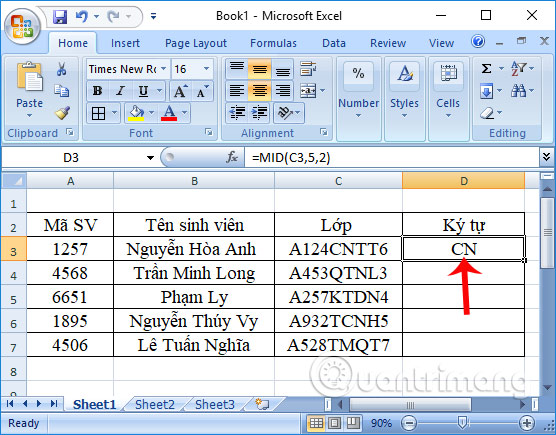
The result will be as shown below. You have filtered the major code using the 2 characters in the student's class name.
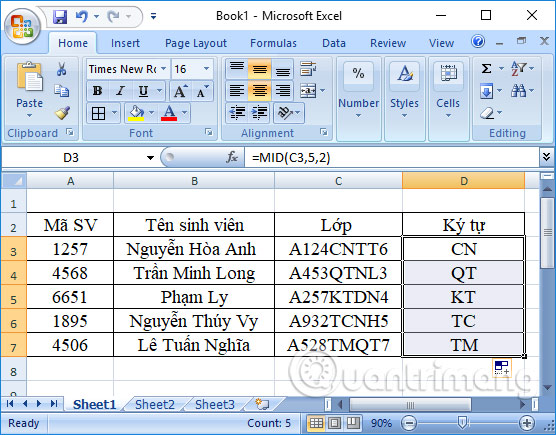
To do the same with the remaining cells, we simply drag down to the other cells to get the same result.
Additionally, the LEFT and RIGHT functions are also used to extract the corresponding character from the left and right sides of a string. You perform the same operation as with the MID function.
The syntax for the LEFT function is =LEFT(text,n) .
In this case, `text` is the string of characters to extract, and `n` is the number of characters to cut. If the `n` parameter is not specified, Excel will automatically extract from the first value in the string.
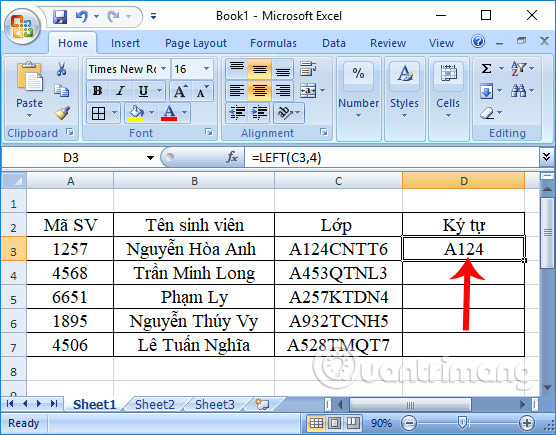
For example, if I need the class number in the class name, starting from the first character, you would enter the function =LEFT(C3,4).
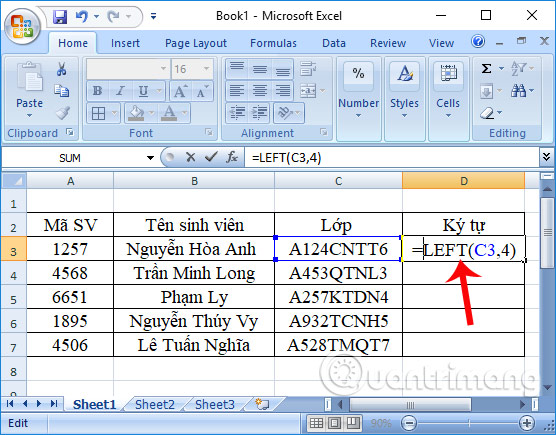
The final result will look like the image below.
The syntax for the RIGHT function is =RIGHT(text,n) .
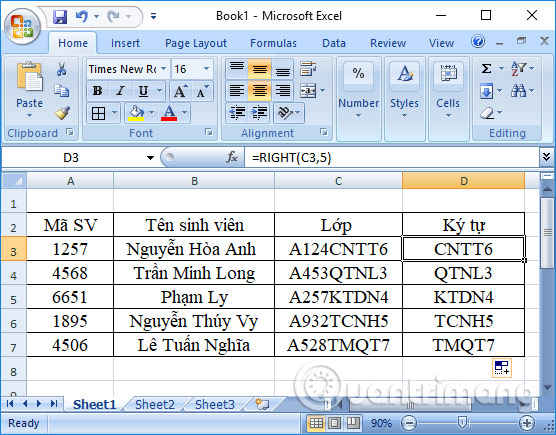
For example, if I need to extract 5 characters from the department code in the class name, the input formula would be =RIGHT(C3,5). The result would be as shown in the image below.
Things to remember when using the MID function in Excel
1. An error #VALUE!occurs if the provided argument [num_chars]is less than 0 or the argument start_numis less than 1.
2. Dates are stored in Excel as numbers, and only cell formatting makes them appear as dates in the spreadsheet. Therefore, using the MID function on dates will return the middle characters of the numbers representing the date.
For example, January 1, 1980 is represented by the number 29221; therefore, applying this function to the cell containing January 1, 1980 will result in the value 922.
If you want to use that data for dates, you need to combine the MID function with the DAY, DATE, MONTH, or YEAR functions in Excel. Otherwise, you can convert the cells containing dates to text using Excel's Text to Column tool.
3. The MID function always returns a text string, even if the extracted substring contains only numbers. This can be important if you want to use the result of the MID formula in another calculation. To convert the output to a number, use MID in conjunction with the VALUE function.
4. If start_num is greater than the total length of the original text, the MID formula in Excel returns an empty string ('').
5. If num_chars is less than 0 (a negative number), the Mid formula returns #VALUE. If num_chars equals 0, it returns an empty string (an empty cell).
The above is a guide on how to use the MID function, which extracts the middle characters of a string as requested by the user in Excel. The MID function will extract the middle characters from a data string. Additionally, the instructions above explain how to use the LEFT function to extract the leftmost characters and the RIGHT function to extract the rightmost characters in Excel.
Good luck with your project!
Related Articles
 How to Use the SUBTOTAL Function in Excel4 minutes read
 SUM for Newbies Only: Excel Experts Use This Function Instead!7 minutes read
 How to Use the Subtotal Function6 minutes read
 Difference Between Function and Formula in Excel5 minutes read
 How to Use the SUBTOTAL Function in Excel6 minutes read
 Calculate the Total Value of the Filtered List in Excel4 minutes read
Reader Comments 0
Sign in with email or Google to join the discussion.