Table of Contents
The COUNTIFS function in Excel has many practical applications. Here's what you need to know about using the COUNTIFS function in Excel .
Microsoft Excel is a world-renowned spreadsheet software with many useful features. The software's introduction has made data entry and calculations involving large numbers simpler than ever before. And when using Excel, you definitely need to know the COUNTIFS function .
The COUNTIFS function in Excel is used to count cells that meet multiple given conditions. COUNTIFS is one of the most frequently used statistical functions in Excel, an advanced version of the COUNTIF function which only counts cells based on a single given condition. Using the COUNTIFS function, users can easily find the cells that meet the specified conditions. These conditions can be numbers, dates, text, or cells containing data. This article will guide you on how to use the COUNTIFS function in Excel.
- How to compare data in two Excel columns
- How to use the DSUM function to calculate sums with complex conditions in Excel.
- How to use the SUMIF function to calculate conditional sums in Excel
- VLOOKUP function: usage and specific examples.
Instructions on using the COUNTIFS function in Excel
The syntax for the COUNTIFS function is =COUNTIFS(criteria_range1, criteria1, [criteria_range2, criteria2],…) .
In there:
- Criteria_range1 is the first selected range to be statistically analyzed; this value is required.
- Criteria1 is the condition applied to the criteria_range1 selection; the required value can be a cell, expression, or text.
- [criteria_range2, criteria2] are pairs of additional selection ranges and conditions, allowing a maximum of 127 selection range and condition pairs.
Notes on using the COUNTIFS function:
- Additional selectors must have the same number of rows and columns as criteria_range1, and can be separated.
- If the selection range refers to an empty cell, the COUNTIFS function automatically treats the value as 0.
- The question mark (?) can be used to replace a specific character, while the asterisk (*) can replace an entire string of characters. If you need to find the actual question mark or asterisk, type a tilde (~) before that character.
- Note that the COUNTIFS function is not case-sensitive.
- Generally, text values should be enclosed in quotation marks, while numbers should not. However, when a logical operator is included with a number, both the number and the operator must be enclosed in quotation marks, as shown below:
=COUNTIFS(A1:A10,100) // count equal to 100 =COUNTIFS(A1:A10,">50") // count greater than 50 =COUNTIFS(A1:A10,"jim") // count equal to "jim"Note : Additional conditions must follow the same rules.
- When using a value from another cell in a condition, the cell reference must be concatenated with an operator when used. In the example below, COUNTIFS will count the values in A1:A10 that are less than the value in cell B1. Note that the less than operator (which is text) is enclosed in double quotes, but the cell reference is not:
=COUNTIFS(A1:A10,"<"&B1) // count cells less than B1Note : COUNTIFS is one of several functions that split a condition into two parts: Range + Criteria. This causes some conflicts with other formulas and functions.
- COUNTIFS can count empty or non-empty cells. The formulas below count empty and non-empty cells in the range A1:A10:
=COUNTIFS(A1:A10,"<>") // not blank =COUNTIFS(A1:A10,"") // blank- The easiest way to use COUNTIFS with dates is to reference a valid date in another cell that has a cell reference. For example, to count the cells in A1:A10 that contain a date greater than a date in B1, you can use the following formula:
=COUNTIFS(A1:A10, ">"&B1) // count dates greater than A1An example of how to use the COUNTIFS function in Excel.
1. Data Table 1
We have the data table below to fulfill some table-related requirements.
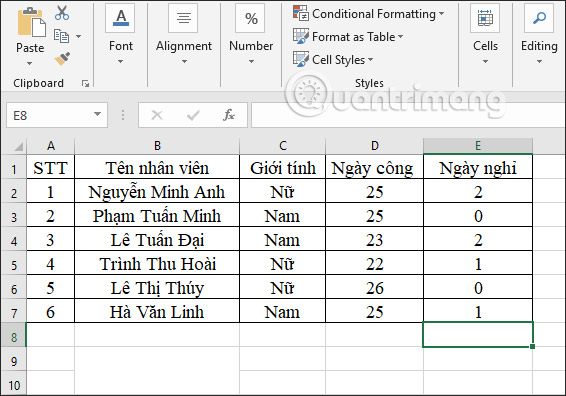
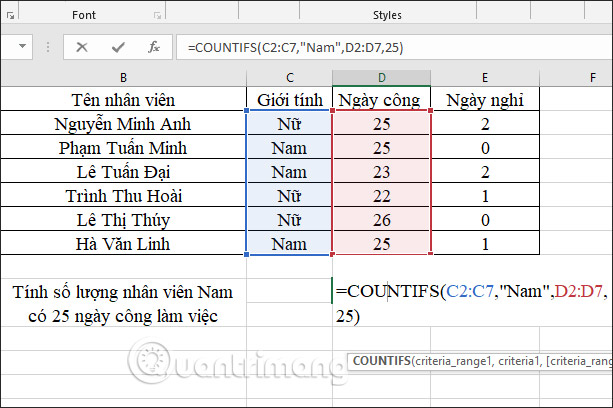
Example 1: Calculate the number of male employees who have worked 25 days.
In the cell where you want to enter the result, enter the formula =COUNTIFS(C2:C7,"Nam",D2:D7,25) and then press Enter.
In there:
- C2:C7 is a mandatory counting area of 1 corresponding to the employee's gender.
- Male is the condition for counting region 1.
- C2:C7 is the counting area 2 with the employee's working days.
- 25 is the condition for counting region 2.
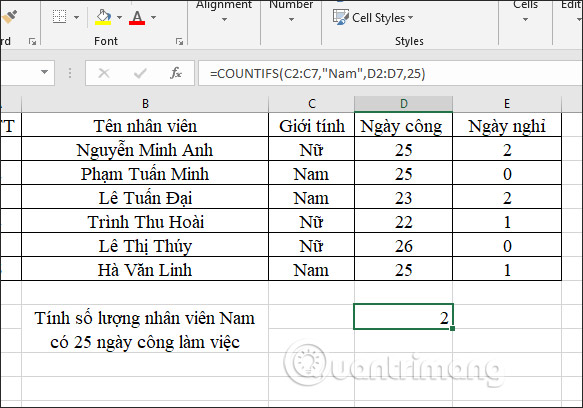
As a result, we have two male employees who have worked 25 days.
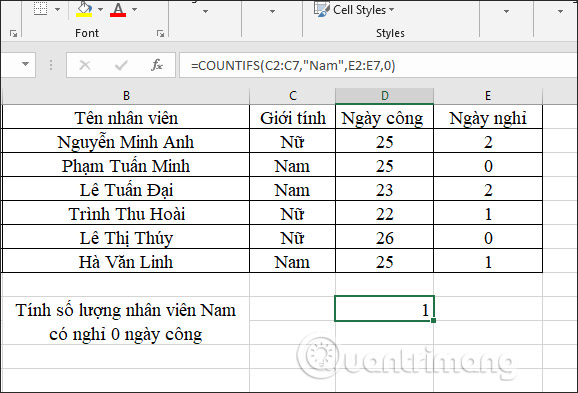
Example 2: Calculate the number of male employees who have taken 0 days off.
In the formula input cell, enter =COUNTIFS(C2:C7,"Nam",E2:E7,0) and then press Enter.
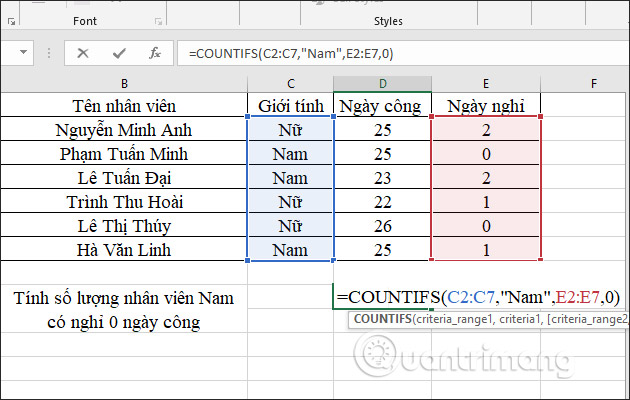
The results show that 1 male employee has 0 days off.
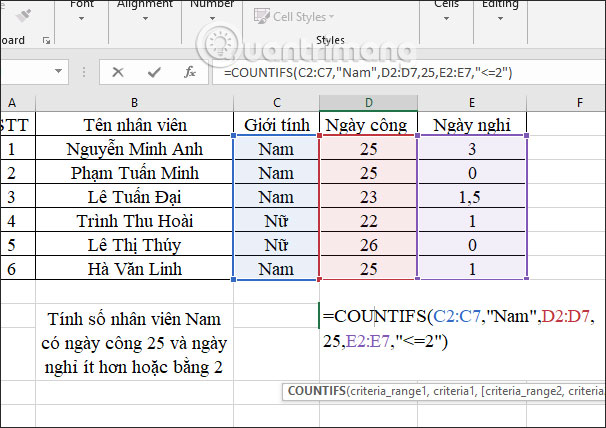
Example 3: Calculate the number of male employees who work 25 days and have 2 or fewer days off.
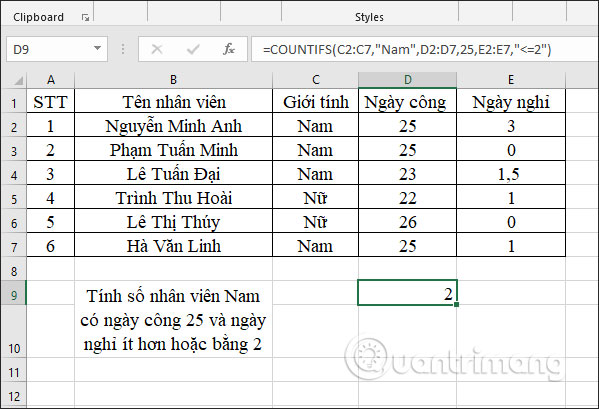
We enter the formula =COUNTIFS(C2:C7,"Nam",D2:D7,25,E2:E7,"<=2") and then press Enter.
The results showed that 2 male employees met the requirement of having 2 or fewer days off.
2. Data Table 2
Example 1: Calculate the total of Taiwanese products with a unit price under 200,000 VND.
In the result input cell, enter the formula =COUNTIFS(B2:B7,"*Taiwan",C2:C7,"<200,000") and then press Enter.
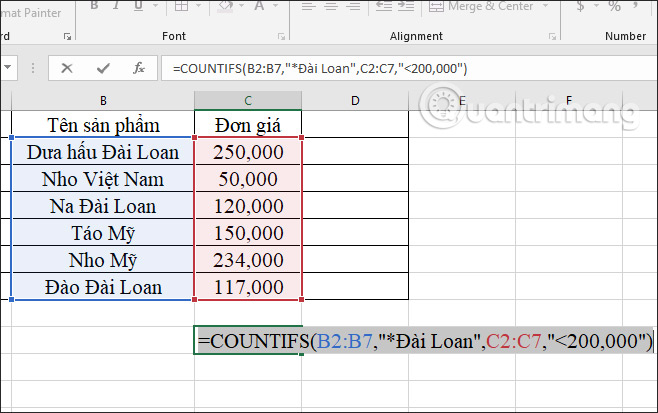
The result was that 2 Taiwanese products met the requirements.
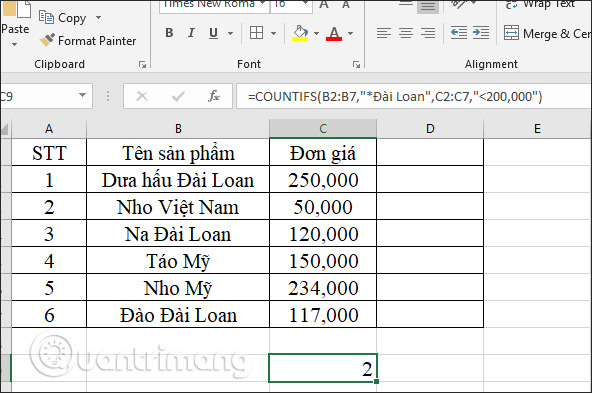
Example 2: Calculate the total cost of Taiwanese products with a unit price between 100,000 VND and 150,000 VND.
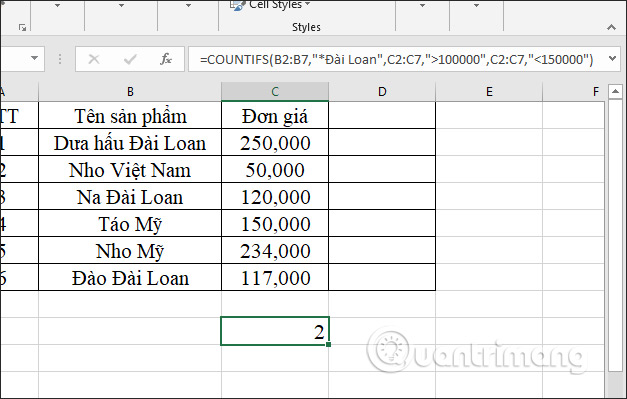
In the result input cell, enter the formula =COUNTIFS(B2:B7,"*Taiwan",C2:C7,">100000",C2:C7,"<150000") and then press Enter.
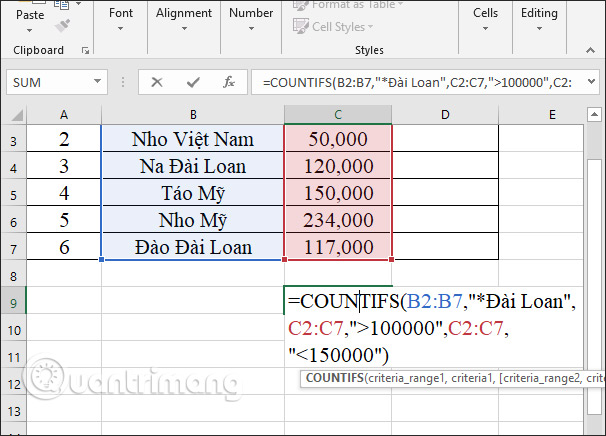
The result will be two Taiwanese products priced between 100,000 VND and 150,000 VND.
How to use the COUNTIFS and SUM functions in Excel
The COUNTIFS function is essentially a more complex version of the COUNTIF function. The main advantage that COUNTIFS has over COUNTIF is that it supports more conditions and ranges.
However, you can also define a range and a single condition for the COUNTIFS function, similar to what you did with the COUNTIF function.
An important thing to understand about the COUNTIFS function before using it is that it doesn't simply sum the results of cells that meet the criteria for each range.
In practice, if you have two conditions for two ranges, the cells in the first range are filtered twice: once through the first condition and then through the second condition. This means the COUTNIFS function will only return values that meet both conditions, within their given ranges.
You can gain a better understanding of the COUNTIFS function by studying the example below.
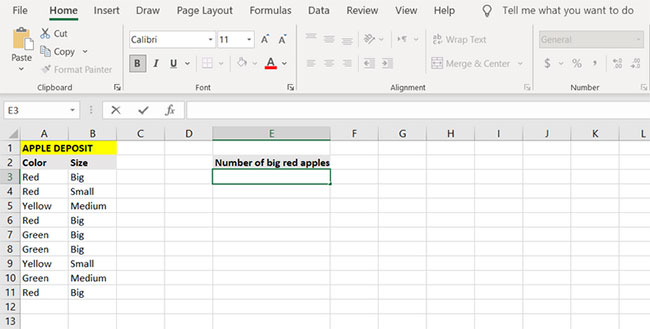
In addition to the apples' color, there is also a column describing their size. The ultimate goal in this example is to count the number of large red apples.
1. Select the cell where you want to display the results. (In this example, the article will display the large number of red apples in cell E3).
2. Go to the formula bar and enter the formula below:
=COUNTIFS(A3:A11, "Red", B3:B11, "Big")3. With this command, the formula checks cells A3 through A11 for the 'Red' condition . Cells that pass this check are then checked again in the range B3 through B11 for the 'Big' condition .
4. Press the Enter button.
5. Now, Excel will count the number of large red apples.
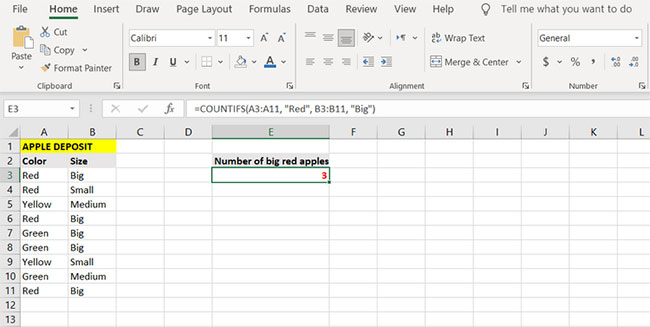
Observe how the formula counts cells that have both the "red" and "big" attributes. The formula takes cells from A3 to A11 and checks them for the "red" attribute. Cells that pass this condition are then checked again with the next condition in the second range, in this case, the "big" condition.
In conclusion, the ranges and conditions following the first range and condition increasingly narrow the counting filter and are not independent of each other. Therefore, the final result of the formula is apples that are red and big. You can count the number of red or big apples by combining the COUNTIF function with the SUM function .
1. Select the cell where you want to display the result of the formula. (In this example, the article will use cell E6).
2. Enter the formula below:
=SUM(COUNTIF(A3:A11, "Red"), COUNTIF(B3:B11, "Big"))3. This formula will count the cells containing red apples, then the number of cells containing large apples, and finally, it will calculate the sum of these two numbers.
4. Press the Enter button.
5. Now Excel will count and display the number of large or red apples.
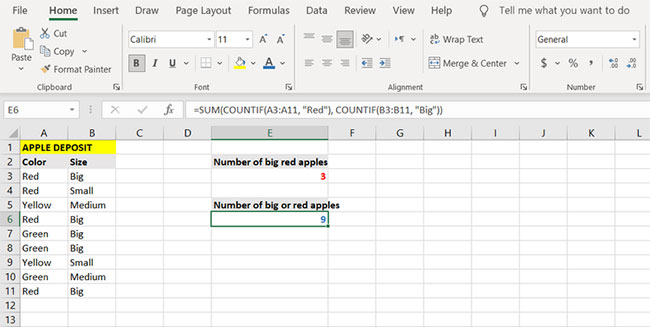
Above are two data tables showing how to use the COUNTIFS function in Excel. Users must write the conditions accompanying the data range for the COUNTIFS function to accurately determine the range.
How to fix common errors when using the COUNTIFS function in Excel
COUNTIFS does not work when counting text values.
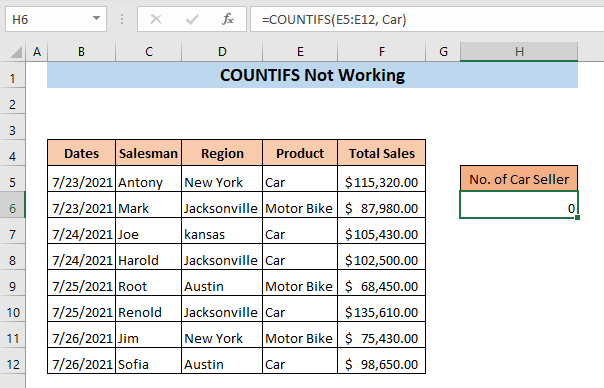
When counting text strings, they must be enclosed in quotation marks. Otherwise, the COUNTIFS function will not be able to count the text string and will return 0. In the following example image, the text string is not enclosed in quotation marks. Therefore, this formula returns 0.
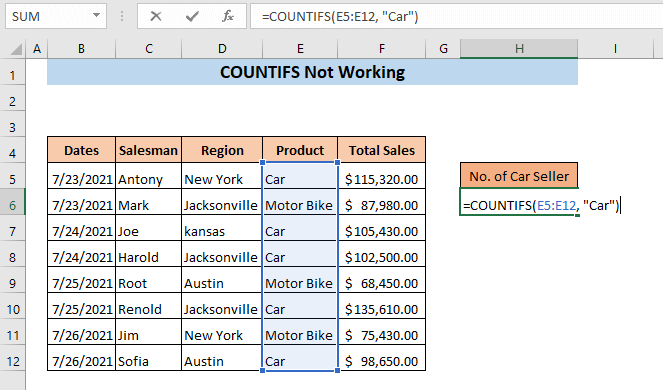
To fix this error, simply rewrite the formula correctly: =COUNTIFS(E5:E12, "Car")
COUNTIFS is not working because of an incorrect range reference.
When using more than one criterion in the COUNTIFS function, the range of cells for each criterion must have the same number of cells. Otherwise, the COUNTIFS function will not work.
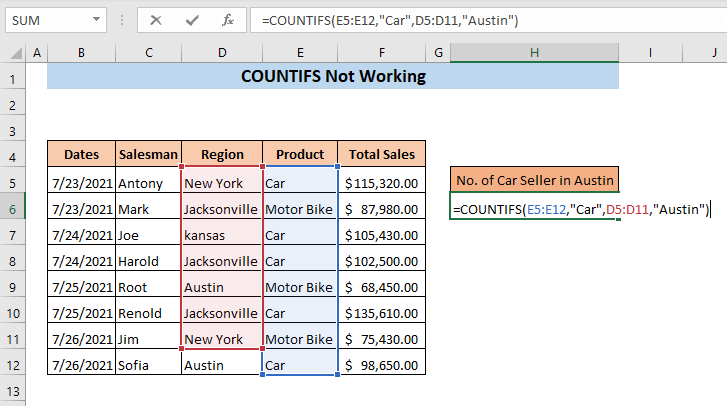
Let's say in this example we want to count car sales in Austin. The formula entered is =COUNTIFS(E5:E12,"Car",D5:D11,"Austin"). Looking closely at the formula, you'll see that the range for the first criterion is E5:E12, but the range for the second criterion is D5:D11. The number of cells in the range for this criterion is not the same.
Now, if you press Enter , the formula will return the #VALUE! error .
Rewrite the formula correctly as follows: =COUNTIFS(E5:E12,"Car",D5:D12,"Austin")
COUNTIFS is not working because of an error in the formula.
If the correct formula is not inserted, the COUNTIFS function will not work. When using any mathematical operator, such as greater than (>), less than (<), equal to (=), and not equal to (<>), both the operator and the numerical criteria must be entered inside the same equation. For example, if you want to find sales greater than $100,000, you need to insert the following formula:
=COUNTIFS(F5:F12,">" 100000)
Here, only the operator has been inserted inside the equation; there are no numerical criteria.
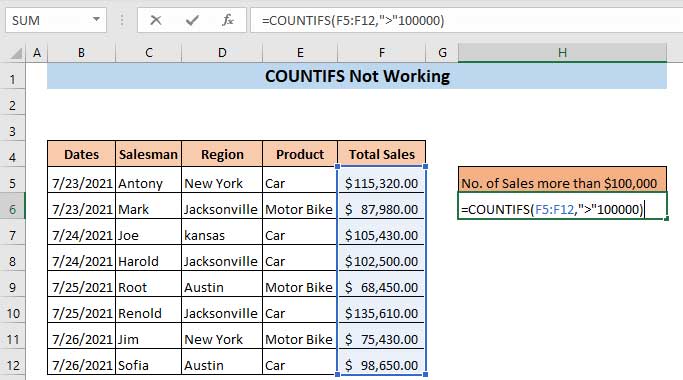
If you press Enter, the Microsoft Excel message box will appear: 'There's a problem with this formula'.
To fix the problem, type the correct formula:
=COUNTIFS(F5:F12,">100000")
Now that we've entered both the operator and the criteria inside the parentheses, this formula will return the required quantity.
Press Enter.
As a result, you will achieve sales exceeding $100,000.
Good luck with your project!
Related Articles
 The Countifs Function, How to Use the Cell Count Function3 minutes read
 How to Use the COUNTIFS Function in Excel3 minutes read
 How to Use the COUNTIFS Function in Excel8 minutes read
 Cell Counting Function with Data in Excel - Enclose Example7 minutes read
 COUNTIFS Function in Excel: Syntax, Examples, and Tips3 minutes read
 How to Calculate the Total Value Based on Multiple Conditions in Excel4 minutes read
Reader Comments 0
Sign in with email or Google to join the discussion.