Table of Contents
To connect Google Docs to n8n, create a Google Docs credential in n8n and choose the authentication method that fits your deployment. On n8n Cloud, Managed OAuth2 is the simplest option because n8n handles the Google application configuration. For self-hosted n8n, or when your organization requires its own Google Cloud project, use a custom OAuth2 client. A service account is a third option for machine-owned workflows that do not need an individual user to sign in.
This guide covers all three approaches, with the detailed screenshots focused on custom OAuth2. If you are still comparing workflow tools, see the n8n alternatives overview. For an example of connecting another backend to n8n, read the Supabase and n8n integration guide.
Choose the right authentication method
| Method | Best for | What you configure |
|---|---|---|
| Managed OAuth2 | n8n Cloud users who want the quickest setup | Sign in to Google from the credential screen |
| Custom OAuth2 | Self-hosted n8n, organization-controlled apps, or custom Google projects | Google APIs, consent settings, redirect URI, client ID, and client secret |
| Service account | Server-to-server workflows using files explicitly shared with a machine identity | A Google service account and file permissions |
Use the least-privileged method that meets the workflow requirement. Keep client secrets in n8n credentials, not in workflow fields, Code nodes, exported JSON, logs, or screenshots. The current options are documented in the official n8n Google credentials guide.
Option 1: Use Managed OAuth2 on n8n Cloud
- Open Credentials in n8n and create a credential for Google Docs.
- Select Managed OAuth2 when it is available.
- Click Sign in with Google, choose the intended account, and review the requested permissions before approving them.
- Add a Google Docs node to a temporary workflow, select the new credential, and run a simple supported operation against a test document.
Managed OAuth2 avoids the Google Cloud Console steps below. If your n8n instance does not offer it, use custom OAuth2 instead.
Option 2: Configure a custom Google OAuth2 client
1. Create or select a Google Cloud project
Open Google Cloud Console, sign in with the account that will own the OAuth client, and use the project selector at the top of the page. You can reuse a suitable project, but a dedicated automation project makes ownership, API access, credentials, quotas, and offboarding easier to manage.
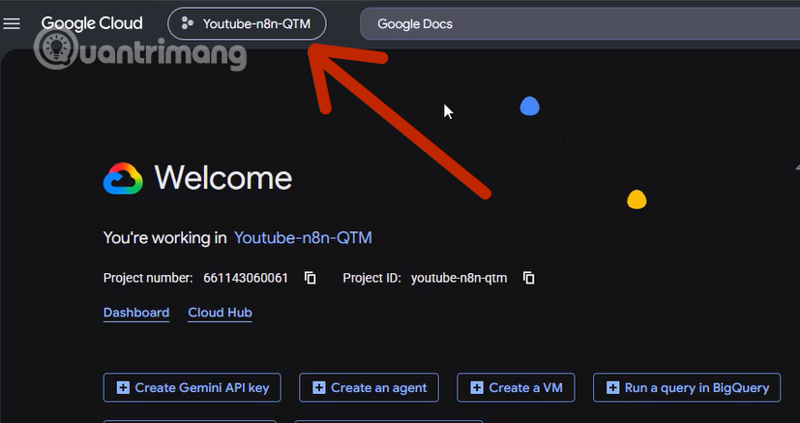
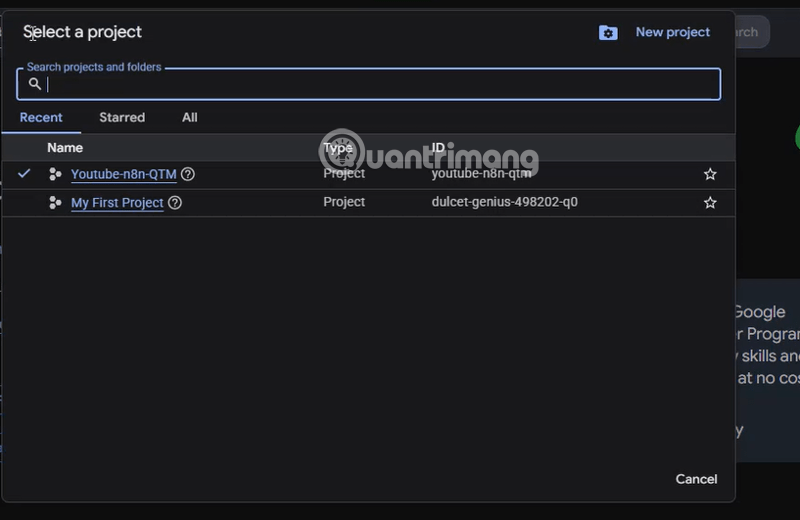
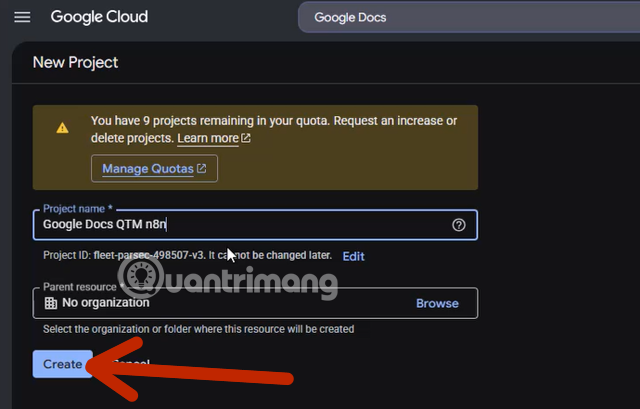
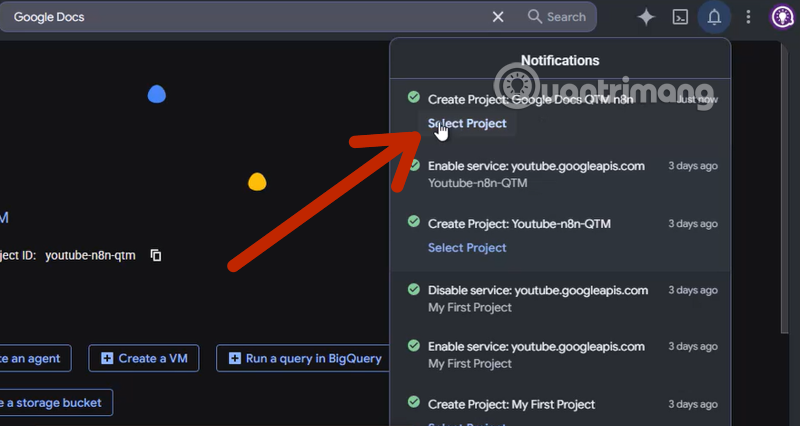
To create a separate project, choose New project, enter a clear name, select the correct organization or folder if applicable, and create it. Confirm that the new project is selected before enabling APIs or creating credentials.
2. Enable the Google Docs and Google Drive APIs
In APIs & Services > Library, search for and enable Google Docs API. Also enable Google Drive API; n8n uses Drive capabilities for document discovery and related file operations. Enable both in the same project that will contain the OAuth client.
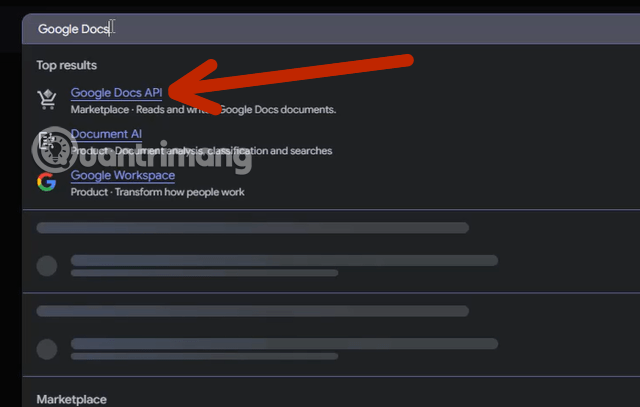
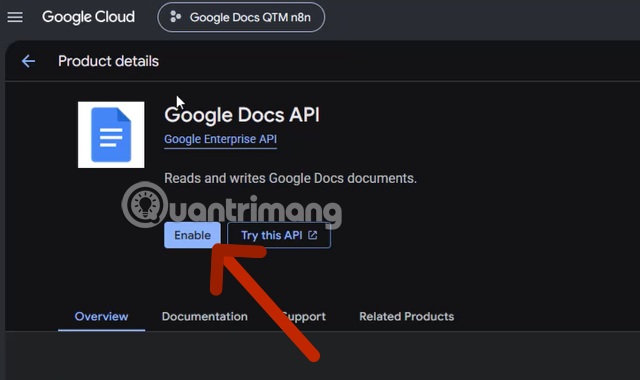
If a workflow later returns an API-disabled error, check the project shown in the error and confirm that both APIs are enabled there. Google may take a short time to apply a newly enabled API.
3. Configure the Google Auth Platform
Open the project’s Google Auth Platform or OAuth consent configuration. Add an application name, support email, and developer contact that accurately identify the owner. Use approved branding and domains if the app will be used beyond a private test.
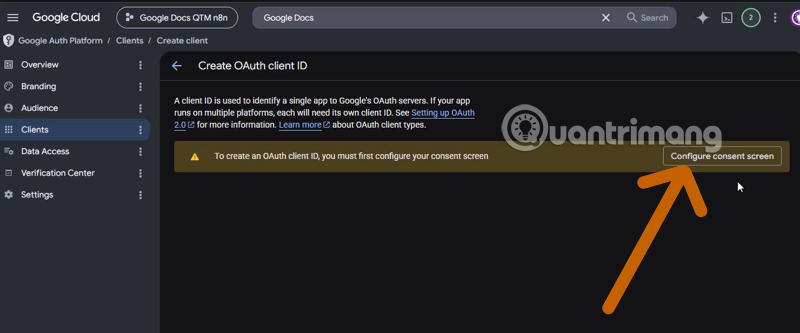
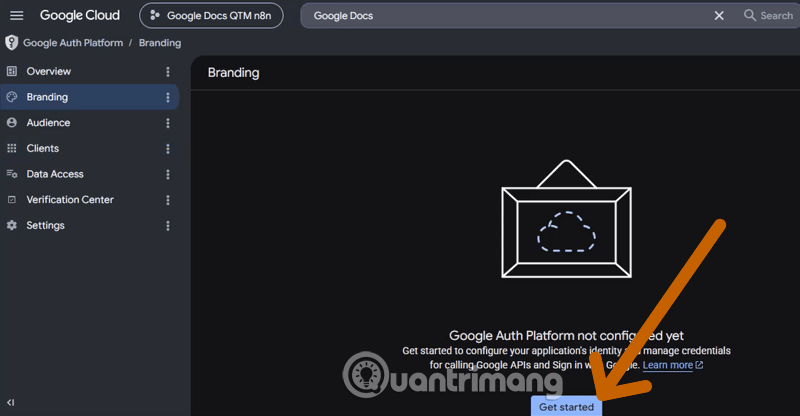
Choose the audience carefully:
- Internal is available to eligible Google Workspace organizations and limits sign-in to users in that organization.
- External allows consumer Google accounts and users outside the organization. While the app remains in Testing, add each authorized account as a test user.
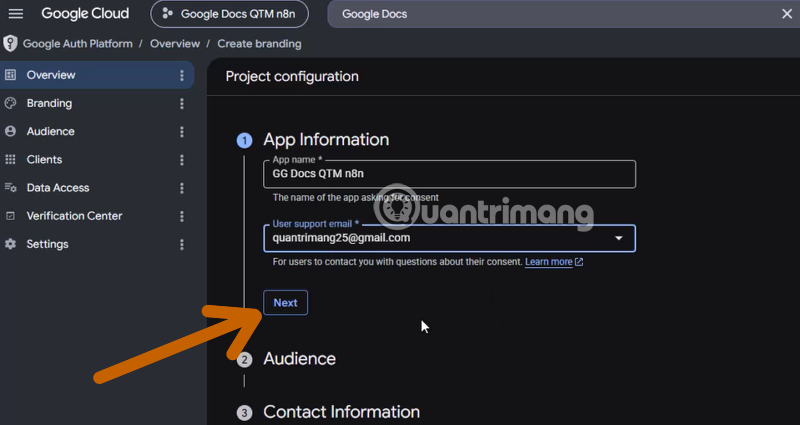
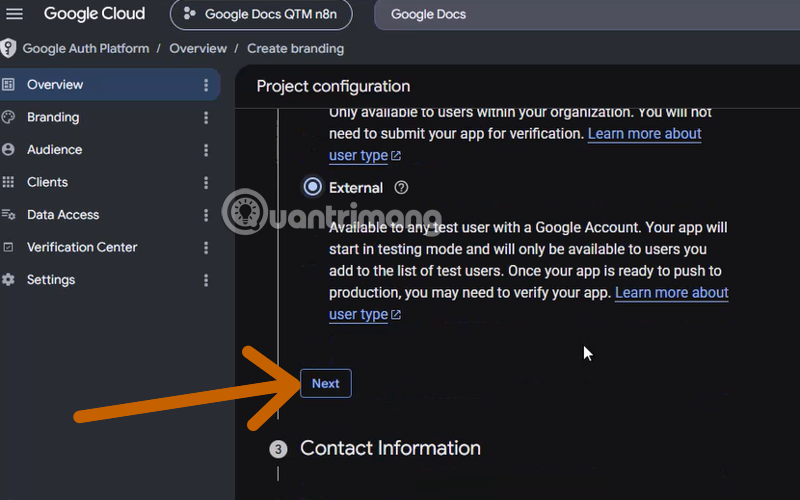
An External app in Testing is appropriate for a small setup trial, but it is not a permanent production state. For OAuth clients requesting Docs or Drive access, refresh tokens issued during Testing can expire after seven days, forcing n8n to reconnect. A multi-user or public application may also require Google verification, depending on the scopes and deployment. Review Google’s current OAuth 2.0 policies before production use.
4. Copy the exact OAuth redirect URL from n8n
In n8n, open Credentials, create a Google Docs OAuth2 credential, and select the custom OAuth option. Copy the complete OAuth Redirect URL displayed by your own n8n instance.
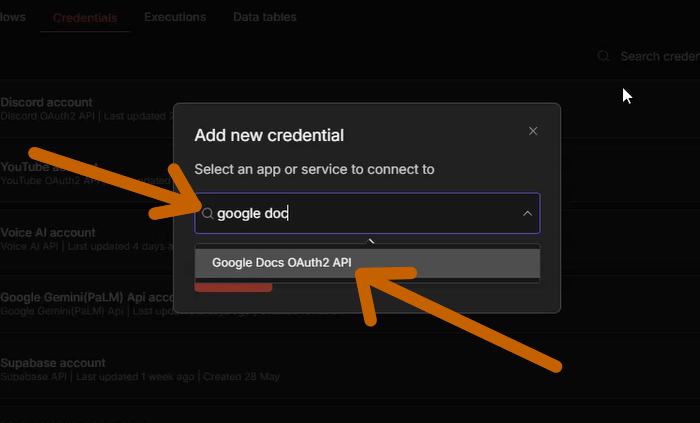
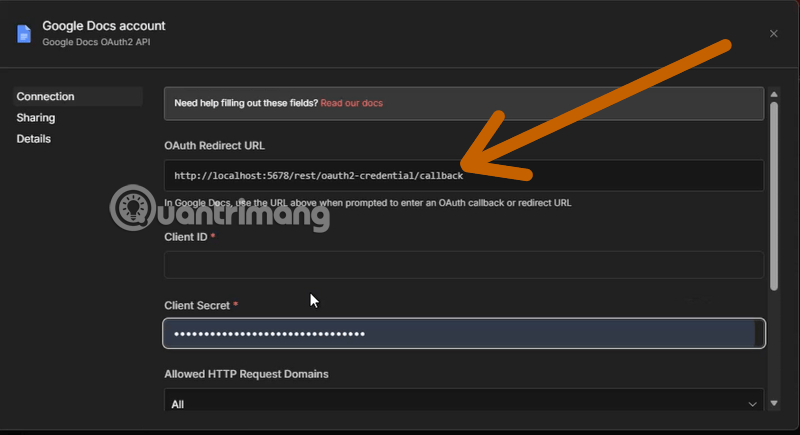
Do not replace this value with a redirect URL copied from another tutorial. Google compares the callback character for character, including the scheme, host, port, path, and sometimes a trailing slash. A local installation may display a localhost URL, while a deployed instance should use its own public HTTPS origin. If a self-hosted instance incorrectly displays localhost, fix its public base-URL and reverse-proxy configuration according to the n8n deployment documentation, then copy the newly generated redirect URL.
5. Create a Web application OAuth client
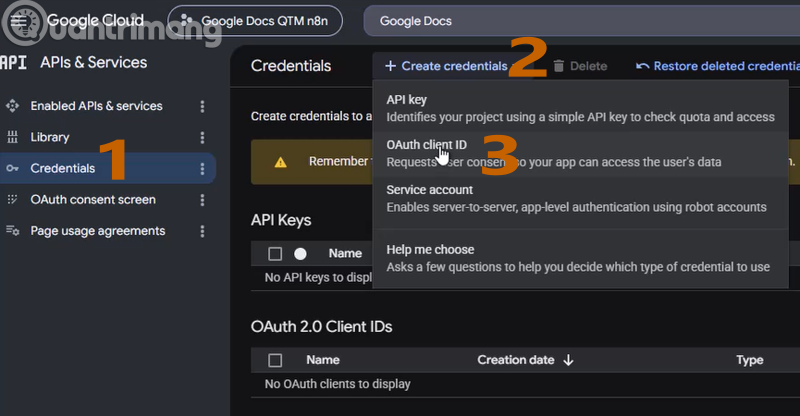
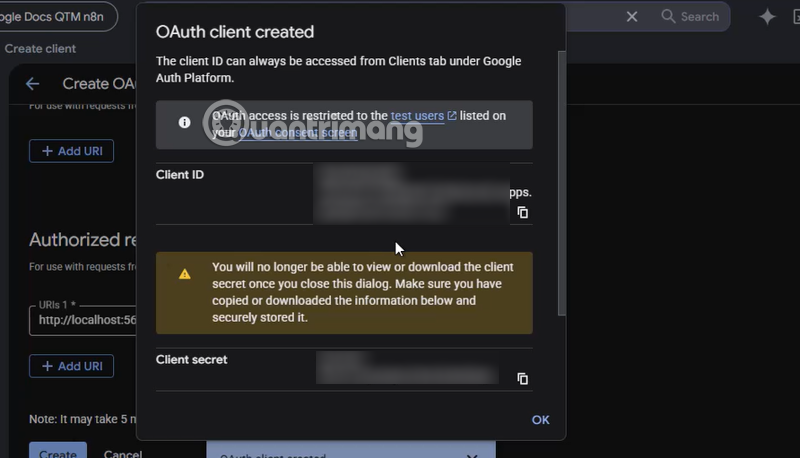
Return to Google Cloud. Under Clients or Credentials, create an OAuth client, choose Web application, and give it a recognizable name. Under Authorized redirect URIs, paste the exact URL copied from n8n.
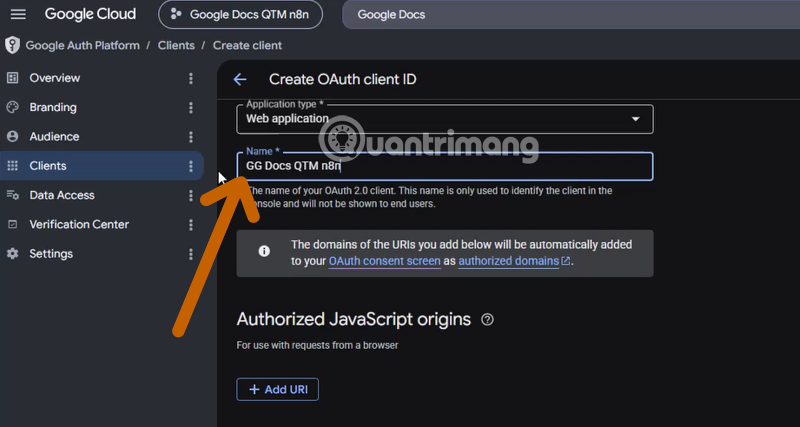
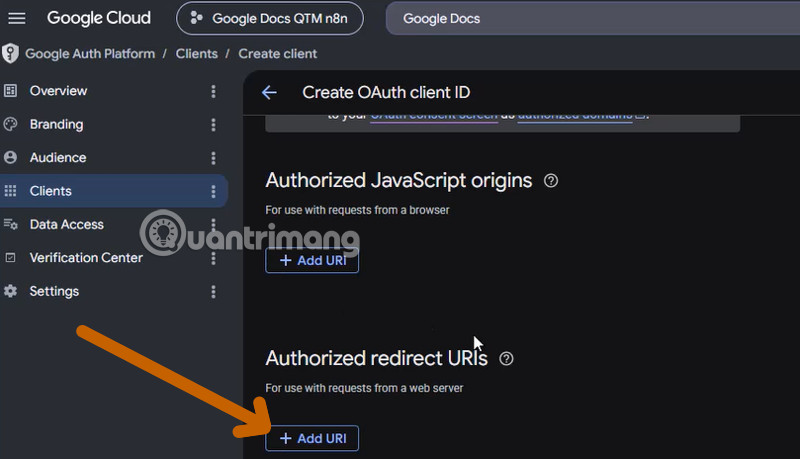
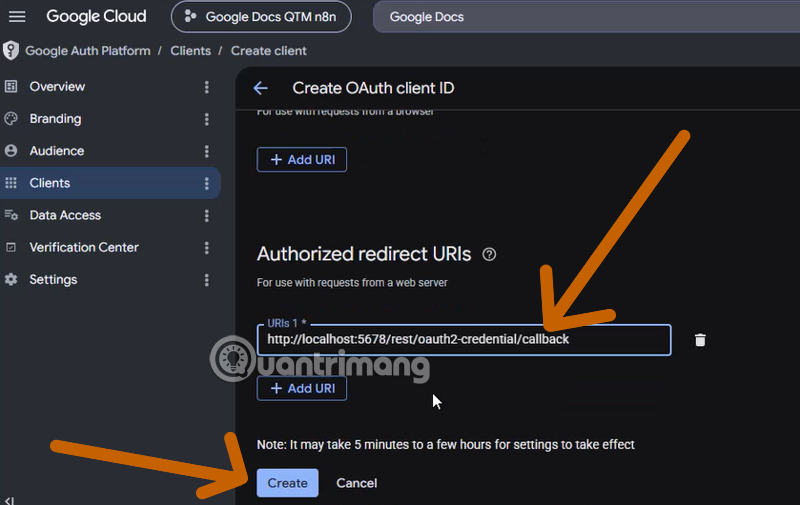
Google normally requires HTTPS for deployed web-app redirect URIs; localhost is a limited exception for local development. If Google rejects the URI, do not work around the check with a different domain. Correct the public URL, TLS, or proxy configuration so that the URI represents the real n8n instance.
6. Store the client ID and client secret in n8n
Create the client, then copy its client ID and client secret into the corresponding fields in the n8n credential. Treat the secret like a password. Limit who can view or edit credentials in n8n, and rotate the client secret if it is exposed. Never place it directly inside a workflow.
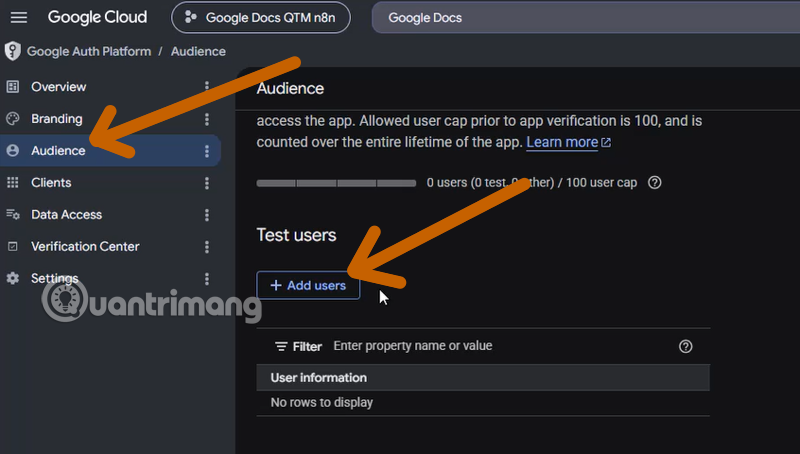
7. Add test users when the app is External and in Testing
In the Google Auth Platform audience settings, add the Google accounts that may authenticate while an External app remains in Testing. This step is not a substitute for production publishing or verification.
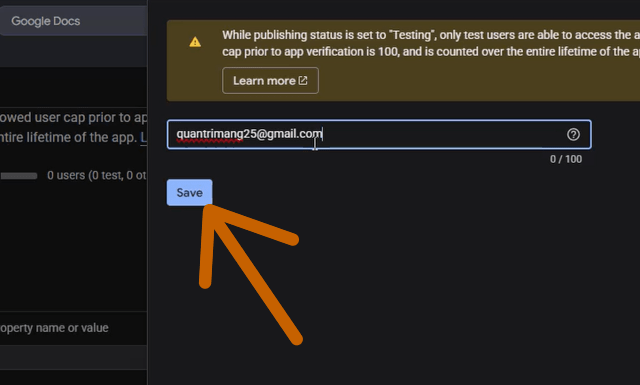
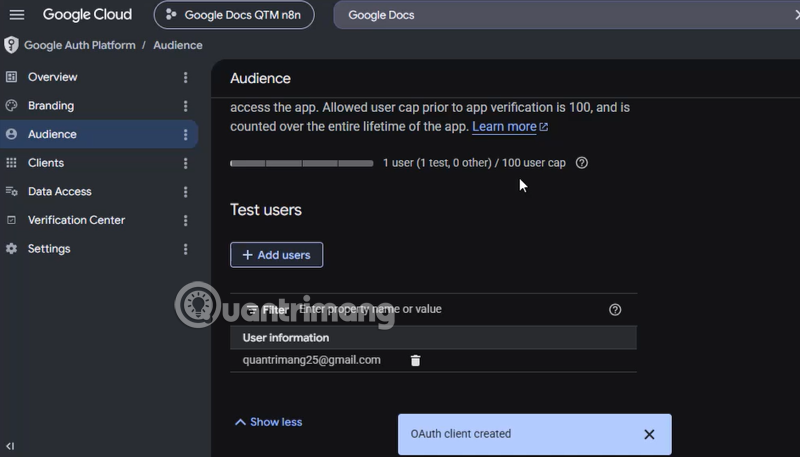
If Google Workspace policy blocks the application, an organization administrator may need to review or allow it. Do not try to bypass an administrator-enforced block.
8. Complete the Google sign-in
Back in n8n, confirm the client ID and secret, save the credential, and click the Google sign-in button. Select the account that is Internal or listed as a test user, then review the consent screen and requested permissions.
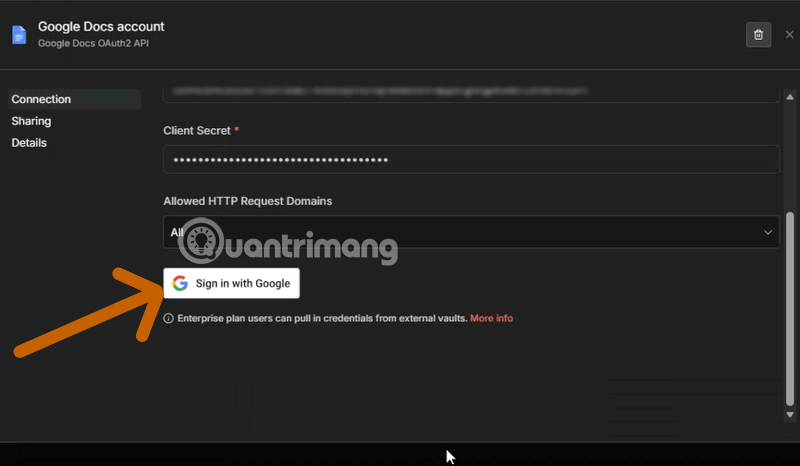
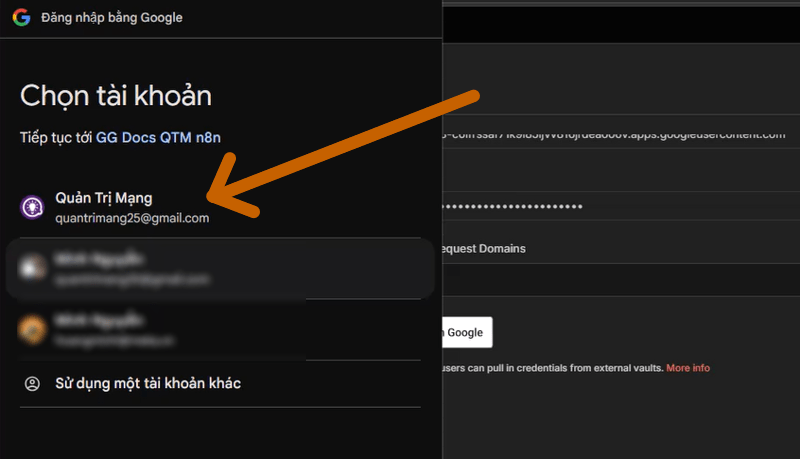
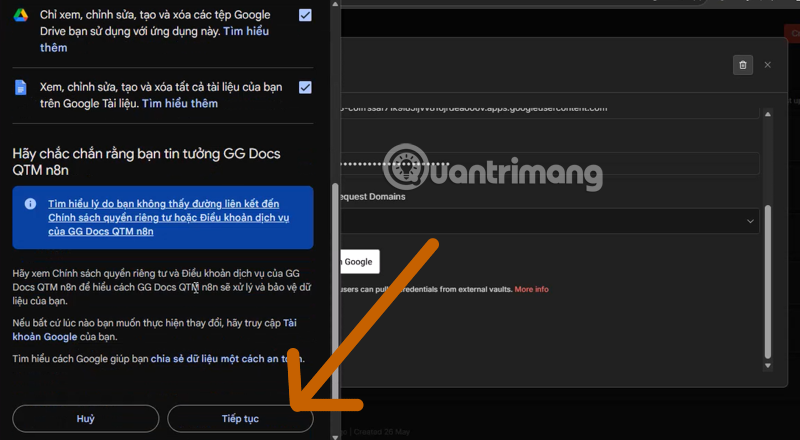
You may see an unverified-app warning while testing an OAuth client you created yourself. Proceed only if the project name, client ownership, redirect destination, and account are exactly the ones you configured. Never bypass this warning for an unknown third-party client. Public or broadly distributed integrations should follow Google’s verification process instead.
9. Test the credential with a temporary document
- Create a temporary Google Doc owned by, or shared with, the authenticated account.
- Add a Google Docs node to a test workflow and select the new credential.
- Choose a simple operation currently offered by the node and point it to the temporary document.
- Run the node and confirm that the expected document—not a production file—was read or changed.
- Delete or archive the temporary document after the test.
The Google Docs node exposes selected API operations, not necessarily every feature in the Google Docs editor. For an unsupported API operation, check the current node documentation before considering an HTTP Request node with the same controlled credential.
Option 3: Use a service account
A service account can be a better fit for unattended workflows that operate on machine-owned or explicitly shared documents. Create the service account in a controlled Google Cloud project, configure the n8n Google service-account credential, and share the required documents or folders with the service account’s email address. It does not automatically gain access to a user’s entire Drive.
Google Workspace domain-wide delegation is more powerful and should be used only with administrator approval, narrowly scoped permissions, and a clear audit requirement. Follow the n8n service-account instructions rather than reusing personal credentials.
Troubleshoot common connection errors
redirect_uri_mismatch
Copy the redirect URL from the credential again and compare it with the authorized URI in Google Cloud. Check HTTP versus HTTPS, host, port, path, and trailing slash. If the URL is wrong in n8n, correct the instance’s public URL configuration before recreating or editing the client.
Access blocked or access_denied
For an External app in Testing, confirm that the account is in the test-user list. For an Internal app, use an account in the correct Workspace organization. Also check Workspace administrator policy and whether the user declined a requested permission.
The app is not verified
For a private test, verify that this is your own client and that every project detail matches before continuing. For a production or multi-user app, configure accurate branding, authorized domains, privacy information, and the verification status required for its scopes.
API not enabled or permission denied
Enable both Google Docs API and Google Drive API in the project that owns the client. Confirm that the authenticated account can open the target document. A document ID does not grant access by itself.
The credential disconnects after several days
An External OAuth app left in Testing may issue refresh tokens that expire after seven days when broader Google scopes are used. Move the app through the appropriate production process or choose an organization-approved authentication design; repeatedly reconnecting is not a reliable production solution.
invalid_grant or failed refresh
The refresh token may have expired or been revoked, the user may have removed access, the client configuration may have changed, or token limits may have been reached. Recheck the client and app status, then reconnect the credential. Rotate secrets only when necessary and update the stored n8n credential immediately.
Production checklist
- Use a stable public HTTPS URL and an exact authorized redirect URI.
- Keep the Google Cloud project under an organization-owned account with more than one appropriate administrator.
- Request only the scopes required by the workflow.
- Keep credentials out of workflow data, logs, exports, and screenshots.
- Limit credential access within n8n and separate test workflows from production.
- Confirm the OAuth publishing status, test-user rules, and any verification requirement.
- Handle rate-limit responses with controlled retries and backoff; check the current quotas in Google Cloud instead of relying on a fixed number from a tutorial.
- Test with a disposable document, then verify sharing permissions on each production document or folder.
- Document ownership and rotation procedures so the integration survives staff or account changes.
Once the credential passes a controlled test, build the workflow around clearly scoped document IDs and predictable inputs. Authentication proves who the workflow is; file sharing and node configuration still determine what it can safely read or change.
Related Articles
 The Way Google Docs Helps You Become Professional7 minutes read
 How to Start Using Google Docs on Mobile Devices11 minutes read
 Instructions for Dividing and Merging Columns on Google Docs4 minutes read
 How Many of the Best Features Have You Missed on Google Docs?8 minutes read
 Useful Tools to Know in Google Docs6 minutes read
 How to Activate Google Docs Offline on a Chromebook3 minutes read
Reader Comments 0
Sign in with email or Google to join the discussion.