Table of Contents
When Windows refuses to delete a file, read the error first. A file open in an application needs a different fix from an access-permission problem or a storage error. There is no method that is both safe and guaranteed to delete every file.
Confirm that the item is yours to remove and that you do not need its contents. Avoid forcing deletion of Windows components or application files; uninstall programs through Settings instead.
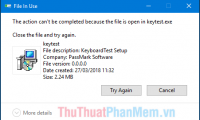
Close the application using the file
- Save your work and close the document, media player, archive program, or other application that has the file open.
- Close File Explorer's preview pane if it appears to be holding the item.
- Try deleting the file again through File Explorer.
- If a known application has stopped responding, open Task Manager with Ctrl+Shift+Esc, select that application, and choose End task. This can discard unsaved work, so use it only when normal closing fails.
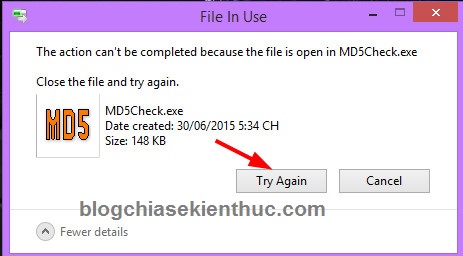
A running executable can prevent its own file from being deleted.
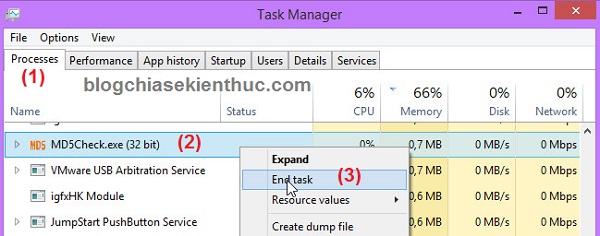
End only an identified application that you are prepared to close.
If the lock is unclear, save all work and restart Windows, then retry before reopening your applications. Restarting is different from resetting or reinstalling Windows. For more cases, see troubleshooting files that cannot be deleted, moved, or renamed.
Identify an unknown file lock
Microsoft PowerToys includes File Locksmith, which lists processes using a selected file or folder. Enable the utility, right-click the item, and look for Unlock with File Locksmith, possibly under Show more options.
Use the results to identify the application and close it normally. Do not terminate unfamiliar system processes simply because they appear in a list. A running process is not evidence of malware by itself.
If the message says “Access denied”
Check the file's location and your account's permissions. A managed work folder, another user's files, a network share, or a protected system directory may deliberately restrict deletion. Ask the owner or administrator for access instead of taking ownership of an entire drive or disabling protection.
For your own files, review Properties > Security where available and confirm that you are using the expected account. See Windows access-denied troubleshooting for the separate permissions issue.
Why older “force delete” tools need caution
Older tutorials recommend Unlocker, PCHunter, or similar tools. These screenshots show those legacy workflows, not a requirement to install them. Availability, compatibility, and installer contents vary; do not obtain an unknown installer just to remove one file.
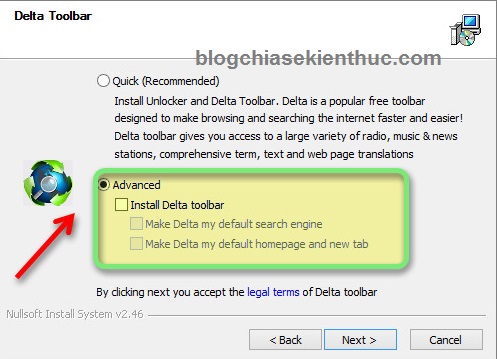
An older installer offered bundled components; review every installer screen and cancel unwanted additions.
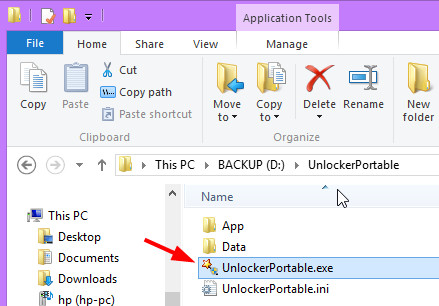
A legacy portable-tool extraction dialog. “Portable” does not establish that a download is trustworthy.
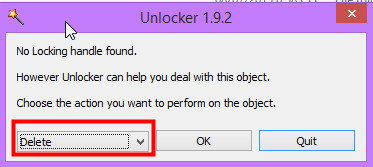
A force-delete selection requires checking the exact path and file before committing.
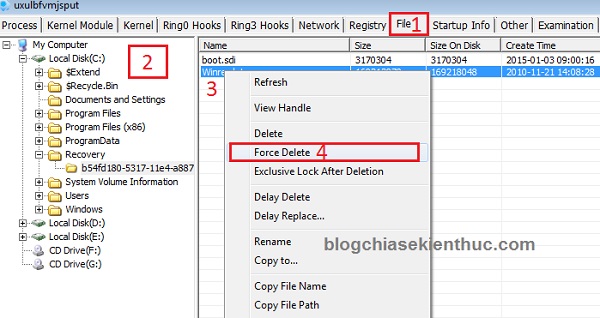
Older low-level tools expose powerful deletion commands that can damage Windows if applied to the wrong item.
Force-closing handles, deleting on reboot, or deleting from a recovery environment can cause data loss and will not solve every permissions or disk problem. Do not use them as the first response to an unexplained error.
If deletion still fails
- Record the full error message and file path.
- For cloud or network files, check synchronization and server permissions.
- If the drive disconnects or reports read errors, preserve important data before further changes.
- If you suspect malware, use your security software's scan and quarantine workflow rather than manually deleting unfamiliar system files.
Keep a recoverable copy until you are certain the file is no longer needed. Stop and seek help when you cannot identify what the file belongs to.





Reader Comments 0
Sign in with email or Google to join the discussion.