Table of Contents
If you own a photo or have permission to edit it, the best way to remove an unwanted watermark is to return to the unwatermarked original. When that is unavailable, Photoshop, an AI editor, or a mobile healing tool can replace the marked area, but none can guarantee recovery of the original hidden detail.
Do not remove a creator's attribution or a stock-photo preview mark to avoid obtaining the licensed image. Save a copy before editing.

1. Use Photoshop for controlled retouching
Photoshop is useful when the mark crosses texture, edges, or other areas that need manual cleanup. Work on a duplicate layer or output the repair to a new layer so you can compare it with the original.
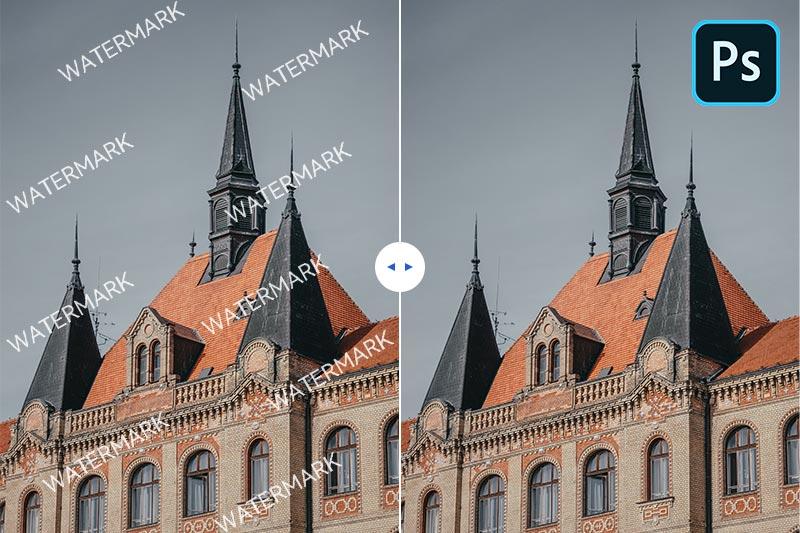
- Open the image and select the watermark with the Lasso or another selection tool. Include a small margin around it.
- Choose Content-Aware Fill from the selection's context menu or the Edit menu, depending on your version.
- Inspect the preview. Adjust the sampling area so the fill uses suitable nearby background rather than an unrelated object.
- Choose New Layer as the output where available and apply the repair.
- Zoom in and clean up remaining seams with Clone Stamp or Healing Brush. Save a layered working file and export a separate finished copy.
Clone Stamp copies pixels from a chosen source and is useful for rebuilding a straight edge or repeated pattern. Healing Brush blends a sampled texture with its surroundings; it can smear distinct boundaries if used too broadly. Use small strokes and resample frequently.
See removing text from an image in Photoshop for a related selection workflow.
2. Try AI inpainting for a quick first pass
An AI removal tool estimates replacement pixels from the surrounding scene. It does not reveal what was originally behind the watermark. The result may look plausible while changing a face, product label, building edge, or other meaningful detail.

- Check the service's upload policy and export limits before sending the image. Avoid uploading private or confidential photographs to an unfamiliar service.
- Upload a copy, select or brush over only the unwanted mark, and run the removal operation.
- Compare the result with the original at full size. Look for repeated textures, invented details, distorted text, and blurred edges.
- If necessary, undo and process smaller areas rather than repeatedly altering the entire image.
- Download the result and check its resolution and any export watermark before relying on it.

Example of an online removal interface; controls and service conditions can change.
The original examples included DrWatermark and other online services. Their names alone do not establish quality, privacy, or current pricing. Choose based on a test of your actual image rather than a promise of instant or perfect removal.
3. Use Snapseed Healing for small marks
On a phone, a healing tool can be enough when a small mark sits on a simple background. It is less suitable for a large translucent logo across important details.

- Open a copy of the image in Snapseed and choose Tools > Healing.
- Zoom in and brush over a small portion of the mark.
- Check the repair before moving to the next portion. Undo strokes that duplicate an object or smear an edge.
- Export a copy and inspect it outside the editor.
Our Snapseed object-removal guide shows the same tool in more detail.
Choose based on the background
Small marks on sky or plain walls are generally easier to repair than marks over faces, writing, or detailed patterns. Try a healing tool for simple edits, AI for an initial reconstruction, and manual cloning when precise control is needed. If accuracy matters and the mark obscures critical information, obtain the clean original instead of treating a reconstruction as authentic detail.
Related Articles
 How to Remove Watermarks from Photos
 3 Ways to Remove a Watermark from a PDF
 How to Remove a Watermark From a PDF You Own
 How to edit and add watermarks to photos on iOS 10 is simple
 Cleanup.pictures - Download the latest Cleanup.pictures here
 How to Download TikTok Videos with SnapTik on Phone or Computer
Reader Comments 0
Sign in with email or Google to join the discussion.