Table of Contents
For a group of files that need the same base name, select them in File Explorer, press F2, type the name, and press Enter. Windows adds numbers to distinguish the files. For search-and-replace changes or other patterns, use a tool that previews the results before applying them.
Prepare the files before renaming
Work on a copy of important files first. Keep unrelated files out of the selection, close applications using them, and check whether any program or shared document depends on their existing paths. Renaming a file can break a link even though its contents stay the same.
Show file extensions so you can distinguish the name from the type, such as .jpg or .pdf. Changing an extension does not convert a file to a different format.
Give selected files a shared base name
- Open the folder in File Explorer and sort the files as needed. Check the selection carefully if sequence matters.
- Select only the files to rename. Use Ctrl+A only when every item in the folder belongs in the batch; otherwise hold Ctrl while selecting individual files.
- Press F2 (or Fn+F2 on some keyboards), or right-click and choose Rename.
- Enter a descriptive base name such as
Workshop photos, leaving the file extension intact, then press Enter. - Inspect the results. Windows normally adds parenthesized numbers, for example
Workshop photos (1).jpg.
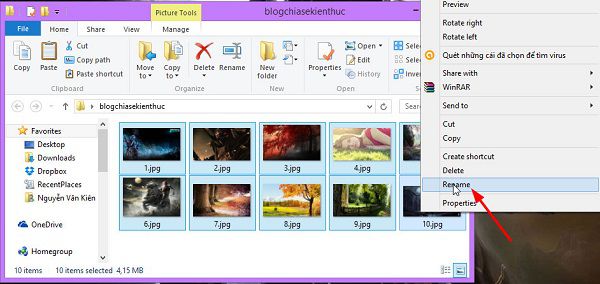
Select only the files intended for the batch.
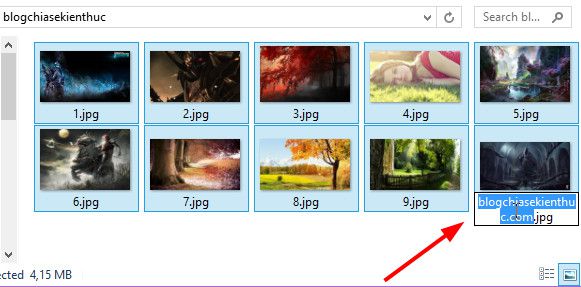
Enter the common base name.

Check the numbered filenames after renaming.
If the result is wrong, Ctrl+Z in File Explorer can undo the last operation when it is still available. Check the restored names immediately rather than relying on undo after further file operations. For more examples, see batch renaming without additional software.
Use a preview for more complex changes
File Explorer's basic rename is enough for a shared name and counter. For replacing part of each filename while keeping the rest, Microsoft PowerToys includes PowerRename.
- Install PowerToys from Microsoft's official distribution and enable PowerRename.
- Select your files, right-click, and choose Rename with PowerRename.
- Enter the text to find and its replacement. Leave regular expressions off for an ordinary text replacement.
- Review the original and proposed names, including any extension changes. Exclude files that should remain unchanged.
- Apply only after the preview matches your intended result.
Refer to Microsoft's PowerRename documentation for pattern syntax. Other approaches are covered in Windows file and folder renaming methods.
Be cautious with older scripts and unnamed tools
The older workflow pictured below used a custom VBScript and a small renaming utility. A script with an incorrect folder path, unspecified ordering, or existing-name conflicts can leave a batch only partly renamed. Do not run a copied script against your only set of files.
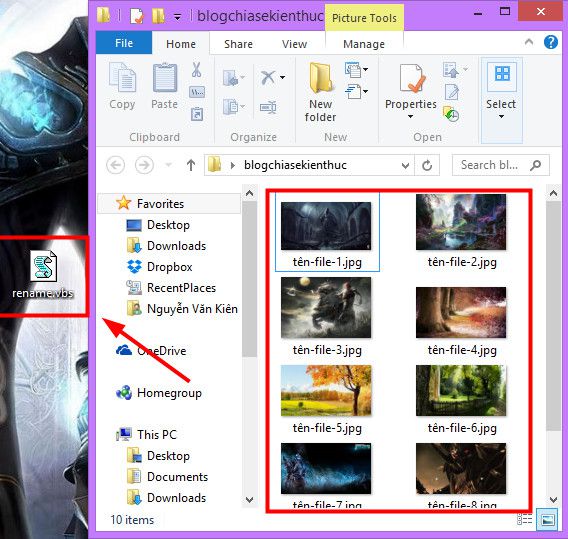
Older script-based renaming example; use a preview-based method unless you understand and have tested the script.
For any tool that asks for a folder, select it explicitly and verify its full path in File Explorer's address bar.
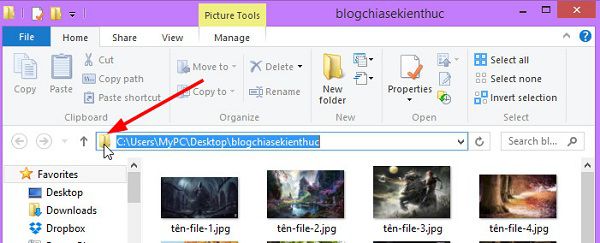
Checking a folder path in File Explorer.
An older custom utility may offer character removal, capitalization, or numbering. Use such software only when its publisher and download source can be verified. Claims that a file was previously scanned do not establish that a current download is safe.
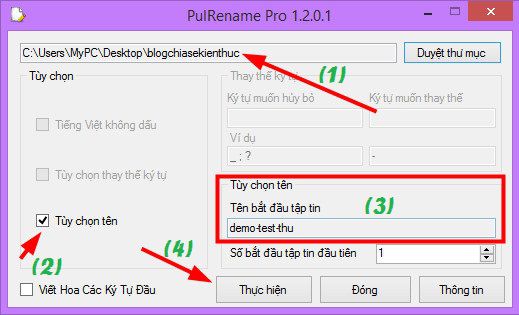
Example of a legacy bulk-renaming utility.

Inspect the resulting names and open a few files to confirm they still work.
For large batches, start with a small copied sample, check duplicates and ordering, and keep a record of original names. The time required depends on the number of files, storage, and renaming rules; a fixed “three-second” promise is not meaningful.
Related Articles
 5 software to rename files in batch
 How to rename files in bulk using Finder on Mac OS X
 How to Change File Names in Bulk on PC or Mac
 How to Create and Manage Multiple Gmail Accounts Safely
 Top 5 software for fast batch file renaming
 Instructions on how to play the game '22 Seconds' - an 'addictive' game from the Ballz game maker
Reader Comments 0
Sign in with email or Google to join the discussion.