Table of Contents
Converting PDF to Excel is data extraction, not a perfect file-format swap. Results are best when the PDF contains clean, ruled tables and selectable text. Scans need OCR, while irregular tables, merged headers, footnotes, and multi-column layouts require manual cleanup.

Choose the output you actually need
- XLSX is the modern Excel workbook format and should be preferred over legacy XLS unless an old system requires it.
- CSV is useful for one plain table but cannot preserve multiple sheets, formulas, formatting, or images.
- A refreshable Power Query is best when the source PDF will be updated and the same extraction must run again.
Method 1: Import PDF tables with Excel Power Query
In supported current Excel versions, select Data > Get Data > From File > From PDF. Choose the PDF, then review the tables detected in Navigator. Select Load to import directly or Transform Data to clean headers, types, blank rows, and repeated page labels first.
The PDF connector is not available in every Excel edition. Microsoft's Power Query import documentation lists the workflow and prerequisites. If From PDF is missing, use another method rather than downloading a random “connector.”
Method 2: Convert with Smallpdf
Open the official Smallpdf PDF-to-Excel tool, upload the PDF, choose the available text or OCR conversion option, then download the Excel file. OCR, batch processing, large files, and repeated use may require a paid plan; check the current limits before uploading.
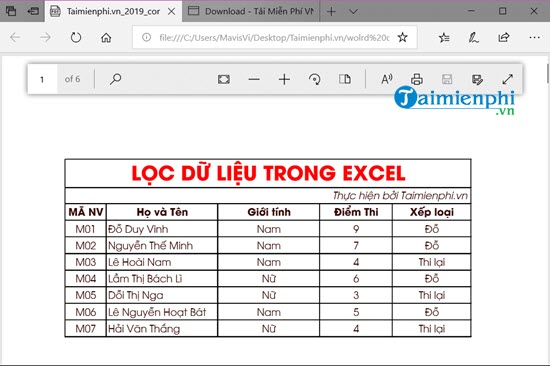
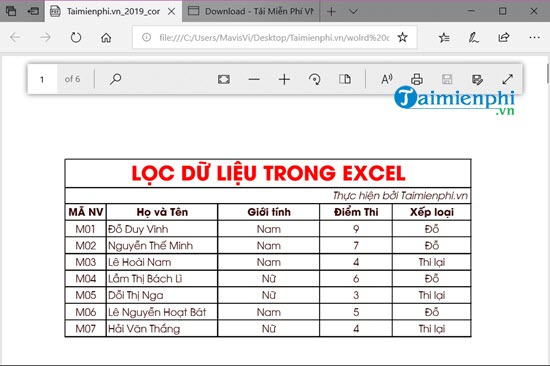
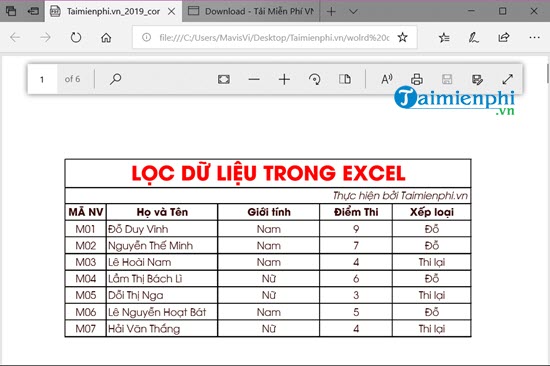
The screenshots below show older versions of Smallpdf and are retained as visual reference.
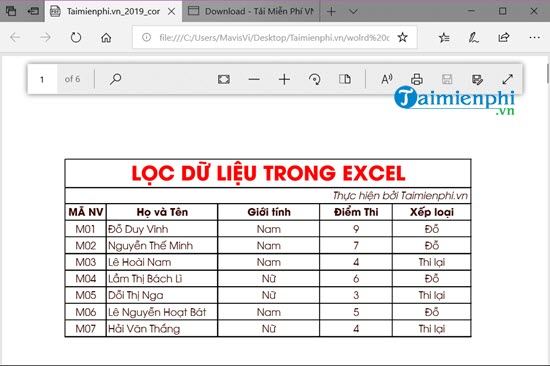
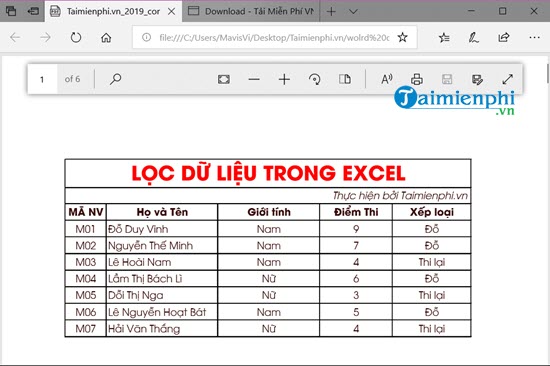
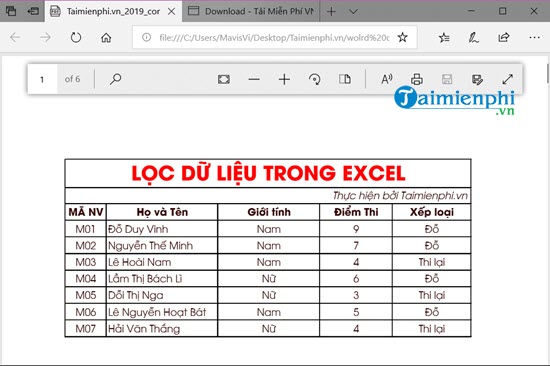
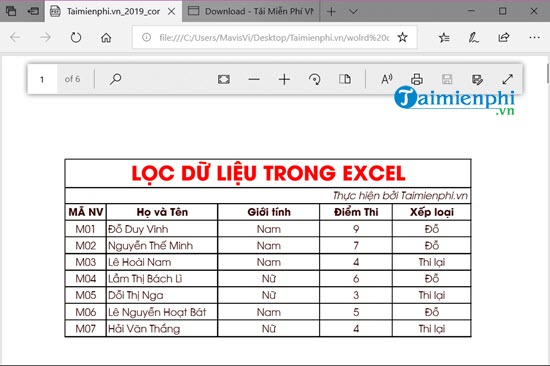
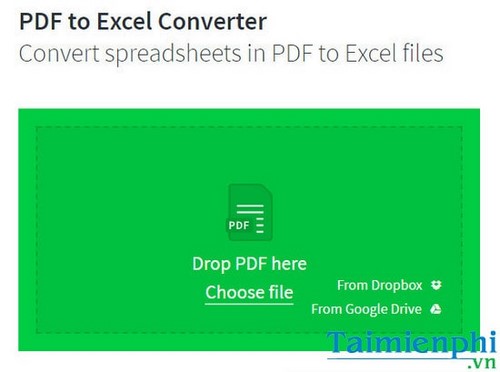
A second older Smallpdf interface used drag-and-drop or cloud imports, then offered download or cloud storage:
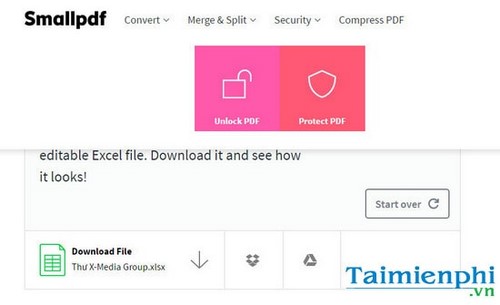
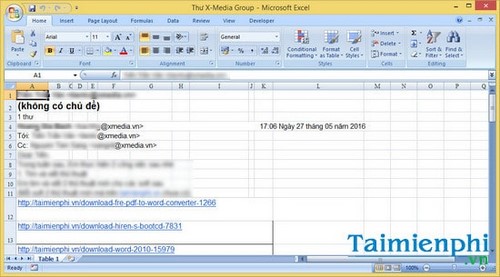
Ignore the old filename typo that describes a converted PDF; the expected output for this task is an Excel workbook such as .xlsx.
Do not use the obsolete email-link converter
The old workflow below uploaded a PDF to an unidentified service and required an email address before sending a download link:
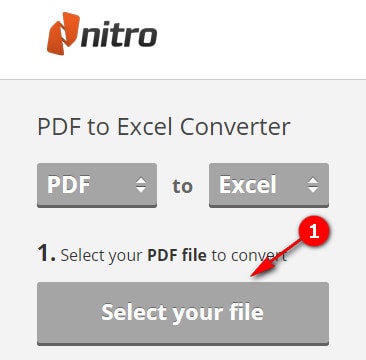
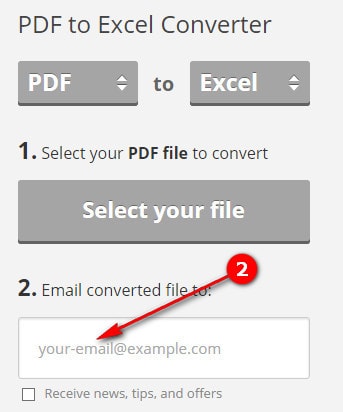
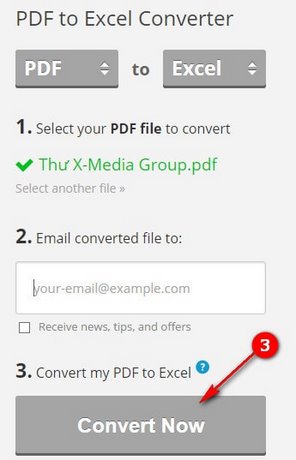
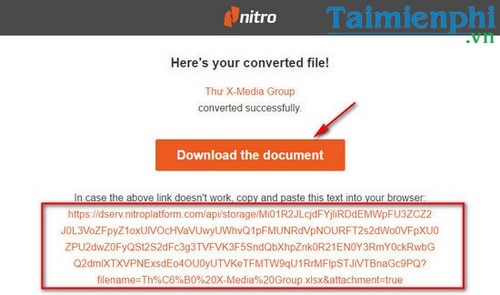
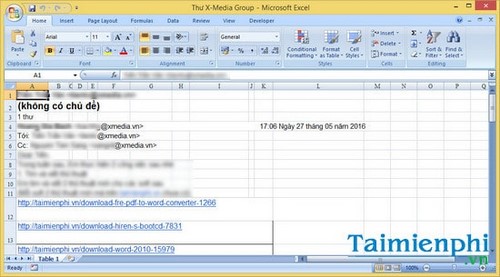
This adds privacy, phishing, retention, and account risks without a clear current publisher. Do not use an obsolete service merely because screenshots remain online.
Method 3: Use maintained desktop conversion software
A desktop converter can be appropriate for confidential files, batch jobs, page-range control, or repeated work—provided the software is current, signed, and obtained from its publisher.
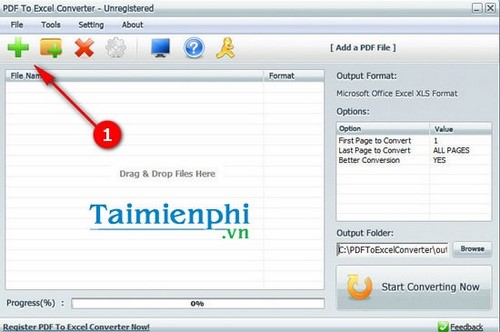
Generic legacy PDF to Excel Converter
The program in the following screenshots could add files or folders, choose an output folder, and start batch conversion. Its current publisher and safety could not be verified, so this is an archived interface rather than a download recommendation.
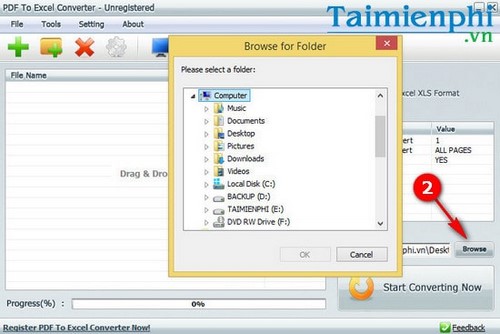
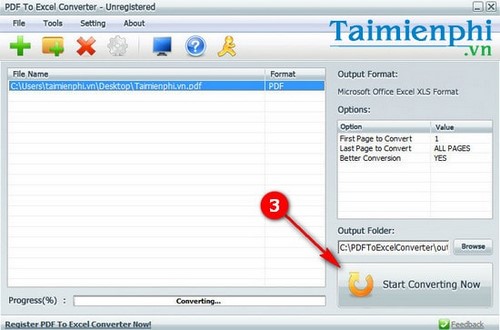
Solid Converter
Solid Converter can open a PDF, switch the output to Excel, choose whether to include non-table content, and combine extracted tables. Obtain any current installer only from Solid Documents, verify its license, and test the output before purchase.
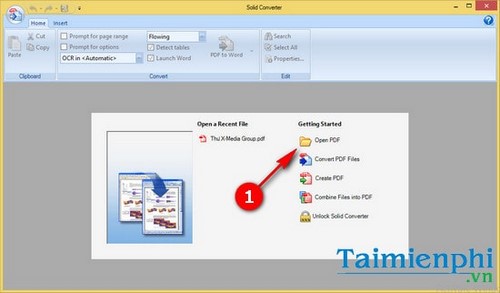
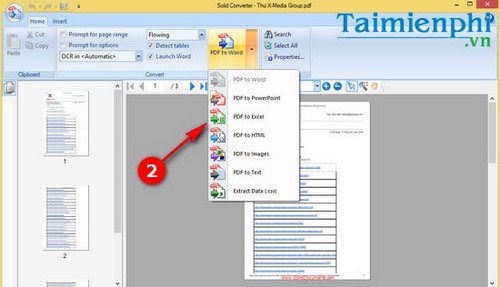
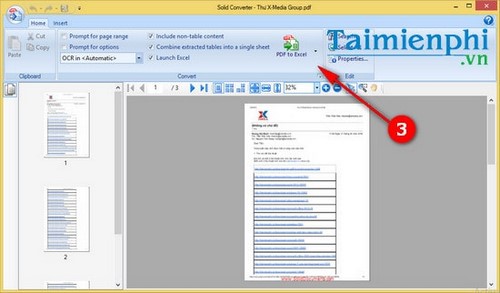
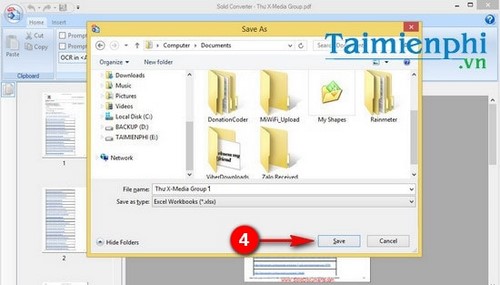
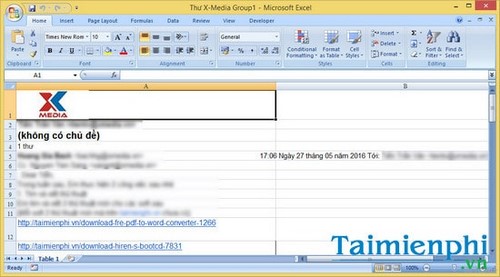
For a broader walkthrough, see how to use Solid Converter. Interface labels and trial restrictions may differ from these screenshots.
Privacy checks for online conversion
- Do not upload bank statements, invoices with personal data, medical records, payroll, contracts, or client information to an unapproved service.
- Verify the domain, encryption, deletion time, account storage, subcontractors, and governing terms.
- Remove unneeded pages before uploading.
- Download to a controlled folder and delete cloud copies when the task is complete.
- Never enter an email password on a converter site to retrieve a file.
Clean and verify the Excel output
- Compare row and column counts with the PDF.
- Check decimal and thousands separators, negative numbers, currency symbols, dates, percentages, and leading zeros.
- Remove repeated page headers and footers.
- Fill or unmerge multi-row headings carefully; do not shift data into the wrong field.
- Check OCR substitutions such as O/0, I/1, commas/periods, and accented letters.
- Recalculate totals independently. A value that looks correct may have been imported as text.
- Convert the cleaned range to an Excel table and assign explicit data types.
Power Query cleanup techniques help normalize dates and remove errors. Use Excel cleanup functions for stray spaces and nonprinting characters.
No converter guarantees an error-free workbook
PDF stores a page presentation, not the original spreadsheet model. It normally does not contain formulas, cell relationships, validation rules, hidden columns, or the source workbook's data types. Treat the result as imported data that must be validated, not as a recovered original Excel file.
Related Articles
 How to Fix Font Errors Word, Excel, Transcoding Fonts Super Fast3 minutes read
 How to Set the Default Font and Font Size on Excel3 minutes read
 How to Convert PDF to Word Without Font Errors for Free7 minutes read
 How to Fix Font Errors in Word and Excel: Step-by-Step Guide3 minutes read
 Convert Font Code, Fix Font Errors, Convert Vntime to Time New Roman5 minutes read
 How to Fix Vietnamese Error When Opening CSV File in Excel4 minutes read
Reader Comments 0
Sign in with email or Google to join the discussion.