Table of Contents
If the Wi-Fi or network icon disappears from the Windows 10 Taskbar, first determine whether only the icon is hidden or the wireless adapter itself is unavailable. Start with the display settings below, then restart Windows Explorer and check the adapter. Avoid old registry-deletion commands: they target obsolete network-filter problems and can make connectivity worse on an unrelated system.
1. Check the hidden icon area
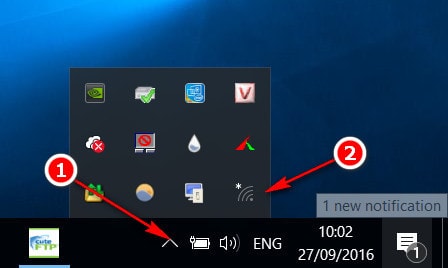
Select the upward arrow in the notification area. If the network icon appears there, drag it to the visible section of the Taskbar. Note that Windows may display a monitor, globe, or Ethernet symbol instead of Wi-Fi depending on the current connection state.
2. Turn on the Network system icon
Press Windows + I to open Settings.
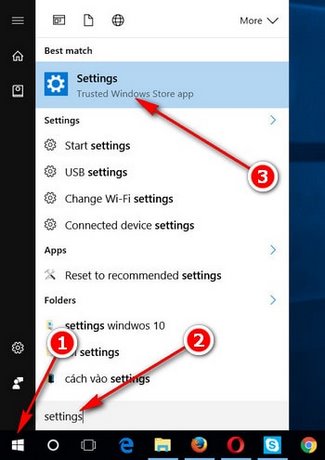
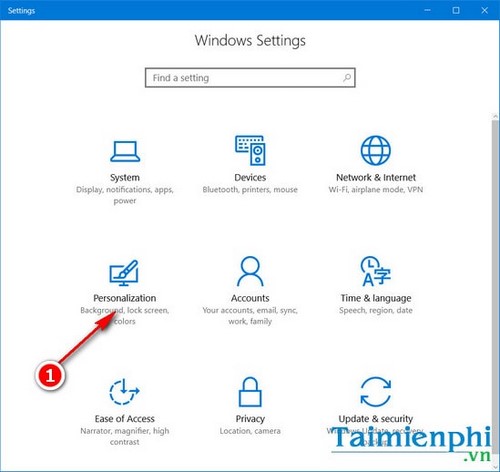
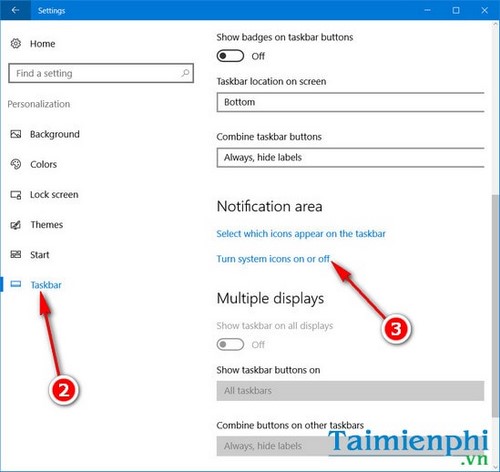
Go to Personalization > Taskbar. Under Notification area, select Turn system icons on or off.
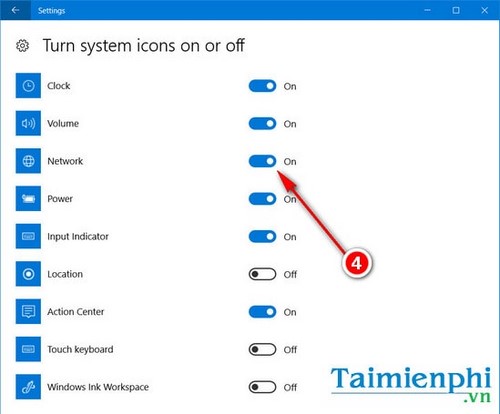
Set Network to On.
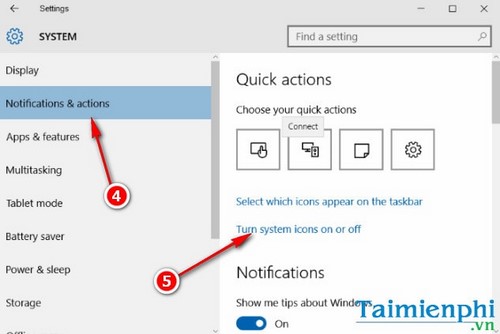
On an older Windows 10 release, the equivalent controls may appear under Settings > System > Notifications & actions.
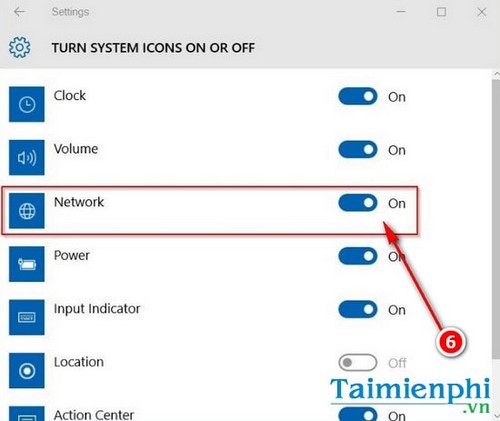
Turn on Network or open Select which icons appear on the taskbar.
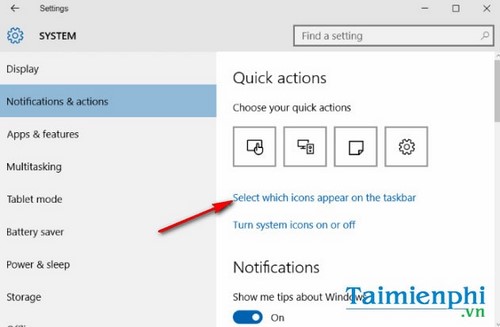
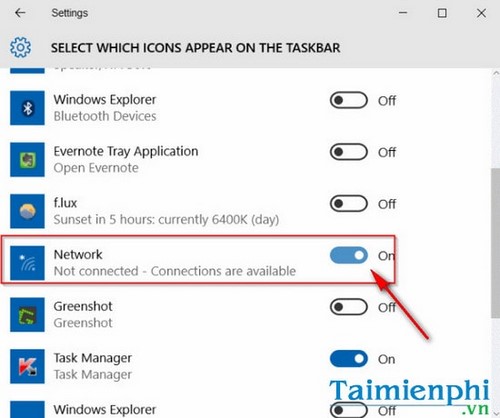
3. Restart Windows Explorer
- Press Ctrl + Shift + Esc to open Task Manager.
- On the Processes tab, select Windows Explorer.
- Select Restart.
The desktop and Taskbar may disappear briefly. This refreshes the shell without changing your files or network configuration. If the icon still does not return, restart the PC.
4. Check the Wi-Fi adapter
Open Settings > Network & Internet > Wi-Fi. If the Wi-Fi page or switch is missing:
- Right-click Start and open Device Manager.
- Expand Network adapters.
- Right-click the wireless adapter and select Enable device if that command is available.
- If a warning symbol appears, update the driver from the PC or adapter manufacturer's support site. After a failed update, uninstalling the device and restarting can let Windows reinstall its driver, but download a known-good driver first if possible.
Also turn off Airplane mode and check for a physical wireless switch or function-key toggle on the laptop. Microsoft's Windows Wi-Fi troubleshooting guide provides additional adapter and connection checks.
5. Check Group Policy
This applies to Windows 10 Pro, Enterprise, and Education; the Home edition does not include Local Group Policy Editor.
Press Windows + R, enter
gpedit.msc, and press Enter.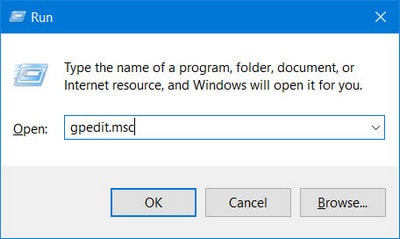
Go to User Configuration > Administrative Templates > Start Menu and Taskbar.
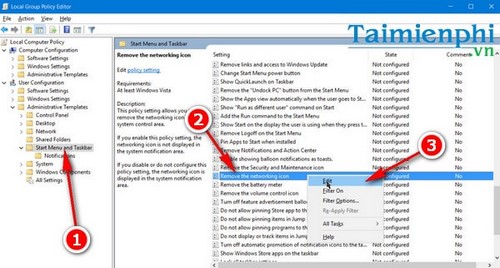
Open Remove the networking icon and set it to Not Configured or Disabled. Apply the change, then sign out or restart Explorer.
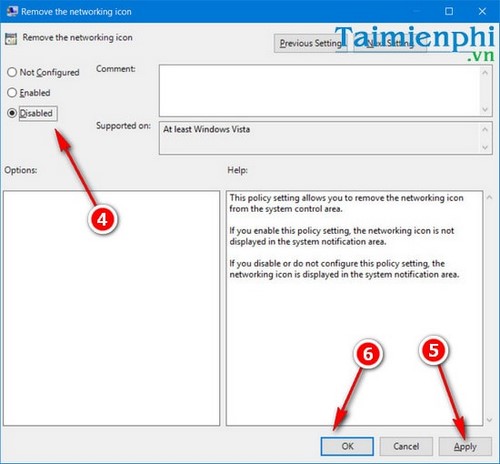
On a work-managed PC, the policy may be controlled by your organization. Contact the administrator instead of overriding it.
6. Use Network reset only as a last resort
If the adapter is present but networking remains broken, open Settings > Network & Internet > Status > Network reset. Read the warning before selecting Reset now: Windows removes and reinstalls network adapters, and you may need to reconfigure VPN software, virtual switches, or saved network settings afterward.
For related help, browse the TipsMake Wi-Fi troubleshooting guides, see how to show or hide Windows 10 system tray icons, or use the newer guide for a missing Wi-Fi icon in Windows 11.
Related Articles
 The Wifi Icon Is Missing from the Windows Taskbar; Here's How to Fix It9 minutes read
 Wi-Fi Icon Missing on the Taskbar Windows 10, This Is How to Fix4 minutes read
 How to fix the missing WiFi icon on a Windows 11 laptop3 minutes read
 How to Display the Missing Bluetooth Icon on the Windows Taskbar4 minutes read
 How to Pin the App to the Taskbar to Open It Faster4 minutes read
 Error Losing Battery Icon on Windows Taskbar 10/8/78 minutes read
Reader Comments 0
Sign in with email or Google to join the discussion.