Table of Contents
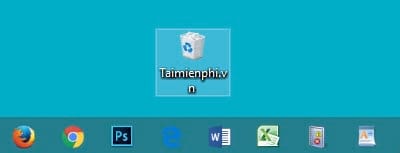
When auto-hide is enabled but the Windows 10 Taskbar stays visible, an application usually needs attention, a menu is still open, or Windows Explorer has stopped refreshing correctly. Work through the checks below in order; a full Windows reset is not an appropriate first response to this problem.
1. Toggle the auto-hide setting
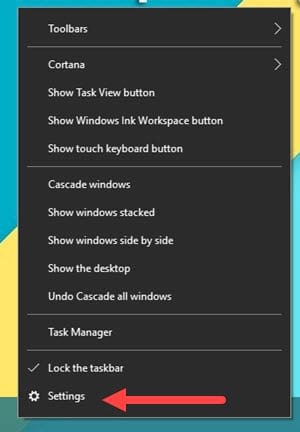
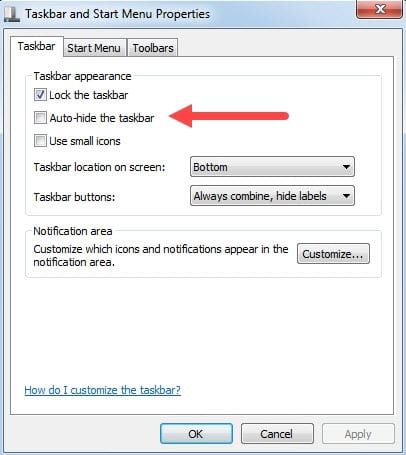
Right-click an empty area of the Taskbar and select Taskbar settings.
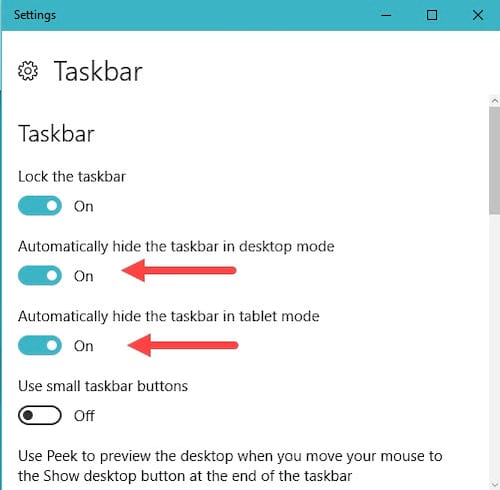
Turn Automatically hide the taskbar in desktop mode off, wait a moment, and turn it on again. If you use tablet mode, set its separate auto-hide option as needed.
- Move the pointer away from every screen edge and press Esc to close any open Taskbar menu.
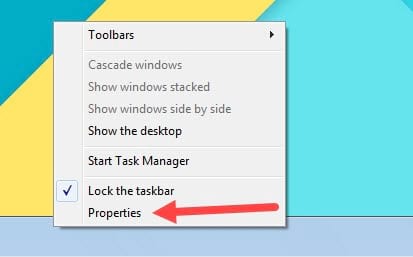
On Windows 7 and some early Windows interfaces, the control appears under Taskbar Properties as Auto-hide the taskbar.
2. Clear apps that need attention
A flashing or highlighted application button can keep the Taskbar visible. Select the highlighted app, respond to or dismiss its dialog, and then return to your work. Open Action Center and clear notifications that need a response.
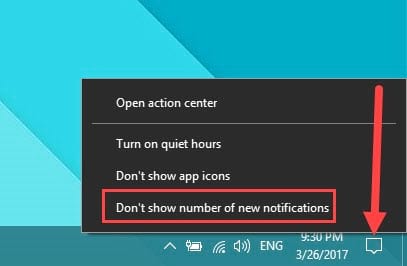
Messaging, calling, backup, security, and installer applications are common triggers. For example, an unread call or confirmation dialog can make an app request attention:

If one app repeatedly causes the problem, go to Settings > System > Notifications & actions and adjust notifications for that app. Do not disable all security notifications merely to keep the Taskbar hidden.
3. Check notification-area apps
Select the hidden-icons arrow and open or close any app showing an alert. Older Windows versions expose notification-area controls through a Customize command:
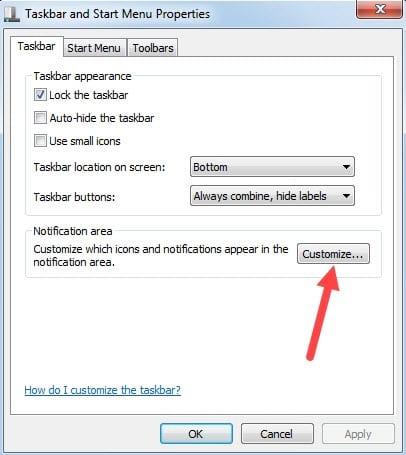
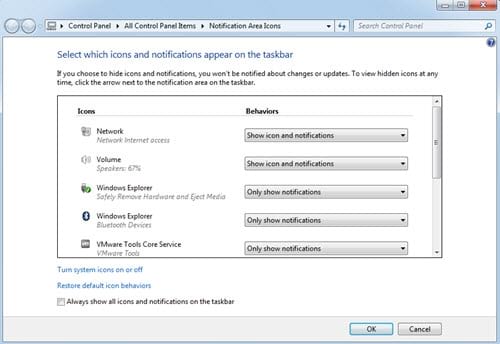
On Windows 10, use the Notification area options in Taskbar settings instead. The guide to showing or hiding system tray icons explains those controls.
4. Restart Windows Explorer
- Press Ctrl + Shift + Esc to open Task Manager.
- If necessary, select More details.
- Find Windows Explorer on the Processes tab.
- Right-click it and select Restart.
The desktop and Taskbar may disappear briefly, then reload. Open files and applications should remain running, but save important work first as a precaution.
5. Isolate the application causing the issue
Close recently opened applications one at a time. Also exit unnecessary notification-area utilities temporarily. When the Taskbar begins hiding again, update or repair the last application closed. If the issue starts immediately after sign-in, review startup applications in Task Manager rather than disabling Windows services at random.
6. Check multiple displays and screen edges
On a multi-monitor system, the pointer may be resting against the Taskbar edge on another screen. Move it toward the center of the active monitor. Review Settings > Personalization > Taskbar > Multiple displays and confirm the Taskbar arrangement you want. You can also show the Taskbar only on the main monitor.
If auto-hide still fails
Restart the PC and install pending Windows and graphics-driver updates from trusted sources. Avoid registry cleaners and old Taskbar modification tools while troubleshooting. For additional layout controls, see how to change the Windows Taskbar position.
Related Articles
 How to Automatically Hide the Taskbar When Zooming in on the4 minutes read
 Tips to Automatically Hide the Taskbar on Windows 102 minutes read
 How to Customize the Taskbar in Windows: Step-by-Step Guide15 minutes read
 How to Hide the Windows Taskbar7 minutes read
 How to Hide and Show the Taskbar on a Windows Computer5 minutes read
 How to Hide the Taskbar on Windows 113 minutes read
Reader Comments 0
Sign in with email or Google to join the discussion.