Table of Contents
Displaying the taskbar on a single screen in Windows 10 will help reduce clutter when using two or more monitors on one computer simultaneously.
Display the Taskbar on One Screen with Windows 10: Overview
Step 1: After you have set up multiple monitors on your computer, press the Windows + I key combination to open the Windows Settings window.
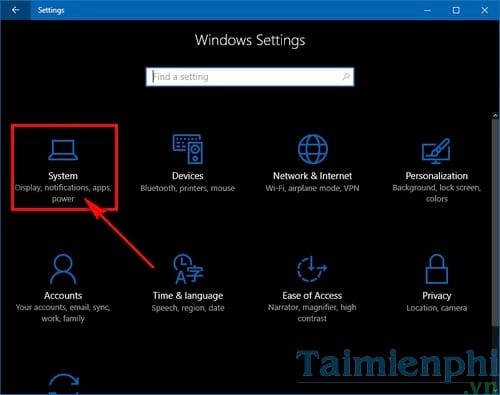
Step 2: In the Windows Settings window, select the System option.
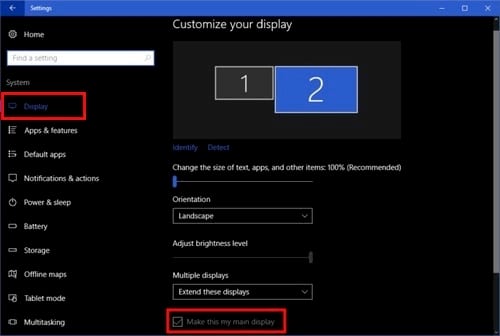
Step 3: In the Display tab, on the right-hand pane, select screen number 1 or 2, then scroll to the bottom and check the "Make this my main display" option to choose it as your primary screen.
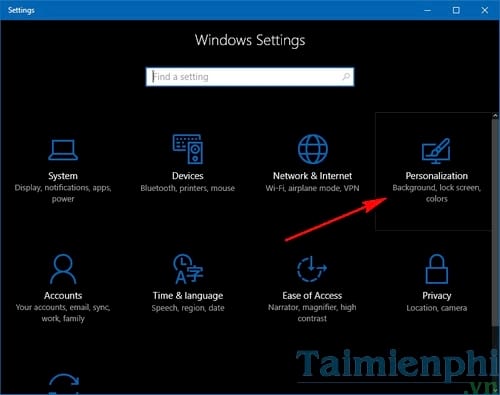
Step 4: Go back to the main Windows Settings menu and select Personalization .
Step 5: In the Personalization section, select the Taskbar tab in the left pane and deactivate/disable the " Show taskbar on all displays" option by clicking the slider below to turn it to Off .
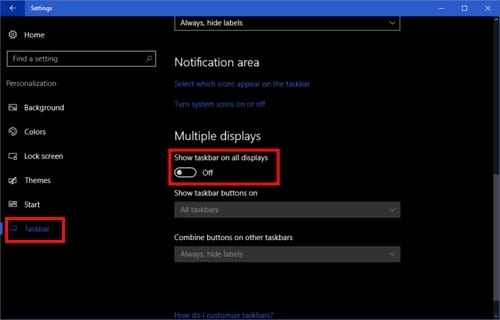
So, you have completed the steps to set up the taskbar to display on one screen with Windows 10. After the setup is complete, you will see that the taskbar on the secondary screen is no longer there and will only appear on the main screen that you selected in Step 3.
In addition, if you're using Windows 10, which already has a fast boot speed, you can still configure some features to make Windows 10 boot even faster with these tips from TipsMake. Good luck!
FAQ
What should you know about display the taskbar on one screen with windows 10?
Displaying the taskbar on a single screen in Windows 10 will help reduce clutter when using two or more monitors on one computer simultaneously.
Do the steps or features vary by device or software version?
They can. Menu names, available settings, and compatibility may differ by device, region, account type, or software version, so check the options shown on your own screen.
What should you do if the recommended method does not work?
Repeat the steps in order, confirm that the requirements are met, and restart the relevant app or device when appropriate. Also check for updates and review any error message before trying again.
Related Articles
 How to Hide the Taskbar on Windows 113 minutes read
 How to Customize the Taskbar in Windows 7, Change the Location, Hide the3 minutes read
 Do You Know What Is the Optimal Location of the Windows8 minutes read
 Instructions to Display Emoji on Windows 11 Taskbar3 minutes read
 How to Add Applications to the Windows 11 Taskbar3 minutes read
 How to Fix Windows 10 Taskbar Is Not Hidden When Zooming in on6 minutes read
Reader Comments 0
Sign in with email or Google to join the discussion.