Table of Contents
MSWLogo and FMSLogo use short commands to move a “turtle” around a drawing area. Beginners can create useful programs with a small set of movement, pen, coordinate, and repetition commands. Logo has several dialects, so a command that works in FMSLogo may not exist in another implementation.
Quick answers: HOME returns the turtle to the center without erasing the drawing. CS or CLEARSCREEN clears the graphics and returns the turtle home. BK 100 moves backward 100 turtle steps. PU lifts the pen; PD lowers it. Pen commands do not hide the turtle—use HT and ST for that.
Movement and shape commands
| Command | Short form | What it does |
|---|---|---|
FORWARD n | FD n | Move forward n turtle steps. |
BACK n | BK n | Move backward n turtle steps. |
LEFT angle | LT angle | Turn left by the specified number of degrees. |
RIGHT angle | RT angle | Turn right by the specified number of degrees. |
ARC angle radius | — | Draw an arc centered on the turtle without moving it. |
ELLIPSE width height | — | Draw an ellipse without moving the turtle; this is dialect-specific. |
Positive and negative values can change movement or rotation direction. For example, FD -50 has the same practical effect as BK 50. In FMSLogo, ARC 360 50 draws a full circle with radius 50.
Output and workspace commands
| Command | Short form | What it does |
|---|---|---|
PRINT value | PR value | Print a value in the Commander output area. |
SHOW value | — | Display a value in a form that preserves more Logo notation. |
LABEL value | — | Draw text at the turtle’s current position. |
CLEARTEXT | CT | Clear text from the Commander history; it does not erase the drawing. |
Pen and color commands
| Command | Short form | What it does |
|---|---|---|
PENUP | PU | Lift the pen so movement does not draw. |
PENDOWN | PD | Lower the pen so movement draws again. |
PENERASE | PE | Use movement to erase existing lines. |
PENPAINT | PPT | Return the pen to normal drawing mode. |
SETPENSIZE [w h] | — | Set the pen width and height. |
SETPENCOLOR [r g b] | SETPC [r g b] | Set the drawing color with RGB values from 0 to 255. |
SETFLOODCOLOR [r g b] | SETFC [r g b] | Set the color used by FILL. |
FILL | — | Flood-fill the enclosed region under the turtle. |
Turtle visibility and position
| Command | Short form | What it does |
|---|---|---|
HIDETURTLE | HT | Hide the turtle cursor without changing the drawing. |
SHOWTURTLE | ST | Show the turtle cursor. |
HOME | — | Move to the home position and restore the default heading. |
CLEARSCREEN | CS | Erase the graphics and return home. |
CLEAN | — | Erase the graphics without moving the turtle. |
SETPOS [x y] | — | Move to an x,y coordinate. |
SETXY x y | — | Move to the specified x and y coordinates. |
SETX x / SETY y | — | Change one coordinate while preserving the other. |
POS | — | Report the current position as an x,y list. |
XCOR / YCOR | — | Report the current x or y coordinate. |
HEADING | — | Report the turtle’s current direction. |
SETHEADING angle | SETH angle | Point the turtle in an absolute direction. |
Repetition and procedure commands
| Syntax | Purpose | Example |
|---|---|---|
REPEAT count [instructions] | Run a list of commands a fixed number of times. | REPEAT 4 [FD 50 RT 90] |
TO name ... END | Define a reusable procedure. | TO SQUARE ... END |
EDIT "name | Open a procedure in the editor. | EDIT "SQUARE |
ERASE "name | Remove a named procedure from the workspace. | ERASE "SQUARE |
First practice: move the turtle
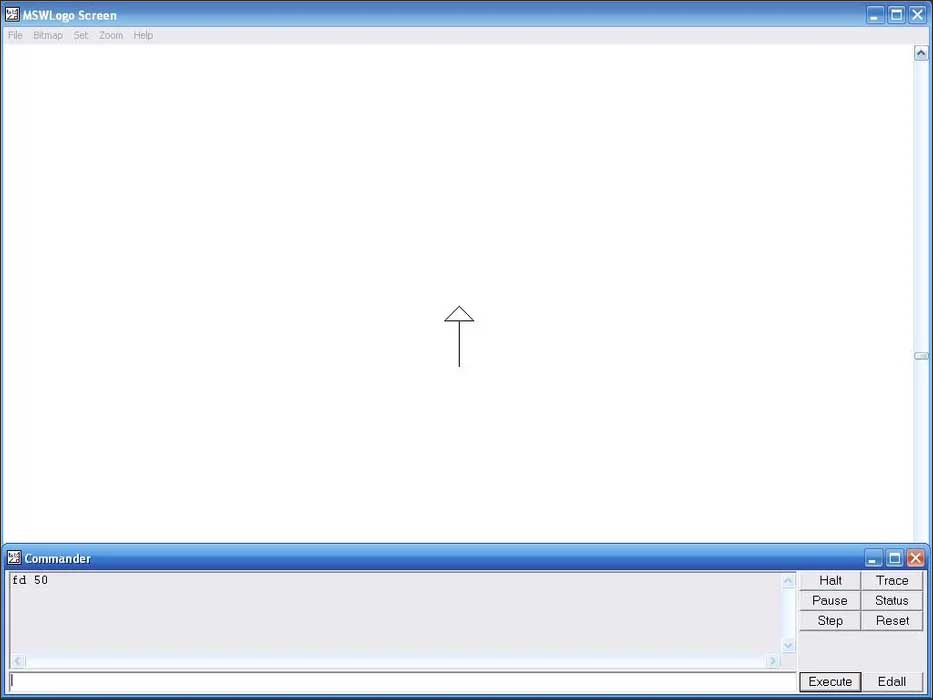
Type a command in the Commander input box and press Enter or click Execute. Start with:
FD 50
RT 90
FD 50
LT 90
BK 25
The turtle moves 50 steps, turns right, moves again, turns left, and backs up. Use CS when you want to erase the drawing and start from the center.
Create reusable procedures
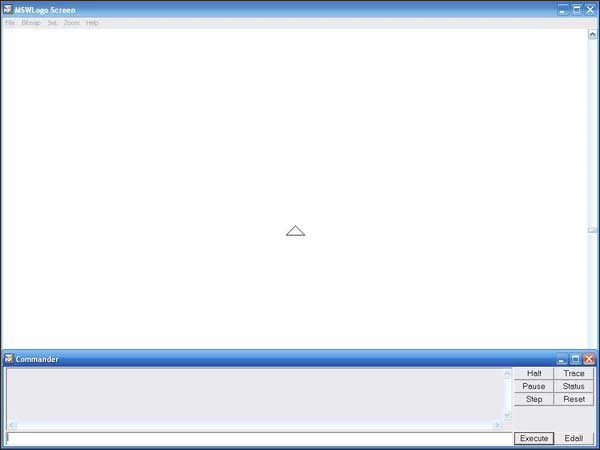
A procedure gives a name to a sequence of instructions. This correct square procedure draws four equal sides and turns 90 degrees after each side:
TO SQUARE
  REPEAT 4 [FD 50 RT 90]
END
Run it by typing SQUARE. A triangle requires three sides and an exterior turn of 120 degrees:
TO TRIANGLE
  REPEAT 3 [FD 50 RT 120]
END
The count must be 3, not 4. The instruction list belongs inside square brackets. For help planning longer procedures before coding them, see TipsMake’s guide to writing pseudocode.
Move without drawing
Coordinates are distances from the origin, not angles. Positive x moves right, negative x moves left, positive y moves up, and negative y moves down. The following sequence moves to (100,100) without drawing a connecting line, then resumes drawing:
PU
SETXY 100 100
PD
FD 50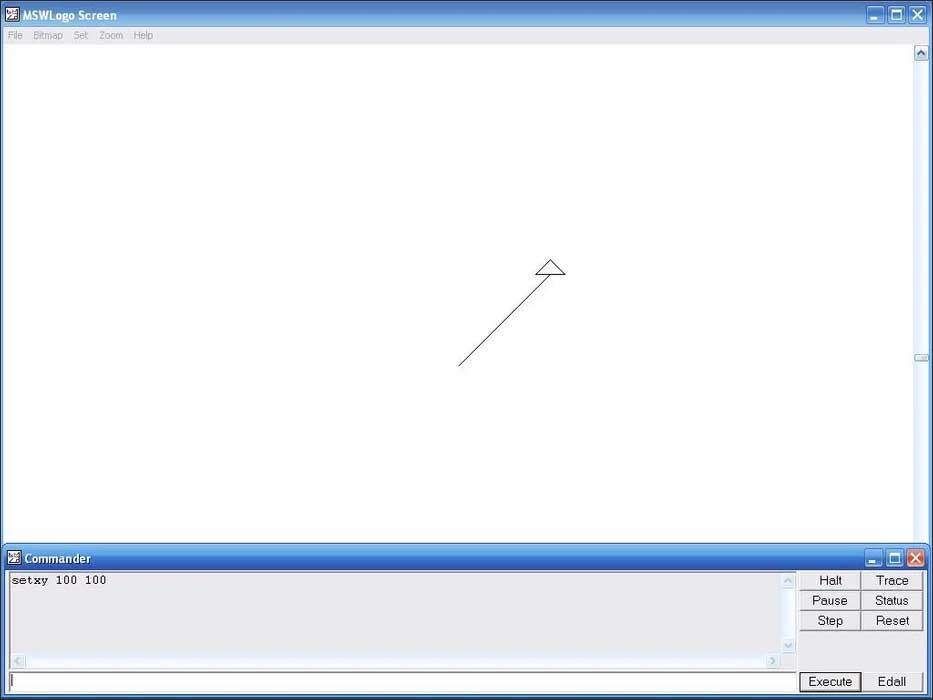
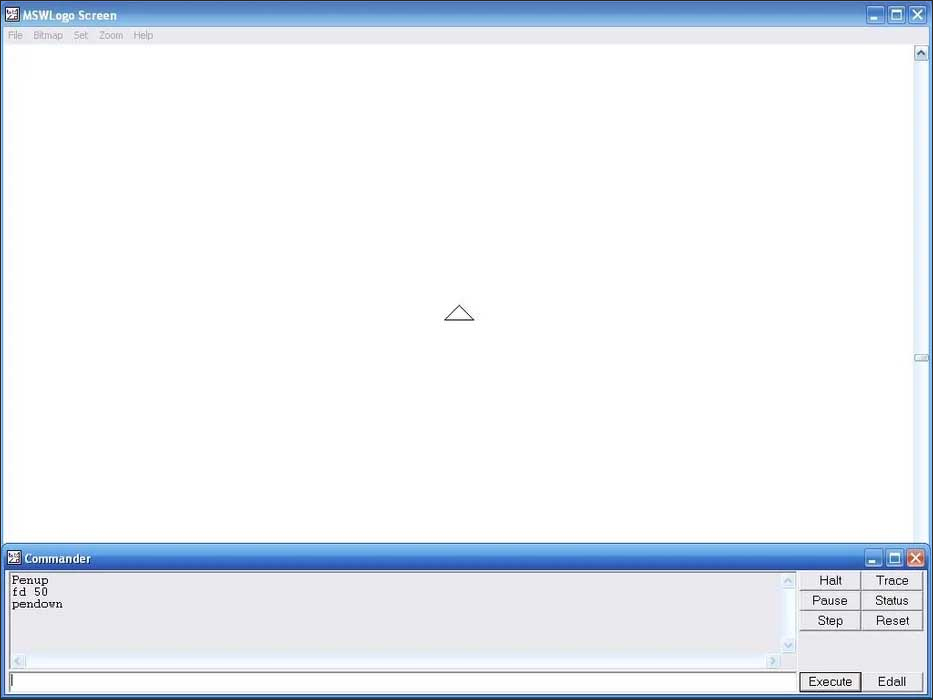
PU and PD control whether movement leaves a line. They do not show or hide the turtle.
Optional: create a small control window
FMSLogo includes Windows-specific GUI primitives such as WINDOWCREATE and BUTTONCREATE. They are not portable across every Logo dialect, so learn movement and procedures first. This example creates a window and a button that calls the SQUARE procedure:
WINDOWCREATE "main "mywindow "AutoDraw 0 0 150 80 []
BUTTONCREATE "mywindow "drawbutton "Square 10 20 60 20 [SQUARE]
The quoted words are object names or labels. The numeric values set position and size. Use unique object names when creating multiple controls.
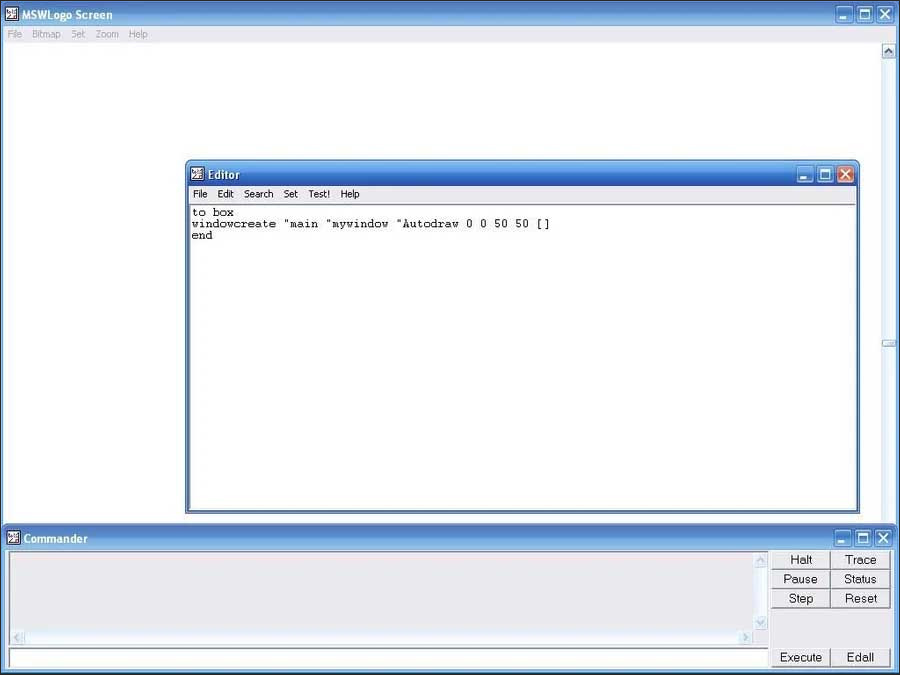
Add a close button with a separate object name:
BUTTONCREATE "mywindow "closebutton "Close 80 20 50 20 [WINDOWDELETE "mywindow]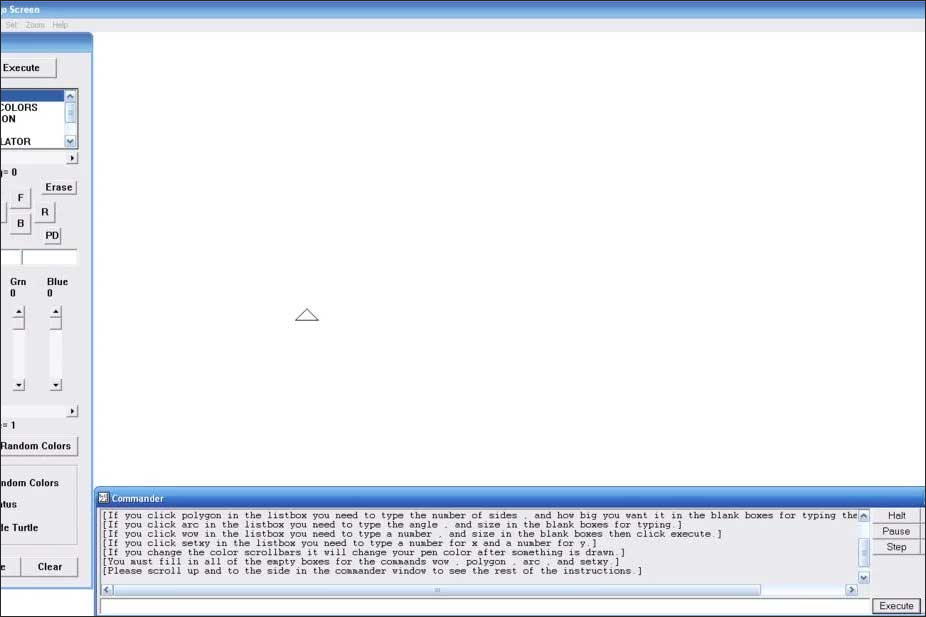
Common mistakes
- The turtle moves but no line appears: enter
PDto lower the pen. - A shape does not close: verify both the repeat count and turn angle.
- Logo reports “not enough inputs”: a command is missing a number, word, or instruction list.
- A color command fails: use the syntax supported by your Logo dialect and keep RGB values within its accepted range.
- A GUI command is unknown: the command may be specific to FMSLogo on Windows.
For exact dialect-specific syntax, use the FMSLogo command reference. Students who enjoy visual programming can also explore TipsMake’s list of programming games and apps for kids.
What Logo teaches
Logo is an educational programming language best known for turtle graphics. Its relative commands—move forward from the current position, then turn from the current heading—make sequences, angles, loops, procedures, variables, and recursion visible. That immediate feedback is why Logo remains useful for learning computational thinking even though modern classrooms may use newer visual tools.
Related Articles
 Commands in CAD - Summary of the Most Complete AutoCAD Command7 minutes read
 Using AAA Logo Professional Logo Design6 minutes read
 Best Buy's New Logo Shrinks the Tag Because the Traditional Store Model Is Now Dead3 minutes read
 Complete List of Rundll32 Commands in Windows 11: Complete Overview10 minutes read
 Command Prompt: Summary of the Common Run CMD Commands8 minutes read
 999+ AI Commands for Learning21 minutes read
Reader Comments 0
Sign in with email or Google to join the discussion.