Table of Contents
Windows + R is the fastest way to open Run in Windows 7, 8, and 10. If you prefer a mouse-accessible button, you can pin Run to the Taskbar. Older Windows versions may offer a direct pin command; when they do not, create a dedicated shortcut that works consistently.
Try the direct pin method on Windows 7 or 8
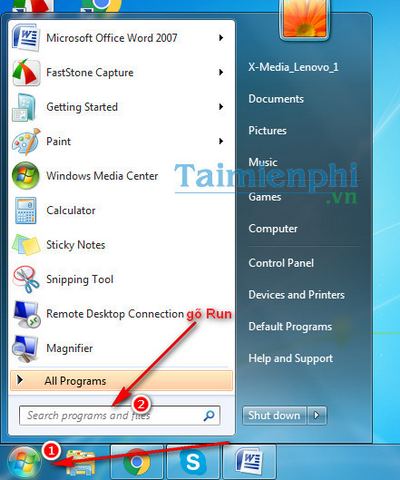
Open Start, search for Run, and launch the result.
When Run appears on the Taskbar, right-click its icon and look for Pin this program to taskbar.
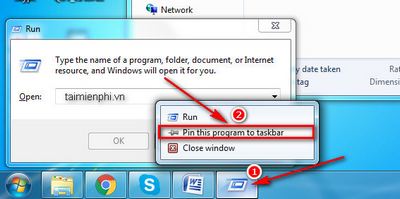
This command is not available on every build. If the Run icon disappears when the dialog closes or its jump list has no pin option, use the shortcut method below.
Create a Run shortcut for Windows 7, 8, or 10
- Right-click an empty part of the desktop and select New > Shortcut.
Enter this location:
explorer.exe shell:::{2559a1f3-21d7-11d4-bdaf-00c04f60b9f0}- Select Next, name the shortcut Run, and select Finish.
- Right-click the completed shortcut and select Pin to taskbar. If the command is missing, drag the shortcut onto the Taskbar.
For illustrated Windows 10 instructions, including how to select a Run icon, see how to create and pin a Run shortcut.
Pin Run to the Windows 7 Start menu
Windows 7 also has a built-in Start menu option. Right-click Start, choose Properties, select Customize, enable Run command, and apply the change. This places Run in the Start menu without adding a Taskbar shortcut.
Use Run safely
The Run dialog can open programs, folders, Settings pages, and administrative tools. Enter only commands you recognize. To run a command with elevated rights on supported Windows versions, enter it and press Ctrl + Shift + Enter, then review the User Account Control prompt.
Useful examples include control for Control Panel, taskmgr for Task Manager, msinfo32 for System Information, and cmd for Command Prompt. See ways to open Control Panel and the guide to opening Command Prompt for context.
Unpin or delete the shortcut
Right-click the pinned icon and select Unpin from taskbar. You can then delete the desktop shortcut. This removes only the shortcut; the built-in Run dialog remains available through Windows + R.
Related Articles
 Create a Shortcut for the Run Command4 minutes read
 Trick to Run Commands on Start Menu and Taskbar on Windows 103 minutes read
 How to Customize the Taskbar in Windows: Step-by-Step Guide15 minutes read
 Do You Know What Is the Optimal Location of the Windows8 minutes read
 How to Fix Windows 11 Taskbar Not Working8 minutes read
 How to Add Wallpaper to Taskbar on Windows 104 minutes read
Reader Comments 0
Sign in with email or Google to join the discussion.