Table of Contents
A virtual machine runs a guest operating system inside your existing computer. To choose an app, start with your host operating system and processor, then check whether your intended guest and applications are supported. Parallels Desktop, VMware Fusion or Workstation Pro, and Oracle VirtualBox serve different combinations of those needs.

Start with platform and architecture
| Tool | Host platform | Reason to evaluate it |
|---|---|---|
| Parallels Desktop | macOS | Mac-focused setup and desktop integration |
| VMware Fusion | macOS | Configurable desktop virtual machines |
| VMware Workstation Pro | Windows or Linux | Desktop testing and virtual machine management |
| Oracle VirtualBox | Supported Windows, Linux and macOS hosts | An open-source base platform with broad desktop use |
Host support does not mean every guest can run on every processor. An x86 installer and an Arm installer are different. In particular, moving a virtual machine from an Intel computer to Apple silicon is not the same as copying an ordinary document.
Parallels Desktop: a Mac-focused option
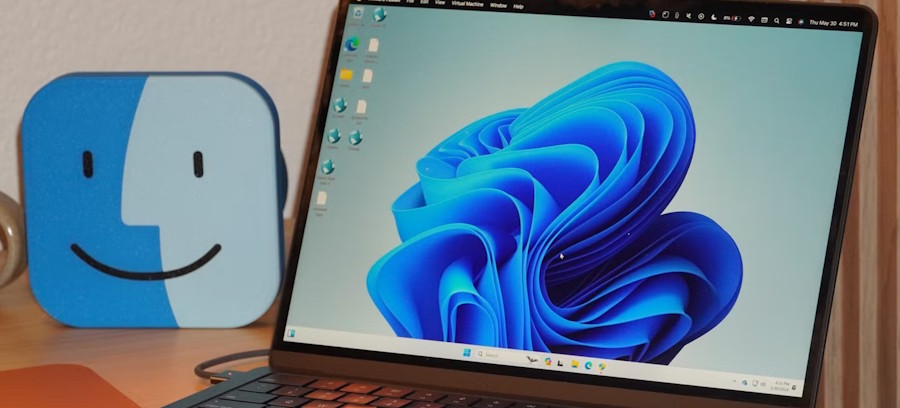
Parallels Desktop is worth evaluating if you want Windows or Linux alongside macOS with convenient desktop integration. Its setup and sharing features can make switching between Mac and guest applications easier.
On Apple silicon, the standard Windows setup uses Windows 11 on Arm. Windows application compatibility, graphics requirements and specialist drivers still need checking. Do not assume that every Windows game or peripheral works because Windows itself starts successfully.
Consult Parallels' system requirements for your product version and guest. Separate x86 emulation options have limitations and should not be confused with ordinary Arm virtualization. Compare the edition's features and cost, and budget for any required guest operating-system license.
VMware Fusion and Workstation Pro: configurable desktops
Fusion is the Mac product; Workstation Pro is the corresponding desktop option for Windows and Linux hosts. They offer virtual machine configuration and testing tools, making them useful for development environments or trying software in a separate guest system.
Broadcom made Fusion and Workstation free for commercial, educational and personal use, and its current desktop release announcement confirms that policy. Older advice limiting free use to personal projects is outdated. Check the current VMware release information for download and support details.
Fusion on Apple silicon requires compatible Arm guests; an Intel virtual machine is not automatically portable to it. If you want a practical introduction on a supported Workstation host, see how to use VMware Workstation. Some menu labels in older tutorials can differ from current releases.
Oracle VirtualBox: check the host-specific feature set
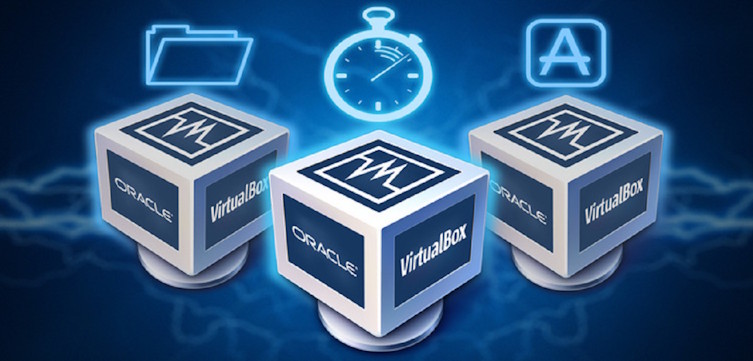
VirtualBox's base software is free and open source. It is a useful candidate for learning virtualization or creating desktop test environments, particularly on supported x86 hosts.
Arm-host support and guest integration differ from the x86 feature set and continue to evolve. Older blanket statements that VirtualBox cannot run Windows guests on Apple silicon are not a reliable description of every current release. Check the VirtualBox manual for the exact host, guest and feature combination you need.
The optional Extension Pack has separate licensing terms. Confirm whether you need it instead of assuming every component has the same license as the base application. For basic setup steps, see installing VirtualBox.
Try your real workload before choosing
- Confirm that your host version, processor and guest installation image match the vendor's support list.
- Leave enough memory and storage for both the host and guest to work comfortably.
- Test the applications, graphics, networking and USB devices you actually need.
- Enable shared folders and clipboard access only when useful; those features connect the guest to host data.
- Use snapshots for convenient rollback, and keep separate backups of important virtual machine files.
There is no meaningful universal speed ranking without a specified workload and hardware. A supported app that runs your required software reliably is a better choice than one selected from an unexplained claim that it is the fastest.
Related Articles
 Should I Use Docker or a Virtual Machine: Explained6 minutes read
 Virtualbox and Vmware: Which Virtual Machine Software Is Better?8 minutes read
 How to Connecting USB to Virtual Machine3 minutes read
 VirtualBox and Vmware Player: Which Virtual Machine Should You Choose?9 minutes read
 3 Best Best Virtual Machine Creation Software 20205 minutes read
 How to Copy Data from Real Machine to VMware Virtual Machine4 minutes read
Reader Comments 0
Sign in with email or Google to join the discussion.