Table of Contents
This updated guide explores Android improves factory reset protection and find my with practical details, clear explanations, and useful takeaways. Losing your phone is no joke, but Android offers a number of measures that can help protect your data. With new improvements to Factory Reset Protection and updates to Find My, your phone will be easier to restore the next time you lose it.
Your Lost Phone Will Be Almost Unusable.
When you initiate a factory reset through the Android recovery menu or Find My Device service, Android automatically enables Factory Reset Protection (FRP). This feature requires you to enter the last PIN, password, or pattern or sign in to the last Google account associated with the phone to verify ownership.
Failure to provide this information will result in the device not completing the setup process, rendering it unusable. Since FRP works by storing the key in a secure area separate from the user's files, it persists after a factory reset. The key is created when you first sign in with your Google account and is not erased unless the phone is factory reset from the settings app.
Still, FRP is not a perfect solution. There are ways to bypass the setup wizard, allowing someone else to use your lost or stolen phone without providing any previous credentials or proof of ownership.
Google is working on improving this feature in Android 16. If your phone factory resets without your permission, Android will force another factory reset while restricting all functionality. The remote lock feature also has a new option that lets you add a security challenge question to prevent unauthorized use of your lost or stolen phone.
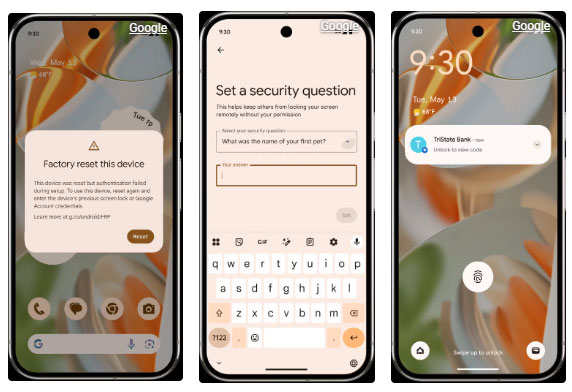
While Theft Protection can lock your device when it detects a theft, your notifications will still appear on the lock screen unless you've changed your settings to hide sensitive content. Android 16 will automatically hide one-time passwords on the lock screen when your device isn't connected to Wi-Fi and hasn't been unlocked recently.
Identity Check, which is rolling out to Pixel and Samsung devices running One UI 7, will also be available from more manufacturers on supported Android 16 devices. It provides extra security in case your PIN or password is compromised by forcing biometric authentication to access sensitive parts of your phone when you're outside of designated secure locations. "Sensitive parts" here refers to your saved app passcodes and passwords, as well as settings that can change your PIN, pattern, password, or turn off Find My.
There's no exact timeline for when these features will be released, but you can expect them with the first or second Android 16 Quarterly Platform Release (QPR). Google says the FRP improvements will be coming "later this year," so this new set of security features will likely be limited to phones that get the Android 16 update.
This leaves hundreds of thousands of older Android phones vulnerable to misuse after they've been stolen. We also do not know how robust these features are Now, and hackers may find a way to bypass them. Still, it would require a level of technical knowledge about Android that most casual thieves will not have.
Since your phone will not be usable, it will not be sold on the secondhand market after it is stolen. The larger vision here is to prevent Android smartphone theft in the first place by rendering the devices unusable unless they're with the same owner. If these measures prove effective, stolen Android smartphones will become junk, regardless of their original price or feature set. They can still be scrapped for parts, but they will not have any value on the secondhand market.
The fact that your security settings, including Find My tracking, are likely to remain intact after your phone is stolen means that recovering it will be significantly easier. And if that is not enough of a reason to enable Find My on your Android phone, Google is bringing other improvements to its tracking service that should convince you otherwise.
Find Your Belongings and Friends More Easily
The Find My Device app is evolving into Find Hub. Google is partnering with a growing list of companies to make it easier to track and locate your belongings and loved ones.
Find Hub is integrating luggage tracking from July and Mokobara. With the ability to share Bluetooth tag locations with 'some of your favorite airlines' as early as 2026, finding lost luggage will also be a lot easier. And if you're into skiing, you can track your skis, too, as long as they're from Peak.
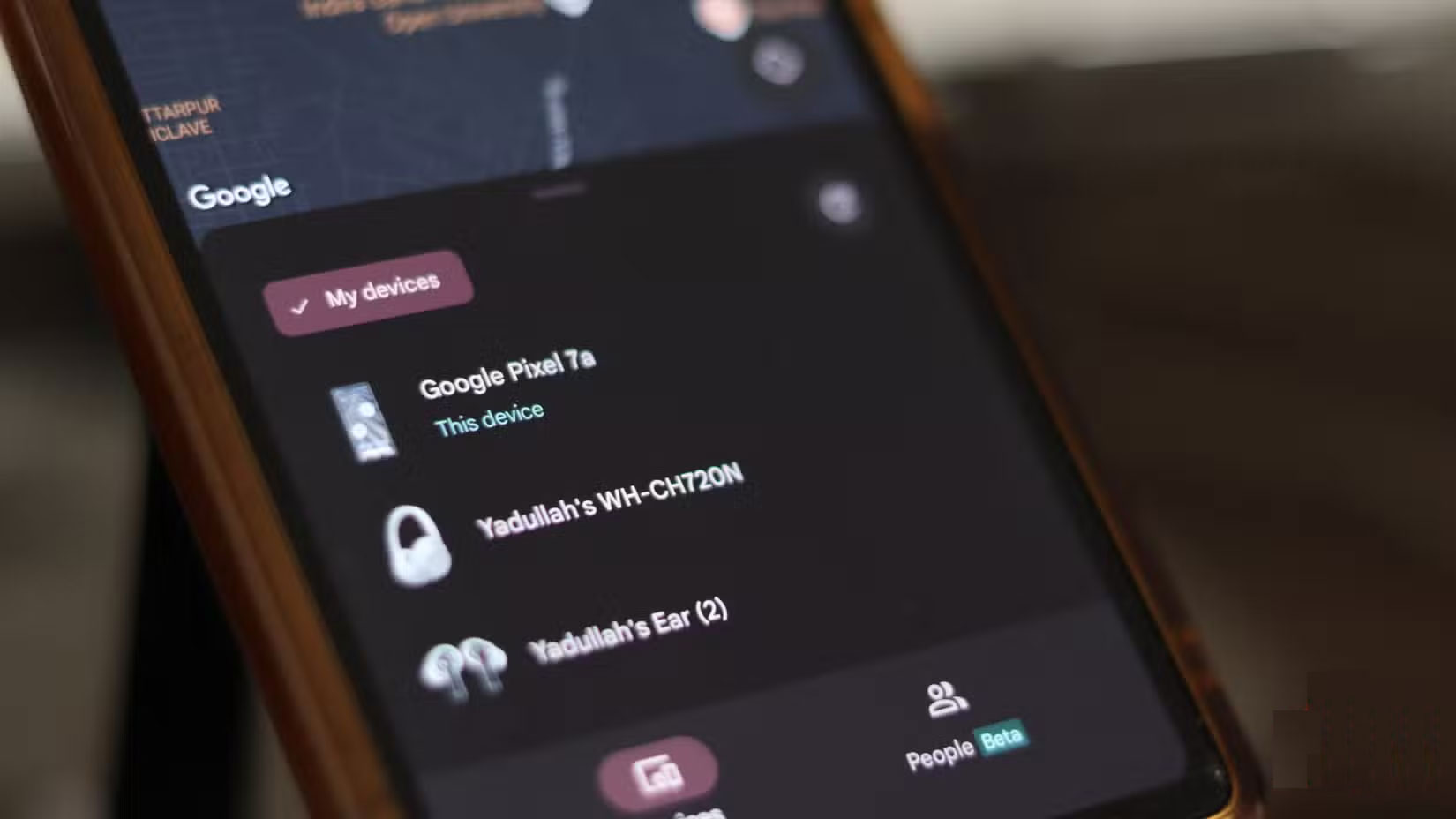
For keeping track of your family or friends, Pixbee is launching a Disney-themed Bluetooth tag that is fully compatible with the new and improved Find Hub. If your kids keep losing their Bluetooth tag, add a favorite Disney character to give them a little extra protection. Last but not least, the Find Hub will also have satellite connectivity, meaning you can stay connected even when there's no cellular or Wi-Fi connection.
Losing your phone is never a pleasant experience for anyone, so while the best protection is to ensure you keep your phone safe, Google seems to have your back in case of an accident. There are a few tips to help protect your phone from theft. Just remember to check your phone settings when these features are released to ensure you're as protected as possible.
FAQ
What is the main takeaway about Android Improves Factory Reset Protection and Find My?
The key is to understand the core idea, compare the available options, and apply the practical guidance that matches your situation.
What should beginners know about Android Improves Factory Reset Protection and Find My?
Start with the essential steps and terminology. Avoid changing advanced settings until you understand how they affect performance, privacy, cost, or compatibility.
How can I use this information in practice?
Follow the relevant section in order, test one change at a time, and confirm the result before moving to the next step or recommendation.
Related Articles
 How to Distinguish Hard Reset and Factory Reset7 minutes read
 Difference Between Hard Reset and Factory Reset: What to Know8 minutes read
 Steps to Reset Apple TV, How to Factory Reset Apple TV4 minutes read
 3 How to Reset Win 7, Factory Reset Windows 78 minutes read
 How to Reset Mac, How to Factory Reset Mac8 minutes read
 How to Factory Reset Xbox Console7 minutes read
Reader Comments 0
Sign in with email or Google to join the discussion.