Table of Contents
Learning how to use GarageBand to record a podcast doesn't have to be complicated. This updated guide presents a clear workflow, practical checks, and troubleshooting advice you can use while completing the process.
Key Takeaways
- Follow the steps to use GarageBand to record a podcast.
- Follow the recommended steps in order to avoid common mistakes with use GarageBand to record a podcast.
- Review compatibility, settings, or requirements before making changes.
How to Use GarageBand to Record a Podcast
Step 1:
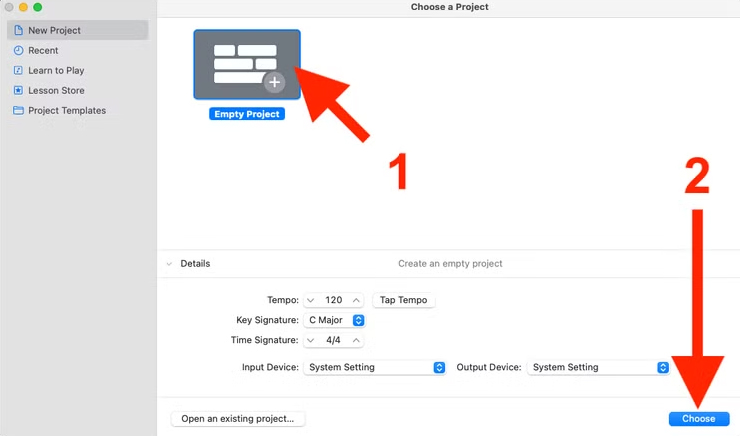
You open the GarageBand application then click to select new project on the application.
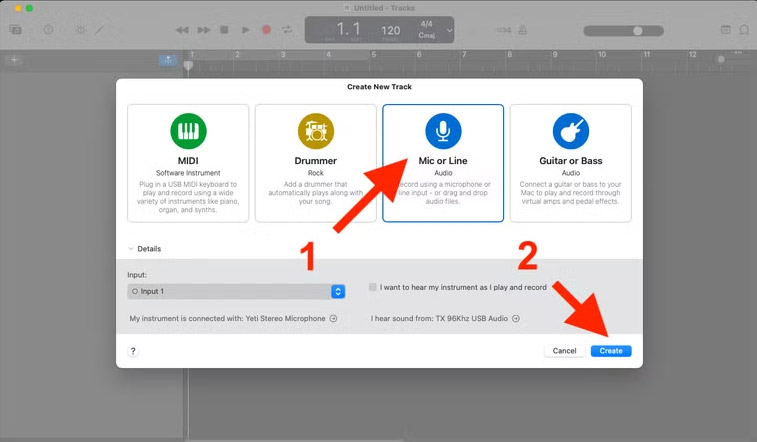
Show options for new project, we select microphone track option and then click Create below.
Step 2:
We click the red record button on the toolbar or press the R key on the keyboard to start and stop recording.
Step 3:
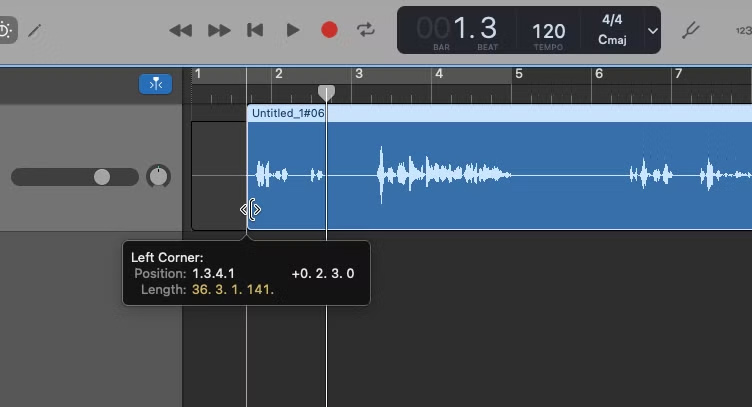
Once you have your audio recording, you can edit it. Click and hold on the bottom left corner of the clip, then drag to the right to cut out the parts you want. Continue to adjust the end point of the audio. Adjust it so that you keep the audio you need in your podcast.
Step 4:
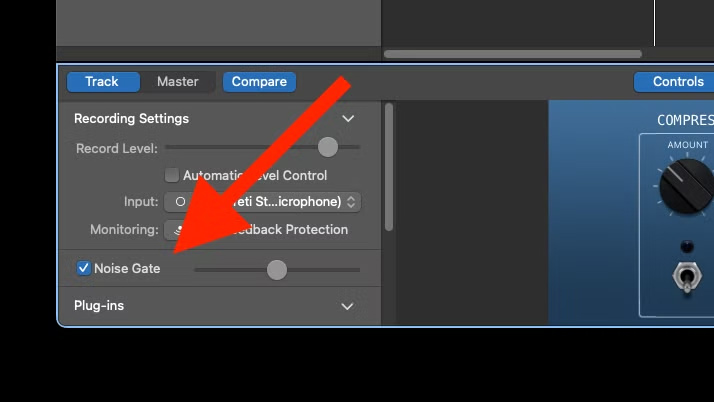
We will use Noise Gate. This helps you remove background noise. This option will mute the track if the sound falls below a certain threshold. Select Noise Gate below and adjust it so that the noise is completely removed.
Turn the volume up until you can't hear it anymore if there is still noise. Turn the volume down if the noise starts to drown out someone's voice. Background noise can still be heard when people are talking, but the track will be quiet when no one is talking.
Step 5:
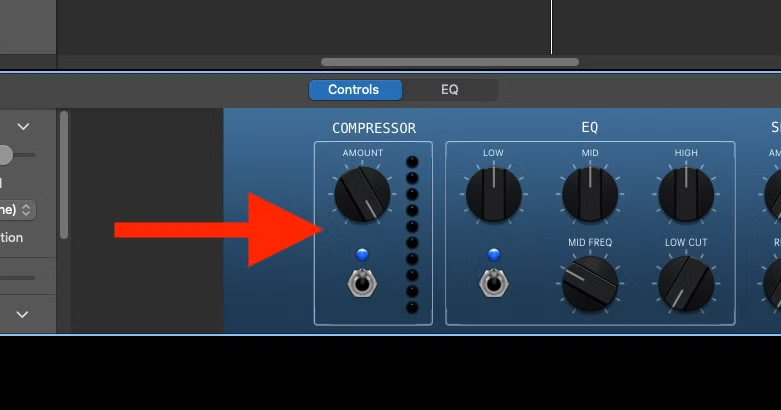
The Compressor tool limits the loudest and quietest parts of the recording, so you maintain a consistent volume while speaking. Tap the Compressor switch and adjust accordingly.
Set it to maximum if you want the most consistent volume possible. Set it to medium or low if you're recording a podcast that requires louder parts.
Step 6:
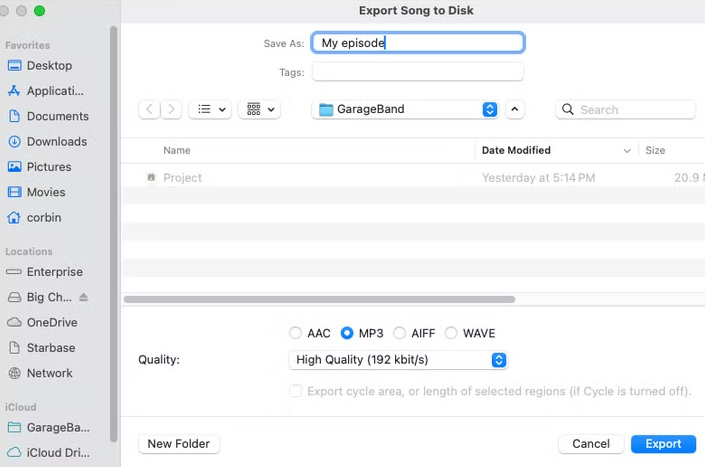
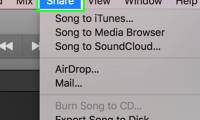
Click Share > Export Song to Disk to do so after editing the podcast.
Final Thoughts
The most reliable way to handle use GarageBand to record a podcast is to follow the process in order, verify each important setting, and test the result before moving on. Use the guidance above as a practical reference, then adjust the details for your device, software version, or specific goal.
FAQ
What should I check before I use GarageBand to record a podcast?
Use the latest available software, confirm that your device meets the requirements, and make sure you have the necessary permissions, account access, or backup before changing anything.
Why might I be unable to use GarageBand to record a podcast?
Common causes include outdated software, missing permissions, incompatible settings, incomplete setup steps, or a temporary network problem. Recheck the process from the beginning and restart the app or device if needed.
Is it safe to use GarageBand to record a podcast?
It is generally safe when you use official tools, review every permission, and back up important data before making system-level or account-level changes.
Related Articles
 4 Garageband Alternatives for Windows 106 minutes read
 Steps to Record Audio on a Mac5 minutes read
 How to Improving Spotify Podcast Recommendations5 minutes read
 Learn About Akai's MPC Beats: GarageBand App for Windows: Main Insights7 minutes read
 How to Create Podcast Cover in Photoshop10 minutes read
 Track: How to Edit Music on Mac14 minutes read
Reader Comments 0
Sign in with email or Google to join the discussion.