Table of Contents
Research shows that minimizing notifications serves as the only surefire way to stay focused and productive. And a few simple tweaks will help you get there.
You may not realize it, but every ping or buzz of your phone plays a significant role in sapping your productivity. While some notifications truly demand your immediate attention, most simply interrupt your flow. Studies show that frequent notifications not only distract you, but also increase distraction, hurt your performance, and lower your mood.
Research shows that minimizing notifications is the only surefire way to stay focused and productive. And a few simple tweaks helps you get there.
Limit which apps can send notifications
Most don't need your immediate attention.
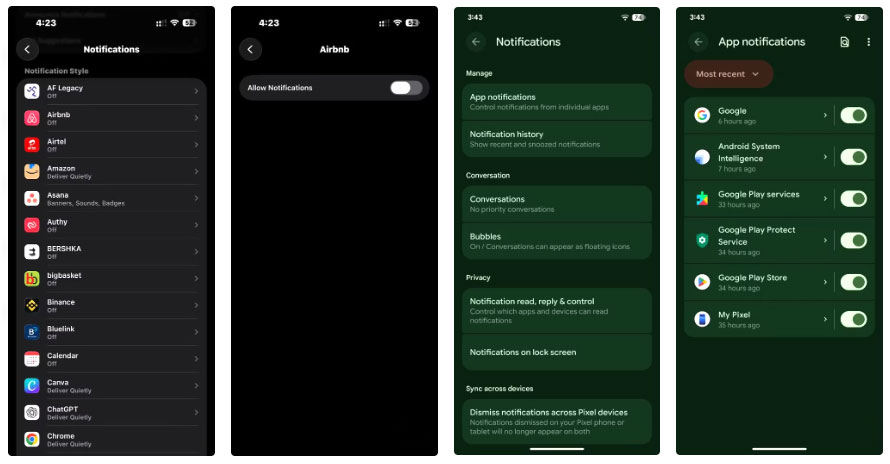
If you're using an iPhone, turning off notifications for an app is as simple as going to Notifications In Settings and turning off the Allow Notifications Toggle for unnecessary apps. On Android, you can manage notification access by going to Notifications In Settings , Selecting App notifications , and tapping the toggle next to unnecessary apps.
Take advantage of silent notification options
Get updates without being disturbed
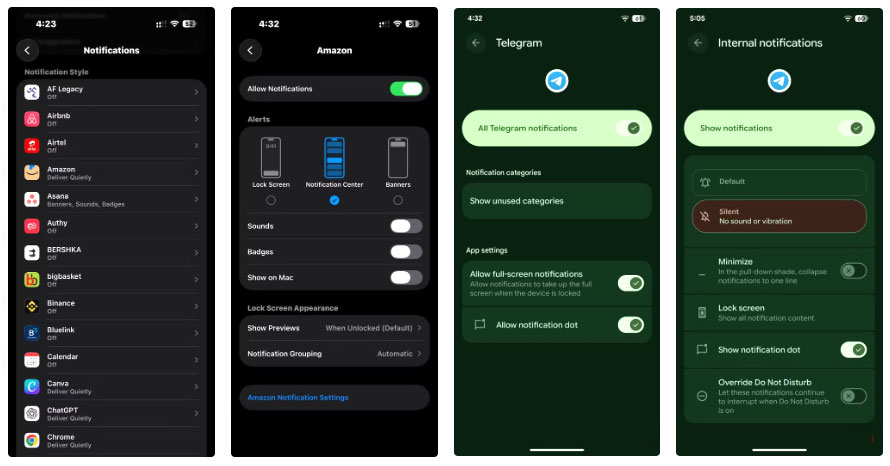
You can set up silent notifications on your iPhone by going to Notifications In Settings , selecting the app, turning on the Allow Notifications Button, then turning off the Sounds Button.
Android You can tap the app name in the App notifications Section and turn off the Sound and vibration Button to achieve the same result.
Mute group chat
Silent notification, no noise
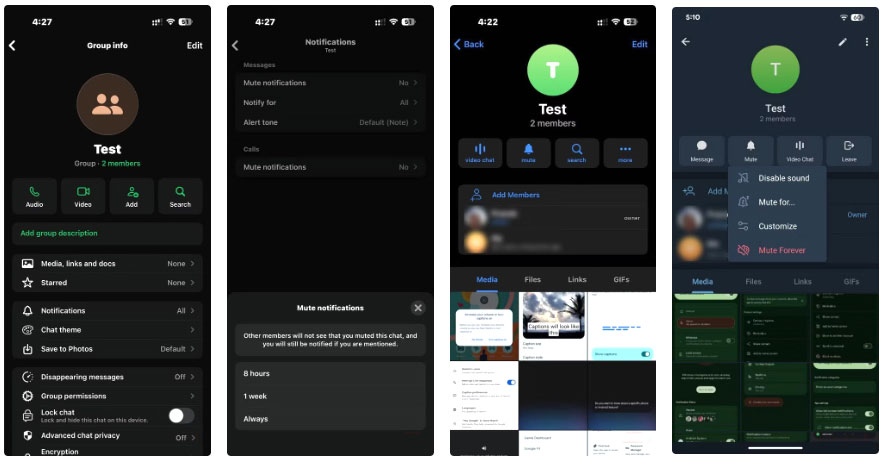
The constant pings from an active group chat can be incredibly annoying when you're trying to get work done. While you may want to leave the group chat entirely, most messaging apps allow you to mute notifications from group chats. It's an easy way to avoid being bombarded with messages without having to awkwardly explain why you left.
Turn off email push notifications
Check email on a schedule
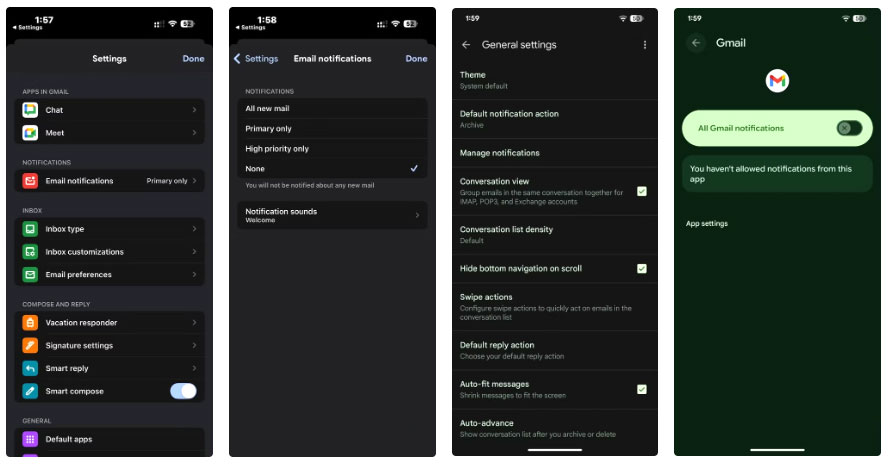
Turning off push notifications for email might seem risky. What if you miss something urgent? But in my experience, very few emails require an immediate response, and checking your inbox at regular intervals throughout the day is much less distracting. If you get into the habit of checking your email in batches at different times of the day, you'll find it easier to focus on important tasks.
Turn off notification badges
They do more harm than good.
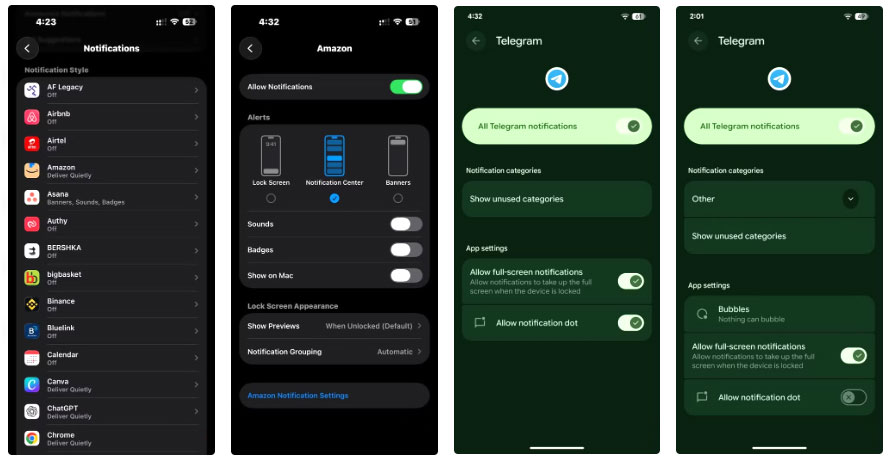
To turn off notification badges on iOS, go to Notifications In Settings , select an app from the list of notification types, and turn off The Badges Toggle on the next page. On Android, navigate to Notifications In Settings , Select App notifications , tap an app on the next page, and then turn off Allow notification dot .
Take advantage of DND and Focus modes
Quiet time is non-negotiable
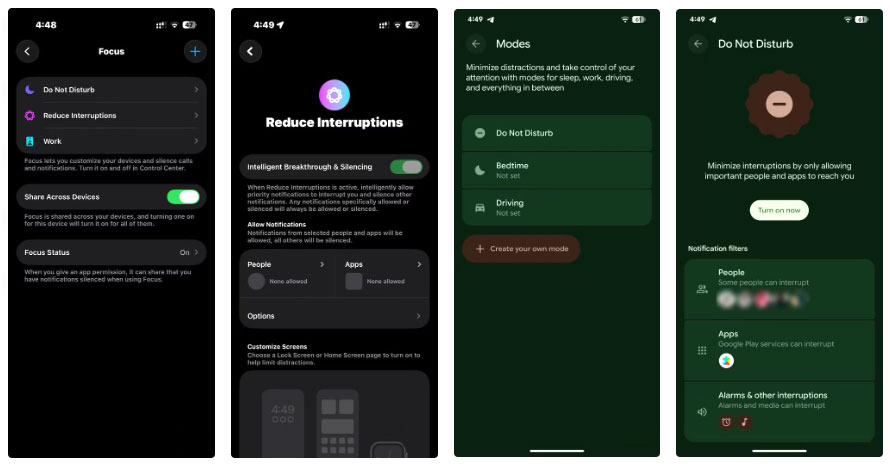
Do Not Disturb (DND) and Focus modes are also great tools for eliminating distractions at work, during meals and workouts, or when you simply want some much-needed private time.
You can set this up on your iPhone by going to Focus In Settings , choosing one of the available Focus options, or creating a custom one based on your needs.
Android You can also use the DND feature to similar effect. It lets you limit notifications to pre-set time frames, and also gives you the option to whitelist specific contacts and apps so you don't miss important alerts.
Set custom sounds for priority alerts
Easily distinguish important notifications
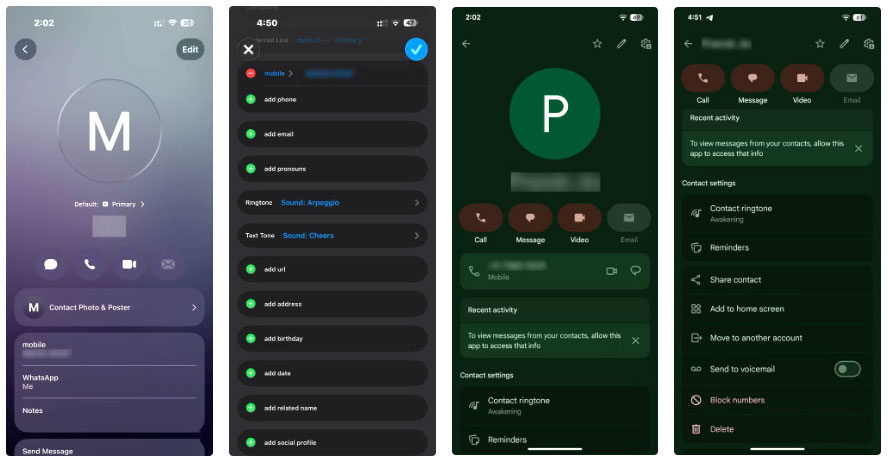
Both iOS and Android let you set custom notification sounds. On iPhone, you can set custom sounds for specific people in the Contacts app or customize notification sounds for apps like WhatsApp and Slack from the app's settings. Similarly, on Android, you can change notification sounds for individual contacts using the Contacts app or customize sounds for specific communication apps.
FAQ
What should you know about the options in this guide?
In practical terms, research shows that minimizing notifications is the only surefire way to stay focused and productive. And a few simple tweaks will help you get there.
Which option is the best choice?
The best choice depends on your priorities, compatibility, budget, and the specific features discussed in the comparison.
What should you compare before deciding?
Compare core features, limitations, ease of use, compatibility, and long-term value before making a decision.
Related Articles
 10 Tips to Increase Productivity on Windows 1012 minutes read
 5 Practical Ways to Use AI for Better Productivity8 minutes read
 7 Android Apps to Help Avoid Distraction6 minutes read
 7 Common Habits Reduce Productivity Quickly9 minutes read
 The Most Effective Way to Increase Minecraft FPS and Reduce7 minutes read
 Why Only 2 Monitors Are Needed to Increase Work Productivity: Explained7 minutes read
Reader Comments 0
Sign in with email or Google to join the discussion.