Table of Contents
It's quite easy to zoom in on images without losing quality, and there are many tools that can help you do this – many of them AI-powered.
It's quite easy to zoom in on images without losing quality, and there are many tools that can help you do this – many of them AI-powered. Keep reading to discover some of the best ways to quickly zoom in on your images and ensure you get high-quality results.
BeFunky
Because BeFunky is online software, you can use it from any computer without installing anything. However, BeFunky still has many different editing tools besides resizing, making it a complete and free photo editor.
To enlarge images without losing quality in BeFunky:
1. Drag the image you want into the software.
2. Select Resize from the menu on the left.
3. Enlarge the image by changing the pixel count or increasing the percentage.
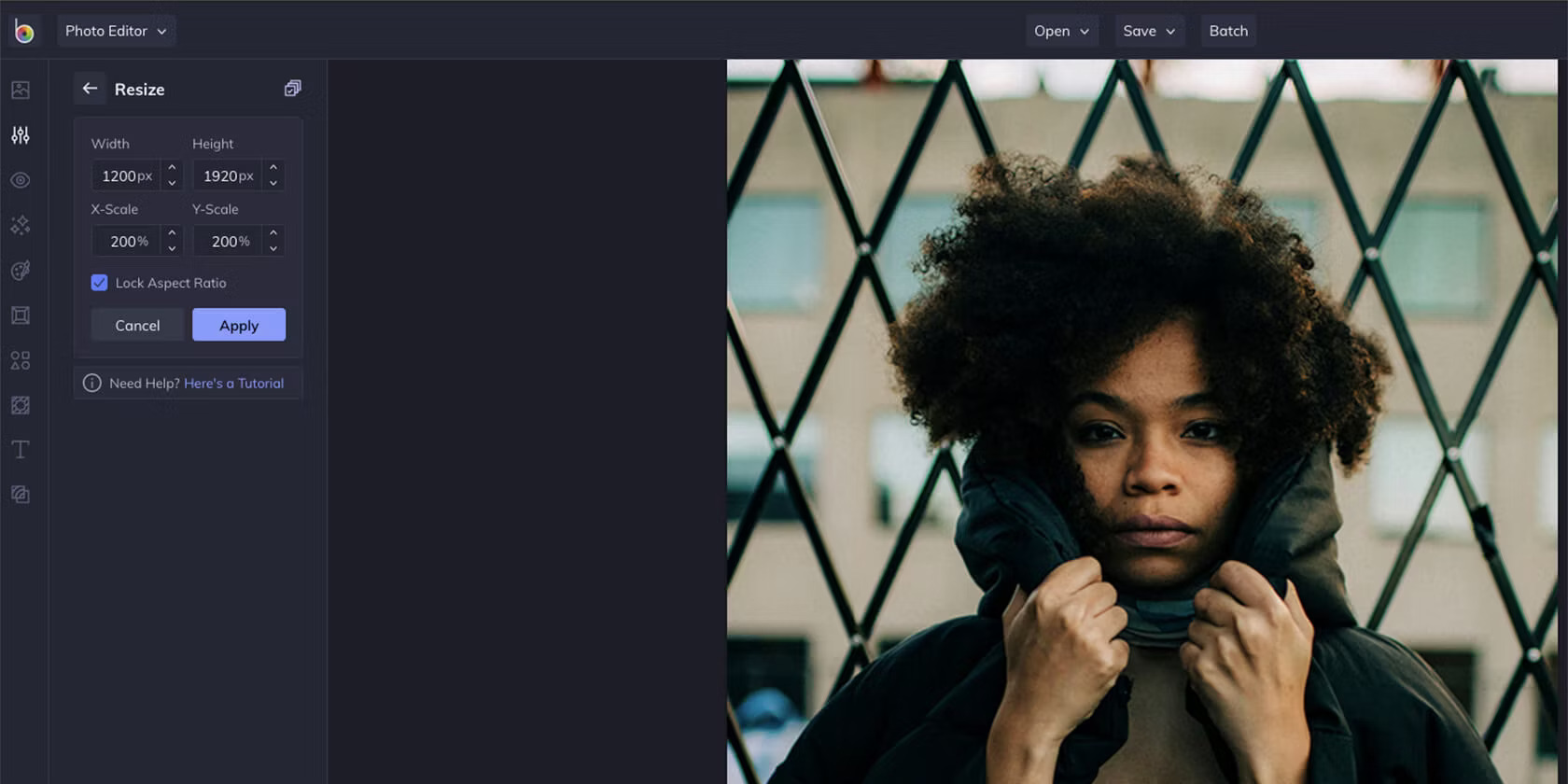
4. Click Apply and you're done.
The software doesn't allow you to experiment with different methods for enlarging images; it only provides a standard. However, the results are quite good, especially when the original image is not small at all. Although you can use AI image enhancement tools, you need a paid plan to do so.
Additionally, you have the option to batch process images. This allows you to resize multiple images at once, saving a lot of time. BeFunky is also a great way to blur parts of your images.
Image Illustrator
Image Enlarger is a website where you can upload your photos and enlarge them completely free of charge. The interface is a bit outdated, but it's a reliable option.
To enlarge an image in Image Enlarger:
1. Click Browse to select your image. You can only do one thing at a time.
2. Set the output to JPG or PNG.
3. In Define dimension for the enlarged image , you can set specific pixels or change the Zoom factor . Remember that the limit is 4,500 pixels. You also don't need to set both the height and width – one is sufficient, and the website will determine the other to maintain the aspect ratio.
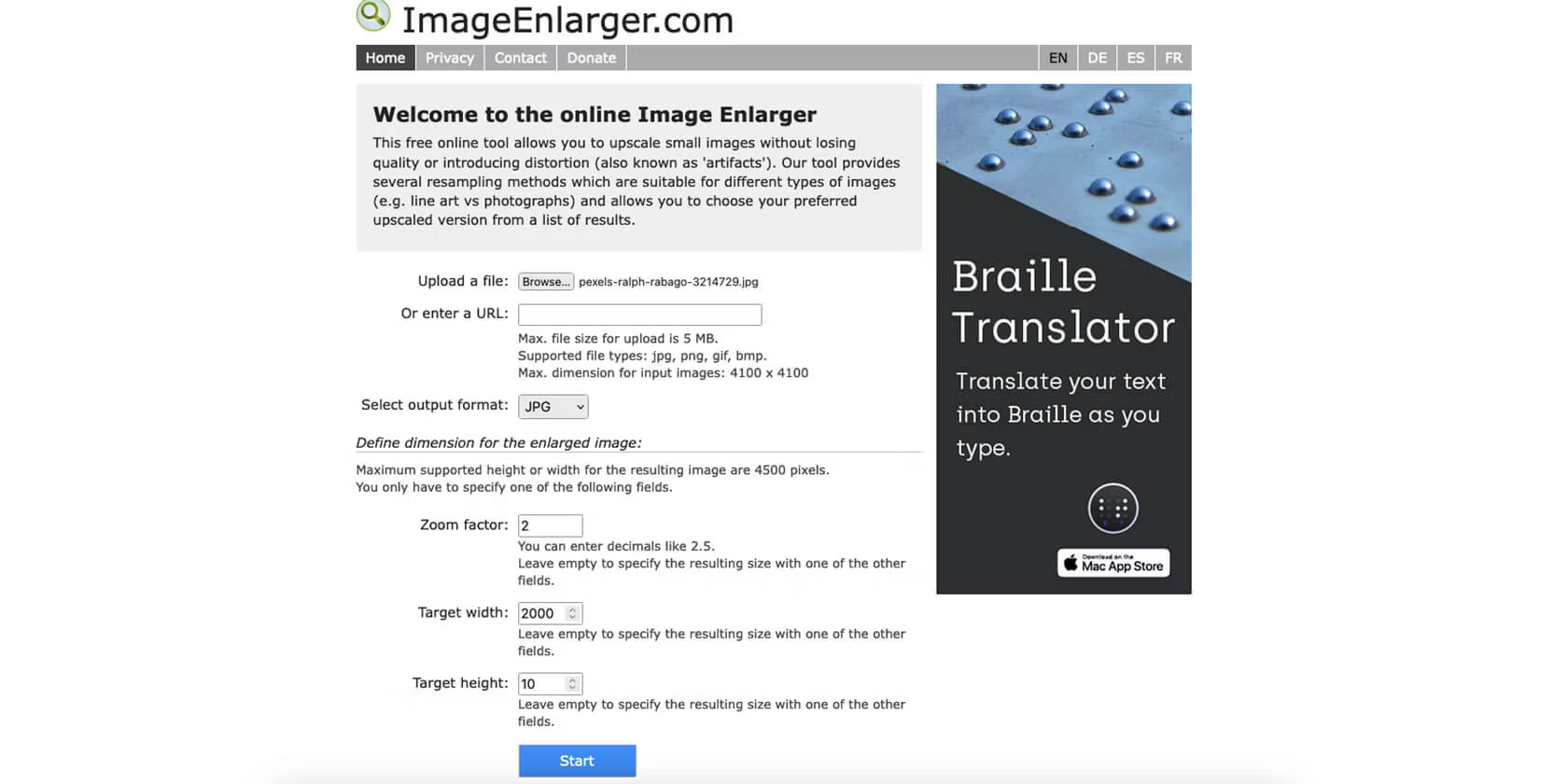
4. Press Start .
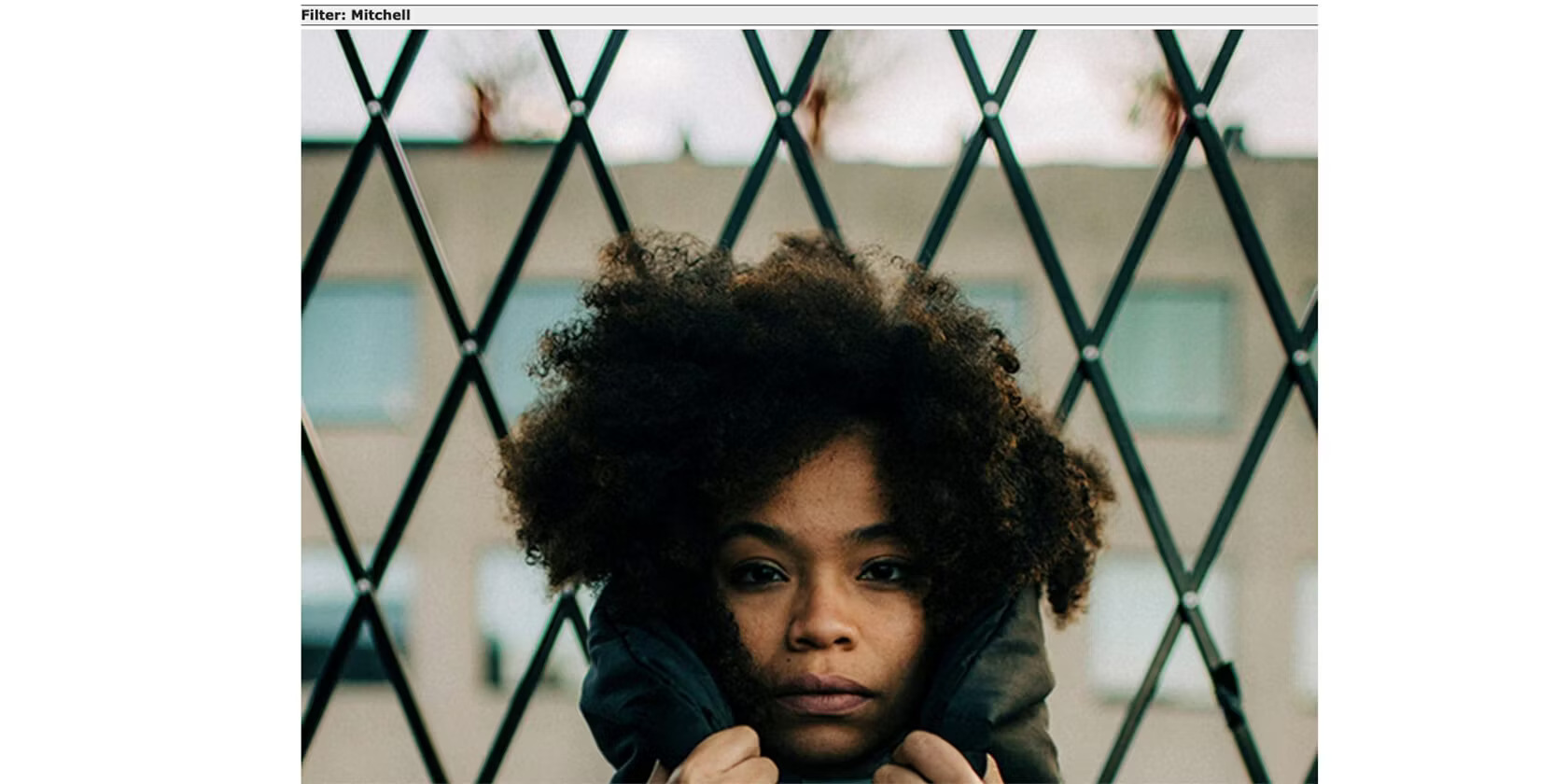
On the results page, you'll see several images enlarged using different filters (that GIMP and Photoshop use), so you can choose the image that best suits you.
AI Image Illustrator
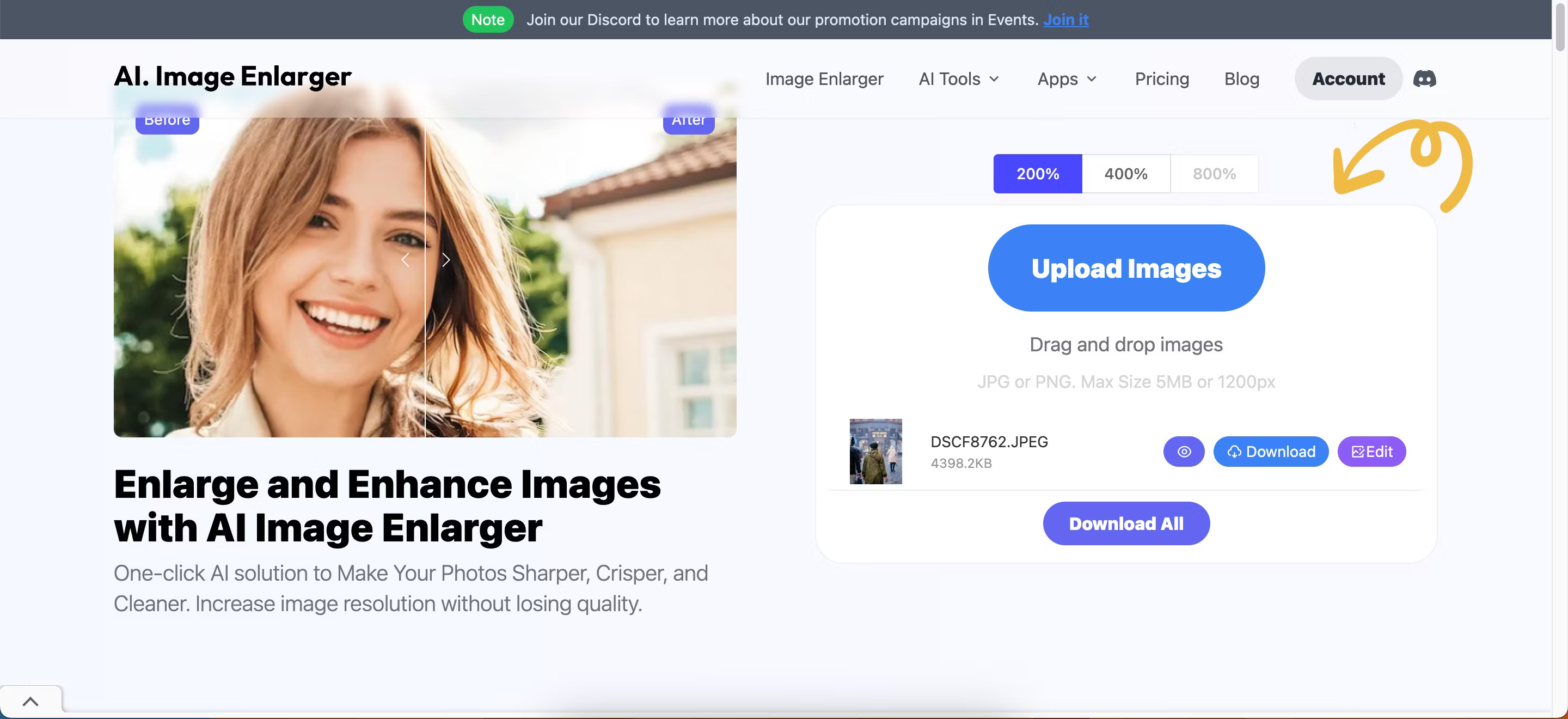
This is an AI-powered image zoom tool. You don't need an app, and you can get 10 free credits per month when you sign up for an account. This tool allows you to zoom your images by 200%, 400%, or 800% (the last feature is only available for paid subscribers).
To use AI Image Enlarger, simply follow these instructions:
1. Visit the AI Image Enlarger website and register for an account.
2. In the Upload Images section, select the percentage at which you want to enlarge your image.
3. Drag and drop your image(s) or select Upload Images .
4. Select Start All when you are ready to resize your image.
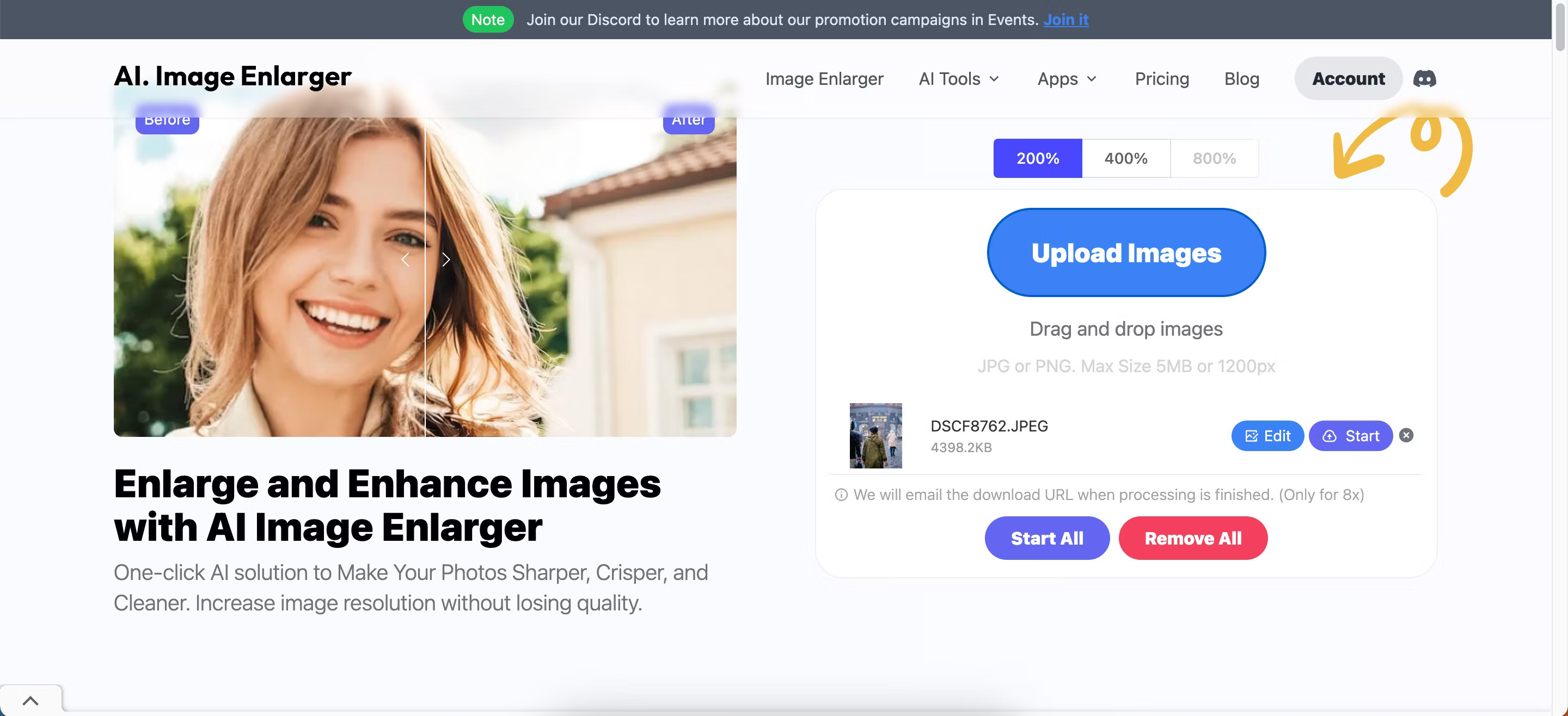
5. Click Download All when the resizing process is complete.
Fotor Image Enlarger
Fotor is one of many popular free photo editing software tools, and it features AI-powered image zooming that you can use for free. You also don't need to download the app to access this feature.
To use Fotor's AI image zoom tool:
1. Go to Fotor Image Enlarger and select Enlarge Image Now .
2. Drag and drop your image or select Open Image .
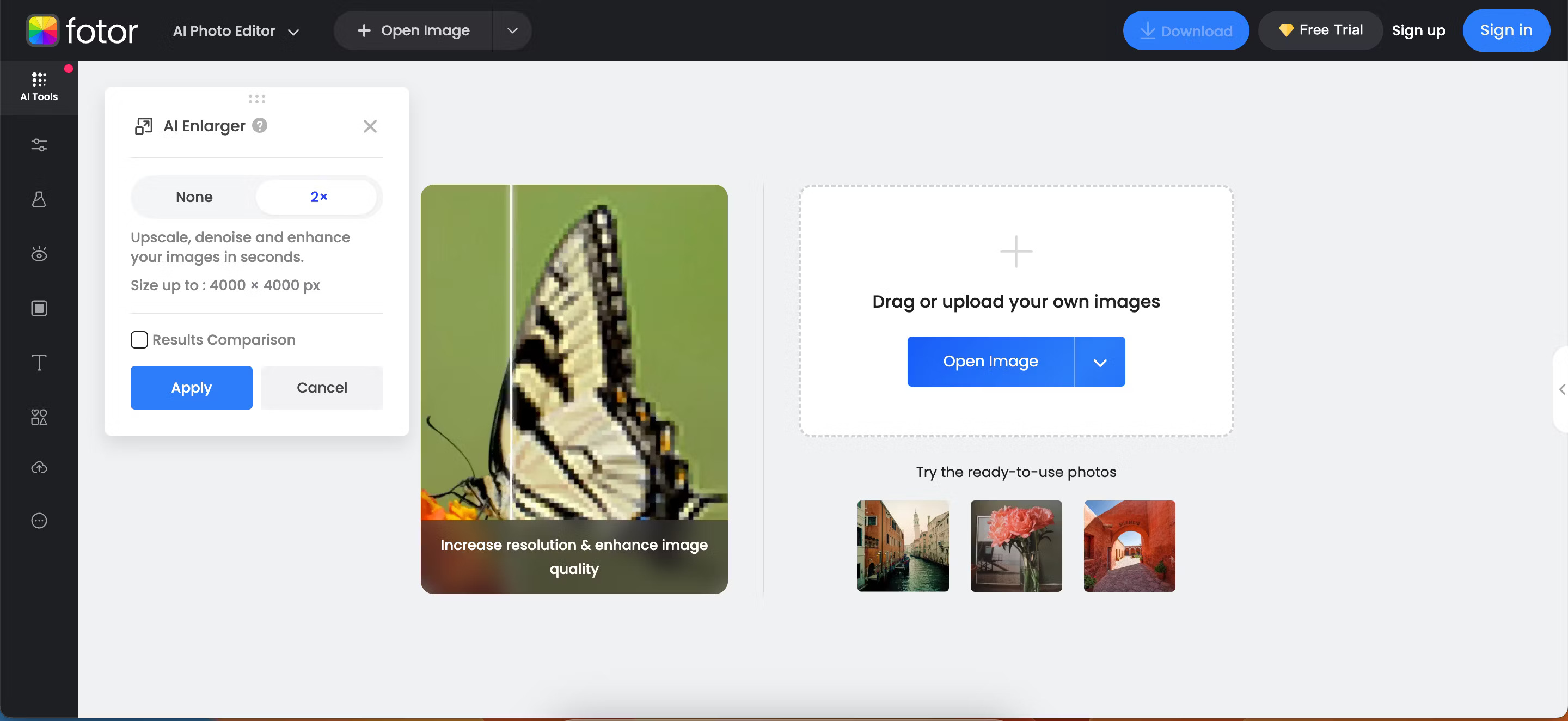
3. Once the tool has finished its task, click Apply .
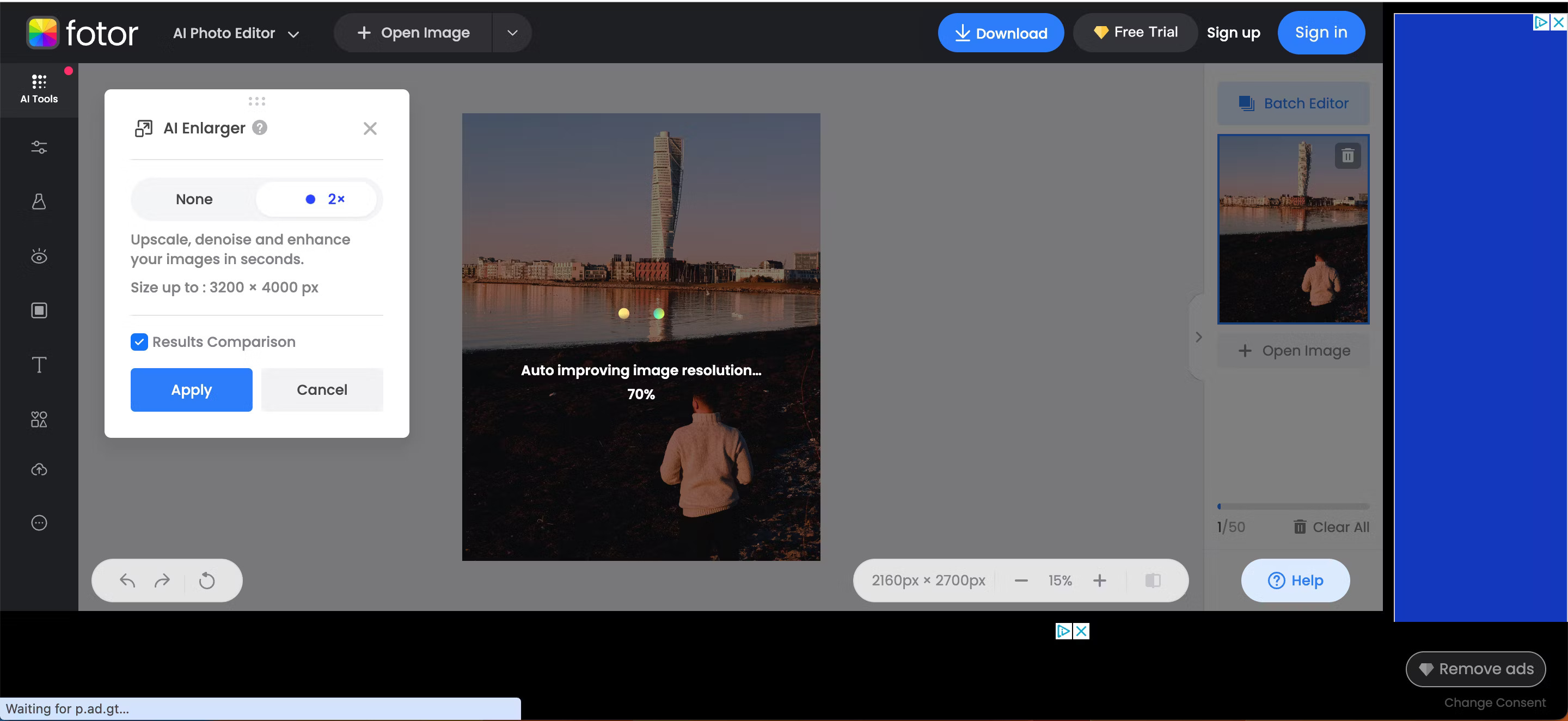
You can continue editing the result using the remaining editing tools that Fotor provides, or click Download to save the result immediately.
GIMP
GIMP is a great free alternative to Photoshop, and you can easily zoom in on your images using this application. However, it's worth noting that using GIMP is sometimes more complex than many other options on this list. Nevertheless, GIMP is well-suited for users who want extensive editing and zooming options.
Here's how to enlarge an image without losing quality in GIMP:
1. Open your image in the software.
2. Navigate to Image > Scale Image .
3. Enter the new dimensions into the pop-up box.
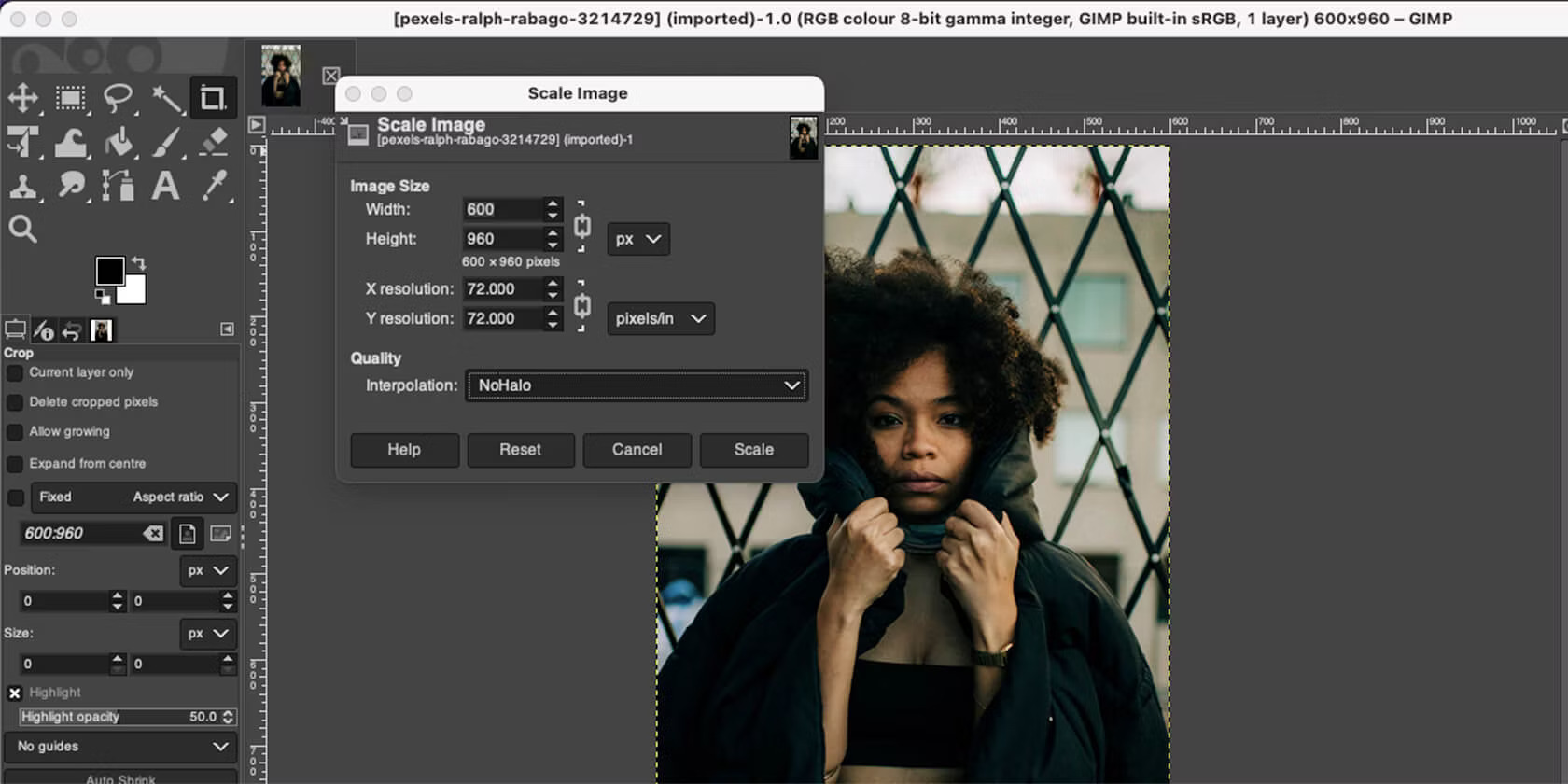
4. Next to Interpolation , select NoHalo and click Scale to complete.
The NoHalo feature is the equivalent of Photoshop's Preserve Details, and it works best when you want to zoom in on an image without losing quality. However, you can experiment with other interpolation methods to find your favorite.
UpscalePics
The next option on this list is much more specialized than the others. As the name suggests, UpscalePics' main goal is to enlarge images without reducing quality. This is not image editing software, but rather image resizing software.
Additionally, this application works online, meaning you just need to upload your photos and click a few buttons, and you're done.
To zoom in on an image in UpscalePics:
- Drag and drop images from your computer. You can select multiple images at once.
- You can choose to increase the resolution from x2 to x8 or enter a specific pixel size.
- Select JPG or PNG and click Start Processing .
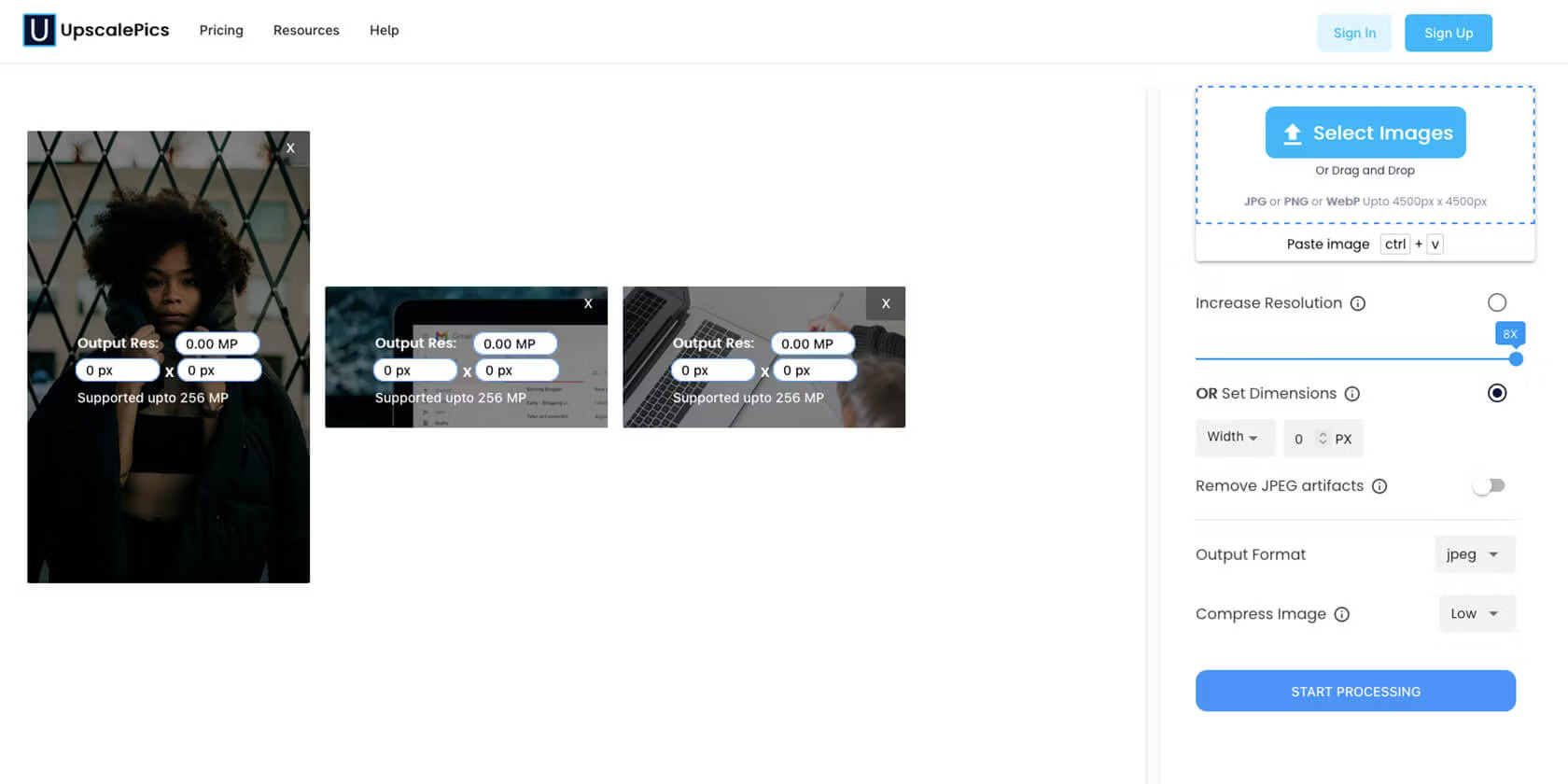
The processing will take a little while, so be prepared to make a cup of coffee or start listening to a podcast.
While UpscalePics allows you to zoom in on three individual images for free, you'll have to pay for additional access. UpscalePics Plus subscriptions start at $5/month, and UpscalePics Plus One Time starts at $6.60/month.
Pixelhunter
When resizing images for social media, Pixelhunter is the easiest-to-use free tool. Manually cropping each image can be tedious. Pixelhunter uses the excellent Uploadcare Intelligence API to automatically recognize objects and crop images more intelligently.
Pixelhunter is an intelligent image resizing tool for media publications. Pixelhunter's AI adjusts images for optimal quality to fit the most popular sizes on social media platforms. It automatically recognizes objects and crops images to suit your needs on social media.
Simply upload your image in any size, and it will be automatically resized to fit one of the 102 sizes supported by Pixelhunter. AI is there to ensure your image is resized in the best way the robot can.
In addition, Pixelhunter offers genuinely professional tips that will actually help you, not just fill up image space.
Here's how to resize your images using Pixelhunter:
1. Select "Choose a file" and upload the image you want to resize.
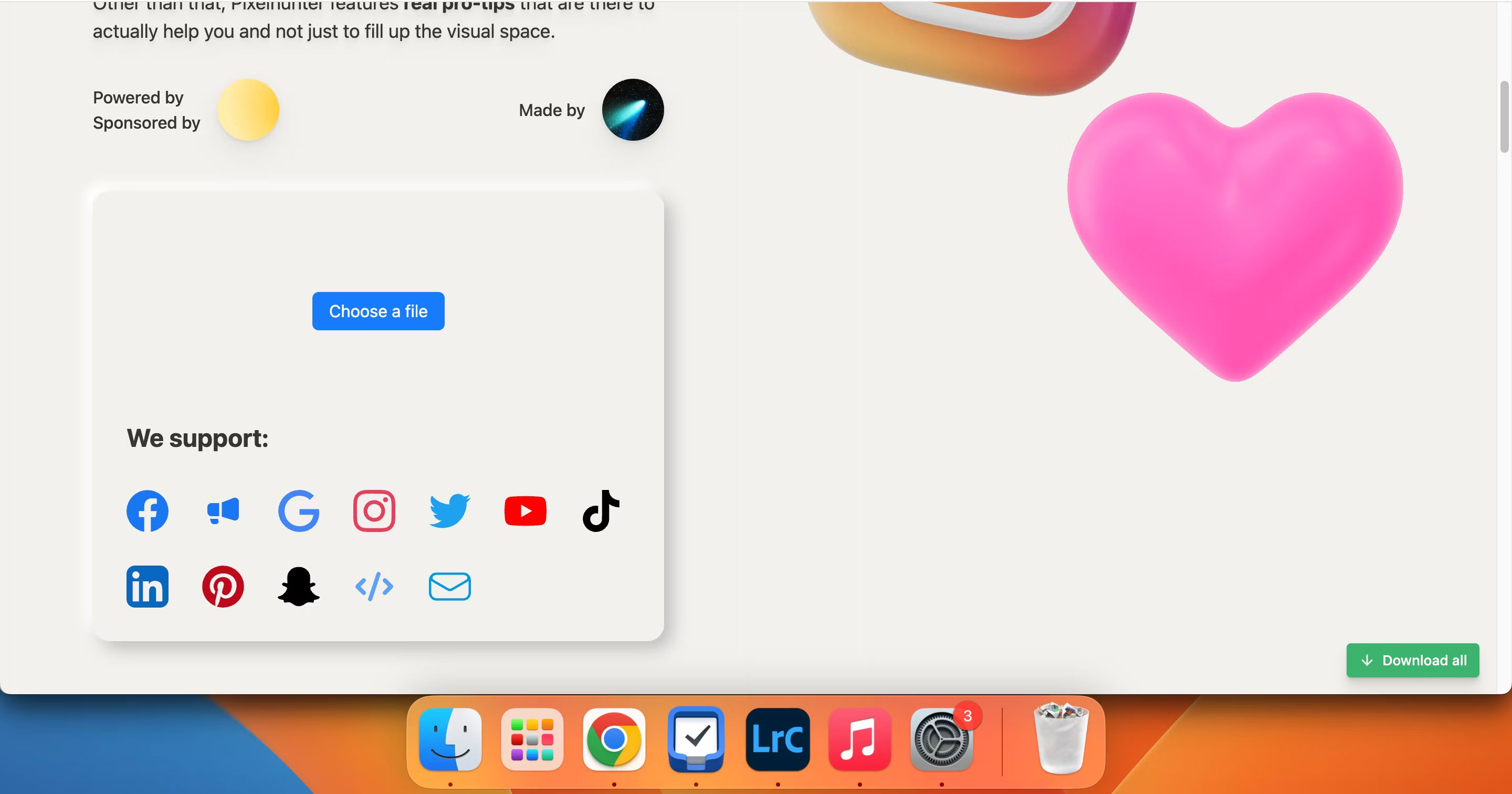
2. Scroll down to see the resized versions of the image for different social media platforms. You can open the images you like in a new tab by clicking the arrow in the upper right corner, then right-clicking and selecting Save image as .
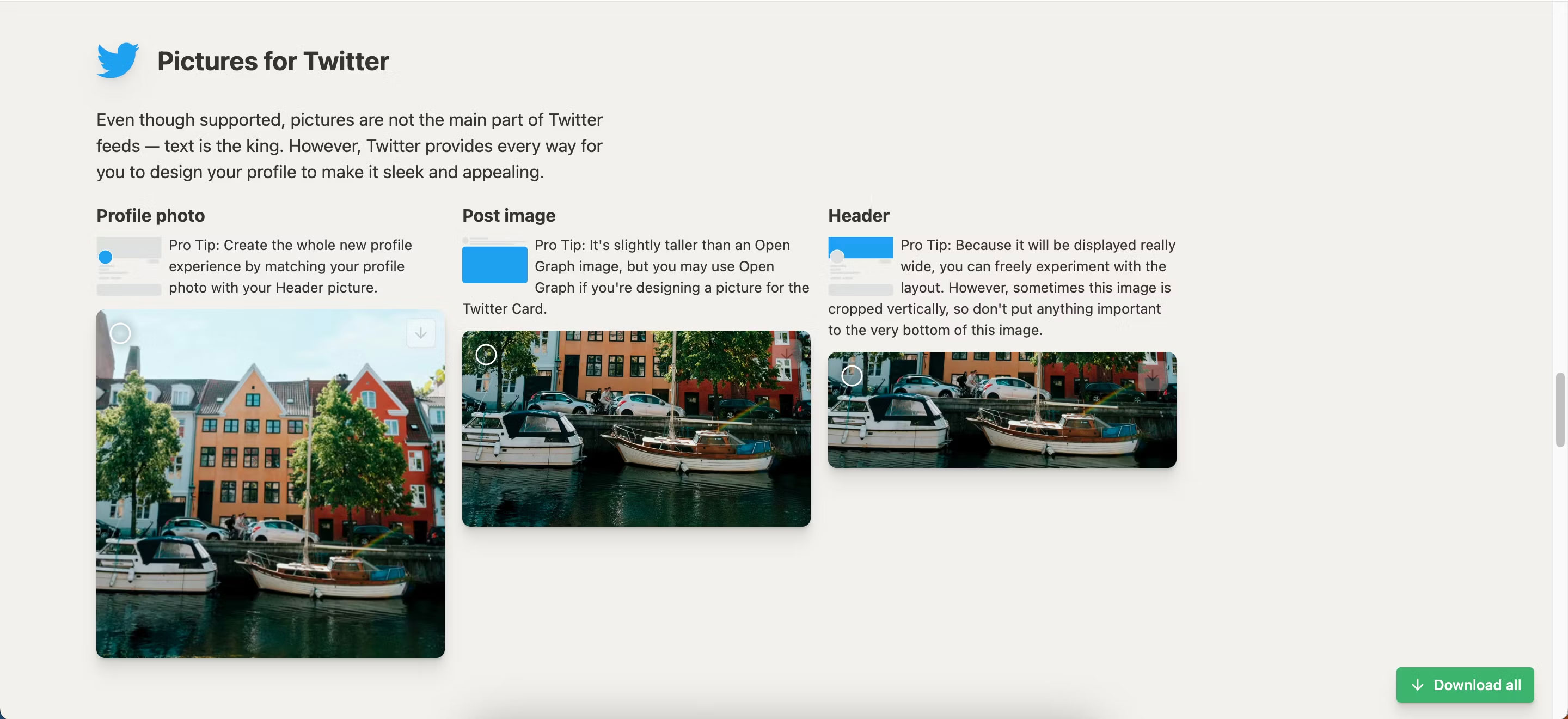
3. You can also select all the ones you like and press Download all to save them to a compressed folder on your device.
FAQ
What is the main point of 7 tools to enlarge images without reducing quality?
It's quite easy to zoom in on images without losing quality, and there are many tools that can help you do this – many of them AI-powered.
Why is this development important?
Key takeaway: It's quite easy to zoom in on images without losing quality, and there are many tools that can help you do this – many of them AI-powered.
What are the key takeaways?
It's quite easy to zoom in on images without losing quality, and there are many tools that can help you do this – many of them AI-powered.
Related Articles
 6 Tools to Enlarge Images Without Losing Quality: Top Picks and Buying Guide8 minutes read
 Tools That Enlarge Images Without Breaking the Image6 minutes read
 Enlarge Photos: How to Increase the Image Size 4 Times Not Broken3 minutes read
 Resize Images, Image Resizing Software3 minutes read
 How to Convert PNG Images to JPG Does Not Degrade Quality5 minutes read
 6 How to Enlarge the Picture Without Breakage4 minutes read
Reader Comments 0
Sign in with email or Google to join the discussion.