Table of Contents
This makes it best for cameras, phones, websites and social media. However, sometimes your JPEG pictures can become fuzzy or blurry. There are several reasons, ranging from excessive compression to corrupted file itself etc., why your image may appear pixelated or blurry.
Fortunately, there are several ways to restore images using some online photo repair to fix your broken photos. In this article, we will talk about the reasons for which JPEG pictures become either pixelated or blurry and suggest how to solve the problem. Let’s begin!
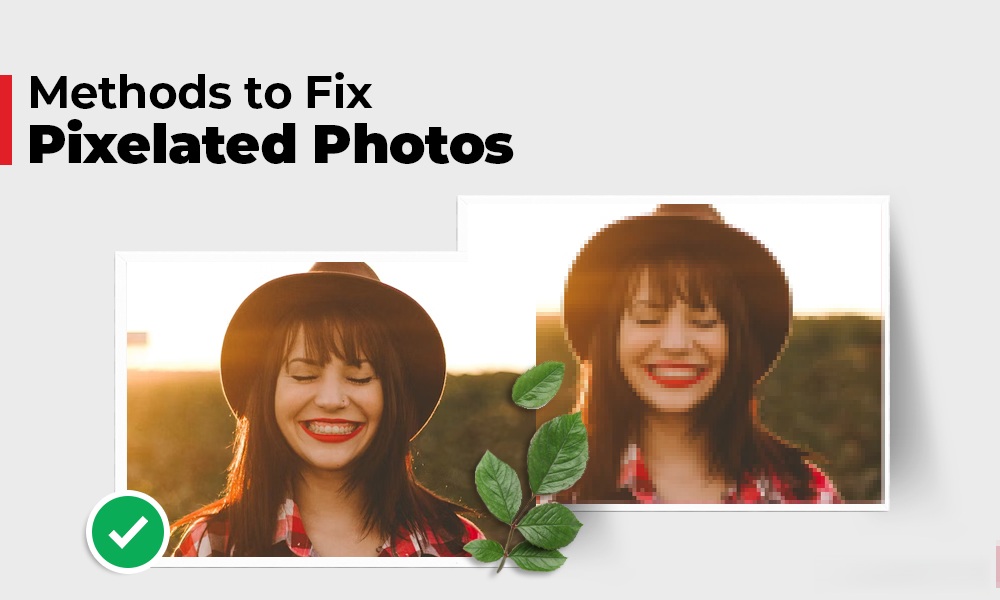
Understanding Pixelation and Blur in JPEG Images
Before applying any photo repair workaround to fix your blurry JPEG pictures, you need to understand the meaning of pixelation and blur.
Pixelation
Pixelation is when you can see the individual pixels of your picture, and this makes it look chunky or rough. This happens when:
- A low-resolution image is enlarged beyond its original size.
- Excessive JPEG compression reduces image details.
- The image is repeatedly saved in JPEG format.
- The original image has insufficient pixel data.
Blurriness
Any photo is called blurry when its sharpness and detail are lost. Common causes include:
- Camera shake during photography.
- Incorrect focus settings.
- Motion blur caused by moving subjects.
- Image resizing and compression.
- Corruption or degradation during file transfer.
Common Reasons for Pixelated or Blurry JPEG Images
Identifying the exact cause of why you are getting pixelated or blurry images can help you to know what kind of photo repair workarounds you need to try. Some common causes include:
Excessive Compression
JPEG images use the lossy compression technique to reduce the image file size. Over-compressing your photo would result in loss of some image details and creation of artefacts.
Low Image Resolution
Using a low-quality camera to take photos can result in pictures that look pixelated or blurry. Any enlargement of such photos will lead to pixelation due to the lack of enough information.
Over Editing and Saving
Each time you edit or save JPEG image, some data is lost. With time, it becomes easy to notice the poor quality of the image.
Improper Resizing
Overstretching of the image will lead to blurriness of the edges and visibility of pixels.
File Corruption
Some other issues, like storage device problems, interrupted transfers, malware attacks, or software errors, are also one of the main reasons for damaged image files, which lead to visual distortions.
Quick Methods to Fix Pixelated or Blurry JPEG Images
Now that you’re familiar with the reasons for your damaged JPEG images, it’s time to apply adequate photo repair methods. Here are quick and easy JPEG repair fixes that can help you to repair blurry photos:
Method 01: Reduce Noise and Compression Artefacts
Excessive compression of your JPEG photos sometimes introduces artefacts that resemble blocky patterns or grain. In such a case, follow the below steps to reduce noise in your images:
- Firstly, open your pixelated or blurry JPEG image in a photo editing software.
- Now, use the noise reduction tool.
- Adjust luminance and colour noise settings.
- Once done, check if pixelation is fixed in your photo.
Noise reduction can improve overall image appearance while minimising pixelation effects.
Method 02: Fix Blurry Photos Using Deblurring Features
Several third-party programs like Adobe Photoshop, Lightroom, Remini and others are available and known for inbuilt deblurring features which you can use to solve issues of motion blur and focus problems. To fix blurry images using Photoshop you need to:
- Launch Photoshop and open your blurry photos in it.
- Select Filter, go to Sharpen > Smart Sharpen.
- Set Remove to Lens Blur.
- Also, increase Amount and adjust Radius until the image looks sharper.
- Click OK to apply the changes.
Results depend on the severity of the blur and the amount of recoverable detail.
Method 03: Repair Damaged JPEG Images Using Online Photo Repair Software
If the manual methods seem complex, try third-party photo repair tools like Stellar Online Photo Repair. The online photo repair utility makes it possible to efficiently restore corrupt JPEG images without requiring much technical knowledge. Whether your image is damaged due to pixelation, blur, corrupted header, or other reasons, this photo repair software will help you fix the problem.
Key Features of Stellar Online Photo Repair
- The Stellar Online Photo Repair tool allows you to fix damaged photos directly from your web browser, i.e., no need to install software on your computer.
- Along with JPEG, you can use this software to repair damaged images of various file formats, such as TIFF, HEIC, MxPEG, and many more.
- This photo repair software is known for its easy and intuitive user interface, which even enables novice users to fix corrupt images.
- The Preview feature lets you preview the fixed image before saving it to your storage device.
Here’s how to fix JPEG images that turned pixelated or blurry using the Stellar Online Photo Repair:
Step 1: Launch any web browser and visit the official website of Stellar Online Photo Repair. Click the "Upload Photos" button to upload blurry and pixelated images you need to fix.
Step 2: Now click the "Start Repair" button to start the repair process. The software will automatically analyse your image and identify all corrupted parts.
Step 3: When the repairing process is over, preview the fixed image using the preview option and then download it by clicking the "Download All Photos" button.
How to Prevent JPEG Images from Becoming Pixelated or Blurry?
Using the above-described photo repair methods to fix pixels or blurry photos is relatively simple. In addition, you can take some measures to prevent images from becoming pixelated or unclear:
- Capture the image using the highest resolution, as more the number of pixels in an image, the more the amount of information is displayed.
- Save the image in its highest quality state without performing any editing or resizing of the image. Having the best quality photo as a backup will ensure that you revert to the original image in case you fail while editing the image.
- Do not up-scale your low-resolution photos to a size bigger than the original size of the image. You will end up losing the quality of the photo if you enlarge it to a size where pixels can become visible.
- Make sure that the camera of the phone is focusing on the desired object. Some phones have tap-to-focus technology.
Wrapping Up
If you ever see a photo that is pixelated or blurry, try the aforementioned photo repair methods to fix it. There are ways like using photo sharpening tools, reducing noise, and using special online photo repair software, etc., that you can try to repair pixelated or blurry photos online. The success rate depends on how sooner you proceed with repair workarounds. You can also take steps like making sure the photo is in focus and has good lighting, and not editing it too many times to prevent it from getting pixelated or blurry.
Frequently Asked Questions (FAQs)
What makes the JPEG picture appear pixelated?
JPEG photo may appear pixelated because of various factors such as low resolution, overstretching of the image, compression, and multiple saving operations.
How do I improve the blurry JPEG picture?
Blur JPEG photo can be improved through making the photo sharper, making the photo better with using artificial intelligence and photo editing software like Adobe Photoshop or Lightroom.
Is there any risk of damaging the quality of the picture through JPEG compression?
Yes, because JPEG compression destroys some information in the photo, and over compression may lead to pixilation, blurriness, and lost detail.
Related Articles
 How to Improve Jpeg Image Quality22 minutes read
 Image: How to Change Jpeg to Gif5 minutes read
 How to Convert Photos to JPEG Format: Clear Instructions10 minutes read
 How to Convert Images into PDF Files on iPhone and iPad4 minutes read
 File: How to Convert Pictures to Jpeg9 minutes read
 How to Convert JPEG Images to Word Documents: Practical Guide3 minutes read
Reader Comments 0
Sign in with email or Google to join the discussion.