Table of Contents
Use your phone's Panorama or Pano mode to capture a scene that is wider than a normal frame. Move the phone slowly along the on-screen guide and stop when you have covered the view you need.
A panorama is not always a true 360 photo. A standard phone panorama is a wide, flat image and may cover less than a full circle. A spherical 360 photo also records the view above and below and includes metadata that lets a compatible viewer respond as you drag or turn the phone. A dedicated 360 camera or a supported capture app is usually required for that immersive result.

Take a panorama on an Android phone
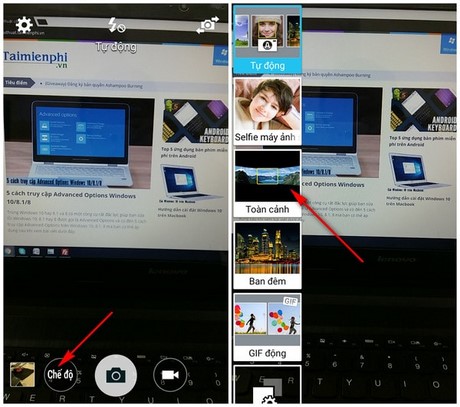
Camera menus vary by manufacturer and model. On many Samsung Galaxy phones, the mode is under Camera > More > Panorama; other Android camera apps may show Panorama directly in the mode carousel.
- Open the rear camera and select Panorama. If the option is missing, check More or the camera's mode-management screen.
- Hold the phone vertically for a wider horizontal result, or follow the app's direction for a vertical panorama.
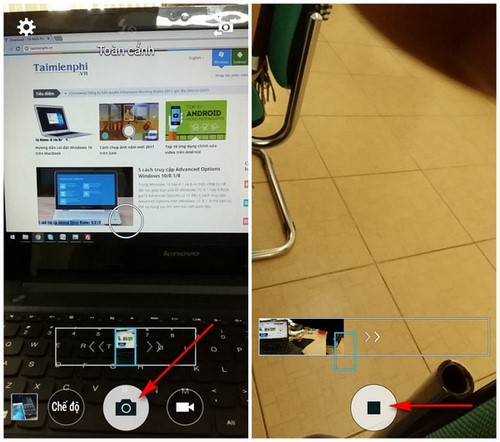
- Tap the shutter button and rotate your body slowly in the direction of the arrow. Keep the guide near the center line and avoid stepping sideways.
- Tap Stop, tap the shutter again, or reach the end of the guide. Open the result in Gallery and inspect the seams.
Take a panorama on an iPhone
- Open Camera and swipe through the modes to Pano.
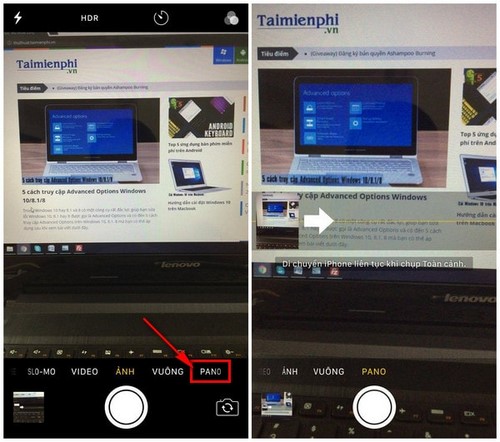
- Tap the arrow if you want to reverse the panning direction.
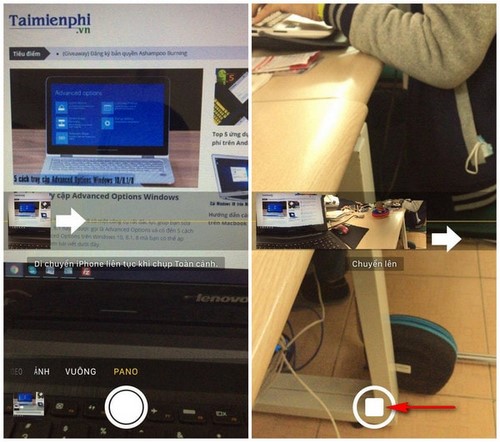
- Tap the shutter button, then pan slowly while keeping the arrow on the center line.
- Tap the shutter again to finish. You do not have to fill the entire guide.
How to get cleaner panorama seams
- Stand in one place and rotate from your waist instead of walking sideways.
- Keep a steady speed and follow the guide rather than rushing.
- Avoid close moving subjects, passing vehicles, waves, and branches blowing in the wind; movement can create duplicates or broken edges.
- Lock exposure and focus when the camera app supports it, especially when one end of the scene is much brighter.
- Leave extra space around important subjects so a small crop will not remove them.
If the built-in camera cannot create the format you need, compare these panorama apps for Android. Check that an app is still maintained and available in the official store before installing it.
Upload a compatible 360 photo to Facebook
Facebook can display supported panoramic or 360 images interactively when it recognizes the file and its metadata. In the Facebook app, start a post, tap Photo/video, and select the 360 image. A globe-style badge may appear on a recognized file.
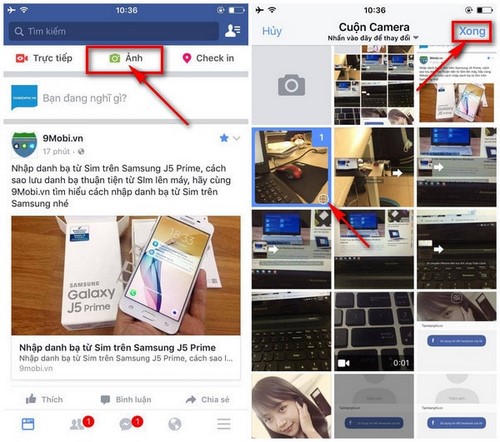
Set the starting view if Facebook offers that control, add the post text and audience, then tap Post.
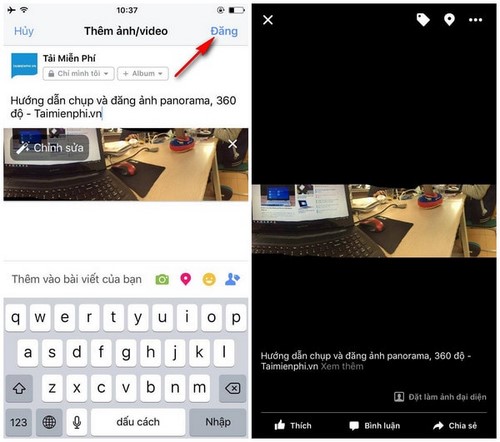
If the image uploads as a flat strip, confirm that it is a supported 360 file rather than an ordinary Pano image. Exporting, resizing, or editing the file can remove projection metadata, so test the original capture before troubleshooting an edited copy. For the general posting workflow, see how to post photos on Facebook.
Related Articles
 How to Post Photos to Facebook Computer 360-Degree Panorama Mode6 minutes read
 The Difference Between Panorama and 360-degree Photos5 minutes read
 Instructions on How to Post 360-Degree Videos on Facebook5 minutes read
 How to Set a 360-Degree Photo as a Cover Image on Facebook5 minutes read
 How to Capture and Post Panorama 360-degree Photos on Facebook10 minutes read
 How to Write a Degree Symbol in a Computer or Phone5 minutes read
Reader Comments 0
Sign in with email or Google to join the discussion.