Table of Contents
FaceU is a mobile camera and photo editor built around filters, stickers, portrait retouching, and makeup effects. The screenshots below show a legacy version of the app, so button names and availability may differ by device, region, and current release.
Install FaceU safely
Search for FaceU in your phone's official app store and verify the developer, reviews, permissions, and update information before installing. If the app is not offered in your region, avoid downloading an unverified APK from an unfamiliar website. For other options, see this list of Chinese camera and photo-editing apps.
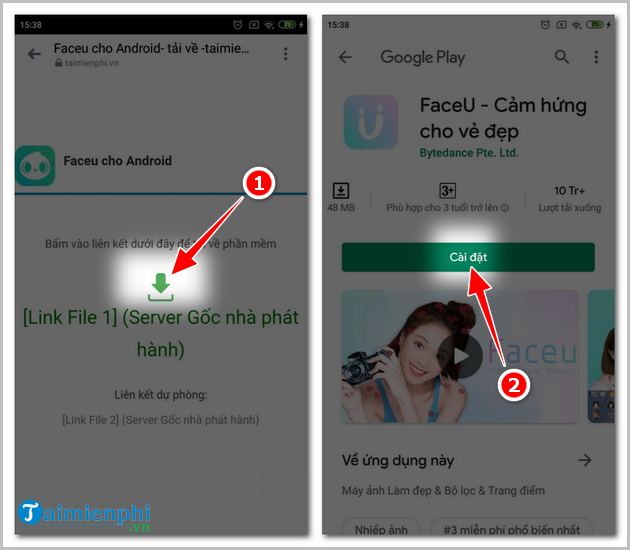
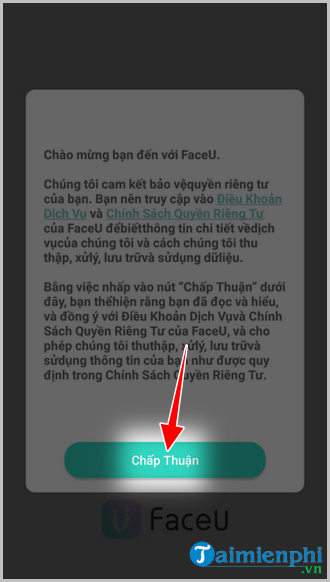
Open the app and review its terms and privacy information rather than accepting them automatically.
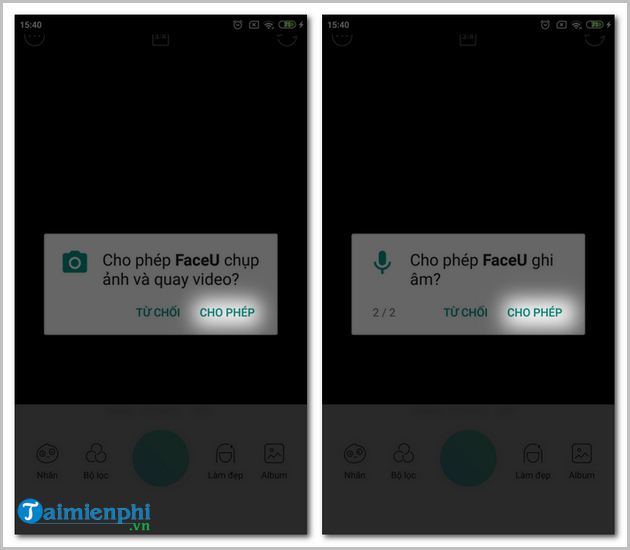
FaceU may request access to the camera and photos so it can capture or import images. Grant only the permissions needed for the feature you plan to use; permissions can be changed later in the phone's settings. This guide to managing Android app permissions explains the available controls.
Edit an existing photo
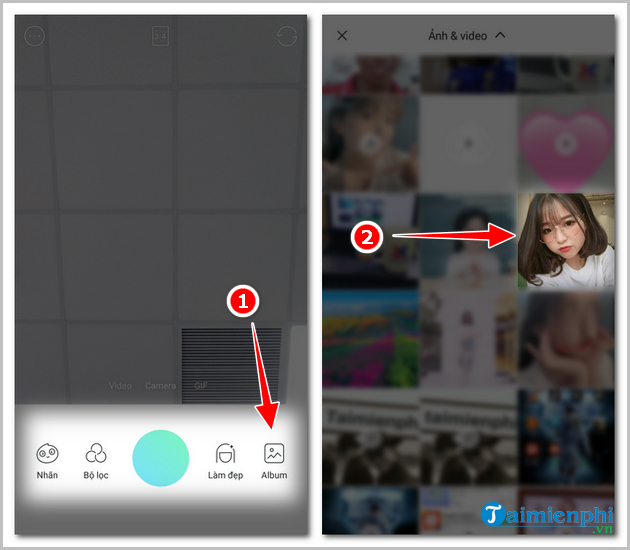
- Open FaceU and choose Albums or the gallery option.
- Select the photo you want to edit. Work on a copy if preserving the untouched original is important.
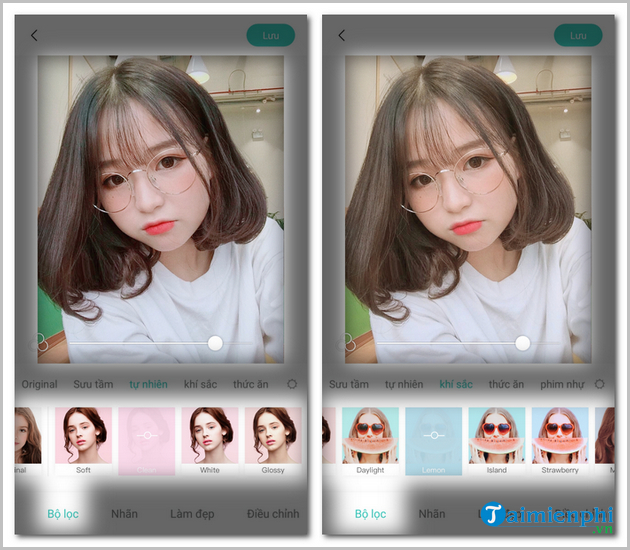
Apply a filter
Open Filters and tap a preset to preview it. If an intensity slider appears, reduce the strength until skin tones and highlights still look natural.
Add stickers
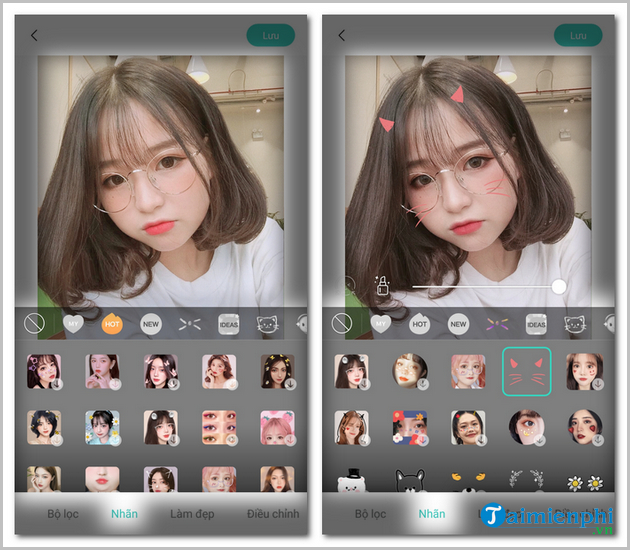
Open the sticker or effects panel, select a design, and position it on the image. Face-tracking stickers work best when the face is well lit and unobstructed.
Use beauty controls carefully
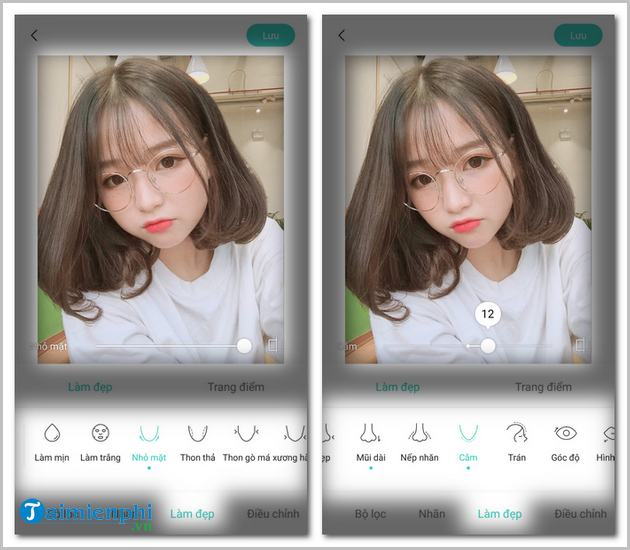
The Beauty panel can smooth skin and reshape facial features. Make small adjustments and compare the preview with the original; strong settings can remove natural detail or distort the background.
Try makeup effects
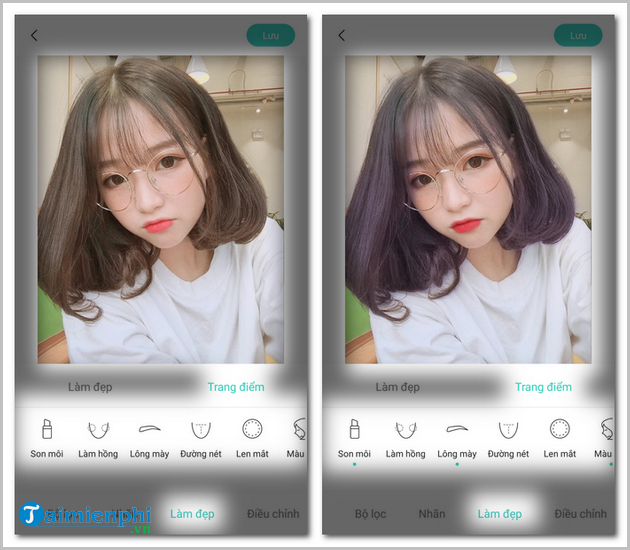
Within the portrait tools, the makeup options may include lipstick, blush, eyebrows, and hair color. Availability depends on the app version and the detected face.
Adjust light and color
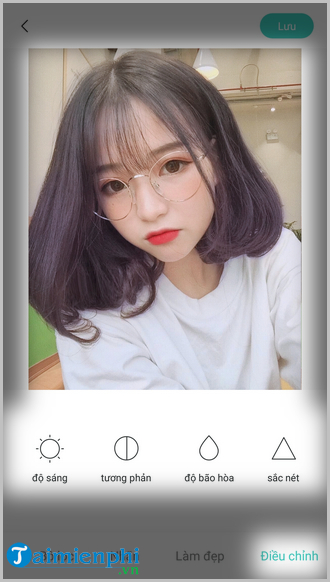
Use Adjust for brightness, contrast, saturation, and related controls. Correct exposure first, then make restrained color changes so the result does not appear washed out or oversaturated.
Save the edited photo
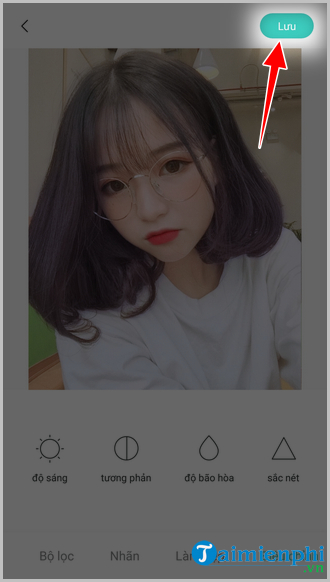
Tap Save or the export icon when the edit is complete. Confirm that the saved file appears in Photos or Gallery and check the result at full size. Some versions or templates may add a FaceU mark; check the export preview before sharing.
If FaceU is unavailable or does not provide the controls you need, compare these photo-editing apps for Android or use a browser-based editor from this list of free online photo editors.
Related Articles
 Instructions for Using Faceu to Take Unique Selfies5 minutes read
 Instructions on How to Discharge the Phone Battery to Make4 minutes read
 How to Change the Phone Number on Tik Tok: Step-by-Step3 minutes read
 How to Log in to Outlook on Your Phone in the Simplest and Most10 minutes read
 Instructions for Cutting the Phone Ringtone5 minutes read
 How to Measure the Speed of Charging on the Phone5 minutes read
Reader Comments 0
Sign in with email or Google to join the discussion.