Table of Contents
A basic GIMP edit can be completed in four stages: open the photo, crop unwanted areas, correct brightness and contrast, and export a new image file. Save a GIMP project as well if you want to keep layers and return to the edit later.
The screenshots may look slightly different in newer GIMP releases, but the underlying workflow and menu names remain recognizable.
1. Open the photo
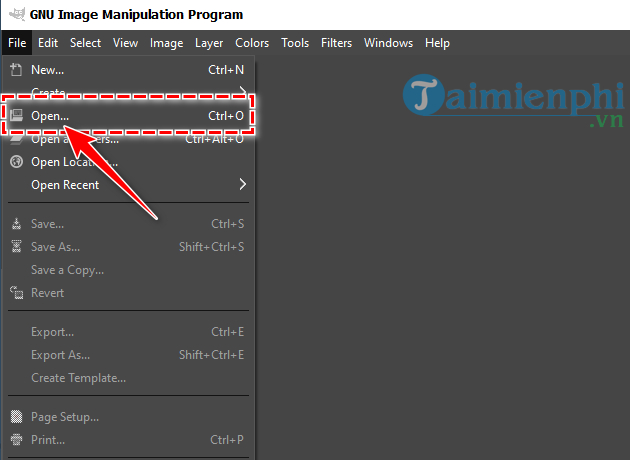
Start GIMP and choose File > Open. You can also press Ctrl + O.
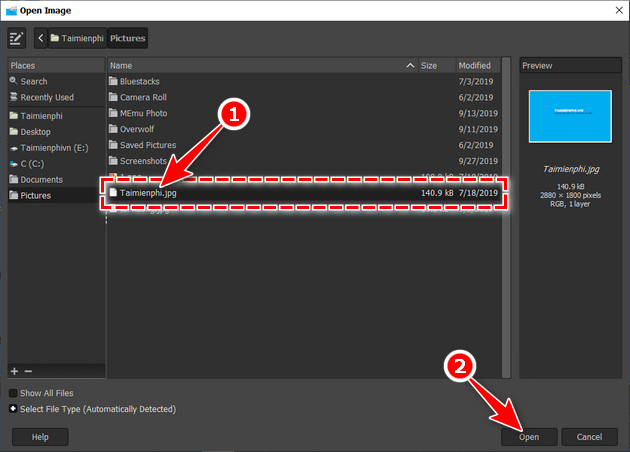
Browse to the image, select it, and click Open. If GIMP displays a color-profile prompt, keeping the embedded profile is usually the safest choice unless your workflow requires a specific color space.
2. Crop the image
The direct method is the Crop Tool, available in the toolbox or with Shift + C. Drag around the area to keep, adjust the handles, and press Enter.
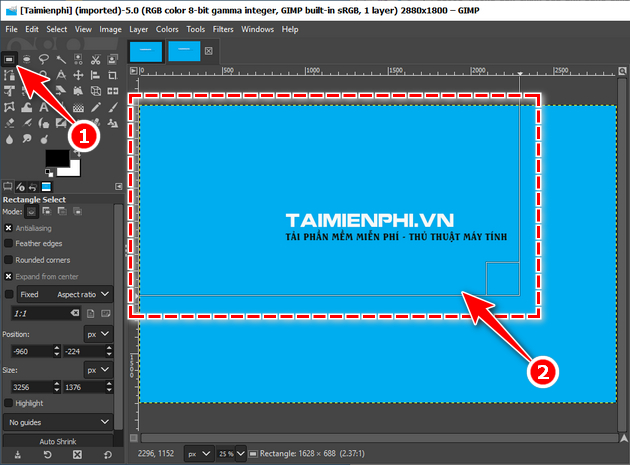
The screenshots below show another valid method: choose the Rectangle Select Tool or press R, then drag over the area you want to retain.
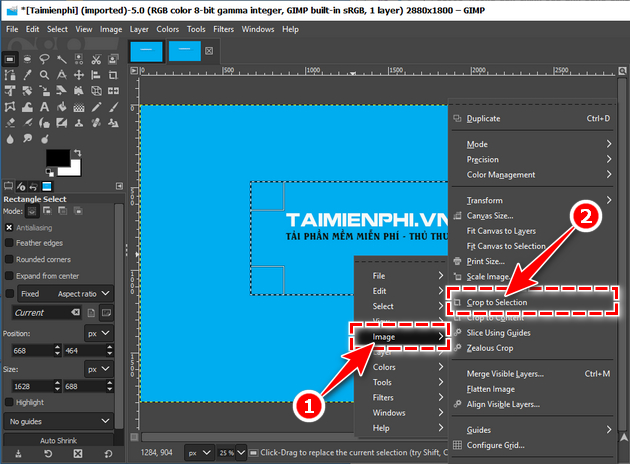
Choose Image > Crop to Selection. Skip cropping if the existing framing and dimensions are already correct.
3. Correct brightness and contrast
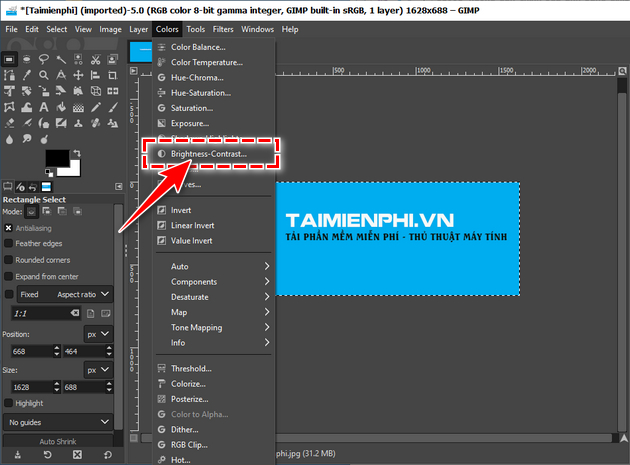
Choose Colors > Brightness-Contrast. This simple adjustment works well for a photo that is generally too dark, too bright, or flat. For uneven exposure or more precise tonal control, the Levels or Curves tools are better choices.
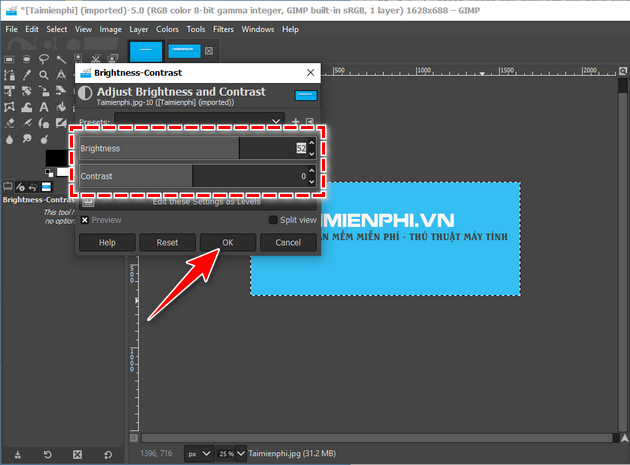
Move the Brightness and Contrast controls while watching the preview. Avoid pushing either setting so far that highlights become blank white or shadows lose all detail. Confirm the adjustment when the image looks balanced.
4. Save the project and export the photo
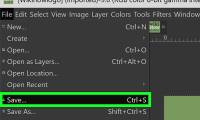
File > Save stores an editable GIMP project in the XCF format. Use XCF when you need to preserve layers, masks, selections, and other project data. It is not the usual format for posting or sharing a finished photo.
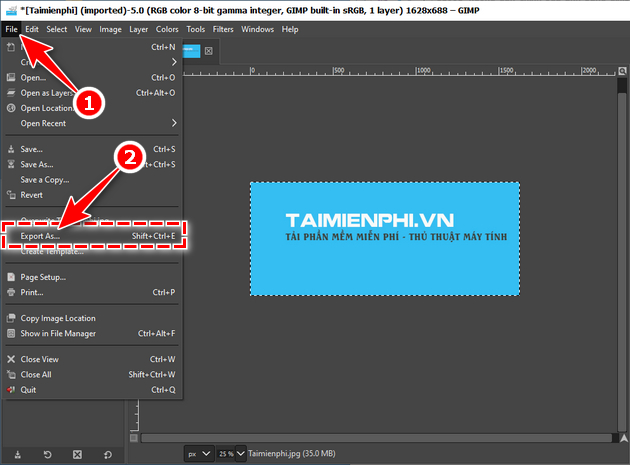
To create a standard image, choose File > Export As or press Ctrl + Shift + E. Add the desired extension to the file name, such as .jpg, .png, or .webp.
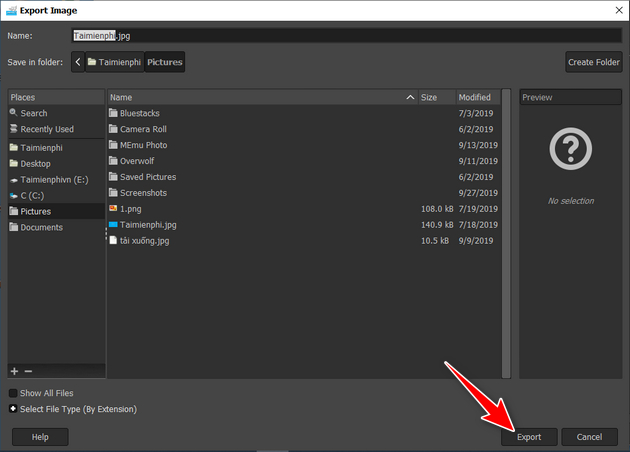
Select a separate file name and destination, click Export, review the format-specific quality options, and confirm the export. Reopen the result to check its dimensions, clarity, and color before deleting or moving the original.
Which format should you export?
- JPEG: a practical choice for photographs; reduce compression if visible artifacts appear.
- PNG: useful for screenshots, graphics, sharp text, and transparency.
- WebP: suitable for many web images when the destination supports it.
Once these basics are familiar, you can explore useful GIMP plugins or follow this guide to creating an animated GIF in GIMP. For lighter alternatives, compare these free desktop photo editors.
Related Articles
 A Full Guide to Editing Photos in GIMP17 minutes read
 How to Create Animations and Gifs Using GIMP on PC4 minutes read
 How to Cut Advanced Photo Collage in GIMP19 minutes read
 How to Edit JPG Photos: Complete Guide13 minutes read
 How to Add Text with GIMP2 minutes read
 How to Swap and Combine Faces in GIMP6 minutes read
Reader Comments 0
Sign in with email or Google to join the discussion.