Table of Contents
Malvertising is malicious activity delivered through or disguised as online advertising. A bad ad may redirect the browser to a phishing page, present a fake download or update, abuse browser notifications, or attempt to exploit an unpatched browser. Because ad networks place content on many sites, a malicious campaign can appear even on a legitimate website.

How malvertising works
- An attacker submits a deceptive ad or compromises an account, advertising supplier, or landing page.
- The ad is distributed through an advertising network and displayed on participating websites or search results.
- The ad may show a fake warning, imitate a download button, redirect the visitor, or load code that targets a browser vulnerability.
- If the visitor installs the offered file, enters credentials, grants notification permission, or uses vulnerable software, the attack can lead to malware, account theft, or persistent scam messages.
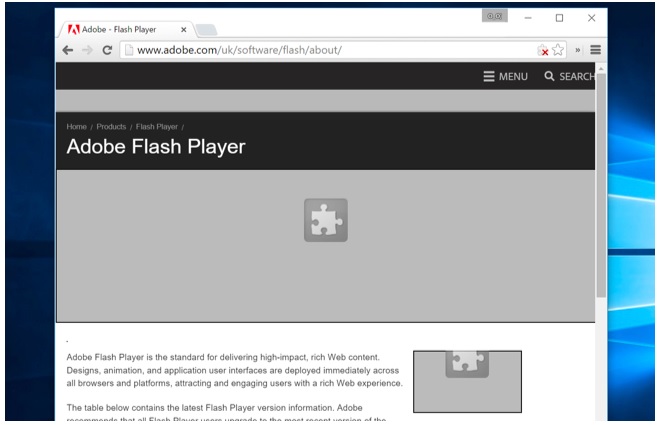
Not every incident requires an intentional click: redirects and software exploits can occur during page loading. However, modern browser sandboxing and the retirement of old plug-ins have reduced many drive-by techniques. Deceptive clicks, fake installers, malicious extensions, and stolen credentials remain practical risks.
Warning signs of a malicious ad
- A page claims that the browser, media player, or antivirus must be updated immediately.
- A download button appears unrelated to the page's actual content.
- A pop-up says the device is infected and provides a phone number or cleanup tool.
- The browser jumps through several domains or asks to allow notifications before showing content.
- An ad impersonates a familiar company but uses a misspelled or unrelated domain.
How to reduce malvertising risk
Keep the browser and operating system updated
Leave automatic updates enabled and restart the browser when it says an update is ready. Install Windows, macOS, Android, or iOS security updates promptly. Do not install a browser update offered by a random web page; open the browser's About page or use the official app store instead. TipsMake's explanation of why Chrome automatic updates matter covers the security reason, and the example of malware disguised as an Edge update shows why in-browser warnings require caution.
Use reputation and download protection
On Windows, keep Microsoft Defender SmartScreen and potentially unwanted app blocking enabled under Windows Security > App & browser control > Reputation-based protection. These controls can warn about known malicious sites, suspicious downloads, and unwanted software. See the SmartScreen settings guide, but avoid disabling protections merely to run an unknown download.
Install fewer browser extensions
Extensions can read and modify web pages according to the permissions you grant. Install only what you need from the browser's official store, verify the publisher, review permissions, and remove extensions you no longer use. An ad blocker can reduce exposure to advertising, but it is not a substitute for updates and safe download habits.
Reject unexpected notification requests
Do not select Allow just because a site says it is required to watch a video, prove you are human, or start a download. If scam alerts keep appearing after the browser is closed, review the browser's site-notification permissions and remove unfamiliar sites.
Obsolete advice from the plug-in era
Older malvertising guidance focused on click-to-play controls for Adobe Flash and Java browser plug-ins, third-party anti-exploit utilities, and Firefox's early multi-process project. The screenshots below are retained as historical context, but these are not current setup instructions.
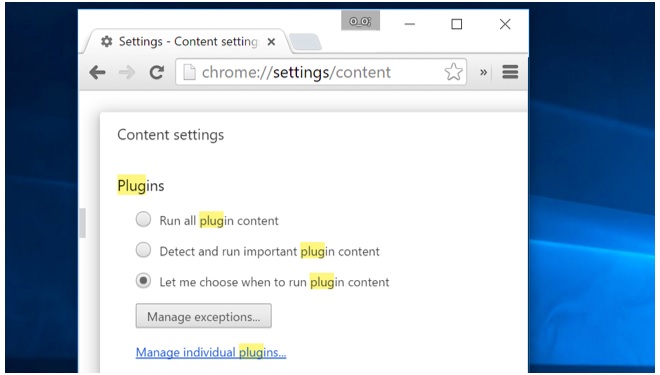
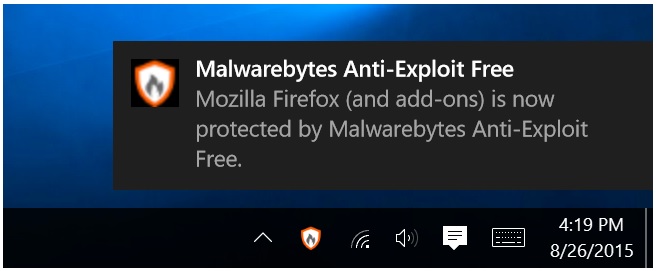
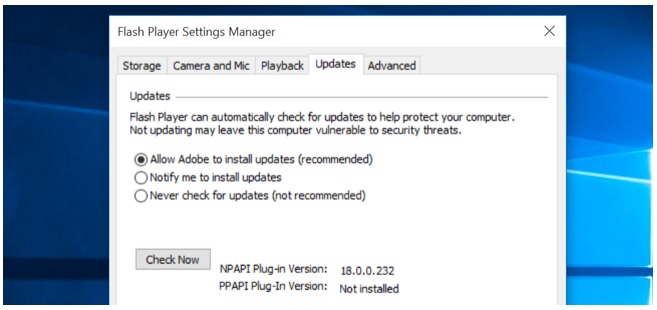
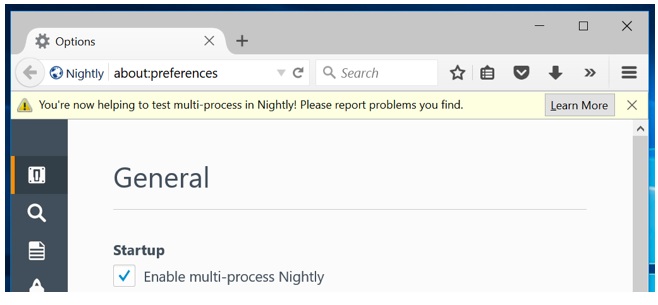
Adobe Flash Player reached end of life and modern browsers no longer run Flash content. The Java browser plug-in is also absent from mainstream current browsers. Do not reinstall either component to view a website that asks for it. Current Chrome, Edge, Firefox, and Safari releases include process isolation and other defenses that depend on staying updated.
What to do after clicking a suspicious ad
- Close the tab. Do not call a displayed phone number, install the offered program, or approve notifications.
- If a file downloaded, do not open it. Delete it or scan it with the device's security software.
- Review recent browser extensions and notification permissions.
- Run a full security scan if you executed a file or the browser now redirects unexpectedly.
- If you entered a password, change it from a clean device and enable multi-factor authentication. If payment details were exposed, contact the card provider.
Related Articles
 What Is Malvertising (Malicious Ads)?9 minutes read
 Malicious Ad Campaigns Abuse Chrome to Steal 500 Million iOS User Sessions7 minutes read
 Phishing Outside of Email: Complete Guide5 minutes read
 How to Prevent iPad from Going to Sleep4 minutes read
 How to Prevent Windows from Saving Files to Onedrive5 minutes read
 How to Prevent Common Summer Pests from Entering Your Home7 minutes read
Reader Comments 0
Sign in with email or Google to join the discussion.