Table of Contents
5 Ways to Control Linux Computer from Phone brings together practical options worth considering. Below, you'll find clear explanations, useful context, and tips for deciding which choices best match your needs.
Key Takeaways
- Review KDE connect.
- Explore RustDesk.
- Understand TeamViewer.
1. KDE Connect
KDE Connect was originally designed for the KDE desktop, but it works with other desktop environments as well. It offers deep integration with Linux systems, allowing for seamless file transfers, notifications, and even multimedia control.
Getting started with KDE Connect is simple. First, install the KDE Connect application on your Linux system from your distribution's repositories using your default package manager. For instance, to install the application on Ubuntu, run:
sudo apt install kdeconnectNext, install the KDE Connect app on your Android device from the Google Play Store. Download it from the Apple App Store if you're on iOS.
Verify that both devices are sharing the same Wi-Fi connection before setting up. Once both devices are on the same network, simply open each app one by one and pair them following the instructions provided.
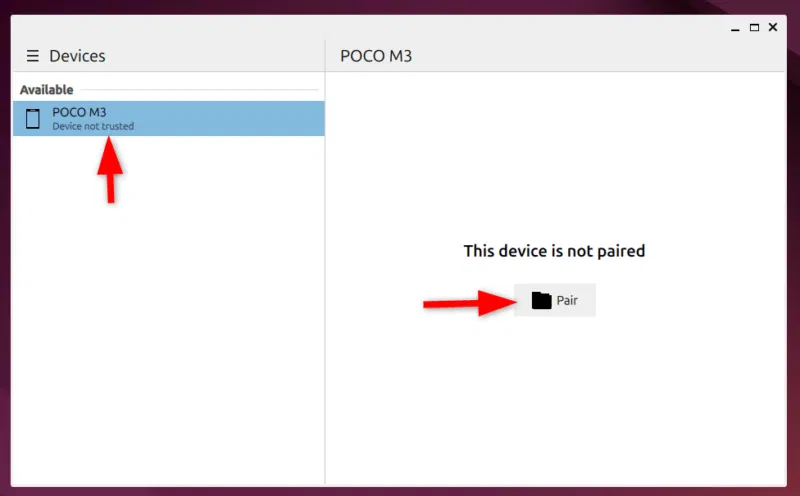
You will be asked to accept the pairing request – click Approve to establish the connection. You are now ready to control your computer.
2. RustDesk
RustDesk is another great option that gives you full control over your Linux desktop from your phone while keeping your data secure through end-to-end encryption. It also offers self-hosting, giving you full control over your content and increased privacy.
Install the app on both your Linux computer and your mobile device. This helps you get started with RustDesk. You can download the Linux version from the official website as a DEB package.
For instance, to install RustDesk on Ubuntu, first download the latest.deb package from the GitHub releases page.
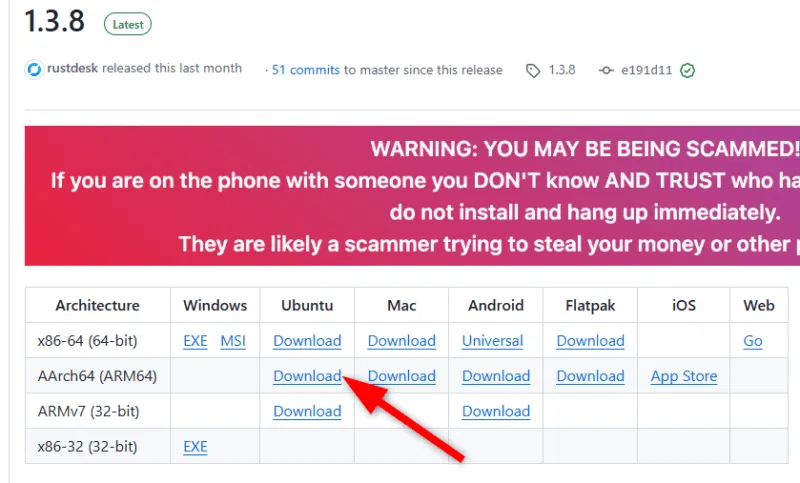
Then double select the deb file to install in Ubuntu.
Alternatively, you can install RustDesk using Flatpak, but make sure Flatpak is enabled on your system:
flatpak run com.rustdesk.RustDeskOnce installed, your Linux machine will be assigned an ID, which you will use to connect from your Android or iOS device.
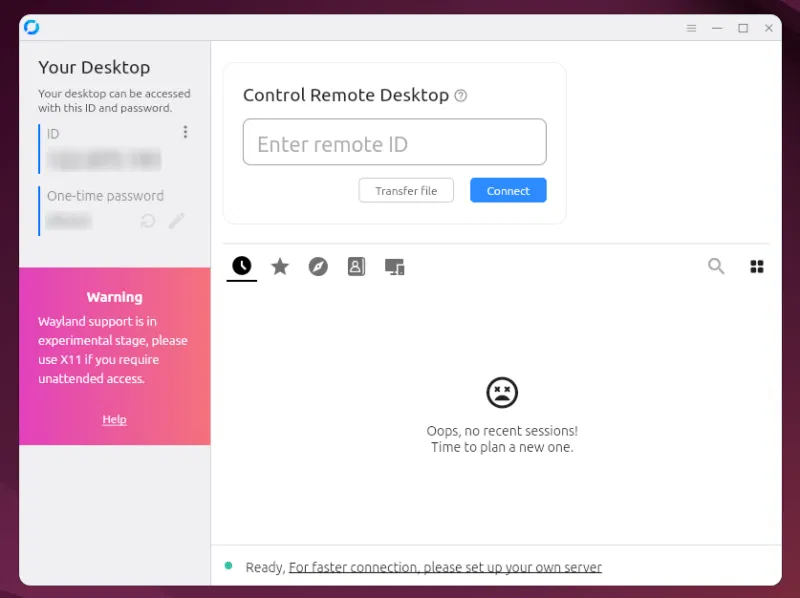
Mobile apps for Android and iPhone are also available on the official website. Once installed, open the app and enter your unique client ID.
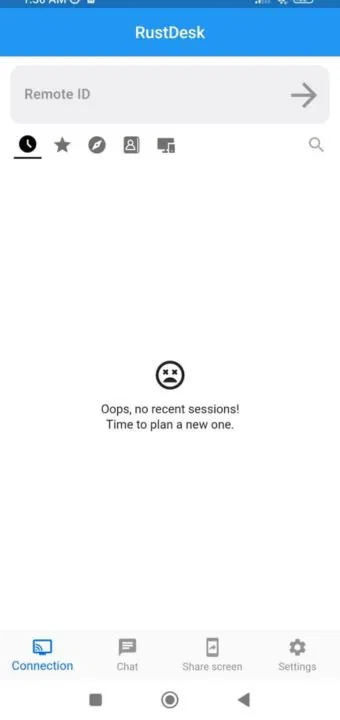
Desktop Linux will prompt you to accept the connection. Once connected, your screen will be shared with the RustDesk mobile app.
3. TeamViewer
TeamViewer is known for its simplicity and cross-platform compatibility. Whether you use Linux, Windows, or macOS, TeamViewer ensures seamless connectivity. Its mobile app is equally impressive, offering a seamless experience of controlling your Linux desktop with just a few taps.
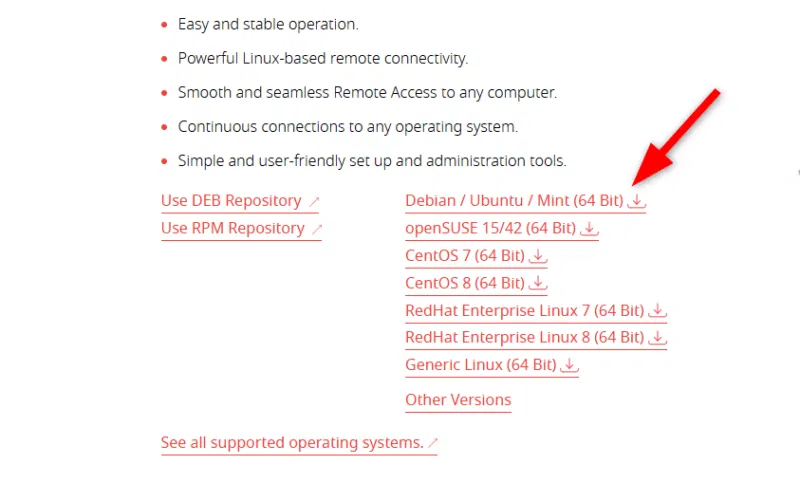
Download the free Linux version from the official website. This helps you use TeamViewer. The installation process is similar to RustDesk – just download the DEB package file and double-click it to install.
Once you have installed the client on your computer, open the file from the Applications menu.
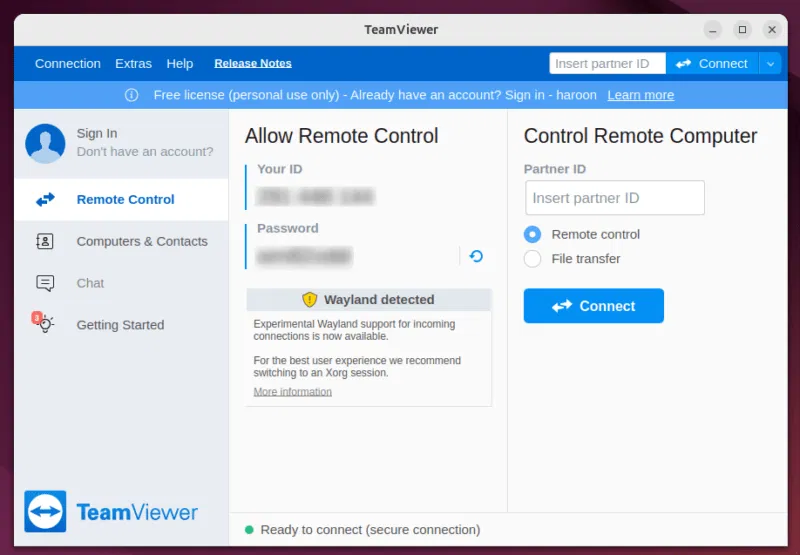
Next, download the TeamViewer Remote Control app from the App Store or Play Store. Once installed, launch the app and enter the connection ID provided by your Linux machine.
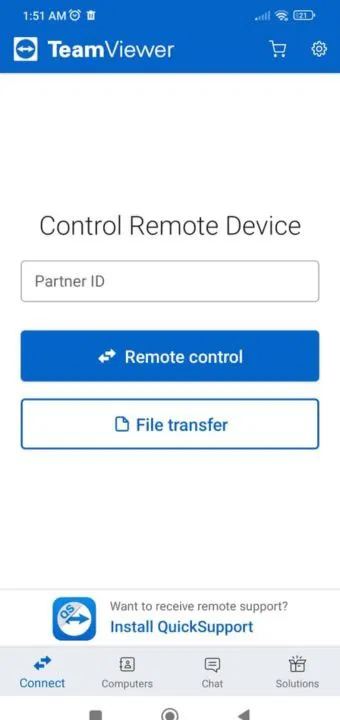
Note: To establish a connection using TeamViewer, you must register with an email ID.
4. AnyDesk
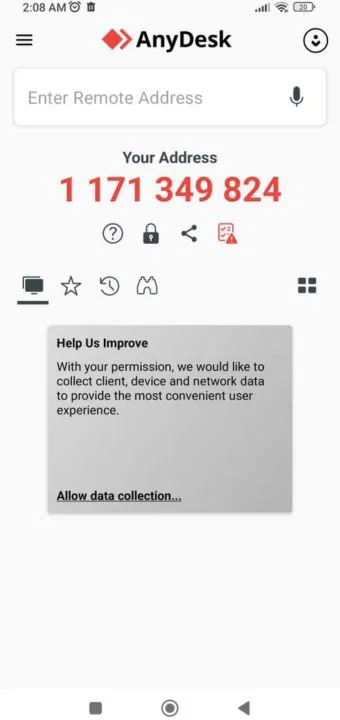
Another great remote control tool that you might find useful is AnyDesk. It offers speed and responsiveness, while also providing a lightweight solution with many useful features.
Start by downloading the AnyDesk DEB file for Linux from the official website and double-click the deb file to install.
Open the file and copy the remote address after installation.
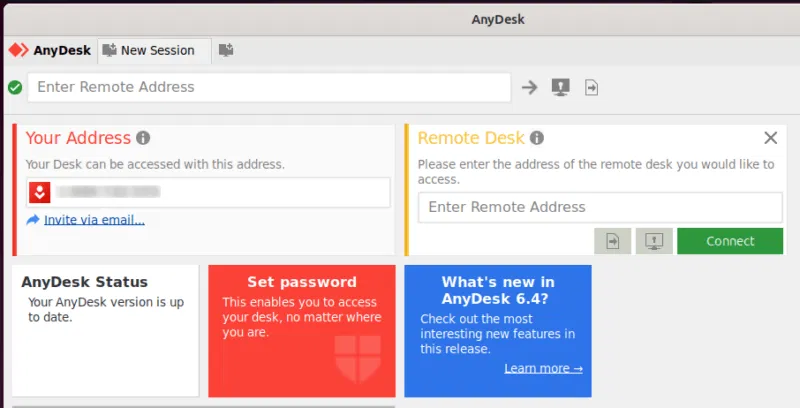
Next, install the mobile version on your phone from the Play Store or App Store. Once installed, open the app and enter the AnyDesk address displayed on the Linux desktop to establish a connection.
5. Chrome Remote Desktop
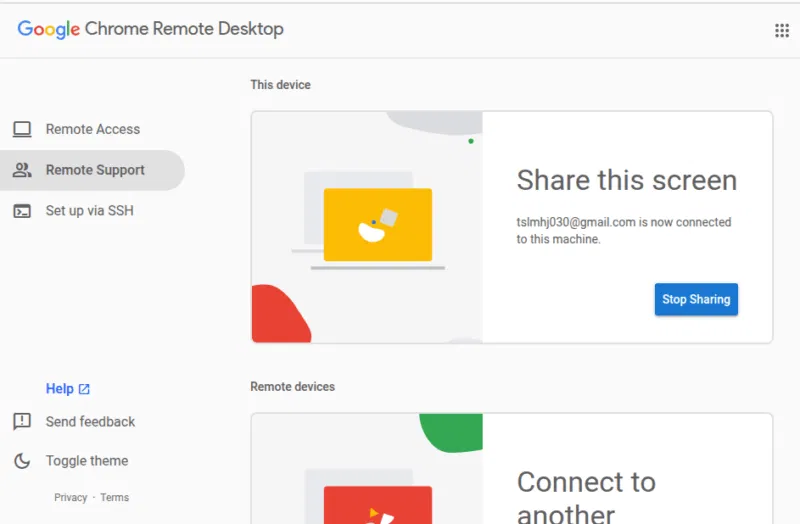
Chrome Remote Desktop is a great choice for users embedded in the Google ecosystem because it integrates seamlessly with Chrome and Google accounts.
Unlike other solutions, you don't need to install any heavy software – just add the Chrome Remote Desktop extension to your Chrome browser. But before you get started, make sure you have Google Chrome installed on your Linux system. It works with other browsers as well, but for the extension to work, you should choose Chrome.
Install the Chrome Remote Desktop extension from the Chrome Web Store on your Linux computer. Then, follow the on-screen steps to set up remote access.
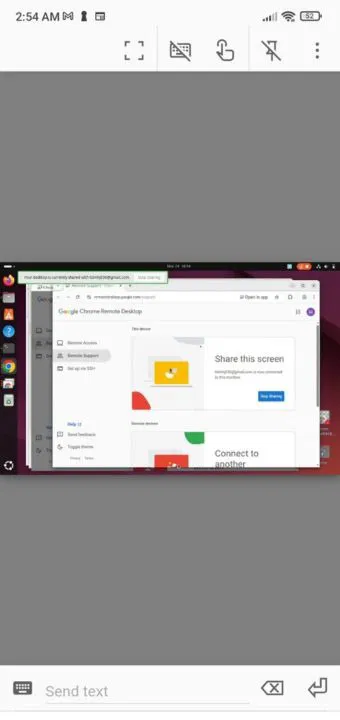
On your phone, download the Chrome Remote Desktop app from the Google Play Store (Android) or Apple App Store (iPhone). Sign in with your Google account and you can control your Linux computer from anywhere with just a few taps.
Final Thoughts
The most reliable way to handle ways to control linux computer from phone is to follow the process in order, verify each important setting, and test the result before moving on. Use the guidance above as a practical reference, then adjust the details for your device, software version, or specific goal.
FAQ
What should I know first about Ways to Control Linux Computer from Phone?
You'll find controlling your computer from your phone a breeze if you're a productivity-minded Linux user.
How do I get the best results with Ways to Control Linux Computer from Phone?
Use current software or equipment, follow the steps in order, review the recommended settings, and test one change at a time so you can identify what improves the result.
What should I do if Ways to Control Linux Computer from Phone doesn't work as expected?
Check compatibility, permissions, connectivity, and version-specific settings. Restart the relevant device or app, then repeat the process carefully before trying a more advanced fix.
Related Articles
 Remote Desktop: How to Access Your Windows PC from Your iPad Anywhere4 minutes read
 How to Control the Phone Remotely by Computer3 minutes read
 5 Ways Librem 5 Phones Affect Linux Desktop8 minutes read
 How to Run Linux Software: 7 Ways to Run Linux Software on9 minutes read
 How to Find, Set and Change IP Addresses on Linux9 minutes read
 How to Use Android Phone Control Sony TV6 minutes read
Reader Comments 0
Sign in with email or Google to join the discussion.