Table of Contents
Quick Overview
Remote Desktop : Get a clear, practical overview of Remote Desktop, including Set up Chrome Remote Desktop on PC and Access PC from iPad.
Using your iPad to access your PC can be incredibly convenient, whether you're traveling or just want to work in another room, and Chrome Remote Desktop makes the process incredibly simple.
Set up Chrome Remote Desktop on PC
To get started using Chrome Remote Desktop on your PC, you'll first need to download the client. While most Chromium-based browsers will work, we recommend using Google Chrome for the best experience. Make sure you're signed in to your Google account before you get started.
1. Go to the Chrome Remote Desktop website on your PC and click the download button. This will take you to the desktop extension page, where you can simply click Add to Chrome to add the extension to your browser.
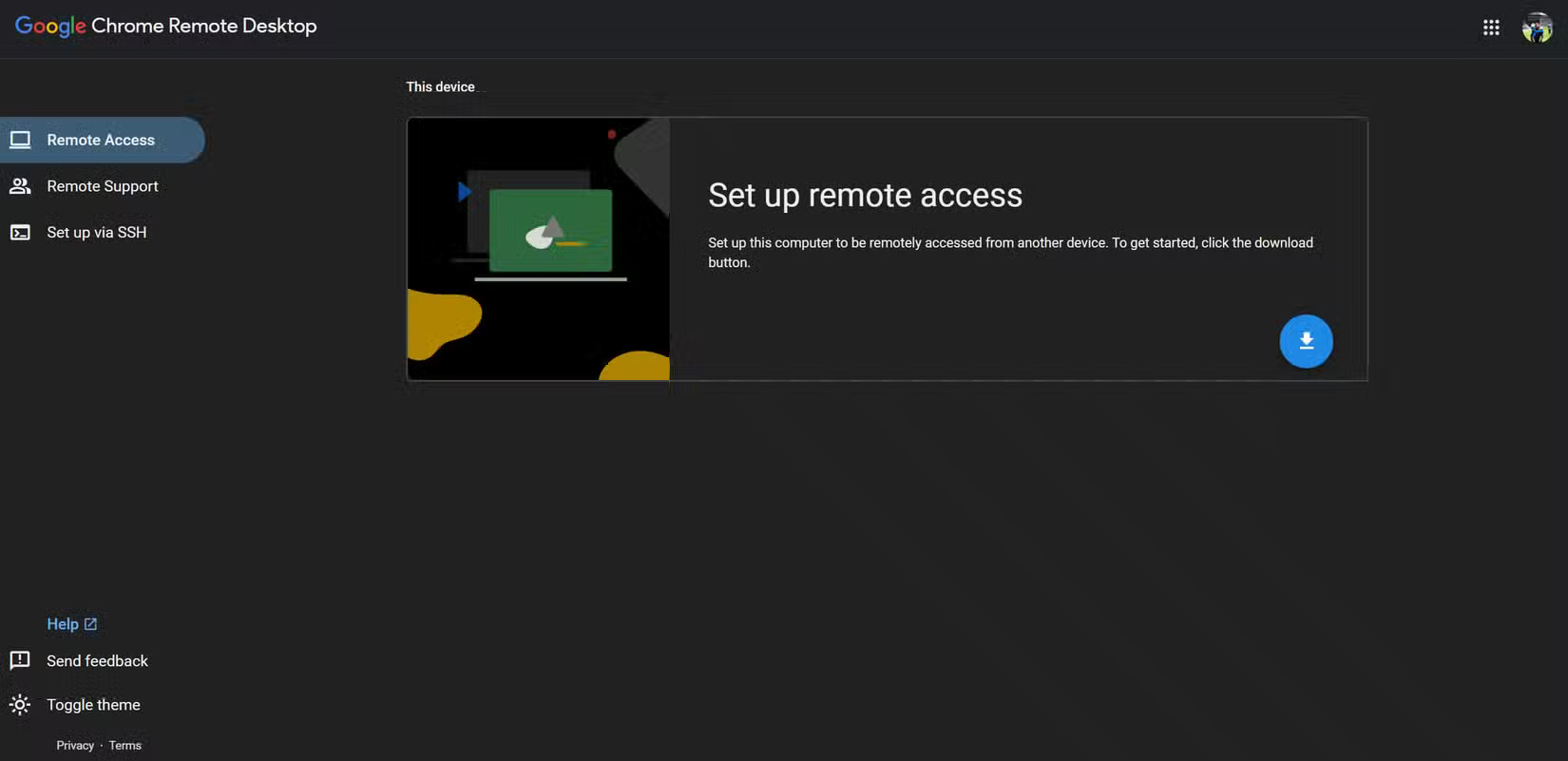
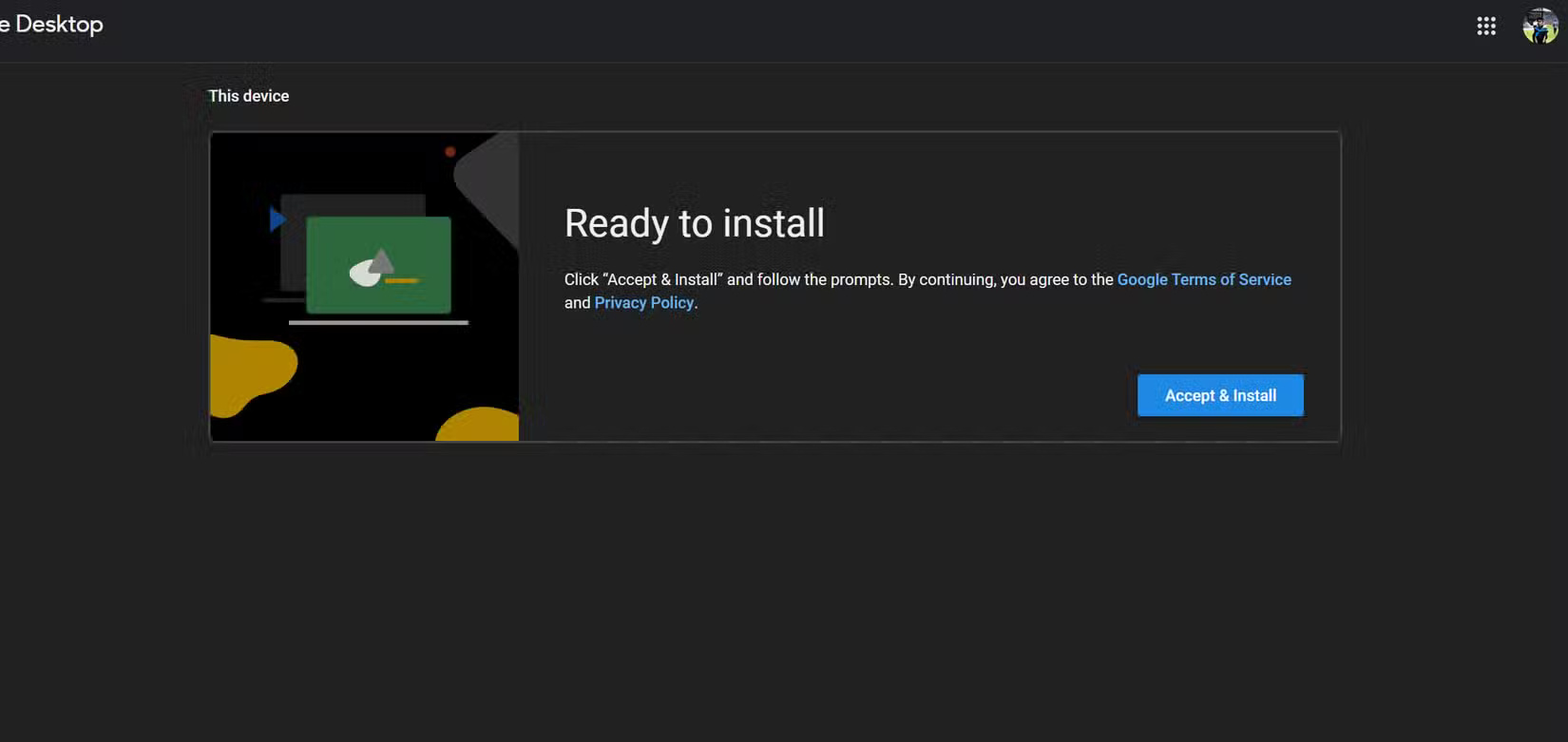
2. Once complete, return to the Chrome Remote Desktop website and click Accept & Install . This will automatically open the setup on your PC and install the client.
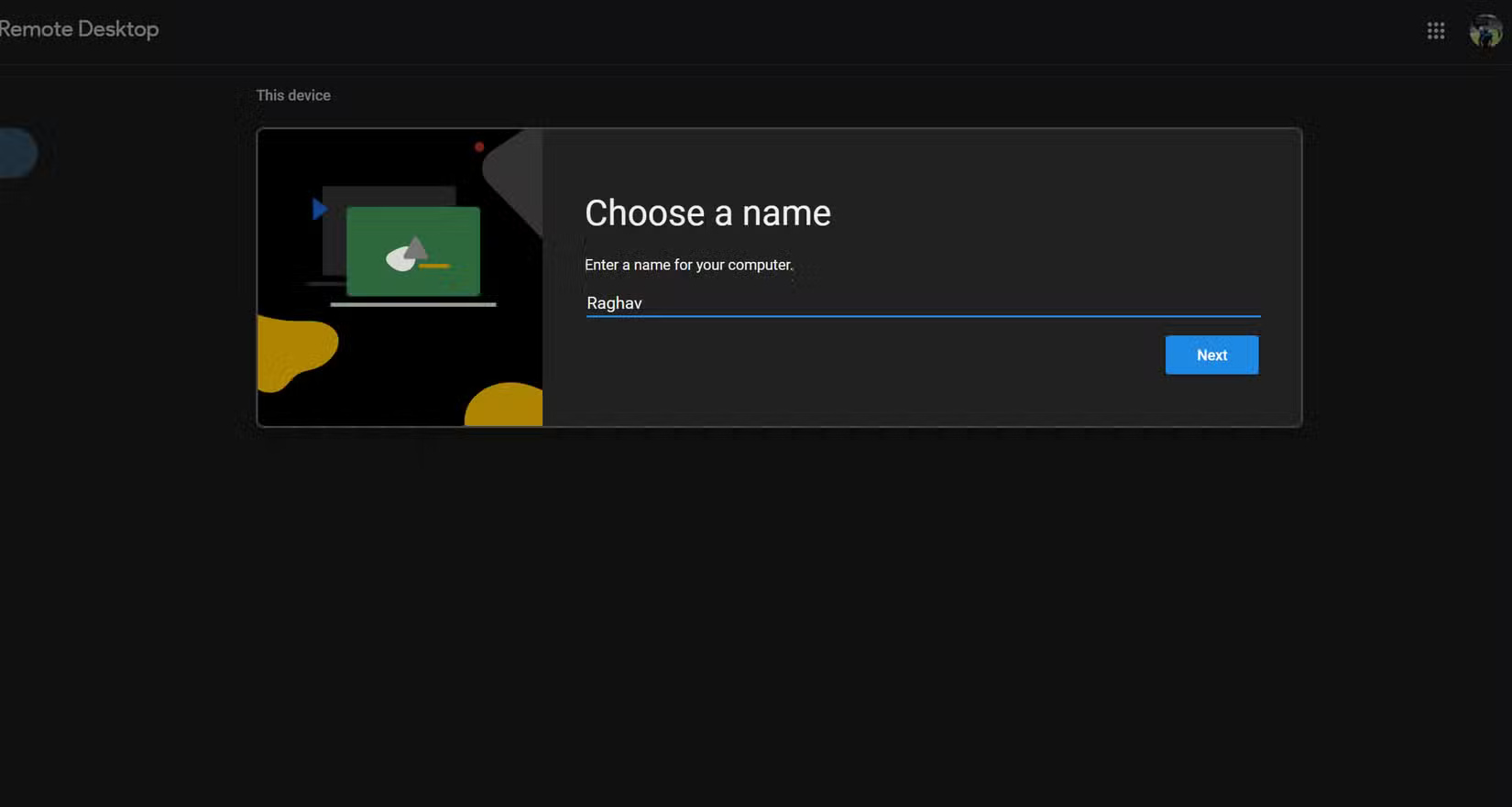
3. You will now be prompted to name your PC. You will also need to set a PIN to ensure that only you can access your PC.
Once complete, you're ready to connect to your PC from your iPad. If you want to remove your PC from Chrome Remote Desktop, click the trash can icon next to it.
You can also click the pencil icon to change the PC name or update the PIN.
Access PC from iPad
Now that your PC is ready, you can access it from your iPad. While you can control your PC using the touchscreen, connecting a keyboard and mouse to your iPad will definitely make it much more comfortable to use.
1. Go to the Chrome Remote Desktop website on your iPad and make sure you're signed in to the same Google account.
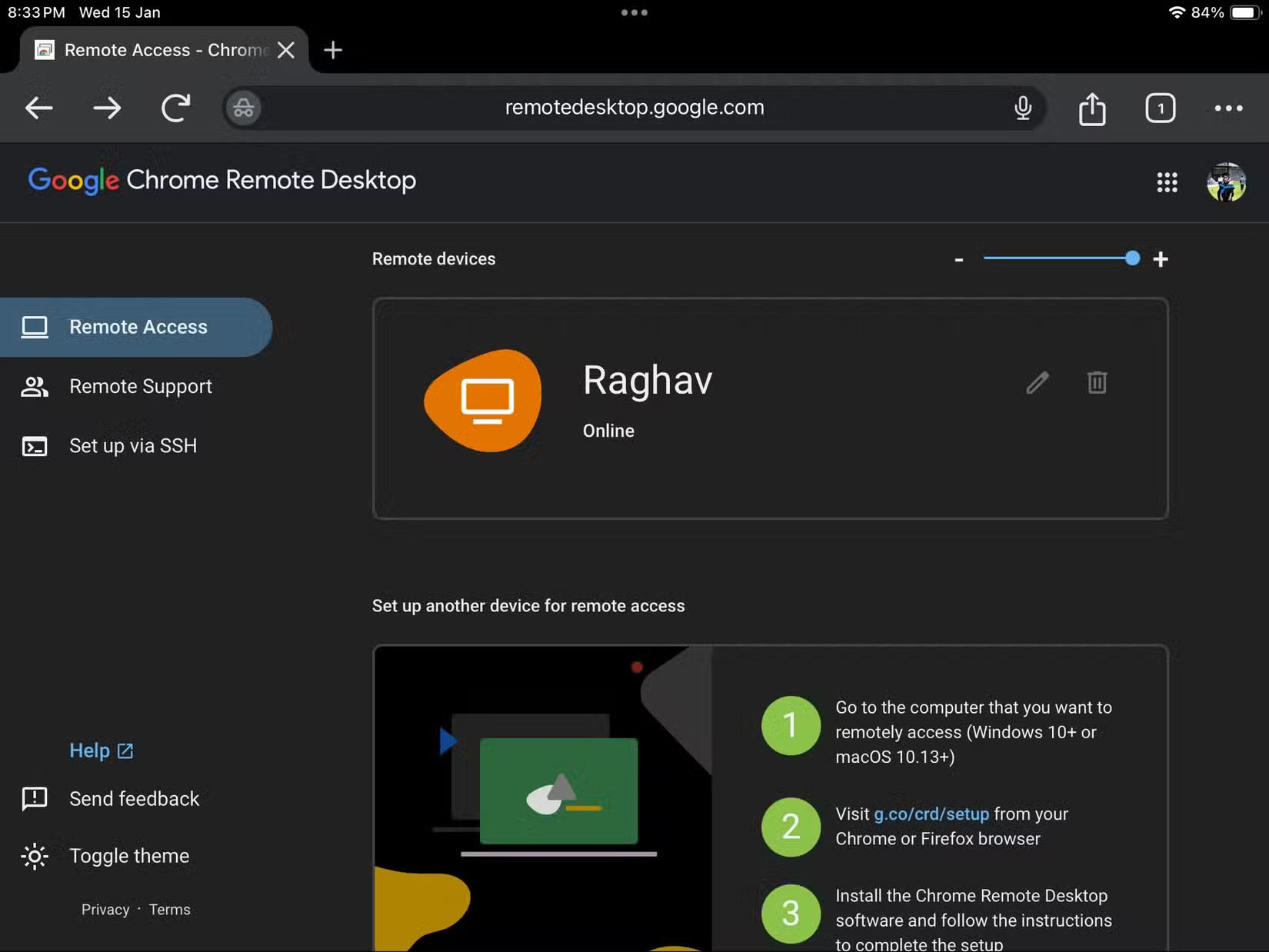
2. Tap the device you want to connect to and enter the PIN. You should now see your PC screen appear on your iPad.
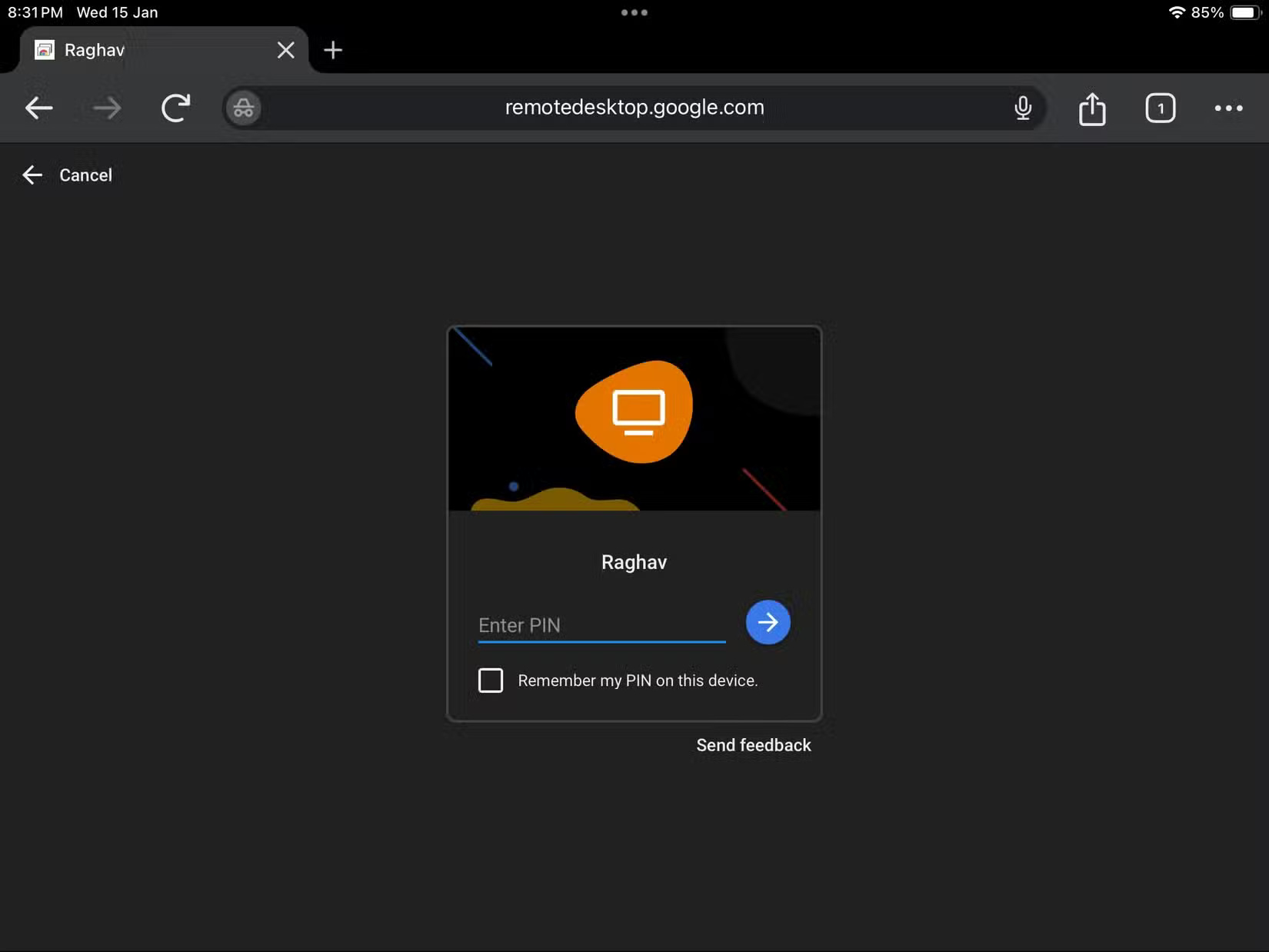
Keep in mind that you need a good internet connection for Chrome Remote Desktop to work reliably. If you're still having trouble, there are a few alternative apps you can use to remotely connect to your Windows PC.
Also, this feature is not limited to iPad only, you can use Chrome Remote Desktop on any PC or smart device with an Internet connection.
See also:
FAQ About Remote Desktop
What is Remote Desktop?
Also, this feature is not limited to iPad only, you can use Chrome Remote Desktop on any PC or smart device with an Internet connection
Why is Remote Desktop important?
Understanding Remote Desktop helps you evaluate its benefits, limitations, and potential risks before making a decision.
How can you use or manage Remote Desktop effectively?
Set up Chrome Remote Desktop on PC To get started using Chrome Remote Desktop on your PC, you'll first need to download the client
Related Articles
 How to Use iPad as a Second Screen on Windows: Practical Guide8 minutes read
 How to Connect iPad to Computer: Complete Guide8 minutes read
 Which iPad Should You Buy?11 minutes read
 How to Record Voice on iPad: Practical Guide6 minutes read
 What Is the iPad?12 minutes read
 Why Many People Regret Buying iPad Air6 minutes read
Reader Comments 0
Sign in with email or Google to join the discussion.