Table of Contents
Fix 'Wget: Command Not Found' Error in Linux is easier to approach with a clear overview and reliable steps. This guide organizes the essential information, highlights practical details, and explains what to check along the way.
Key Takeaways
- Understand why does the "wget Command not found" error occur.
- Learn how to fix 'wget: command not found' error in linux.
- Learn how to fix 1: install wget on linux system.
Why Does the "Wget Command Not Found" Error Occur?
The wget: command not found error in Linux occurs when wget is not installed by default, is not in the system PATH, or is corrupted. Some minimal Linux distributions don't include wget to keep the system lightweight. In this case, we need to install it manually.
It may be outside the PATH if wget is not recognized by your system after installation. You can fix this by adding its directory to the PATH. Alternatively, a corrupted or deleted wget package can cause this problem, and reinstalling wget should fix it.
Fix 'Wget: Command Not Found' Error in Linux
Fix 1: Install Wget on Linux System
On most Linux distributions, wget comes pre-installed. However, if for some reason wget is not installed on your system, you may see a 'command not found' error. You should check for wget installation on your system before using it. This helps you avoid this error. You can run the following command: This helps you do this.
sudo wgetThis command will return the message 'wget: missing URL usage: if your system has wget set up properly.

However, if your Linux system doesn't have wget installed, you will see the error 'wget: command not found':

Install wget using your distribution's package manager. This helps you fix this error. For instance, on Debian/ Ubuntu, you can use the apt package manager:
sudo apt-get install wget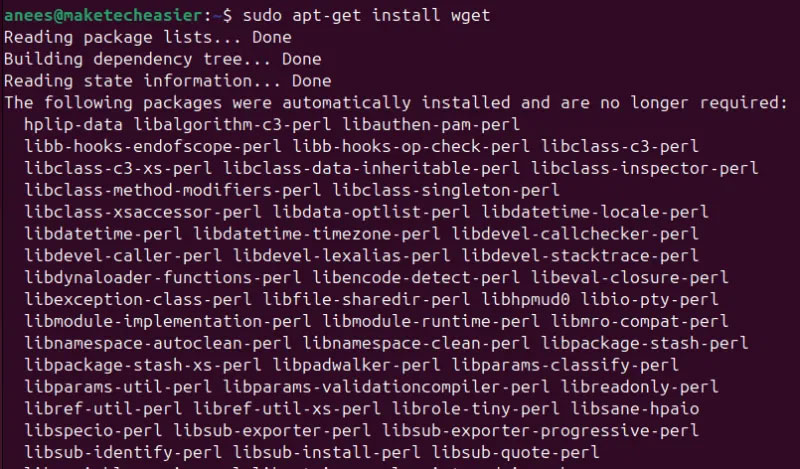
You can confirm the installation by checking the wget version:
wget --version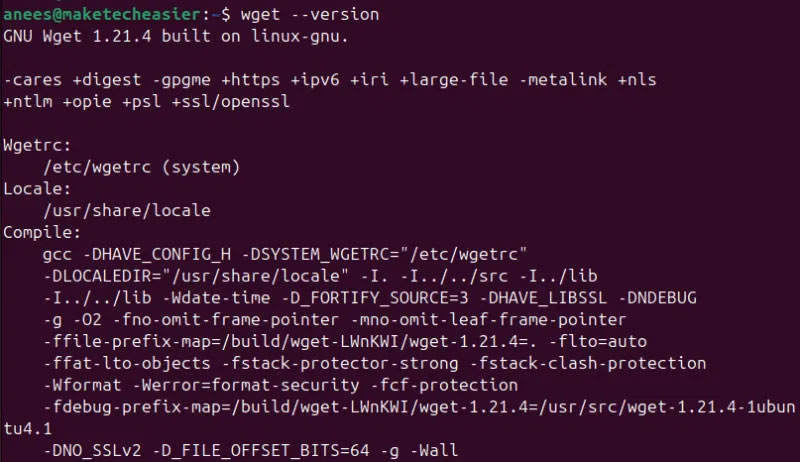
You can use the dnf package manager: This helps you install wget on RHEL-based Linux distributions.
sudo dnf install wgetSimilarly, you can use your distribution's package manager to install wget on other Linux variants.
Fix 2: Configure Wget PATH
Sometimes, the problem is not that wget is not installed. In such cases, you have to verify whether your system PATH includes wget. In fact, wget may be present on your system, but you still get the 'wget: command not found' error. Use the which command: This helps you do this.
which wgetIt means that wget is installed and available in the system PATH: if this command returns a path like /usr/bin/wget.

However, if the command returns no results, your system doesn't have wget installed or has wget in a directory not listed in the PATH environment variable.
You can add it temporarily with the export command: if wget is installed but not in the PATH.
export PATH=$PATH:/path/to/wget_directoryReplace /path/to/wget_directory with the actual path like /usr/bin:

You can make this change permanent by adding the same line to ~/.bashrc or ~/.bash_profile.
Make sure your system has it installed and configured properly if you regularly download files using wget. Otherwise, you may encounter errors like wget: command not found. This error usually occurs when wget is missing, misconfigured, or corrupted. However, the solution is simple. You can install wget, verify its presence in your system PATH, and make the necessary adjustments. You can use an alternative like the curl command to download files from the web if wget still doesn't work.
Final Thoughts
The most reliable way to handle fix 'wget: command not found' error in linux is to follow the process in order, verify each important setting, and test the result before moving on. Use the guidance above as a practical reference, then adjust the details for your device, software version, or specific goal.
FAQ
What should I know first about Fix 'Wget: Command Not Found' Error in Linux?
Encountering a "wget command not found" error in Linux can be frustrating, especially when downloading files from the web.
How do I get the best results with Fix 'Wget: Command Not Found' Error in Linux?
Use current software or equipment, follow the steps in order, review the recommended settings, and test one change at a time so you can identify what improves the result.
What should I do if Fix 'Wget: Command Not Found' Error in Linux doesn't work as expected?
Check compatibility, permissions, connectivity, and version-specific settings. Restart the relevant device or app, then repeat the process carefully before trying a more advanced fix.
Related Articles
 How to Use Wget to Download Files on Linux9 minutes read
 How to Fix 'Apt-get: Command Not Found' Error in Linux Terminal: Practical Guide6 minutes read
 How to Install and Use Wget on Mac6 minutes read
 The Difference Between Curl and Wget6 minutes read
 How to Convert Multiple Websites into Pdfs with Wget10 minutes read
 How to Use the Which Command in Linux8 minutes read
Reader Comments 0
Sign in with email or Google to join the discussion.