Table of Contents
If your Windows drive keeps filling up, open Settings > System > Storage and see which category grew. Start with the largest category you understand. Write down the free space before you start so you can tell which change helped.
1. Windows update files and previous installations
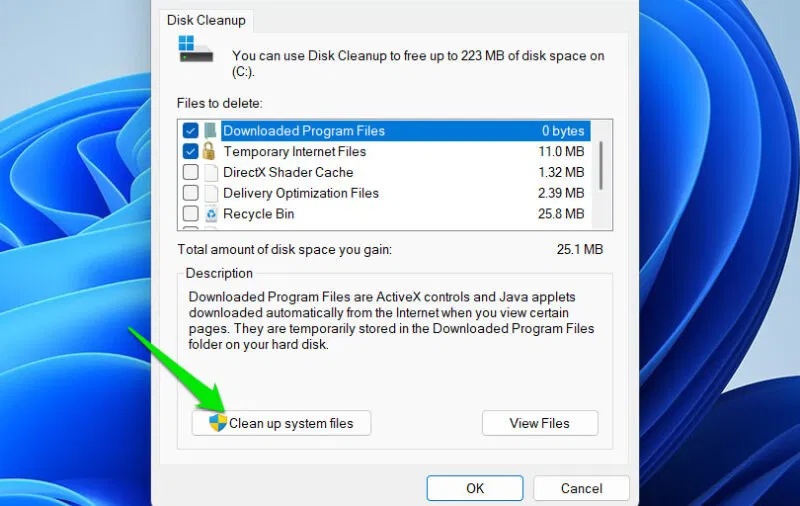
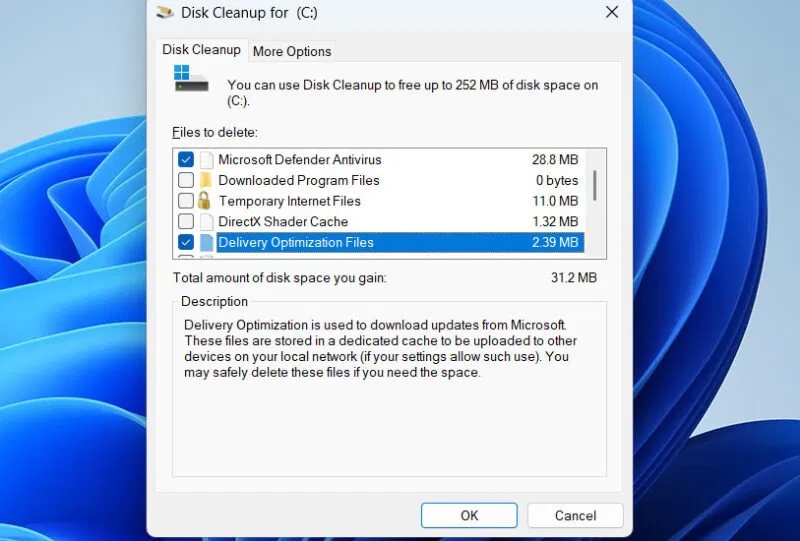
Open Temporary files under Storage, or open Disk Cleanup and choose Clean up system files. Read each description before selecting it. Removing Previous Windows installation(s) can remove your ability to go back to the previous version. Keep it if you’re still checking whether a recent upgrade works. Review Downloads separately since it may contain personal files.
2. Data left by uninstalled apps
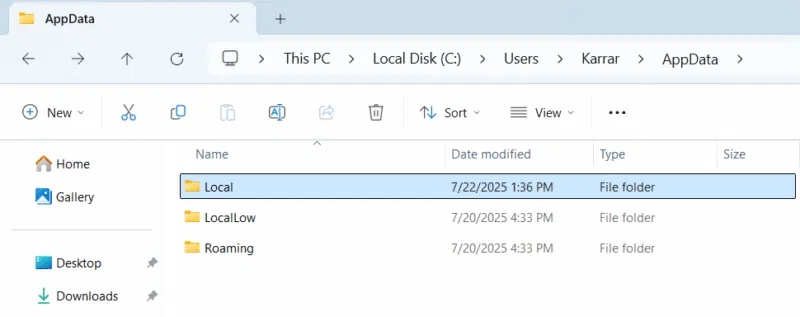
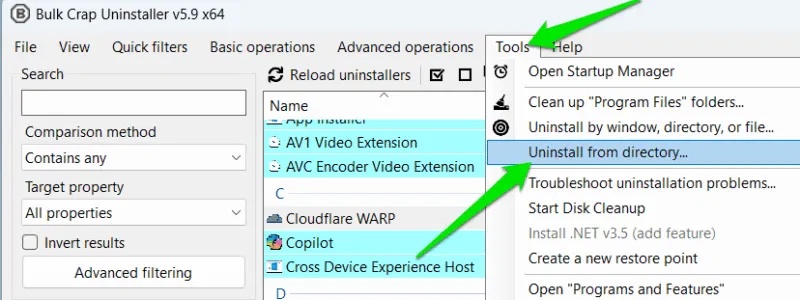
Start with Settings > Apps > Installed apps. If an app leaves a large user folder, identify its contents before removing it. Folders under AppData may contain profiles, settings, or saved work, and some are shared between related apps. Back up what you need and confirm the app is gone. The screenshots show examples of a user-data folder and a third-party cleanup interface. Treat any suggested removal as something to check individually.
3. Game and app downloads or caches
Check the launcher’s storage or cache controls first. A large game directory can contain installed content, optional packs, or files the launcher uses for repairs. To recover space, remove unused games or optional packs through the launcher. Verify cloud saves or back up local game saves before reinstalling a game.
4. System Restore points
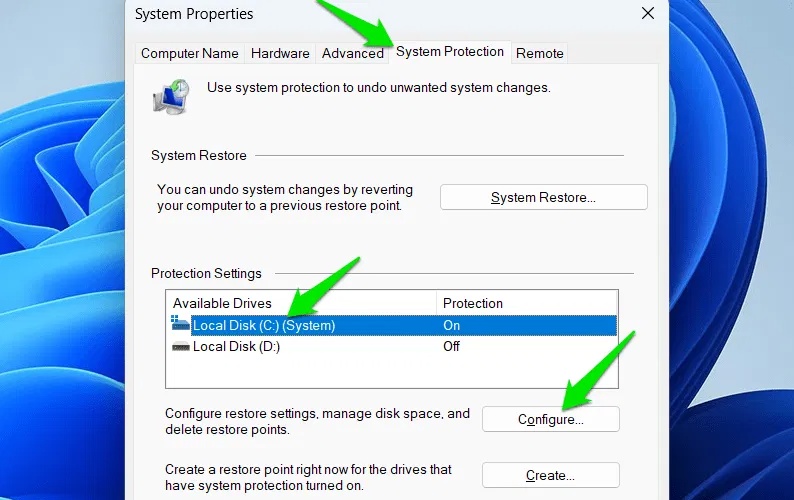
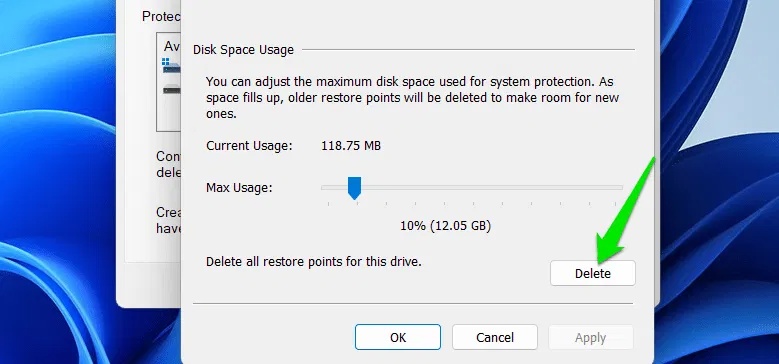
Search for Create a restore point, select the drive under System Protection, and choose Configure. Check how much space is in use and the configured limit. Reducing the limit can prune older points. The Delete button removes all points for that drive, so decide which recovery options you need before using it.
For routine cleanup, see Microsoft’s Storage Sense settings and the Windows storage cleanup lesson. If you need to keep a rollback point, check how to create and use restore points.






Reader Comments 0
Sign in with email or Google to join the discussion.