Table of Contents
This guide provides a clear, practical overview of "Instructions to Change Icon Size on Windows 11 Taskbar". It organizes the most useful details, explains important considerations, and highlights the steps or choices that matter most.
How to change icon size on Taskbar from Settings
Step 1:
Press Windows + I to open Settings , then select Personalization on the left side of the interface. Look to the side and select Taskbar to adjust.
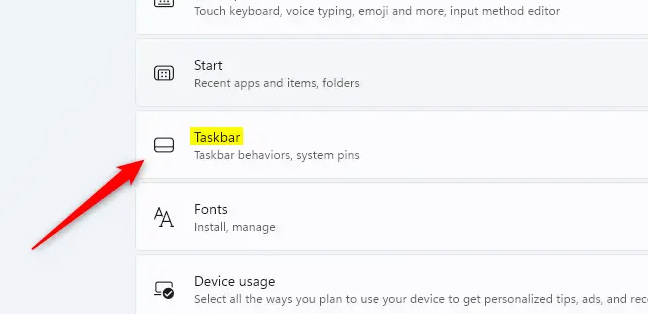
Step 2:
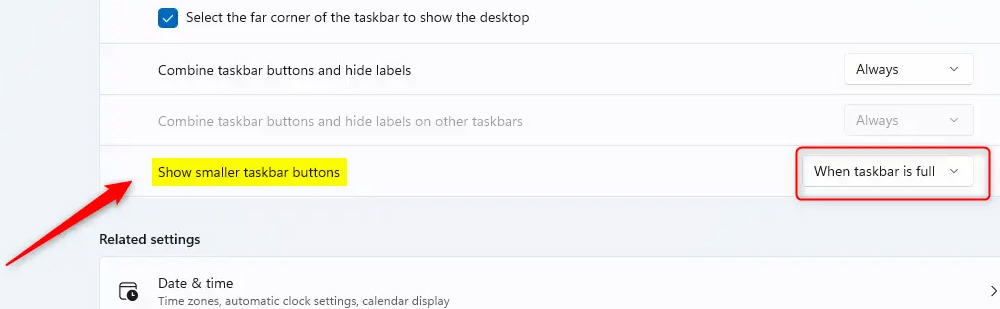
In the next interface, select Taskbar behavior , then continue to select Show smaller taskbar buttons to adjust.
Then you have options including Always, Never and When taskbar is full. We choose the small icon size mode on the Taskbar.
How to change the icon size on the Taskbar using Windows Registry
Step 1:
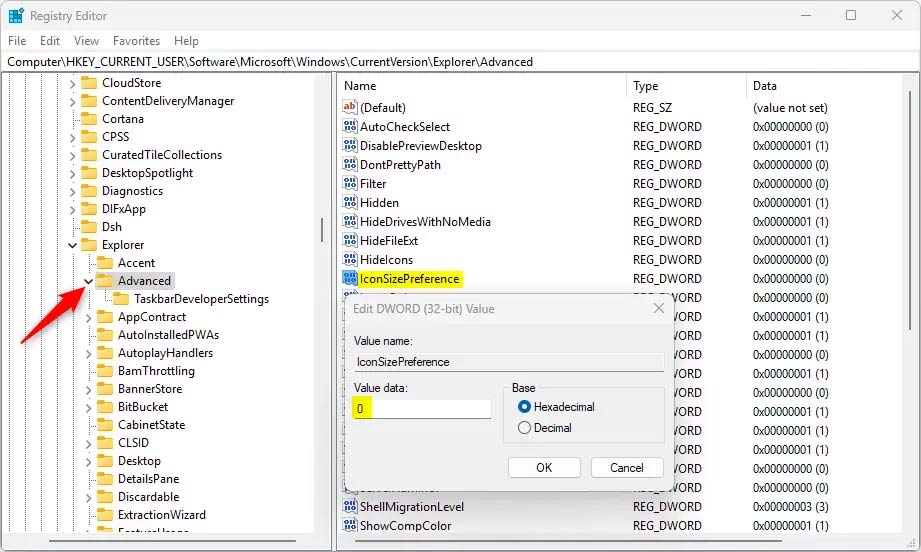
Open Windows Registry on your computer, then access the path below.
ComputerHKEY_CURRENT_USERSoftwareMicrosoftWindowsCurrentVersionExplorerAdvanced
Step 2:
Then right-click Advanced > New > DWORD (32-bit) Value and name it IconSizePreference .
Click directly on IconSizePreference and enter the value to change the icon on the Taskbar.
- 0: Always show smaller buttons or icons on the Taskbar.
- 1: Never show smaller buttons or icons on the Taskbar.
- 2: Show smaller buttons or icons on the Taskbar.
FAQ
How to change icon size on Taskbar from Settings?
Press Windows + I to open Settings, then select Personalization on the left side of the interface. Look to the side and select Taskbar to adjust.
How to change the icon size on the Taskbar using Windows Registry?
Open Windows Registry on your computer, then access the path below.
What does this guide cover?
This guide explains instructions to change icon size on Windows 11 taskbar, including the main steps, important details, and practical considerations.
Related Articles
 How to Change the Windows 11 Taskbar Icon Size to 32x323 minutes read
 How to Pin the App to the Taskbar to Open It Faster4 minutes read
 How to Left Align the Windows 11 Taskbar Icon3 minutes read
 How to Get the Missing Wi-Fi Icon Back from the Windows 10 Taskbar7 minutes read
 How to Resize the Windows 11 Taskbar4 minutes read
 Steps to Recover Lost Taskbar Icon on Windows 106 minutes read
Reader Comments 0
Sign in with email or Google to join the discussion.