Table of Contents
This practical guide explains how to send password protected files without buying software. Follow the steps in order, review the requirements first, and use the troubleshooting notes when a setting or option does not work as expected.
Use free compression software
If you want to keep your files private, start with compression software. WinRAR and 7-Zip offer fast, powerful options for creating password-protected archives. Many people swear by these tools because they're quick and easy to use.
WinRAR
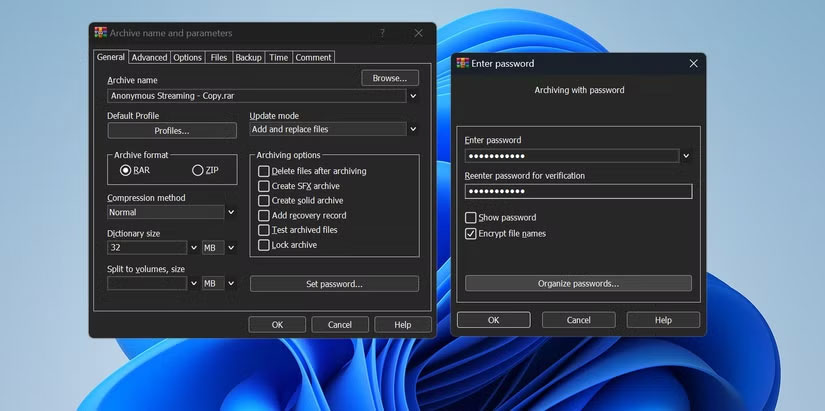
WinRAR offers simple controls and powerful security features. After installation, right-click any file or folder, select Add to archive , then set a password and enable 'encrypt file names'. Doing this will hide both the contents and the file list, ensuring that no one can see what's inside unless they know the password.
7-Zip
7-Zip gives you powerful protection in a lightweight, 100% free and open source package. To lock files, install 7-Zip, right-click the file you want to protect and select Add to archive . Set a password and select "encrypt filename".
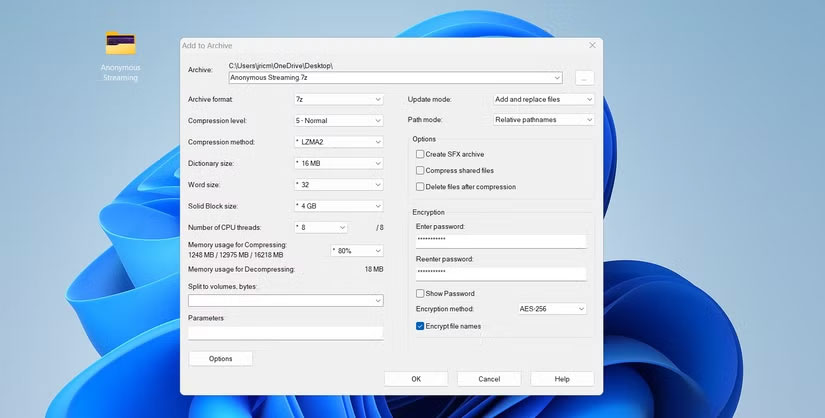
Additionally, 7-Zip allows you to create self-extracting encrypted files. That way, the recipient only needs the password to open the file — no need to install any special software.
Send password protected documents with Office suite
When you're preparing contracts, budgets, or business presentations, Microsoft Office and LibreOffice have built-in password protection. You control who can access your sensitive information by following simple steps in programs you already know.
Microsoft Office
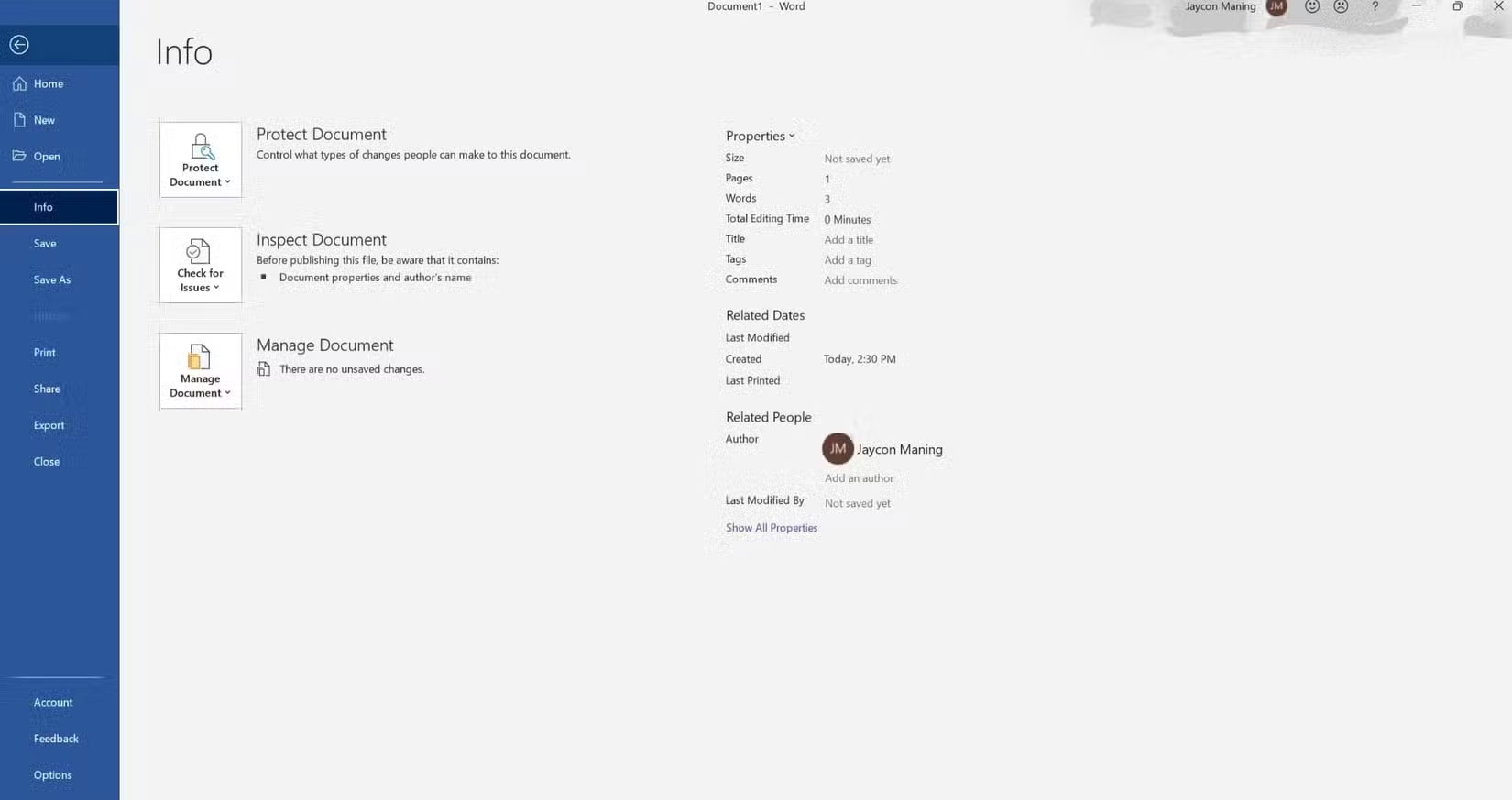
To lock a Microsoft Office document, open your file and click File > Info > Protect Document > Encrypt with Password . Enter a password and confirm it. Office will then encrypt your entire document using AES encryption. No one will be able to open it without the password, period.
LibreOffice
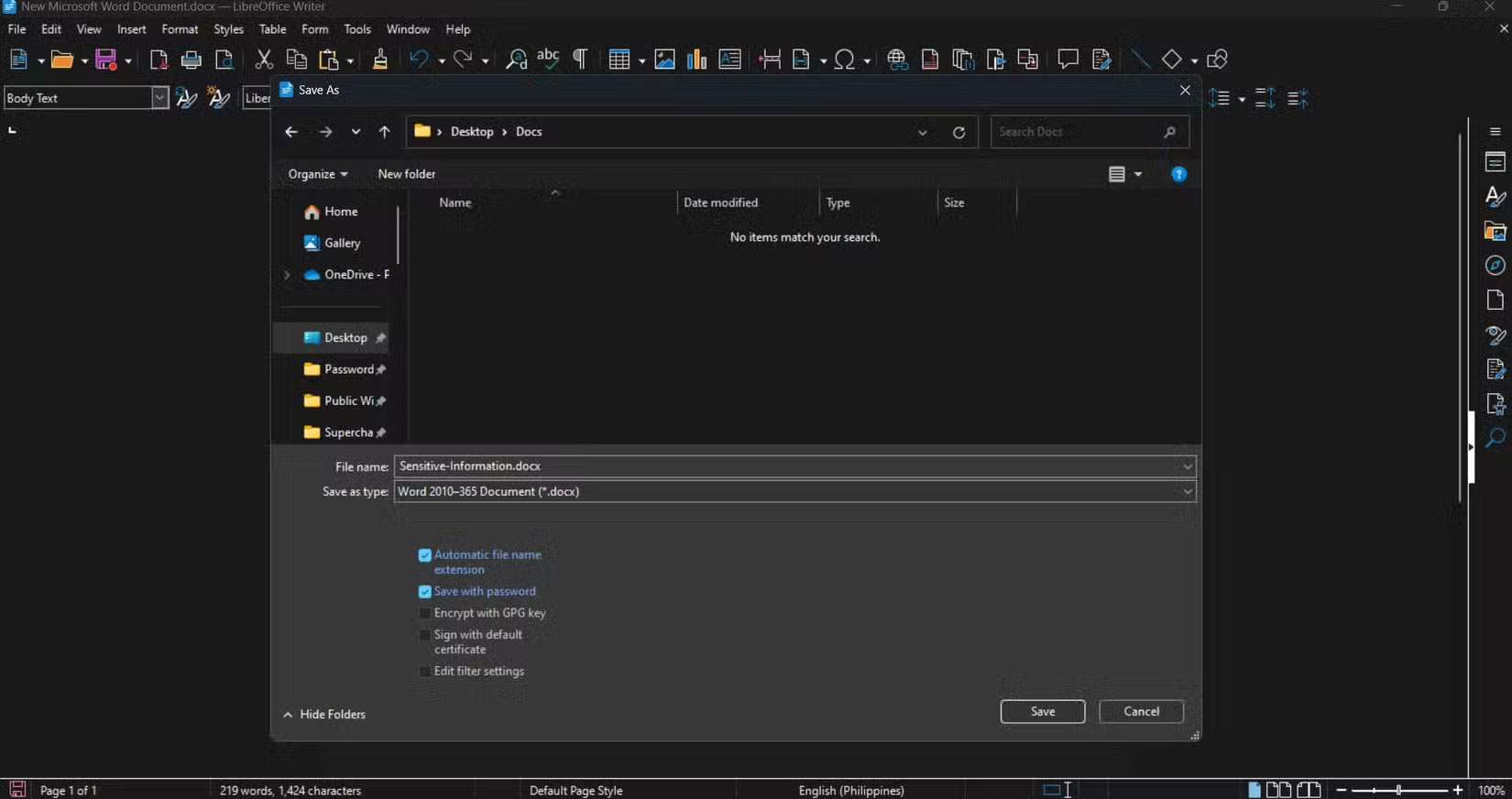
LibreOffice, a free suite popular with students and professionals, offers a nearly identical approach. When you save your document, select the Save with Password option. LibreOffice will then prompt you to enter a strong password, which will be applied to the entire document using advanced encryption. Although free, LibreOffice's built-in security is on par or superior to many other paid solutions.
Share encrypted PGP files with Kleopatra
If you need more security, such as when sending confidential images or private documents, upgrade to PGP encryption and password protection with Kleopatra. This free tool is based on the key system that businesses and government organizations trust to keep data secure.
Download Kleopatra in Gpg4win, then launch it and start by generating a 'key pair' as instructed when you first open the application. Store your private key securely and give the public key to anyone you want to receive the protected file. If you need to send an encrypted photo or document, right-select it, select the Sign and Encrypt option from Kleopatra and select the recipient's public key. Kleopatra will create a locked file that only the recipient can open with their private key, which will happen automatically if they open the file on a computer with Kleopatra installed.
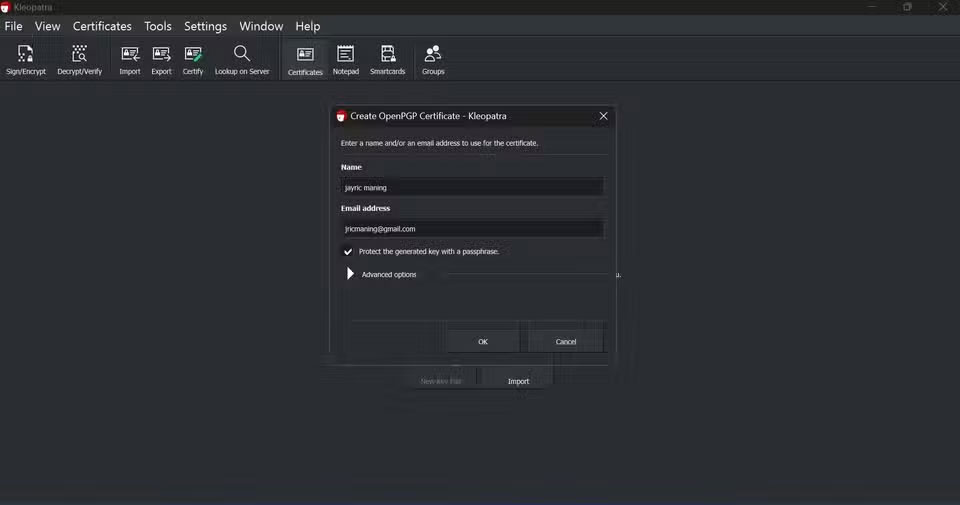
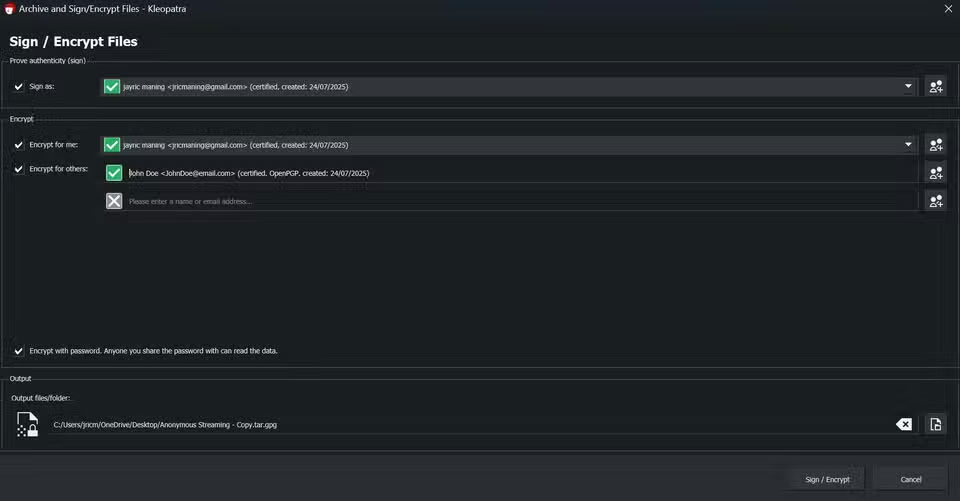
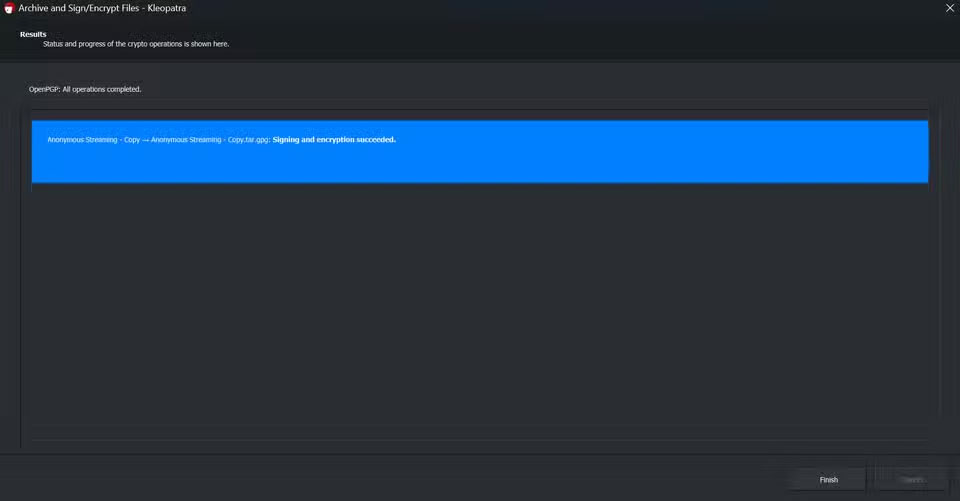
If you are sending a file, ask the contact to provide you with their public key.
FAQ
What should you know about use free compression software?
If you want to keep your files private, start with compression software. WinRAR and 7-Zip offer fast, powerful options for creating password-protected archives. Many people swear by these tools because they're quick and easy to use.
What should you know about winRAR?
WinRAR offers simple controls and powerful security features. After installation, right-click any file or folder, select Add to archive, then set a password and enable 'encrypt file names'. Doing this will hide both the contents and the file list, ensuring that no one can see what's inside unless they know the password.
What should you know about 7-Zip?
7-Zip gives you powerful protection in a lightweight, 100% free and open source package. To lock files, install 7-Zip, right-click the file you want to protect and select Add to archive. Set a password and select "encrypt filename".
What should you know about send password protected documents with Office suite?
When you're preparing contracts, budgets, or business presentations, Microsoft Office and LibreOffice have built-in password protection. You control who can access your sensitive information by following simple steps in programs you already know.
Related Articles
 How to Open Password-Protected Excel Files: Complete Guide5 minutes read
 Recover WinRar Password Using RAR Password Unlocker3 minutes read
 Set Pass for Folder, Set Password to Protect Folder Without7 minutes read
 Click: How to Hack a Password Protected Computer Account11 minutes read
 Google Chrome Will Warn Users About password-protected Malicious4 minutes read
 How to Use Safeincloud Password Manager to Manage Passwords6 minutes read
Reader Comments 0
Sign in with email or Google to join the discussion.