Table of Contents
3 Ways to Calculate Sum in Excel Quickly and Accurately brings together practical options worth considering. Below, you'll find clear explanations, useful context, and tips for deciding which choices best match your needs.
Key Takeaways
- Follow the steps to quickly calculate total using status bar.
- Follow the steps to automatically calculate sum using AutoSum.
- Follow the steps to calculate the total using the SUM function.
1. How to Quickly Calculate Total Using Status Bar
How to do:
- Select the cells containing the data you want to sum. - Look at the Status Bar at the bottom corner of the Excel screen. - The sum will be displayed immediately.
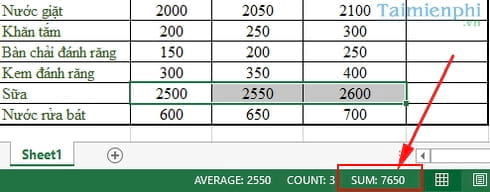
2. How to Automatically Calculate Sum Using AutoSum
Advantage:
- Automatically detects data range. - Fast, no need to enter formula. - Can be used for both horizontal and vertical rows.
Step 1: Select the blank cell below the column to be summed.
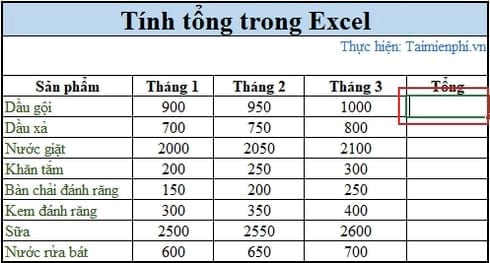
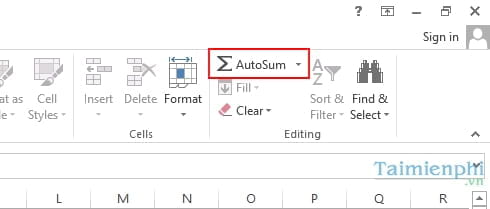
Step 2: Open the Home tab, Editing group, click AutoSum (∑).
Step 3: You will immediately see Excel automatically add =SUM and select your data column number.
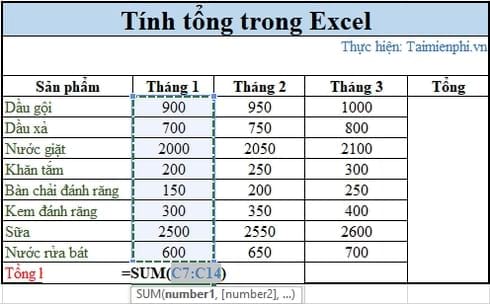
Step 4: Excel automatically selects the data area, press Enter to display the results.
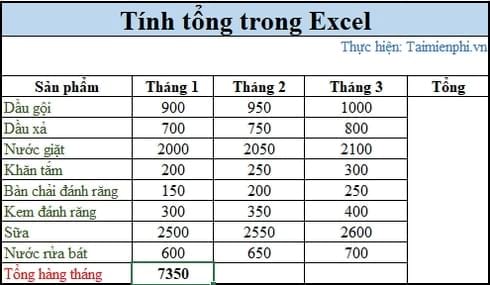
3. How to Calculate the Total Using the SUM Function
The SUM function in Excel helps you calculate the total of cells in a column or multiple data ranges flexibly. You can enter the cell address directly or select the data range with the mouse.
Step 1: Select the cells in your table where you want to see the sum of the selected cells.
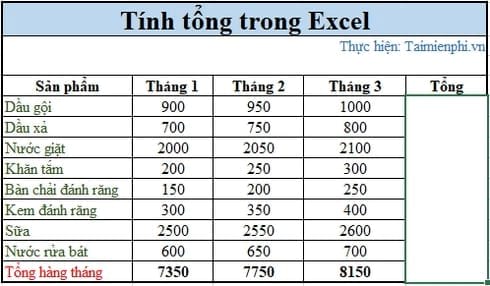
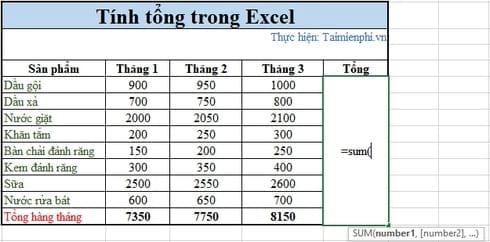
Step 2: Enter =sum( into this selected cell.
Step 3: Now select the range with the numbers you want to sum by holding down the Ctrl key and clicking on the data cells then press Enter.
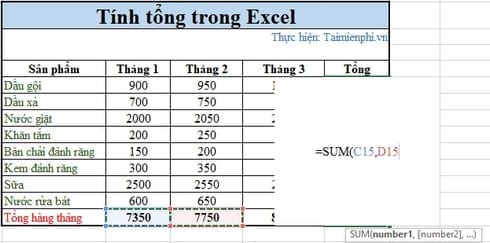
Note: You can enter the addresses manually like =sum(B1:B2000). It is useful if you have a large range data table to calculate.
The sum will appear in the exact cell you selected after pressing Enter.
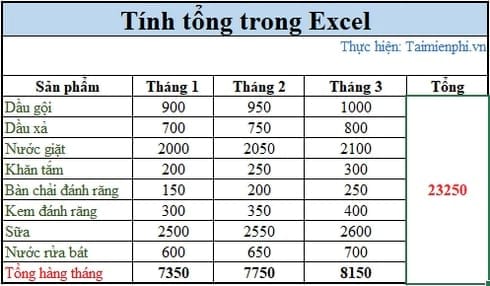
Note: * With conditional calculation, you only need to apply the following function: =SUMIF(range, criteria,sum_range) In which: - Range: The selected range containing the conditional cell. - Criteria: The condition for performing the sum function. - Sum_range: The range to calculate the sum. * To avoid errors, you need to enter the correct function.
In Excel, there are many ways to sum data, helping you process data quickly and accurately. When you count a list with many repeated values in a column and need to calculate based on the corresponding value in the adjacent column, you can use the SUMIF function. This is an effective way to summarize data based on conditions. You can refer to the detailed instructions from Free Download if you don't know how to use this function.
During the calculation process, many people encounter errors such as the SUM function not working or the result is 0. Don't worry, see the instructions to fix the SUM function error of 0 to fix it quickly.
Final Thoughts
The most reliable way to handle ways to calculate sum in excel quickly and accurately is to follow the process in order, verify each important setting, and test the result before moving on. Use the guidance above as a practical reference, then adjust the details for your device, software version, or specific goal.
FAQ
What should I know first about Ways to Calculate Sum in Excel Quickly and Accurately?
Excel supports a variety of ways to calculate totals, from quick actions on the status bar to using the flexible SUM function.
How do I get the best results with Ways to Calculate Sum in Excel Quickly and Accurately?
Use current software or equipment, follow the steps in order, review the recommended settings, and test one change at a time so you can identify what improves the result.
What should I do if Ways to Calculate Sum in Excel Quickly and Accurately doesn't work as expected?
Check compatibility, permissions, connectivity, and version-specific settings. Restart the relevant device or app, then repeat the process carefully before trying a more advanced fix.
Related Articles
 3 Ways to Calculate Totals in Excel: Province Excel Total5 minutes read
 Average Function (Calculate the Average) in Excel4 minutes read
 SUM Function in Excel, Sum Function and Examples9 minutes read
 How to Calculate Percentage, Format Percentage in Excel4 minutes read
 Calculate the Total Value of the Filtered List in Excel4 minutes read
 The Easiest Way to Calculate the Percentage (%)6 minutes read
Reader Comments 0
Sign in with email or Google to join the discussion.