Table of Contents
An older iPad can still handle useful tasks if its battery, software, and apps remain suitable. Check its model and latest available update first. Being unable to install the newest iPadOS does not by itself mean Apple classifies the hardware as obsolete, but missing security updates and app support limit what you should use it for.
If the battery is swollen, the case is separating, or the device overheats, stop using and charging it and arrange appropriate service or recycling. Otherwise, choose a role that matches its remaining capabilities.
1. Display a photo album
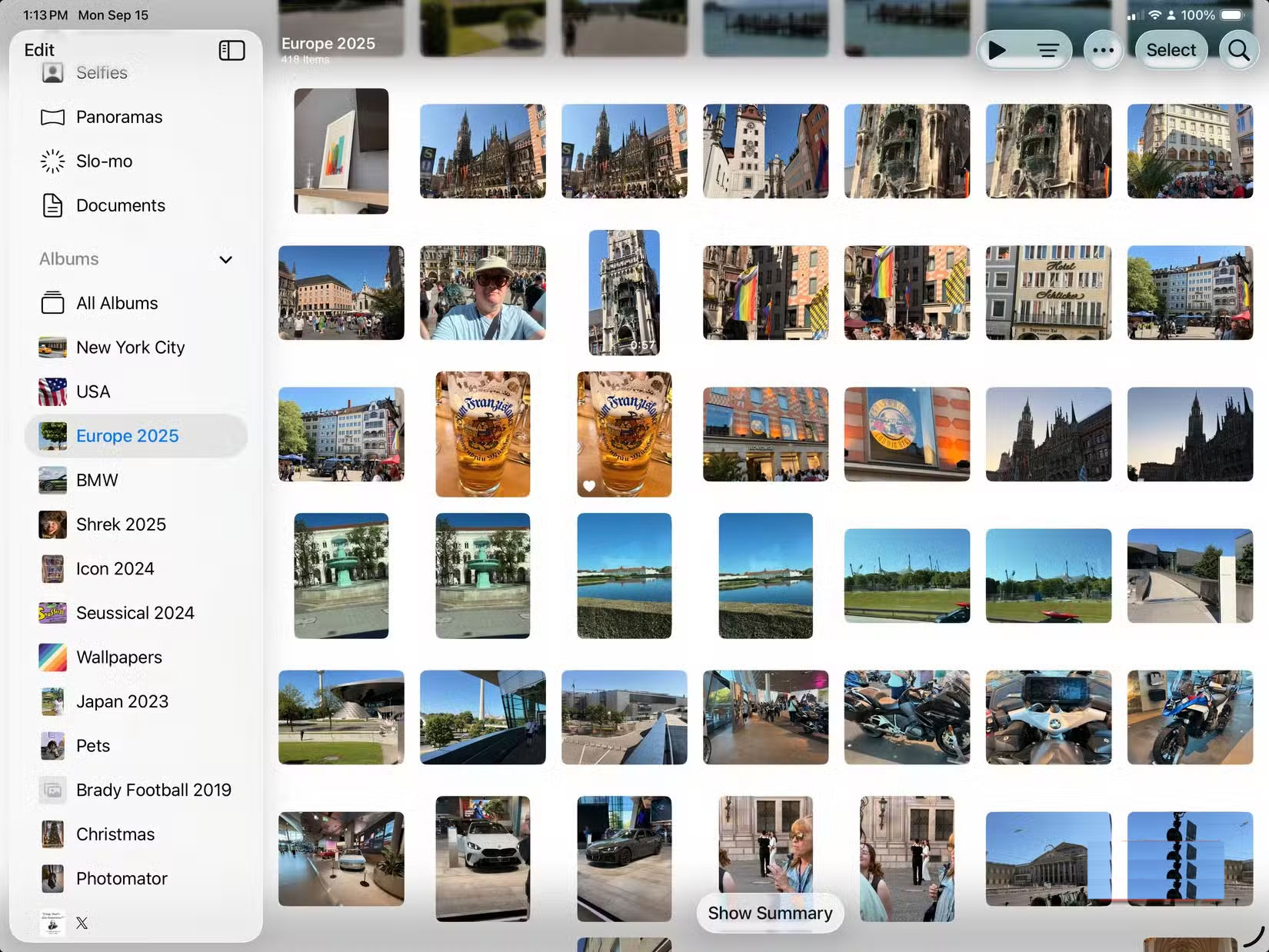
Use a downloaded album and the slideshow features available in Photos. A stable stand makes it easier to view. Avoid relying on a cloud-only album if the device will be offline, and keep charging equipment ventilated.
2. Keep recipes in the kitchen
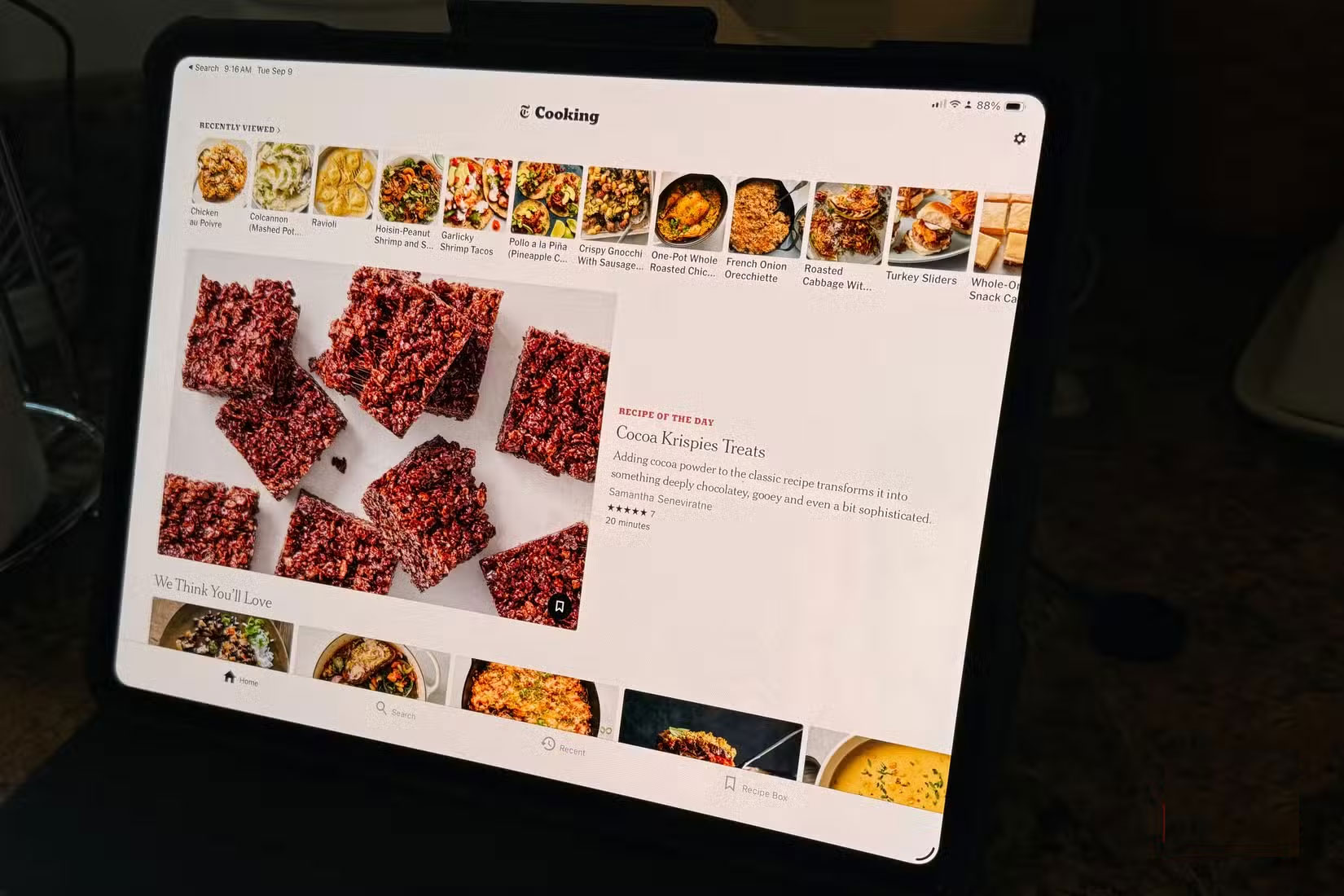
Save recipes as PDFs or pages that your installed apps can open. Use a stand away from the hob, sink, and food preparation area. Test any video service before depending on it, because older apps and browsers may lose support.
3. Read books and PDFs

Try Books, a compatible reading app, or locally stored PDFs. Not every old iPad has a Retina display, and not every reading service supports older iPadOS releases. Choose comfortable text size and brightness rather than buying accessories before confirming the app works.
4. Provide supervised children's activities
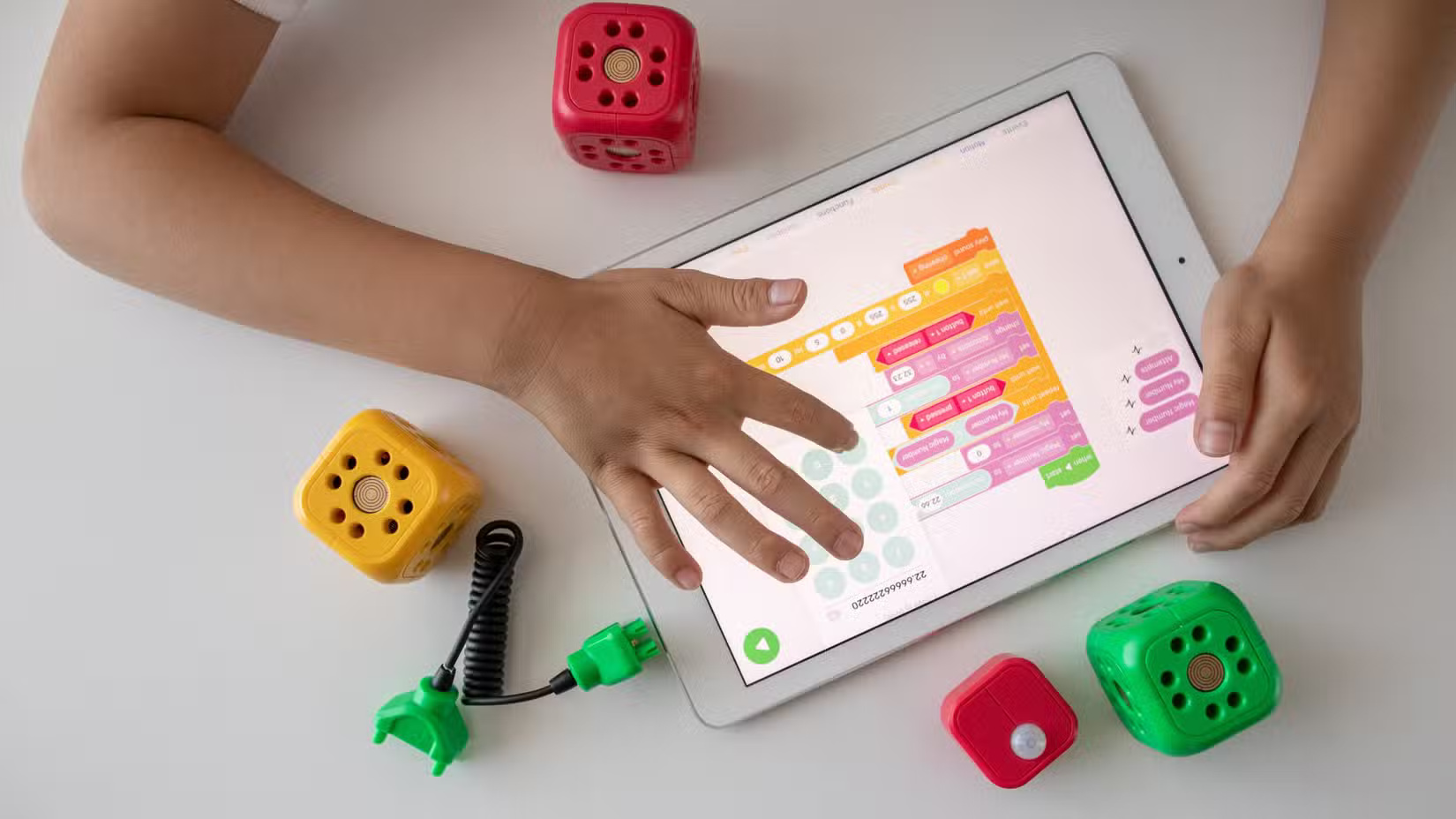
Use age-appropriate games, drawing tools, or downloaded media. Configure available parental controls, remove personal accounts and payment access where appropriate, and supervise use. An unsupported tablet is not a good place for sensitive accounts simply because it is inexpensive to replace.
5. Add a second display

Sidecar works only with compatible Mac and iPad models and software. Check Apple's Sidecar requirements before attempting setup. See using an iPad as a Mac display or second-screen options for Windows. Third-party tools may cost money and have their own minimum versions.
6. Use the built-in alarm clock
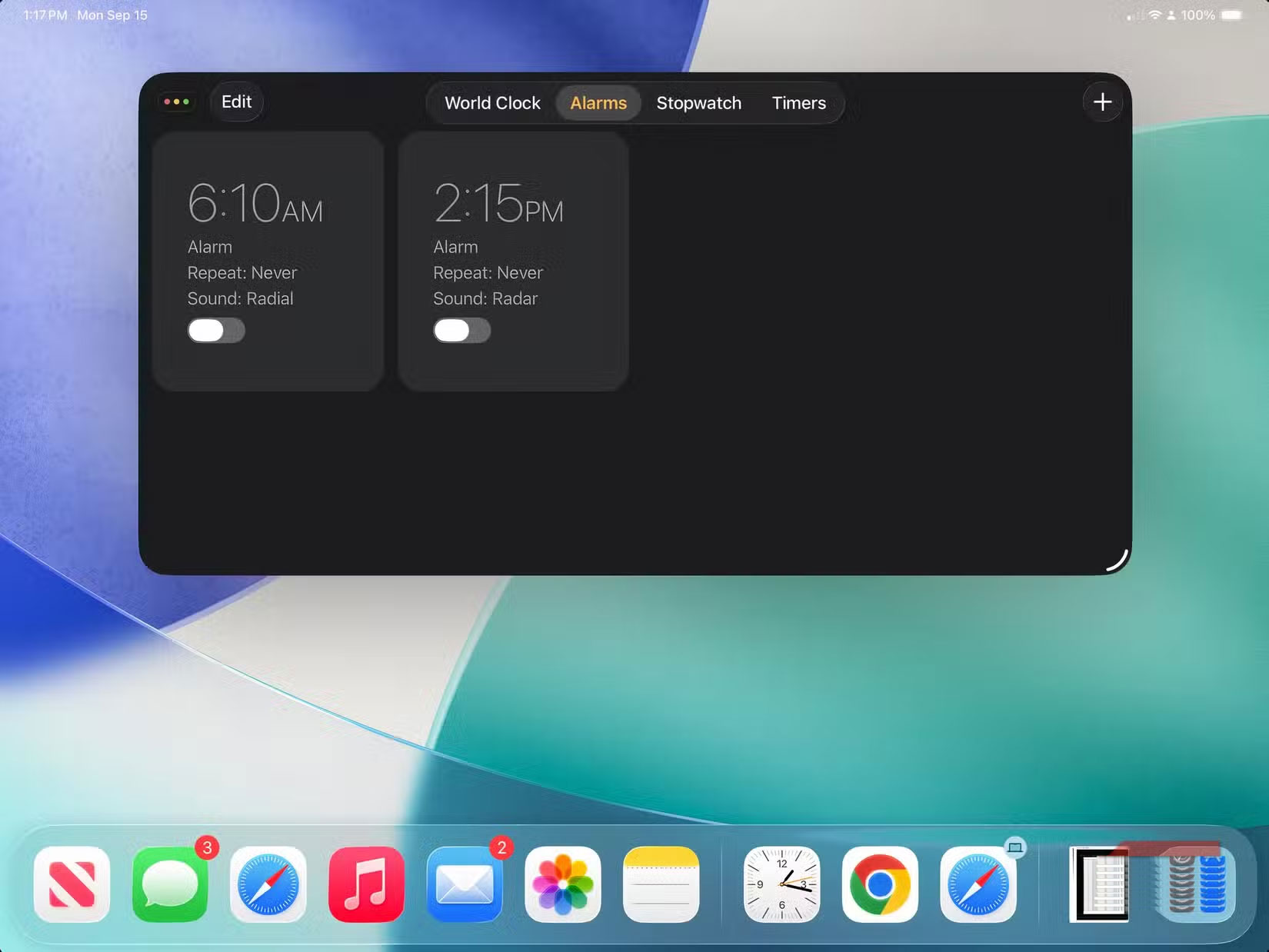
Set an alarm in Clock and test its sound, volume, and power behavior. A stand is optional; there is no need for an outdated social-network clock app. Use a backup alarm for important appointments until you know the device is reliable.
7. Control compatible smart-home accessories
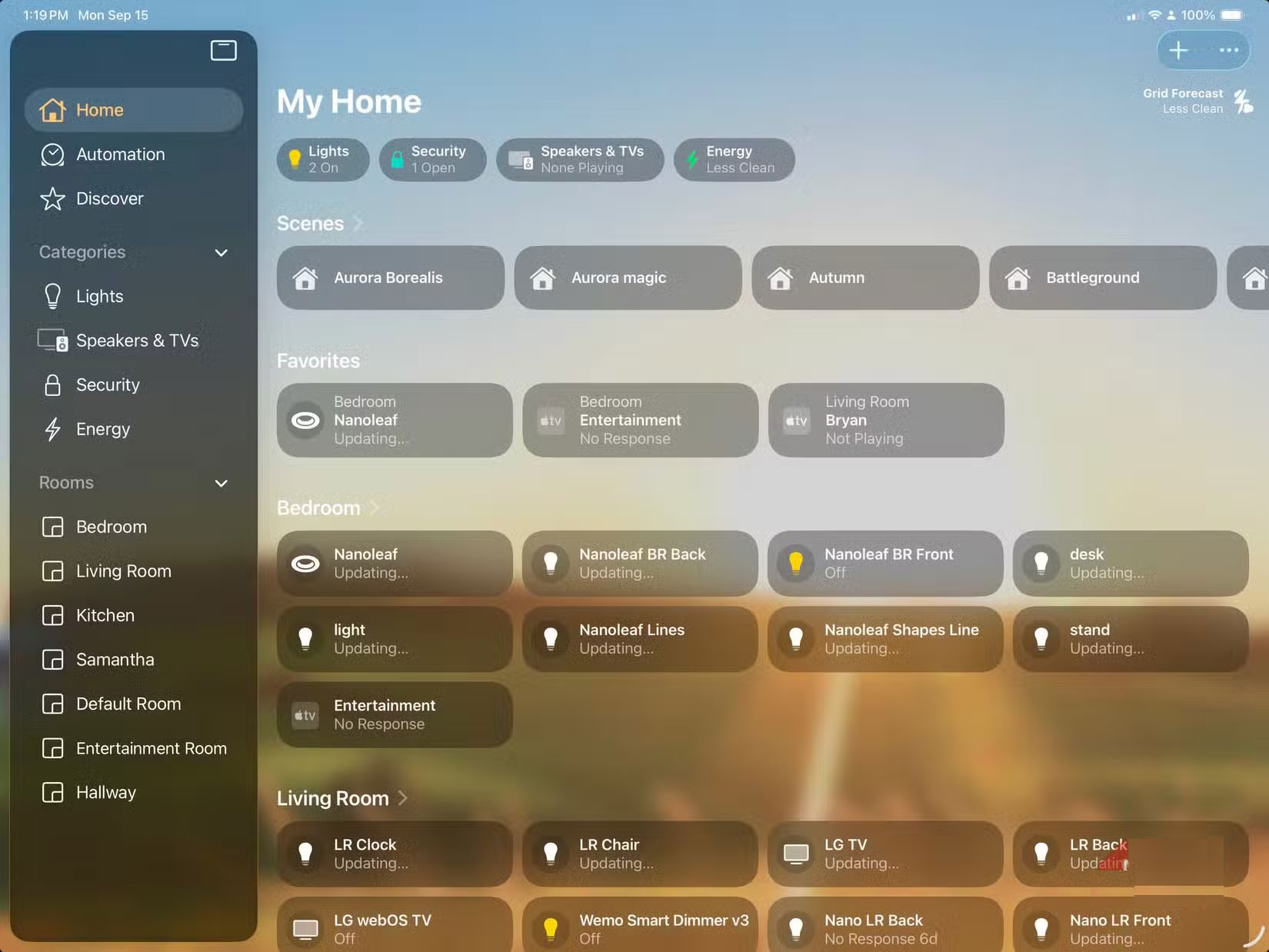
If the required Home or manufacturer app still works, the iPad can be a convenient control screen. Confirm the accessory and app requirements first. A control panel is different from a home hub: Apple says iPad is not supported as a hub in the latest Apple Home architecture.
8. Play local media or act as a remote
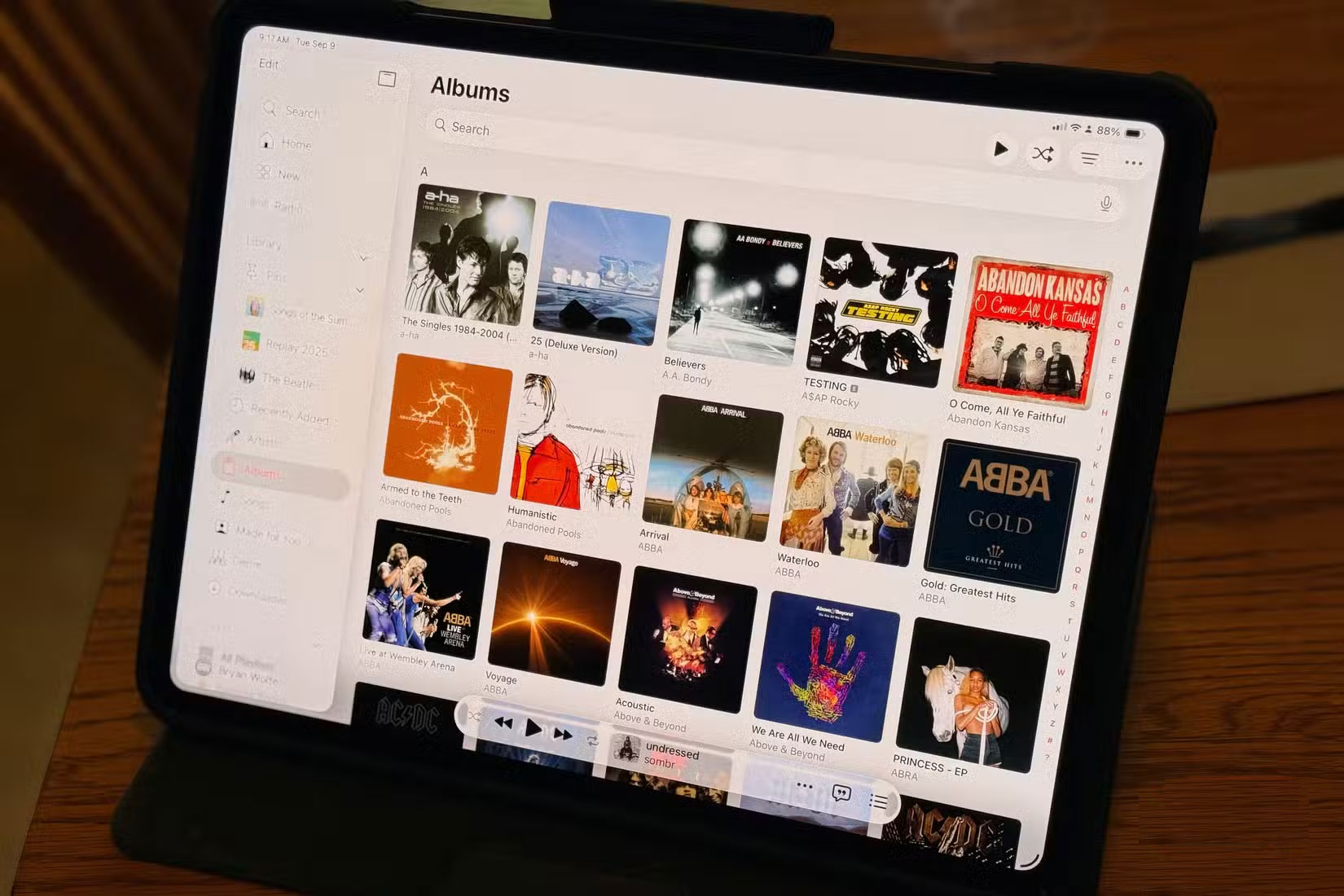
Load compatible music and video files, or use a supported app to control a media player. Test file formats, adapters, and speakers. Streaming subscriptions and DRM can impose requirements that local playback does not.
9. Monitor a room for a limited purpose
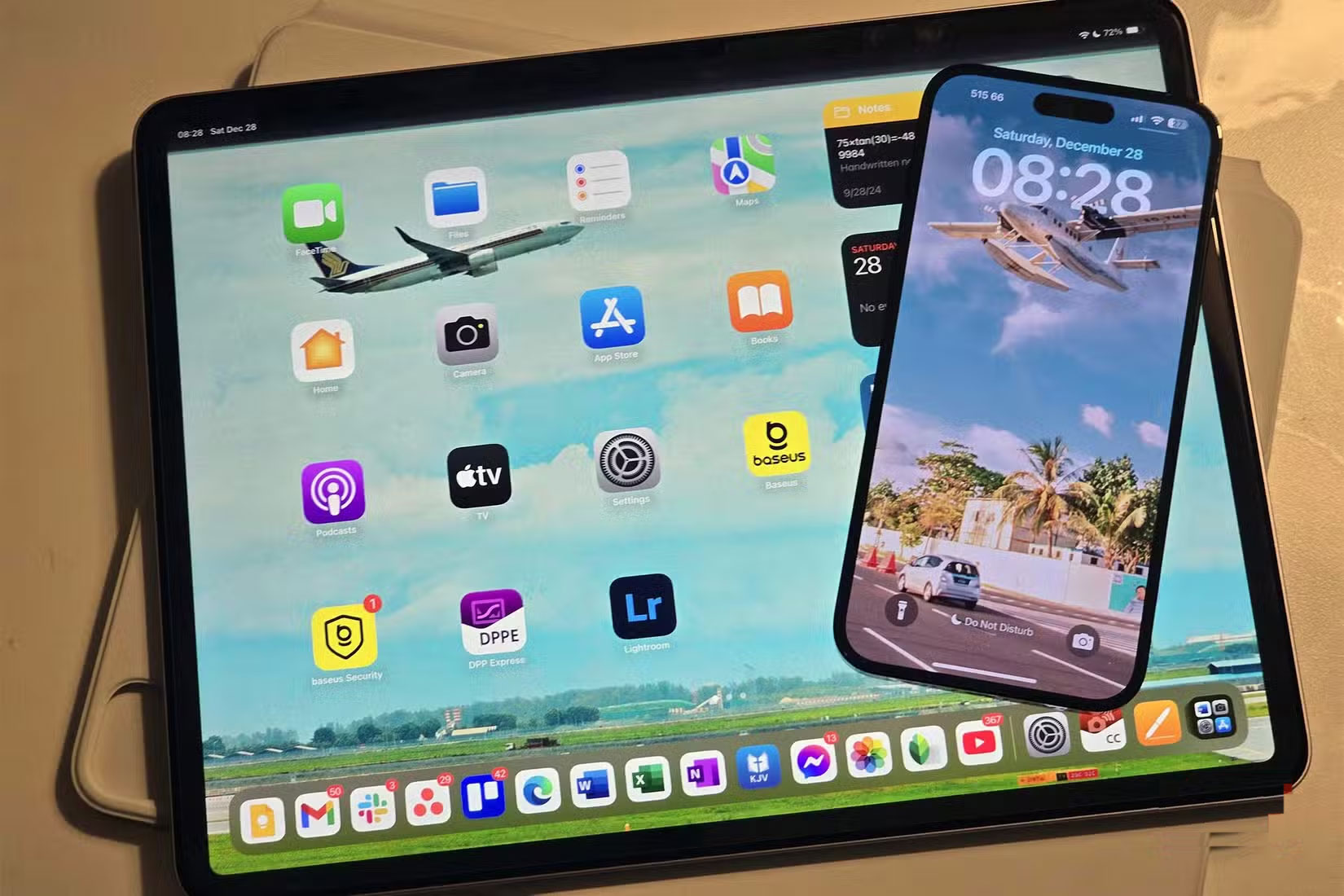
A compatible camera app may provide a live view, but check privacy, update support, account security, and whether it works reliably while unattended. Do not depend on an old tablet as a safety-critical security system or expose its feed publicly. A dedicated supported camera may be a better choice.
10. Provide passenger entertainment
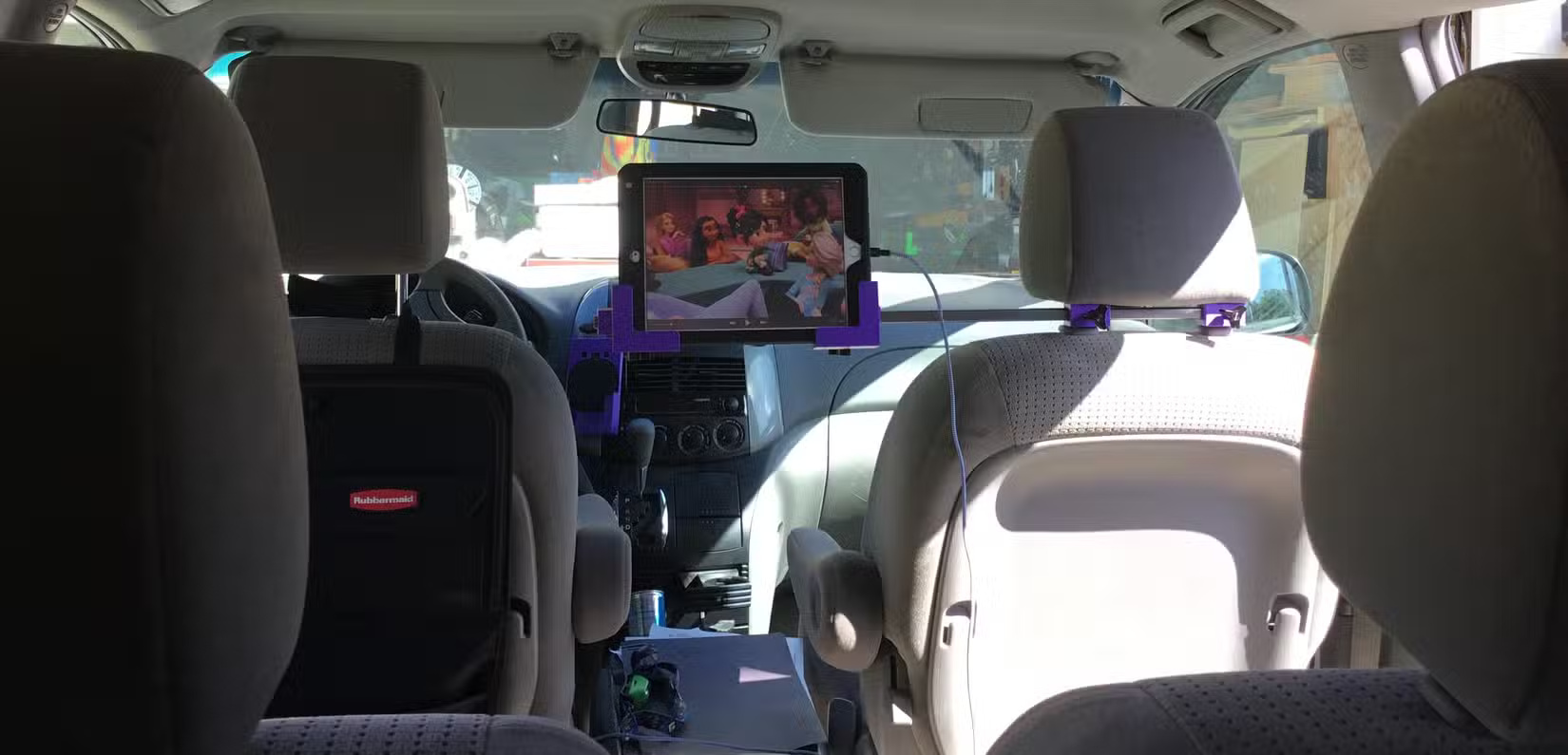
Download suitable media before a journey and use a secure passenger-facing mount. Keep the device out of the driver's view and controls, and do not leave it in a hot vehicle. For navigation, note that a Wi-Fi-only iPad does not have the same built-in GPS capability as a Wi-Fi + Cellular model; offline maps alone do not add it.
11. Sell, donate, or recycle it
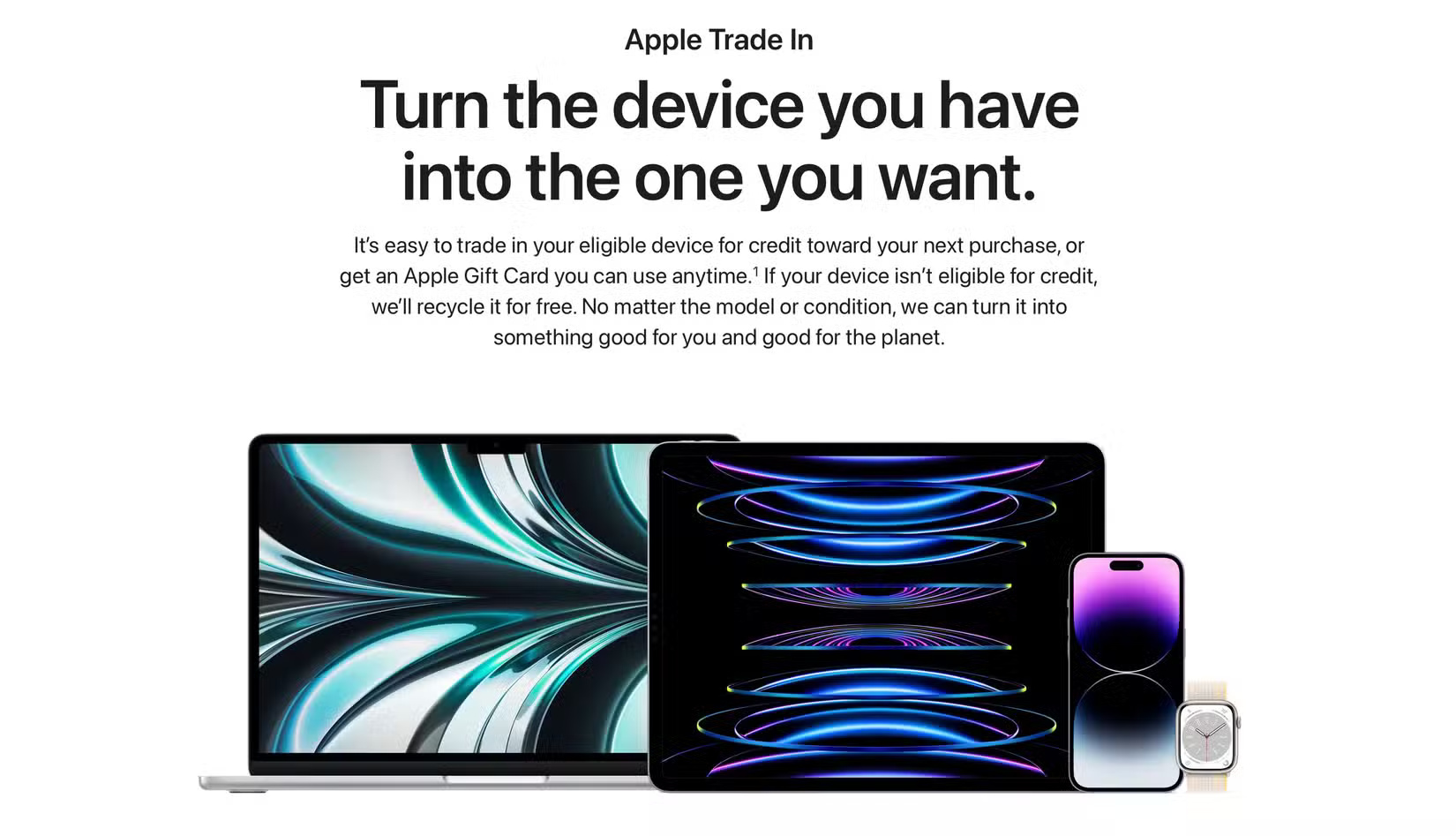
Check its model, condition, storage, and realistic resale value. Back up wanted data, sign out correctly, erase the device, and remove Activation Lock through the proper process before handing it over. See Activation Lock checks for used Apple devices. If it has no useful supported role, use a reputable recycling route.
12. Keep a tested backup tablet
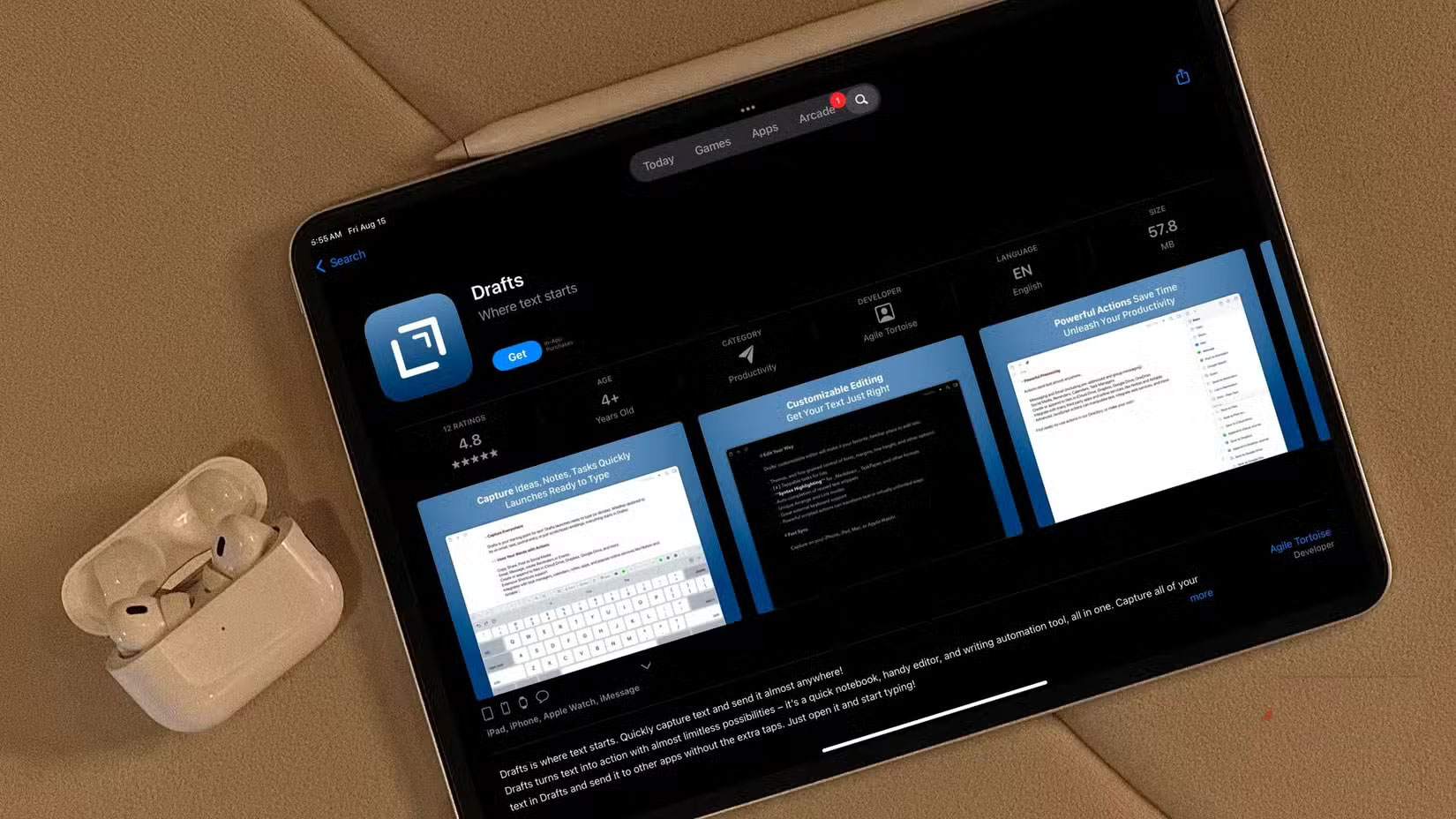
Keep essential compatible apps and documents ready, update it where possible, and check it periodically. Store it in a cool, dry place and follow Apple's battery-storage guidance. A backup is useful only if it still starts, holds a charge, and can perform the task you need.



Reader Comments 0
Sign in with email or Google to join the discussion.