Table of Contents
Spotify launches new Lossless Audio feature to make your music listening experience even better. Lossless Audio is a special feature on Spotify, providing high-resolution audio format,.
Spotify launches a new feature called Lossless Audio to make your music listening experience even better. Lossless Audio is a special feature on Spotify that provides high-resolution audio format, allowing users to play music in 24-bit/44.1 kHz FLAC format. Here is a guide to enable Lossless Audio on Spotify.
How to Enable Lossless Audio on Spotify
Step 1:
You should update the Spotify app to the latest version. The feature only Applies to the paid version . Next, click on your avatar and select Settings and Privacy .
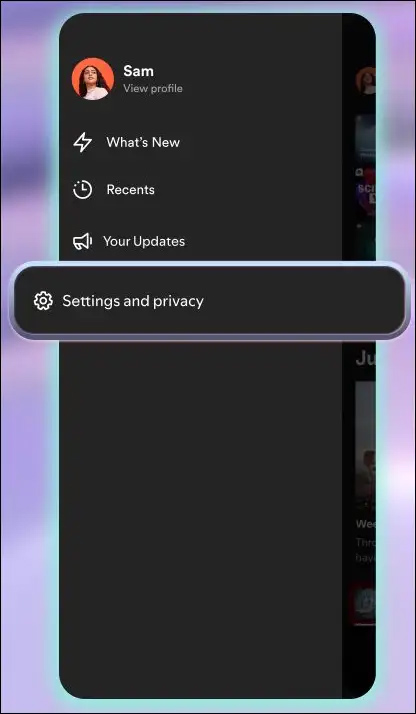
Step 2:
Moving to the next interface, the user clicks on Media Quality settings .
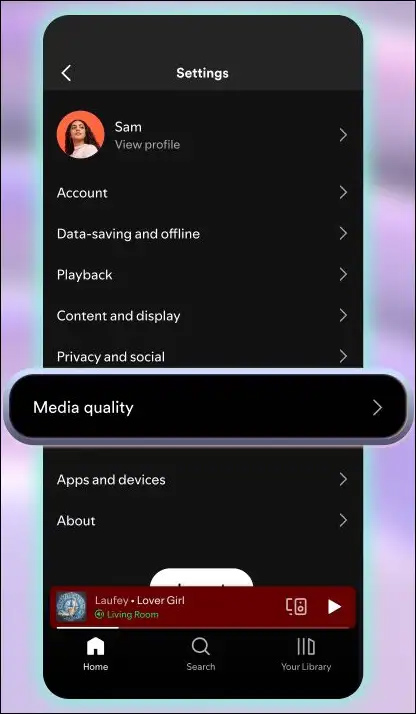
Step 3:
Now display the quality options for the song, you Select Lossless To apply to the song on Spotify.
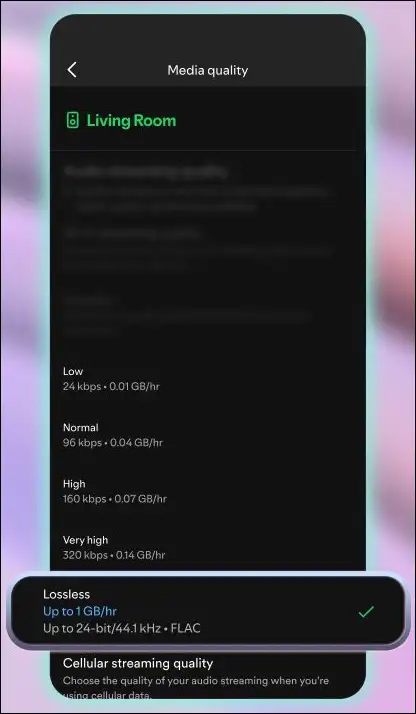
The new music quality is now available for Spotify. Spotify will play your music in lossless mode and you can listen to super high quality audio.
Listening to music in this mode can consume many data up to 1GB/hour. If you want to turn off Lossless Audio mode on Spotify, choose Normal, High or Very High to replace Lossless.
Why is Spotify Lossless Audio not working?
Only applies to paid Spotify plans
If you're a free user, this option won't appear in your Spotify settings.
Update Spotify app
If you're using the old Spotify app, you may not find this feature, or it may not work even if you've enabled it.
Clear Spotify cache
If you meet all the above requirements but this option is not available, exit the application, clear the cache and restart.
FAQ
How do you enable lossless audio on Spotify: step-by-step guide?
In practical terms, Spotify launches new Lossless Audio feature to make your music listening experience even better. Lossless Audio is a special feature on Spotify, providing high-resolution audio format,.
What should you check before getting started?
Review the requirements, compatible device or software version, and any warnings described in the guide before making changes.
What should you do if the steps do not work?
Repeat the steps in order, confirm that your app or system is up to date, and review the troubleshooting details provided above.
Related Articles
 Spotify Launches Lossless Hi-Res Audio Plan: What to Know6 minutes read
 Do This Before You Even Think About Spotify Lossless: Explained10 minutes read
 5 Best Lossless Music Player Apps on Android6 minutes read
 Spotify Plans to Launch a Higher-priced Music Pro Subscription for Lossless5 minutes read
 How to Enable Lossless Music Playback in Apple Music4 minutes read
 7 Best Lossless Music Players on Windows 108 minutes read
Reader Comments 0
Sign in with email or Google to join the discussion.