Table of Contents
This practical guide walks through how to connect Wifi Device. It organizes the required steps, settings, and checks so you can complete the task with fewer mistakes.
Changing Your Wi-Fi password Is the most effective measure to prevent unauthorized access to your network. Especially, if you share Wi-Fi with many people, using a hard-to-guess password will help protect the network more securely. Don't let personal information leak because of a simple password.
Article content: I. Notes before changing Wi-Fi password II. Details on how to change Wi-Fi password 1. With FPT 1.1 network. On PC 1.2. Via Hi FPT 2 app. With VNPT 2.1 network. Modem Gpon iGate 2.2. Modem Huawei 2.3. Modem Yes Telecom 3. With Viettel 3.1 network. Modem TP Link 3.2. Modem Alcatel Lucent Gpon Viettel 4. Modem LINKSYS 5. Modem Tenda 6. Modem DLINK 7. Modem Totolink III. How to change Wi-Fi password on phone IV. Why do you need to change your Wi-Fi password ? How should you set your Wi-Fi password? BECAUSE. Wi-Fi passwords should be avoided. VII. Forgot Wi-Fi password, what should I do? VIII. Common errors when changing Wi-Fi IX password. How to politely refuse when asked for Wi-Fi password X. Why not give Wi-Fi password to others XI. Should the Wi-Fi Modem run continuously? XII. Modem placement for high network speed XIII. Switchboard number supporting wifi internet network XIV. Q&A
What Is Wifi?
Under Wikipedia, Wi-Fi (or Wi-Fi) stands for Wireless Fidelity or 802.11 network is a wireless network system that uses radio waves, like mobile phones, television and radio.
Currently, Wi-Fi is available in many places such as private homes, companies, restaurants, bars, hotels, etc. anywhere, even if we use Wi-Fi detection tools like Wi-Fi Chua , we can You can see on the map a "crowded" display of different Wi-Fi networks.
Notes Before Changing Wi-fi Password
- Should use IE web browser - Internet Explorer or Chrome. - You should turn off the Vietnamese typing software Unikey and Viettekey if they are on. - Some login links are: 192.168.1.1; 192.168.0.1; 192.168.100.1. - First change the wifi password, make sure you are using the internet of the wifi network that needs to be changed - If you connect to the modem or wifi transmitter using "wifi" (not a LAN cable), then after changing it you will Can't access the network anymore - because at first you used old wifi - now you need to log in to the network with the new wifi you just changed - Link to log in to Modem: Usually 192.168.1.1, but to be more clear, on a computer, open Start => open the RUN Section => enter CMD => Enter the command Ipconfig => In the Default Gateway Section, there will be a path for you to log in to the wifi modem. 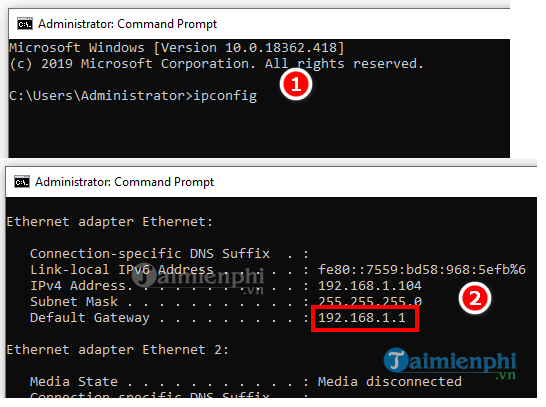
Details on How to Change Wifi Password
With FPT Network
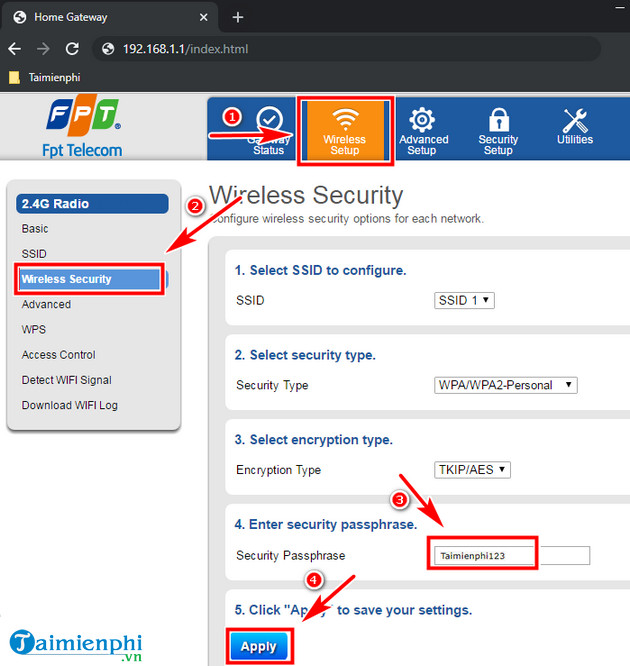
1.1. Change password on computer - First, connect the modem to the computer via network cable or Wi-Fi. - Access the address 192.168.1.1 , enter Username And Password . + username: Enter Admin + password: Is the contract number written on the sticker on the modem device. Note: If the modem has been changed, please contact the switchboard via phone number 19006600 For support. - After logging in to the modem, open the Wireless Setup Tab => Wireless Security . - Type the password into Security passphrase (this is your wifi password) then choose Apply .
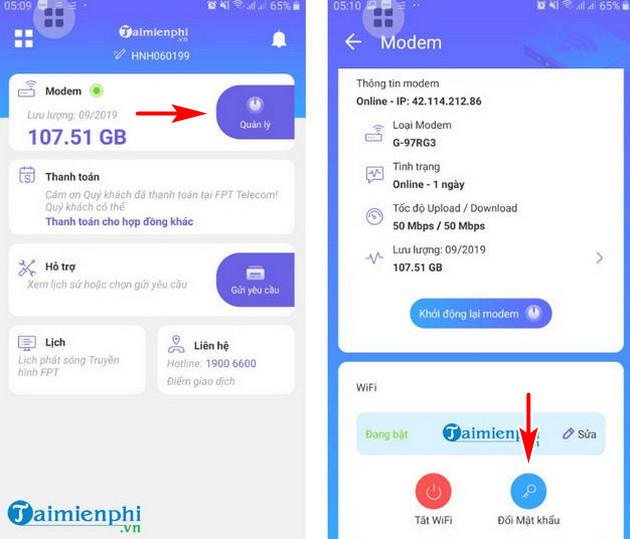
1.2. Change password using Hi FPT application + Download Hi FPT application from the official provider (Android) or download from the official provider (iPhone, iPad). + Start the Hi FPT Application, log in to the application with your account (Network registration phone number and password is the OTP code sent by FPT when registering the network) + After logging in to the app, select Manage At the tab Modem + select Change Password At the bottom of the card and change the Wi-Fi password as you like.
With VNPT Network
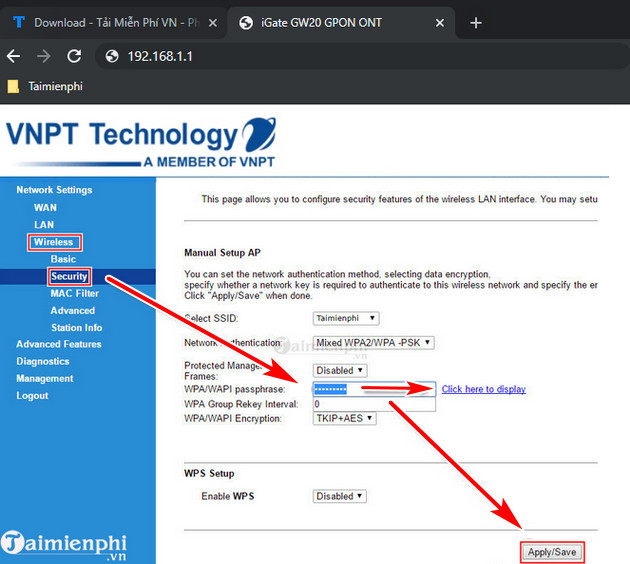
2.1. For Gpon iGate - First, you need to separately connect the Gpon iGate wifi modem to your PC before changing the Wi-Fi password. - Use a web browser and access the address 192.168.1.1 , fill in the information you are provided InUsername And Password => Login (access to Admin Wi-Fi password). Normally the login name and password can both be admin or attached to the back of the wifi modem. Note: If you cannot log in to Admin, please contact the VNPT switchboard directly at 1800109 For The fastest and earliest support. - Successfully logged in, open Network Settings => Wireless => Security , find WPA/WPAI passphrase, Enter new password and select Apply/Save . Try logging in with the new Wi-Fi password you changed.
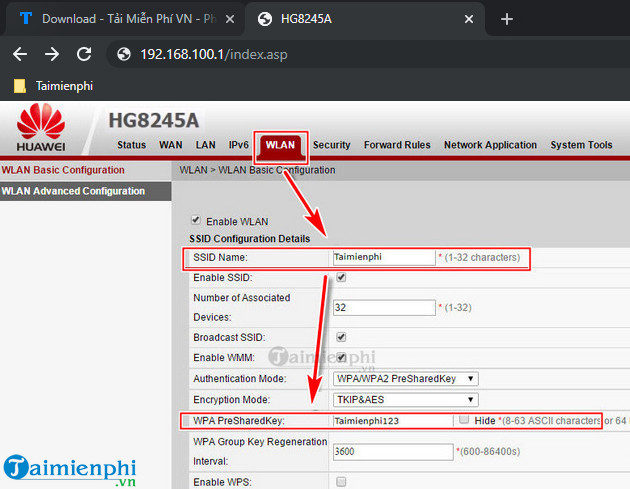
2.2. For Huawei - Similar to the above method, you connect to a private internet network with a wifi modem and access the address 192.168.100.1 On Google or IE browser to change the wifi password, type User:Root And Password:Admin => Login (If you cannot log in, please reset the modem or contact switchboard 1800109 ) - After logging in, move to the WLAN Tab and change the Wi-Fi password in the WPA PreSharedKey Section., select Apply To complete.
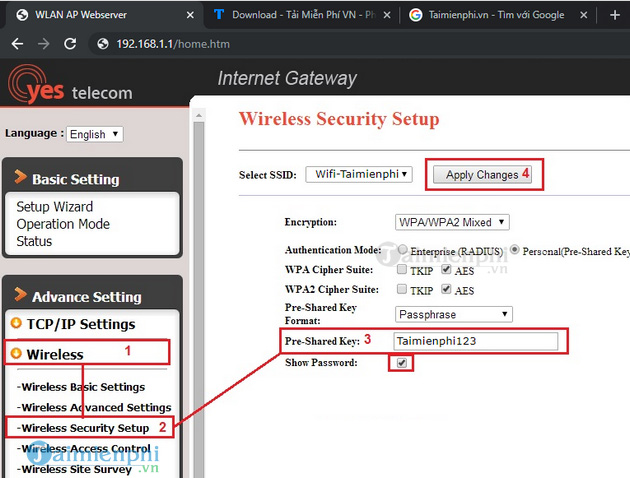
2.3. For Yes Telecom - As usual, you need to connect your computer to the modem device to change the Wi-Fi password. Start the browser and access Yes Telecom 's default IP address 192.168.1.1 . - Enter the device's default Username And Password Information as follows: + Username : Admin + Password : MegavnnNote: The default account password is megavnn if the technical staff installing the network for you has not changed it, If If the Wi-Fi password has been changed, please contact the technical team directly to receive it again. VNPT switchboard phone number is 1800109. - Make a selection to move to the Wi-Fi password change section, at the Advance SettingWireless Tab => Wireless Security Setup => enter a new password or new wifi password in the box next to Pre- Shared Key (can Show Password To display the password) and select OK To complete the action of changing the Wi-Fi password.
Viettel
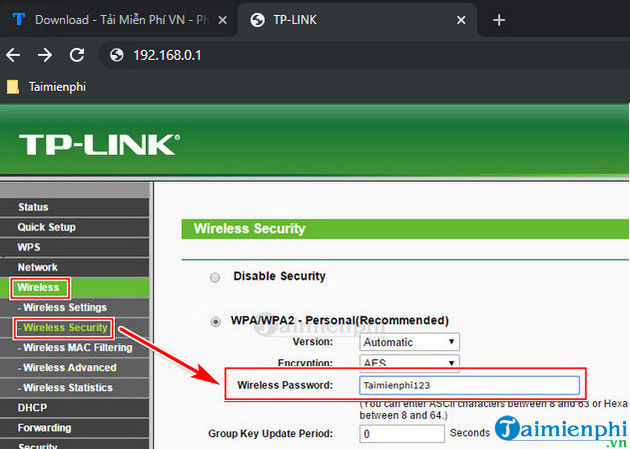
3.1. For Viettel TP Link - With TP-Link Viettel wifi modem, you need to do the following sequentially: + Step 1: First you need to connect the wifi modem separately to your computer or laptop, start the web browser and access open IP address 192.168.0.1 , enter Username / Password And Admin (both) then choose Enter * If you cannot log in to Admin with the default password above, please contact directly. Viettel hotline number 18008119 For fastest and earliest support. + Step 2: SelectWireless => Wireless Security Sequentially, in the Wireless Password Tab on the right, enter a new password and select System Tools => Reboot => select Rebot . + Step 3: Wait a few minutes for the wifi modem to reboot, then log in with the new Wi-Fi password you changed earlier.
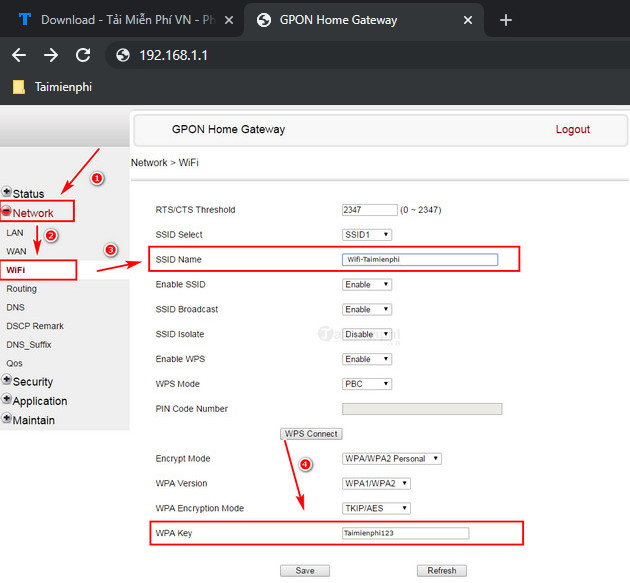
3.2. For Alcatel Lucent Viettel Wi-Fi - Step 1: To change the Wi-Fi password, you need to start the web browser on your computer, access the default IP address 192.168.1.1 And use the highest Admin account. At the same time, enter the account ( Username) And password ( Password) Which are both Admin => select Login . + Note: If you cannot log in with the default admin password, immediately contact Viettel switchboard at 18008119 Immediately to receive support, the password IsCase Sensitive. - Step 2: In the wifi modem installation system, select Network => WiFi => WPA Key And enter the new wifi password from the official provider, select Save And the system will automatically reboot. - Step 3: After 5 minutes, log in with your new Wi-Fi password and see the results.
LINKSYS
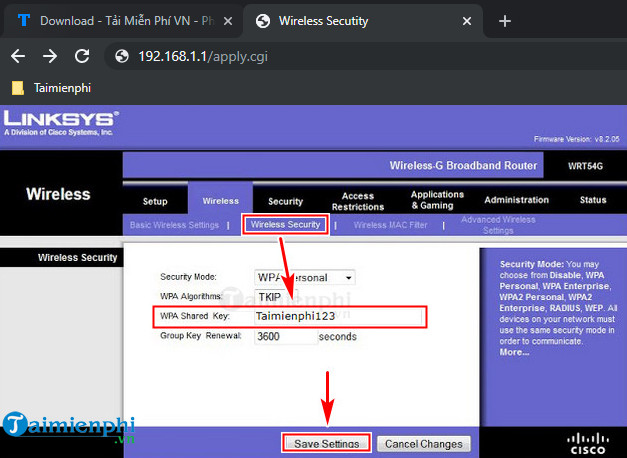
How to change the Wi-Fi password for Linksys modem is no different from other types, you need to follow these steps sequentially - Step 1: First you need to open a web browser on your computer and access the address Default IP 192.168.1.1 Of wifi device. - Step 2: Enter the default wifi username and password of the modem device, usually the default wifi account/password is Admin. * Note: If you cannot log in, please contact Viettel switchboard directly via phone number 18008119 To receive support. - Step 3: Next, select The Wireliess Tab => select Wireless Security => enter the new Wi-Fi password in the box next to WPA Shared Key => select Save Setting To save the new wifi password for the device. - Step 4: After your Wi-Fi modem device automatically resets , Use the new Wi-Fi password to log in to see if it works.
Tenda
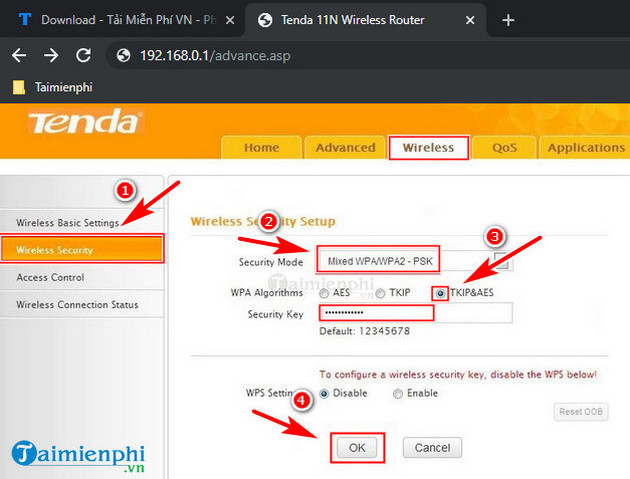
- Access the default address 192.168.0.1 On the web browser, use the default Admin Account for both Username And Password => select the Wireless Tab. + Note: If you cannot log in with the default account, please immediately contact Viettel switchboard at 18008119 To receive support. Remember to pay attention to Caps Lock Before entering information because the password is case- Sensitive . Flower ). - In the Wi-Fi configuration section, to change the Wi-Fi password, select Wireless Security And set up under the following instructions: + Security Mode: Select Mixed WPA/WPA2 PSK. + WPA Algorithms: Select TKIP&AES and enter the password in the Security Key Box below. + select OK To complete the process of changing the Wi-Fi password => log in again to see if the Wi-Fi password has changed or not.
DLINK
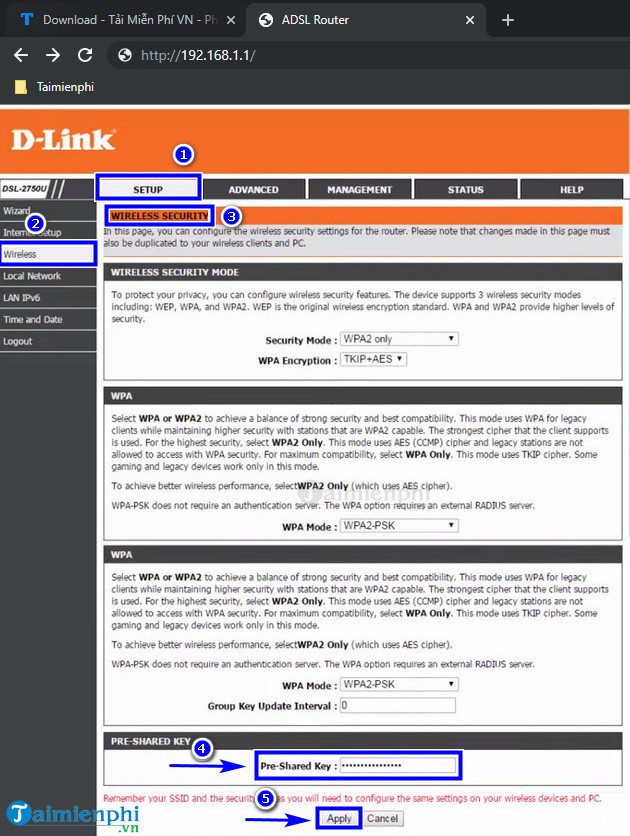
DLink or D-Link is a network equipment company that was born a long time ago, present all over the world, including Vietnam, the homepage of D-Link Vietnam is Https://www. dlink. com. vn . D-Link has devices such as Modem, Switch, Wi-Fi broadcast, Wireless Dual-Band,. You can select genuine products at major supermarkets in Vietnam such as Phuc Anh, Dienmayxanh, An Phat PC,. To change your DLink password, do the following: - Access 192.168.1.1 On the browser, enter the corresponding Username/passwordAdmin/admin And select Login . + If you cannot log in to Admind with the default account, immediately contact Viettel switchboard at 18008119 To receive support as soon as possible. + Passwords are case-sensitive, so pay close attention To Caps Lock Before entering Wi-Fi password information. - Setup => Wireless => Wireless Security , move to Pre-Shared Key And enter the new password, select Apply .
Totolink
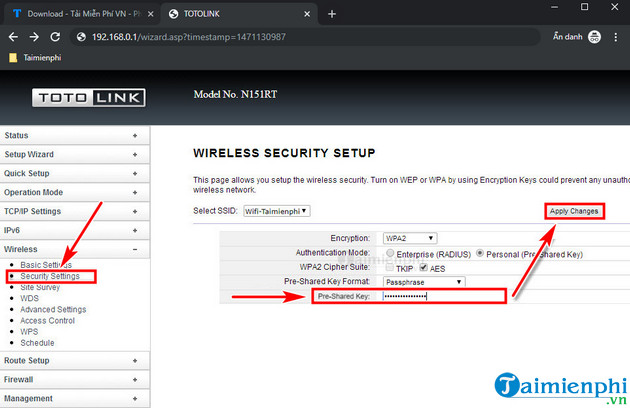
- You also log in to the address 192.168.0.1 And enter Username/password: admin/admin - Wireless => Security Settings => Pre-Shared Key And enter the new password here => Apply Changes To save the changes.
How to Change Wifi Password on Phone
Currently Several methods to change Wi-Fi passwords, you can change them on your computer or phone. Each type of them has different changing methods and tricks. If you need to change the wifi password on your phone, please review the article How to change wifi password with your phone Here.
Why Do You Need to Change Your Wi-fi Password?
If you are not careful when using wifi, you can easily become a victim of password hacking to use someone else's temple, making access difficult or the network speed unstable. Therefore, changing your wifi password regularly will help you control the number of users, connection speed or avoid network errors. Each Wi-Fi network has its get method of changing the password that you need to keep in mind.
How Should I Set the Wi-fi Password?
There are some suggestions to help you set a wifi password to make it most secure. TipsMake's suggestions help you create a strong but easy-to-remember password, please pay attention. - May contain special characters or capitalize the first letter. - Create a password using the same words. - Use a favorite book. - Reverse password.
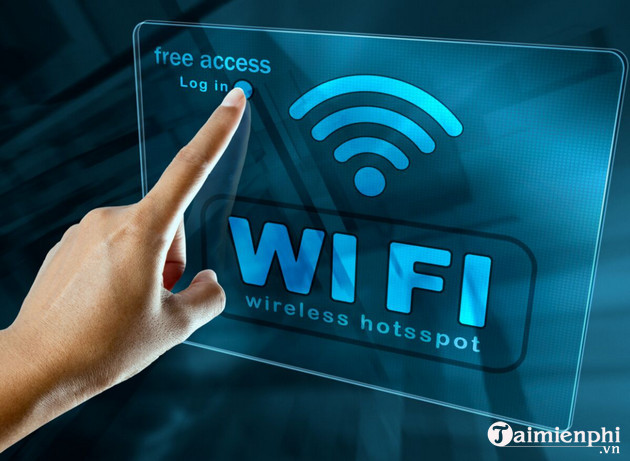
BECAUSE. These Wifi Passwords Should Be Avoided
Sometimes, some people who are afraid of forgetting their wifi password often set very simple passwords, so temple users often find out, which also causes network speed and local congestion to often occur. You should avoid setting wifi passwords such as 88888888, 12345678, 66666666, 99999999 or your get phone number, wifi name.
Forgot Wifi Password, What Should I Do?
For those who forgot their Wi-Fi password, can't remember the password they set or want to retrieve them. Several methods to retrieve the password, using a phone that has saved the wifi password, checking the password on a computer that has previously accessed that wifi. If you don't know how to do it, what are the tricks?, please review TipsMake's way To retrieve forgotten Wi-Fi password Here.
Common Errors When Changing Wifi Password
This error is quite common, but few people think about the real cause. This case is not rare and many people have sent similar questions to TipsMake. For convenience, please review the article Summary of errors when changing Wi-Fi password , including errors such as: Cannot access the network after changing Wi-Fi password, cannot access 192.168.1.1, error message when changing password ,.
How to Politely Refuse When Asked for Wifi Password
Several ways to tactfully refuse when asked for passwords that you can apply in practice, as simple as: - To ask about network installation techniques: Before you install the network installation technique, I'll just do that. Just use it, let me ask again later. - I don't know what it is: I don't know what the password is. The technical side installed the network so I don't remember it. - The network is having an error, there is currently no network: I can't access the network, what's wrong with me but I can't access the network, currently using 3G.
Why Should You Not Give Your Wifi Password to Others?
As mentioned above, when you share the Wi-Fi network with others, it means you are sharing bandwidth, for every phone or laptop connected, their speed will be reduced. Not only that, you can download illegal data or spread malware to other devices via Wi-Fi connection. TipsMake recommends that you avoid sharing with outsiders or people you do not know.
Should the Wi-fi Modem Run Continuously?
Most users often wonder if leaving the Wi-Fi Modem running continuously is dangerous, affects others, or does it occasionally cause network speed problems? Please tell readers that this is okay, Wi-Fi waves do not affect the brain even when you put them in the bedroom, people often make this up. If it affects your health, you will have been warned by the network from the beginning or banned.
Location of Wifi Modem for High Speed
To have a high-speed, stable Wi-Fi signal, you need to place the device in the following locations and avoid the following places: - Place the Wi-Fi transmitter in the center of the house. - Place Wi-Fi in a high position, always point the antenna (wifi device's beard) upward. - Stay away from the kitchen or landline phones. - Avoid walls or obstacles, metal with large cross-sections will prevent you from catching Wi-Fi.
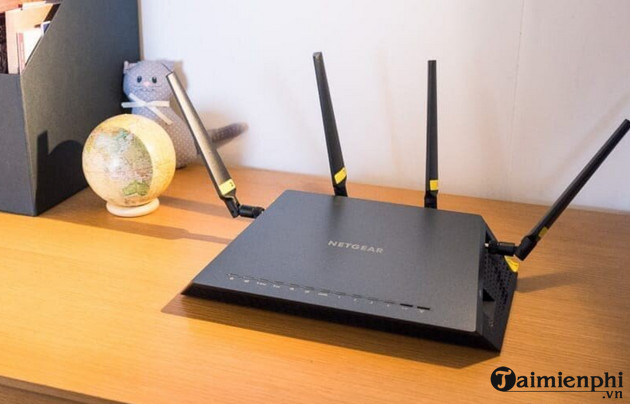
Network Support Switchboard Number
Below are hotline phone numbers of network operators currently present in Vietnam. If you encounter any problems when changing your Wi-Fi password, please contact the switchboard phone number below. If not, you can directly ask questions in the comment section below, TipsMake will answer all your questions as quickly and as soon as possible. - With FPT network: 19006600. - With Viettel network: 18008119. - With VNPT network: 18001091.
Questioner: Nguyen Thuy Dung
I tried accessing the link to change the wifi password using both my phone and computer, but why can't I access the link 192.168.1.1?
● 2 months ago
Admin Reply
Hello! As you describe, it is probably because your 192.168.1.1 link has been changed to another link. open your computer, open RUN, run the CMD command and type the word IPCONFIG and check if it is 192.168.1.1 or not. Thank you.
Currently Several different types of modems on the market. To choose the best product for yourself, please review the article Distinguishing between Router , Modem, Access Point, and Modem Router devices that TipsMake has introduced for insight. and choose the most accurate one
When you get a modem from VNPT, FTP, Viettel or from Tenda, TP-Link, LinkSYS or Zyxel modem, most of today's new generation modems integrate additional functions, if If you Don't know how to set the wifi password Or how to change the wifi password, your wifi will be " Temple wifi " Because anyone can use it.
The modem itself always has a web interface available for configuration, so you Can use your phone to access And configure it. You don't have to use a computer or laptop to configure it. If you use a phone, you also use the browser available on the phone like a computer and The phone needs to be connected to a wifi network To change the password. See details on How to change wifi password using your phone
By using a wifi network, you can completely access the network at any location within its coverage area. And if you don't change the wifi password or set a wifi pass, other people can also access your wifi network, thereby slowing down the network speed, increasing usage capacity and possibly increasing network money. Next I explains how to set up wifi password.
See List of IP addresses and Default access username/password of Modem if you do not know, you can use it.
Tip : One thing to note is that you should not leave the wifi modem running continuously for too long. If not in use, you can turn off the power source to help save electricity and help the modem work better and more durable. You should periodically change your wifi password every month to avoid being used even if you have previously set a wifi password because there may be software that detects wifi passwords. One way to avoid having your wifi password detected is to set a password that is at least 8 characters long. letters or more, with special characters like *#$!%. combined with capital letters. If you are technically savvy, you can turn on MAC blocking mode on wifi modems (most modems like Tenda, TP-Link, LinkSYS, Zyxel all have this function) and should not be set to SSID broadcast mode, to avoid revealing the name of your home wifi network. In addition, if you are using the Gpon wifi modem of the FTP network, you can also You can easily change the GPON wifi password like with modems from other network operators.
There is a way to help those who are lazy to change the wifi password: hide the wifi or hide the name of your home wifi network. Stop appearing in other people's search data. The way to hide wifi Is also straightforward. However, changing The wifi password regularly Is still the safest way, find your get way to set the most unique and safe wifi password.
Previously, changing Wi-Fi password (wifi password) was very difficult for many people because there were too many types such as Tenda, TP-Link, DLink, LINKSYS,. and network operators such as VNPT, FPT, Viettel. Now with the instructions in this guide, changing your Wi-Fi password has become so simple. Let's start doing it together.
If during the process of changing the wifi password you encounter any errors or problems, do not hesitate to contact TipsMake's technical support department for the fastest solution. Good luck!
FAQ
What do I need before I connect Wifi Device?
Prepare the required device, software, account access, and any files mentioned in the steps. Back up important data before changing system settings.
Why does the process look different on my device?
Menus and options can vary by operating system, app version, device model, or region. Use the closest matching setting and check the official documentation when needed.
What should I do if a step does not work?
Restart the app or device, confirm permissions and connectivity, update the software, and repeat the step carefully. Avoid unofficial downloads or tools.
Related Articles
 How to Change Wi-Fi Password, Change Wi-Fi Pass Vnpt, Fpt, Tenda7 minutes read
 Change Wi-Fi Password: How to Change Vnpt Wi-Fi Password5 minutes read
 How to Change Wi-Fi Archer C9 Password, Replace Pass Wi-Fi TP4 minutes read
 How to Change FPT Wi-Fi Password with Hi FPT6 minutes read
 How to Change Wi-Fi Dlink Password for Network Operators3 minutes read
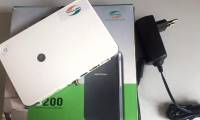 How to Changing Viettel Wi-Fi Modem Password3 minutes read
Reader Comments 0
Sign in with email or Google to join the discussion.