Table of Contents
Some users dislike Windows 11 because familiar workflows changed, its hardware requirements exclude otherwise usable PCs, and its interface promotes services or features they do not want. Those concerns can coexist with useful improvements such as Snap Layouts and modern security features.
There is no single experience shared by every user. The impact depends on the Windows version, hardware, region, account, and the tasks someone performs each day.
1. Familiar actions can take a different route
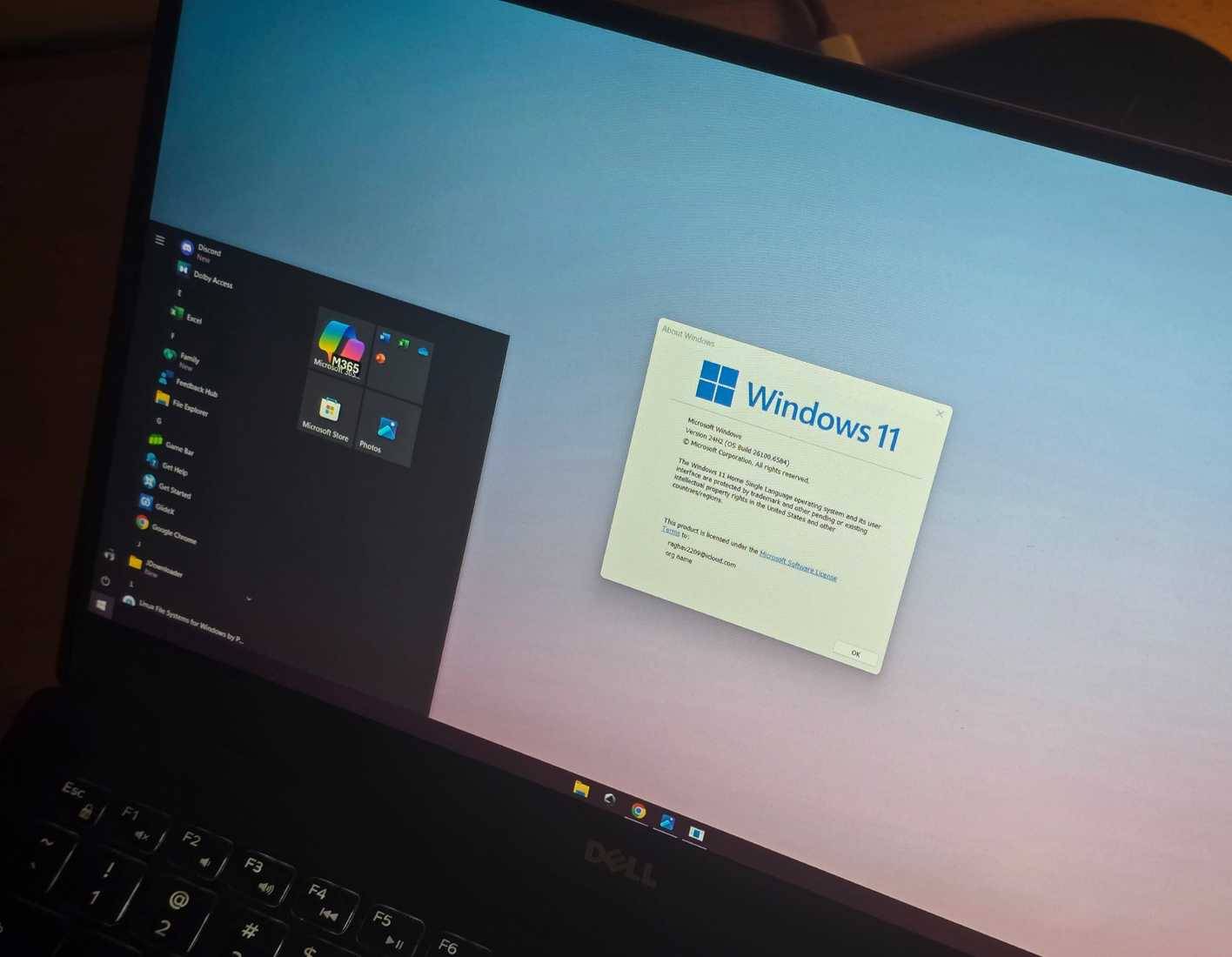
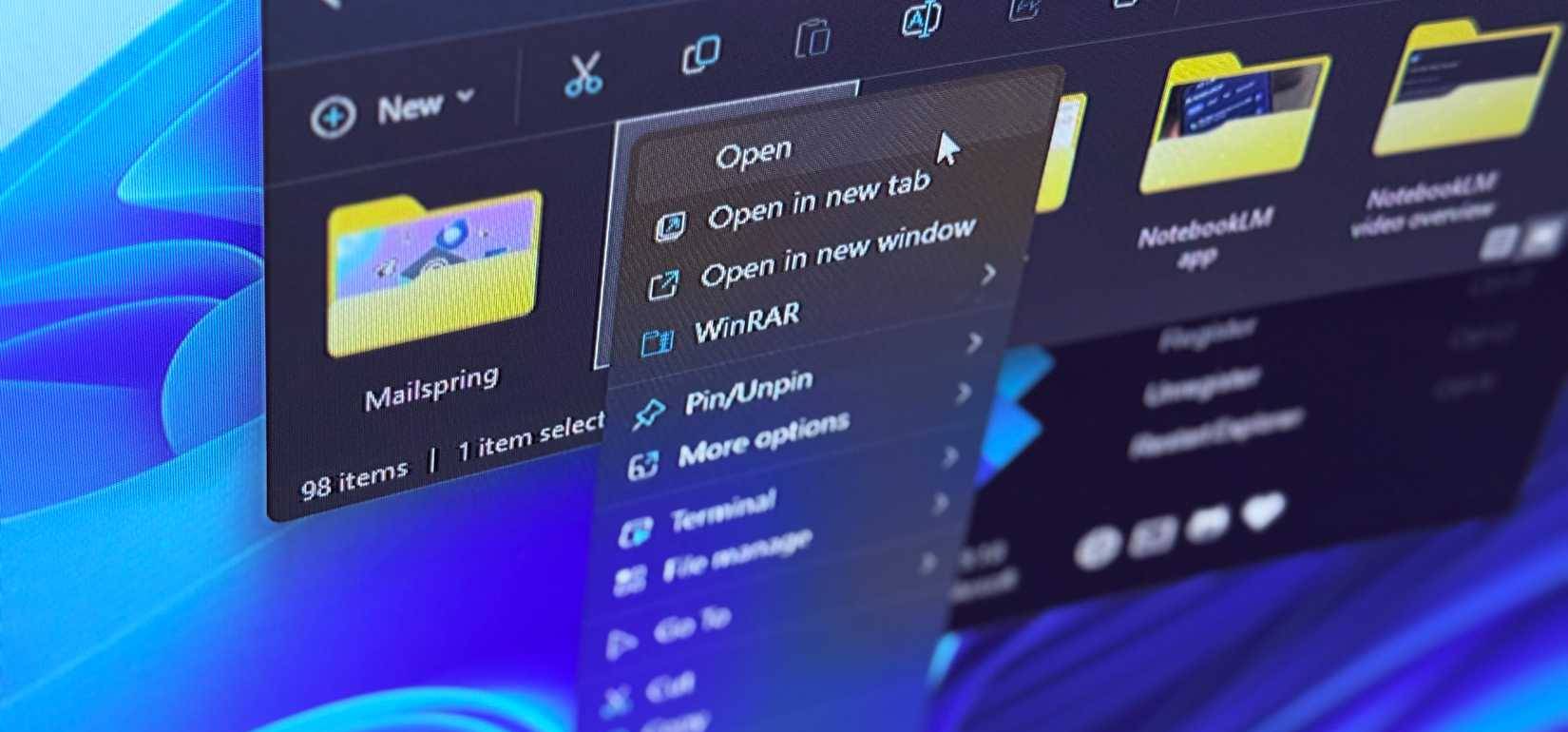
A redesigned Start menu or context menu may look cleaner while making a familiar action harder to find. People who rely on muscle memory can reasonably value predictable placement more than a visual refresh.
The practical question is which task has become slower. Pin frequently used apps, review available Start and taskbar settings, and learn the shortcuts for actions you repeat. Avoid assuming that a missing feature in an early Windows 11 review is still absent in your installed release.
2. Recommendations and search can feel distracting
Users looking for a local file may find recommendations, web results, account prompts, or promoted services unhelpful. The complaint is about control over the interface, rather than evidence that every suggestion is an advertisement.
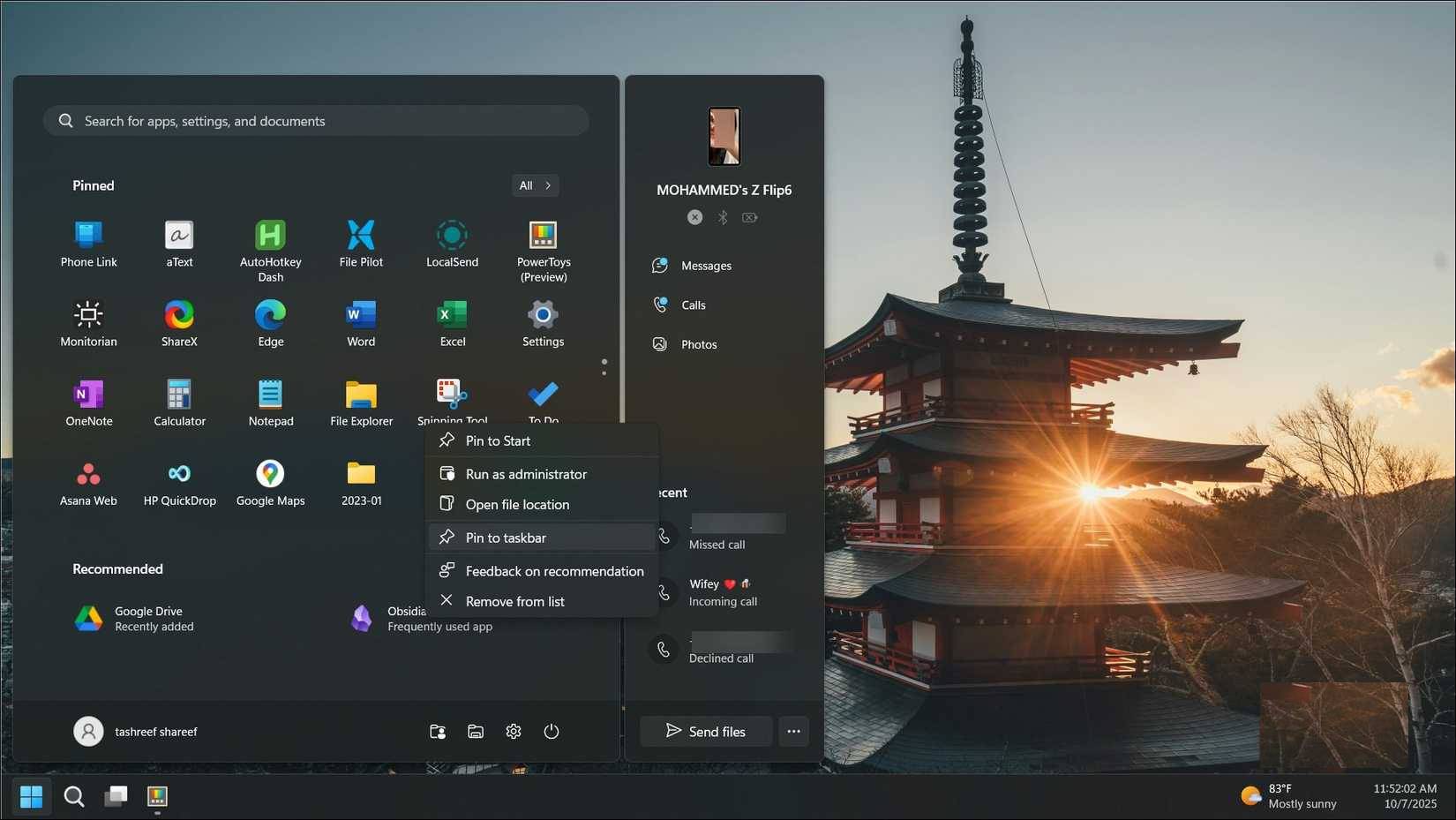
Review the personalization and search options available on your PC, and remove suggestions you do not use where Windows offers that choice. When looking for a known file, opening the relevant folder in File Explorer can be more direct than a broad Start search.
OneDrive integration can also be confusing when people cannot tell whether a file is local, cloud-only, or synchronized. Check the folder location and sync status before moving or deleting files.
3. Privacy settings are more complicated than one switch
Windows collects diagnostic data, but saying it records “everything” is inaccurate. Microsoft distinguishes required and optional diagnostic data, and individual apps and connected services have their own permissions and data practices.
Microsoft's diagnostic-data documentation describes optional collection. Disabling optional sharing does not disable every Microsoft service or all required processing.
Open Settings > Privacy & security and review diagnostics, app permissions, and personalization controls that matter to you. TipsMake's Windows 11 privacy-settings guide explains the scope of several controls.
4. Hardware requirements create a real upgrade barrier
Windows 11 requires supported hardware, including a compatible processor, TPM 2.0, and UEFI firmware with Secure Boot capability. Those requirements can prevent an upgrade even when an older PC still handles its current workload well.
Check Microsoft's system requirements and the PC manufacturer's guidance. Do not treat bypassing compatibility checks as equivalent to a supported upgrade or assume an unsupported installation guarantees future updates.
Minimum compatibility also does not promise a speed increase. Storage, memory, drivers, background apps, and workload all affect how responsive the PC feels.
5. AI integration is not useful to everyone
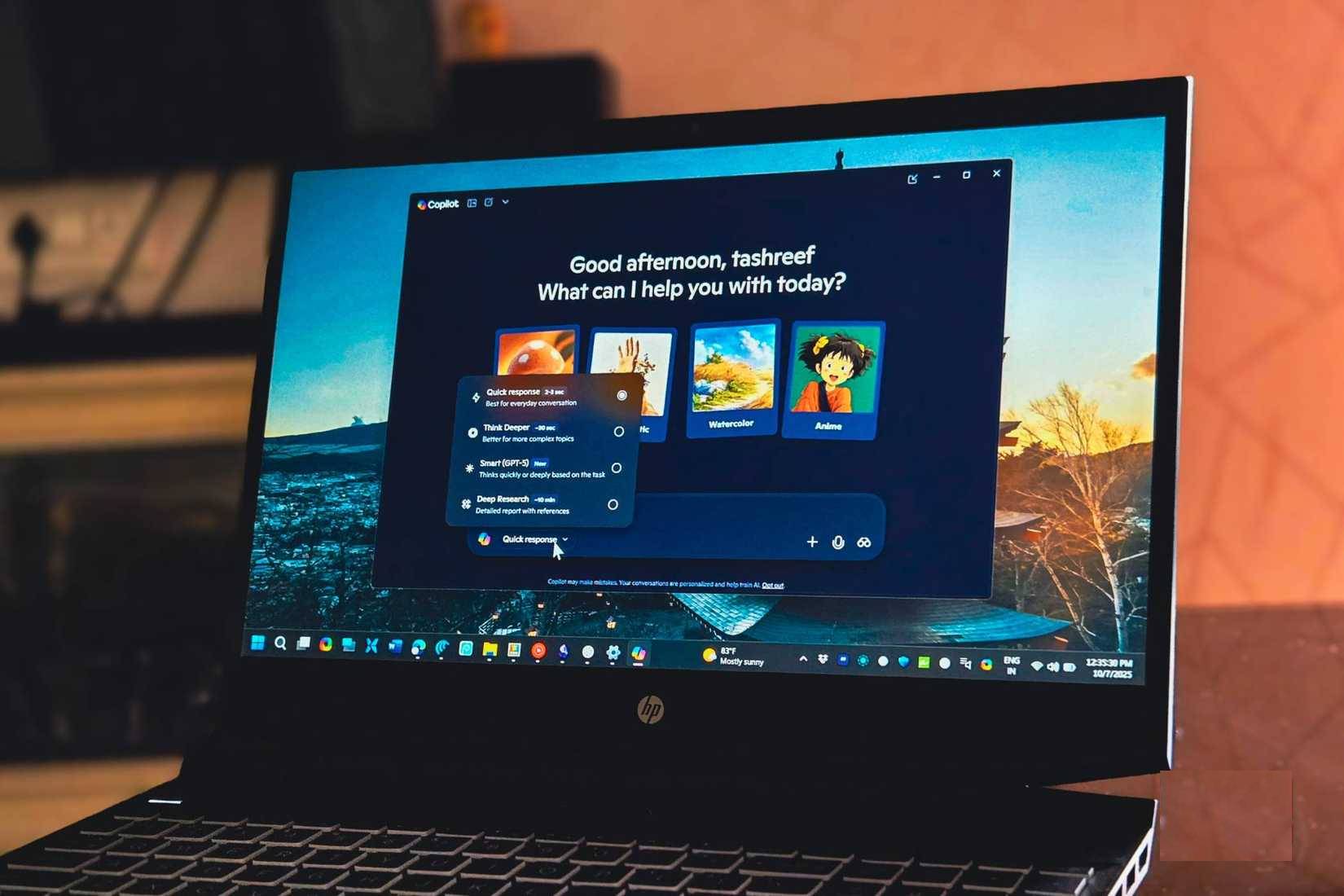
Copilot and other AI features may help some workflows while adding unwanted buttons or prompts for others. Windows Copilot, AI features in individual apps, and Microsoft 365 services are distinct products or integrations; they do not all share the same controls or availability.
You do not have to make Copilot part of your daily workflow to use Windows. Review its installed-app, startup, and shortcut options. TipsMake explains available Copilot removal and feature controls.
On some keyboards, the Copilot key replaces the context-menu key or right Ctrl key. It does not universally replace the Windows key, and layouts differ by manufacturer.
Compare supported options before staying with Windows 10
Standard Windows 10 support ended on October 14, 2025. Microsoft's consumer Extended Security Updates program now runs through October 12, 2027 for eligible enrolled devices. ESU provides specified security updates, rather than restoring full product support or new features.
Business programs and long-term servicing editions have different terms. Check the exact edition and enrollment status instead of assuming every Windows 10 PC is protected.
Choose based on the apps and hardware you need, the changes you can configure, and the support available. Familiarity is a valid preference, but it should be weighed alongside maintenance and compatibility.





Reader Comments 0
Sign in with email or Google to join the discussion.