Table of Contents
Detailed instructions on how to install Windows 11 using a local account (offline) to bypass the Microsoft Account login requirement, applicable to versions 24H2 and 25H2, with or without using Rufus.
One of the annoying points when users switch from Windows 10 To Windows 11 , especially when doing A clean install , is the inability to create a local account and set up the device in offline mode.
Previously, Windows 10 still allowed users to set up without the need for internet or a Microsoft account. However, on Windows 11, you are required to sign in to a Microsoft account to continue the installation process. Not only that, Microsoft also continuously 'locks' these loopholes in each new update.
But if you still want to use a local account, there is still a way to install Windows 11 in offline mode. Here are detailed instructions.
Why should you install Windows 11 in offline mode?
Some of the obvious benefits of installing Windows 11 offline include:
- Skip multiple ads and unnecessary options.
- Faster access to the desktop.
- Proactively install the desired Driver version instead of letting Windows Update automatically .
- Suitable for people who do not want to link a Microsoft account to their personal computer.
Method 1: Install without third-party tools
Step 1: When installing Windows 11, Make sure the computer is not connected to the Internet.
- Unplug the network cable if using LAN.
- Do not connect to Wi-Fi when the system requests it.
Step 2: During the setup phase (OOBE), press Shift + F10 To open Command Prompt .
Step 3: Type the following command and press Enter :
Oobebypassnro
Many people think this command was removed by Microsoft, but It actually still works —as long as you're Disconnected from the Internet .
Step 4: Your computer will restart. Continue with the installation, But don't connect to the internet Until you get to the desktop.
This will force Windows 11 to create a local account, while bypassing any promotional screens or Microsoft sign-in requests.
This works on Windows 11 version 24H2 and 25H2 .
Tips:
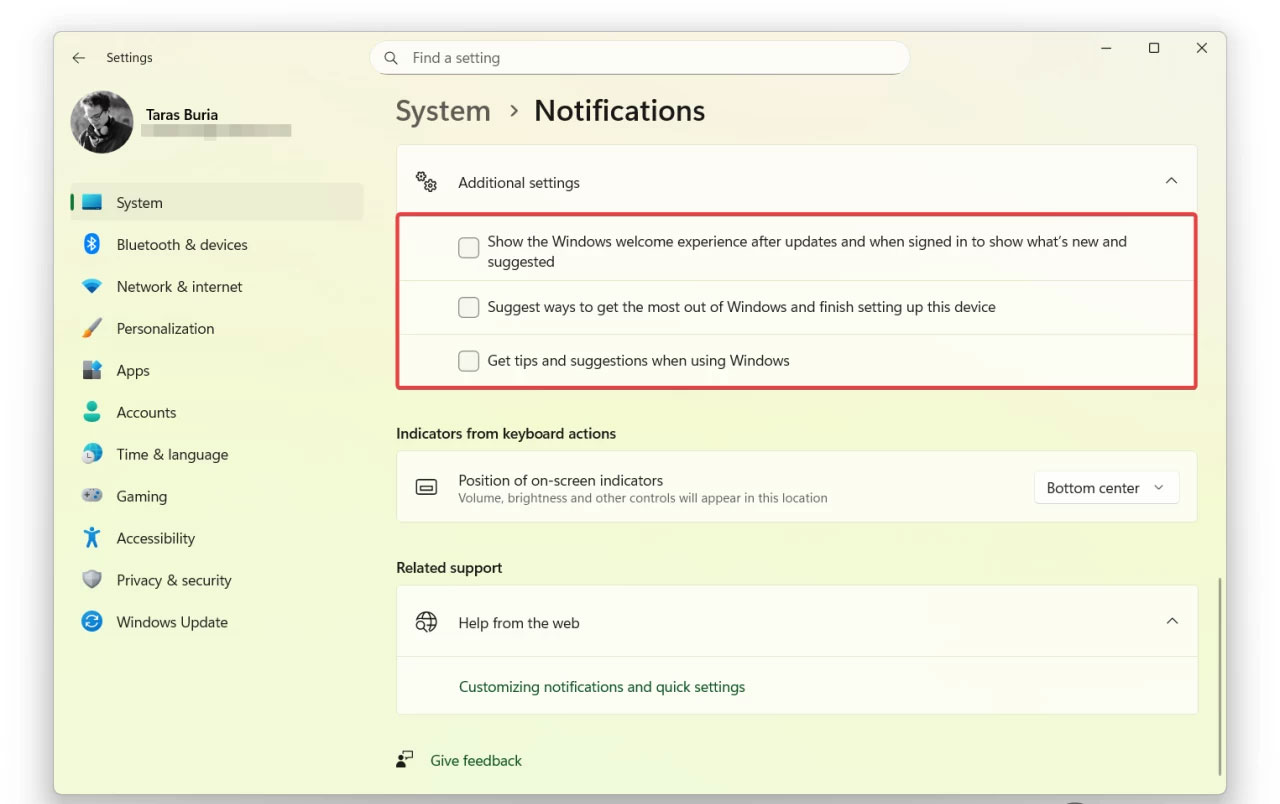
After entering the desktop, go to Settings → System → Notifications → Additional settings , then Uncheck all 3 options To avoid full-screen ads from Microsoft in the following startups.
Method 2: Use Rufus tool to create a custom installation USB
To Completely reinstall Windows 11 , especially the Latest 25H2 version, use Rufus Application to create A bootable USB That can Automatically bypass the Microsoft account and Internet requirements .
Steps to follow:
- Visit The official Windows 11 website To download The ISO file (or via The Media Creation Tool ).
- Go to Rufus homepage And download the application (installer or portable version).
- Open Rufus → Plug USB Into the computer.
- Select USB drive And Windows 11 ISO file .
- Click Start , Rufus will display the options dialog box:
- Tick "Remove requirement for an online Microsoft account" To skip the sign-in requirement.
- Tick "Create a local account with username" To set a local account name.
- Additional options can be selected as needed.
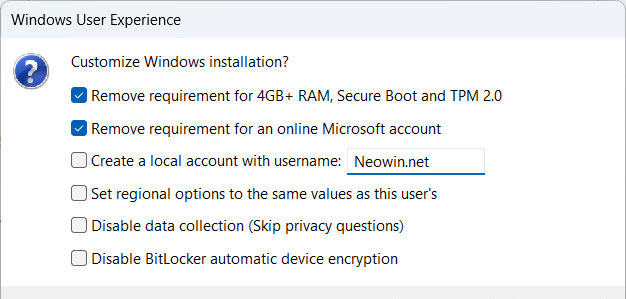
- Click OK To start creating the installation USB.
- When finished, proceed to Install Windows 11 as usual , remember To disconnect from the Internet During the initial setup process.
Result: you will have A complete Windows 11 , No Microsoft account required , and Completely offline setup .
FAQ
How do you install Windows 11 using a local offline account without a Microsoft?
In practical terms, detailed instructions on how to install Windows 11 using a local account (offline) to bypass the Microsoft Account login requirement, applicable to versions 24H2 and 25H2, with or without using Rufus.
What should you check before getting started?
Review the requirements, compatible device or software version, and any warnings described in the guide before making changes.
What should you do if the steps do not work?
Repeat the steps in order, confirm that your app or system is up to date, and review the troubleshooting details provided above.
Related Articles
 Microsoft Continues to Tighten Windows 11 Offline Installation4 minutes read
 Instructions to Transfer Microsoft Account to Local Account on5 minutes read
 How to Link a Local Account to a Microsoft Account Windows 112 minutes read
 Steps on How to Create a Local User Account in Windows 108 minutes read
 Distinguish Local Accounts and Microsoft Accounts on Windows 86 minutes read
 Password: How to Create a New Local User Account in Windows 104 minutes read
Reader Comments 0
Sign in with email or Google to join the discussion.