Table of Contents
SSD stands for Solid State Drive, a type of solid-state storage drive capable of storing data similar to an HDD.
What is an SSD, and why is it becoming increasingly popular and widely used? What types of SSDs are currently available? How can you check if your computer is using an SSD or an HDD? All these questions will be answered in the article below. Let's find out together!
What is an SSD?
To understand SSDs, we will analyze their definition, operating principles, and advantages and disadvantages. Please read on.
Definition
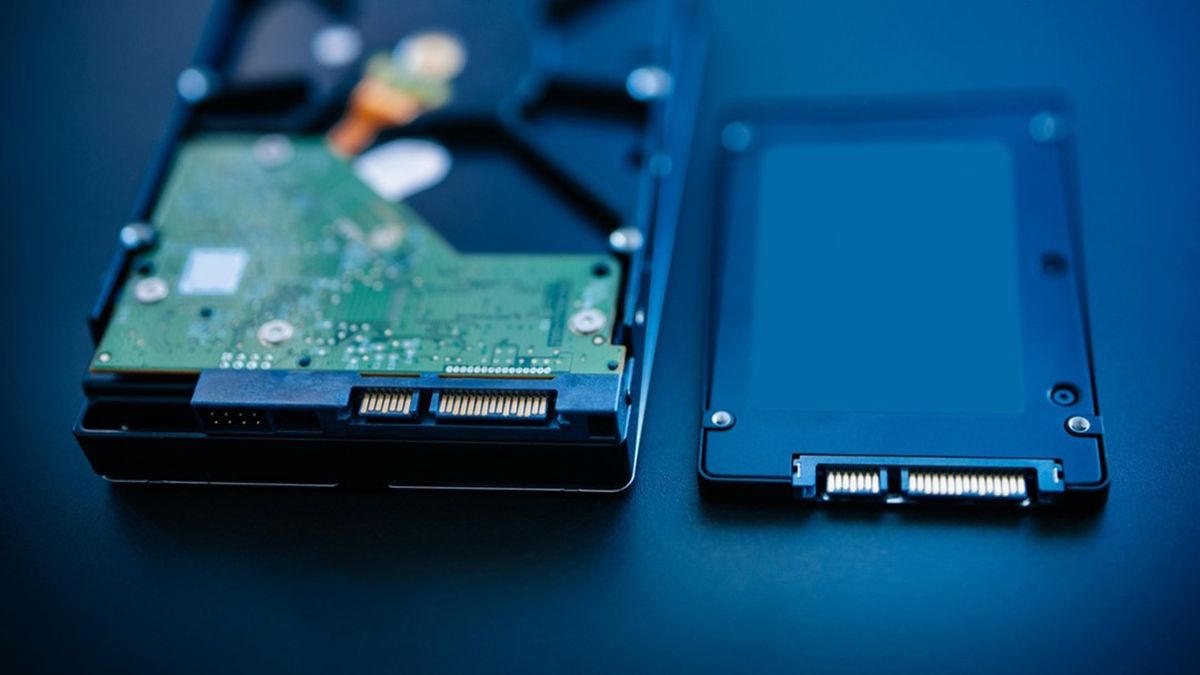
SSD stands for Solid State Drive, a type of solid-state storage drive capable of storing data similar to an HDD. However, SSDs use semiconductor memory such as SRAM, DRAM, or FLASH to store data instead of mechanical memory like traditional HDDs.
Operating principle
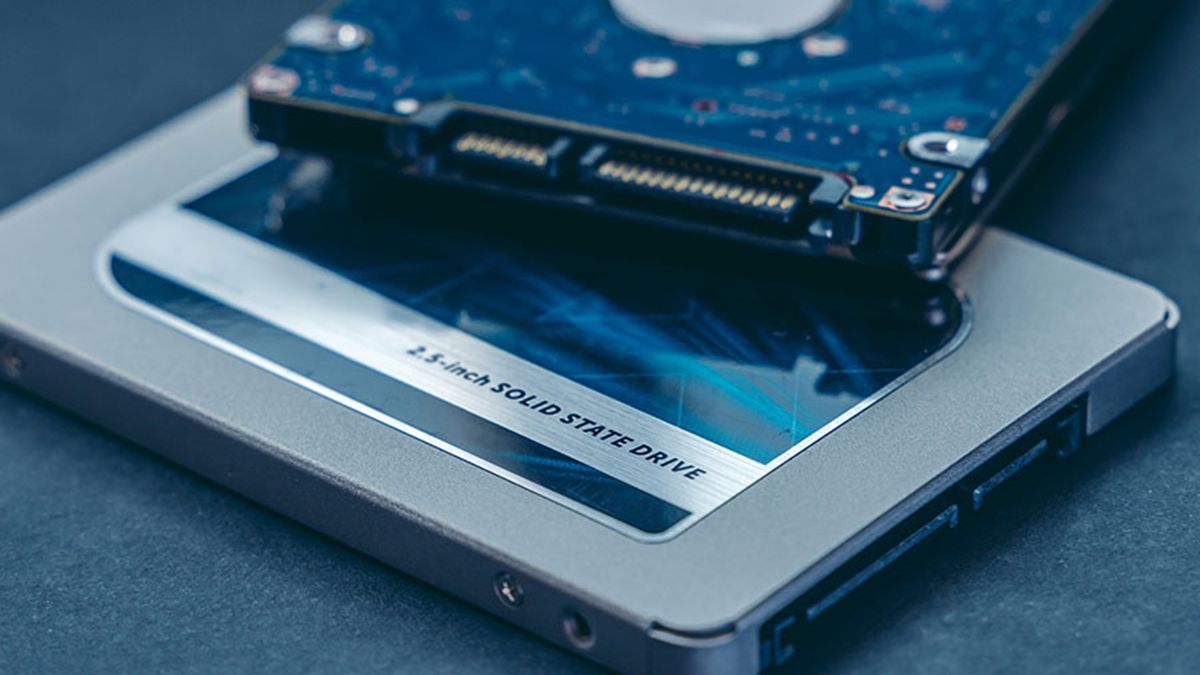
SSDs use memory cells to transmit and receive data at extremely fast speeds. These memory cells are divided into sections called pages, ranging in size from 2KB to 16KB, and multiple pages are grouped together into a block.
SSDs operate differently from HDDs. Instead of directly overwriting data onto each individual page, SSDs can only write data to blank pages within a block.
On an SSD drive, when unused pages are marked, the data of the entire block is identified and deleted. The data is then stored back in memory, and the unused pages are marked blank for use with new data.
Advantages of SSDs
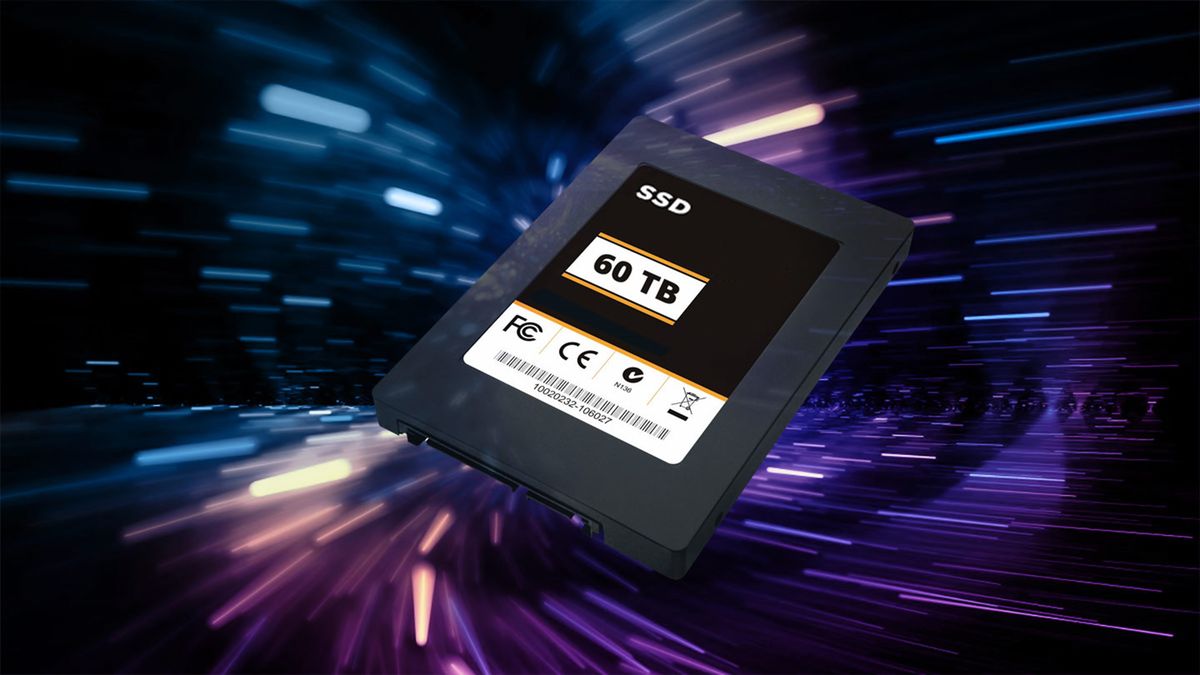
SSDs generally provide much faster access times and data transfer than mechanical hard drives, which improves startup and application-loading times. Boot times and software execution speeds are also significantly improved.
With its solid-state design, you can move your laptop around without worrying about unwanted bumps that could damage the hard drive. SSDs operate more quietly and cooler, and consume less power.
Disadvantages of SSDs
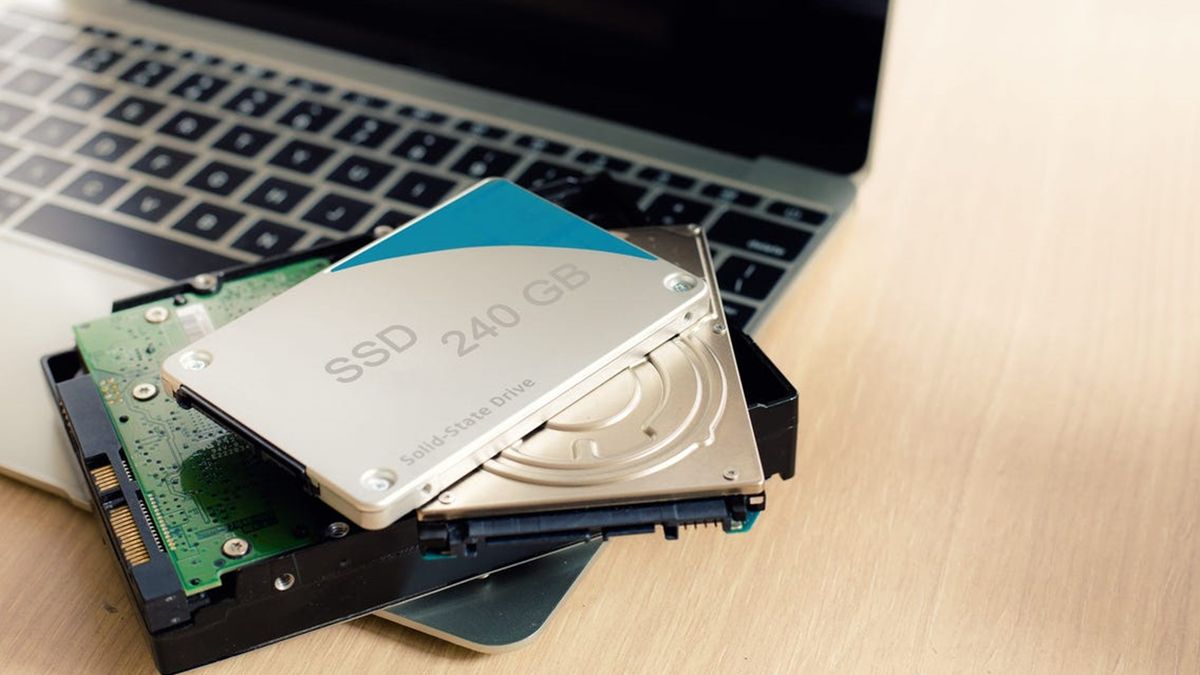
Although SSDs offer comparable storage capacity to HDDs, their price remains quite high. Furthermore, SSDs have limitations in the number of data write cycles. Each data write or erase cycle increases the internal resistance of each cell, eventually leading to the drive becoming incapable of writing data.
However, you don't need to worry too much about this because it doesn't mean that SSDs will have a shorter lifespan than HDDs.
What are the common types of SSDs?
SSD hard drives come in three common types, each with its own uses and applications. Therefore, you should choose a hard drive that suits your needs.
2.5-inch SATA SSD
This SSD has the same size and connector type as the HDD in laptops. With its affordable price, it's a suitable choice for most users.
m-SATA and mPCIe SSDs
When mSATA is mentioned, many people immediately think of the compact hard drives used in smaller laptops.
In terms of external design, mSATA ports are quite similar to mPCIe ports, but electronically and in terms of data transmission, they are not necessarily the same. Therefore, to install mSATA SSDs, your computer needs a dedicated mSATA controller chip; it cannot use a PCI Express chip.
M.2 SSDs (M.2 SATA and M.2 PCIe)
What is an M.2 SSD? This is a question many people are wondering about. M.2 SSDs were introduced in August 2004 with a completely different interface compared to conventional SSDs.
With their compact size and fast data processing speeds (approximately 550MB/s for M.2 SATA and 3500MB/s for M.2 PCIe), M.2 SSDs have become the standard for most laptops today. Currently, laptops equipped with M.2 SSDs are the preferred and trusted choice.
So, through the above content, you now understand the functions of different types of SSDs, right? Now, let's find out how the performance of SSDs compares to HDDs.
Which is better, SSD or HDD?
To compare and differentiate between SSD and HDD hard drives, you need to test them in many different aspects. Please compare them using the following criteria.
Read/Write Speed
Comparing HDD and SSD hard drives in terms of read, write, and boot speeds, we see that HDD hard drives only reach data read and write speeds of around 100MB/s, while SSD hard drives can achieve read and write speeds of up to 3500MB/s. Therefore, the difference in speed between the two types of hard drives is clearly visible.
When booting up a computer, an SSD only takes a few seconds to start up, while an HDD can take about a minute or more. In addition, the speed of processing data, graphics, or gaming is also affected by the type of hard drive used.
Electricity consumption
HDDs consume more energy than SSDs because they require electricity to rotate the disk surface and for their mechanical structure. Compared to SSDs, HDDs consume four times more energy.
Fragmentation
Unlike HDDs, SSDs are designed with separate chips, allowing data to be evenly distributed across the chips. Thanks to this structure, SSDs are not affected by performance issues and avoid data fragmentation.
With HDD hard drives, because they use a rotating disk surface, performance is affected and it takes longer to read data that is distributed across different areas of the disk surface.
Durability
HDD hard drives use a rotating disk mechanism and have mechanical parts, meaning that impacts or drops can damage the hard drive and data.
Meanwhile, SSDs operate on the principle of electronic memory, allowing data to be transmitted directly to the drive, minimizing the risk of failure. Therefore, computers or laptops equipped with SSDs will have higher durability compared to HDDs.
Noise level
If an HDD operates continuously for an extended period, it will generate significant vibrations and noise during the data transfer process.
SSDs, on the other hand, operate much more smoothly and quietly, without generating any unpleasant noise. Therefore, HDDs generally produce more noise than SSDs.
Size
SSDs typically come in a standard 2.5-inch size and are 7mm thick; however, compact SSDs are often only about the size of a RAM stick or a laptop's Wi-Fi card.
HDD hard drives typically range in size from 1.8 inches to 3.5 inches and are about 9.5mm thick. Because SSDs were introduced later, manufacturers have made many improvements in size, resulting in SSDs being much more compact and lighter than HDDs.
Popularity
HDDs remain more popular than SSDs due to their greater variety and availability in models. On the market, users can easily find HDDs from many different brands such as Toshiba, Western Digital, Seagate, and Hitachi, etc. Meanwhile, SSDs continue to develop and become more popular in recent years.
Cost
In terms of cost, HDDs are significantly cheaper than SSDs for the same capacity. For example, a 1TB HDD costs only 1-2 million VND, while an SSD would cost double or triple that amount, around 4-6 million VND.
Detailed guide on how to check if your hard drive is an SSD or HDD
To check whether your computer is running on an HDD or SSD, the process is quite simple; just follow these steps:
Step 1: In the search bar, type the keyword 'optimize drives'. Select Defragment and Optimize drives.
Step 2: On the screen that appears, in the Optimize drives window, check the Media type column (Soid state drive is SSD, Hask disk drive is HDD).
When should you use an SSD?
Currently, the price of SSDs has dropped significantly compared to the past. Therefore, if possible, we should use SSDs instead of HDDs in all cases.
Experience has shown that the difference in speed between computers using SSDs and computers using HDDs is very clear (for example, the boot time of an ASUS Vivobook X507 equipped with an SSD is about 10-15 seconds, while with an HDD it takes about 50-70 seconds).
Related Articles
 7 Mistakes Easily 'Kill' SSDs9 minutes read
 Do SSDs Need Defragmentation?4 minutes read
 An SSD Explained: How It Works and Key Features26 minutes read
 Should We Split an SSD?5 minutes read
 Is SAS or SATA the Top Storage Device Connection: Recommended Choices8 minutes read
 Stop Buying Regular USB Flash Drives: USB SSDs Are a Better Choice in 20267 minutes read
Reader Comments 0
Sign in with email or Google to join the discussion.