Table of Contents
Normal computer use is unlikely to wear out a modern SSD quickly. Problems are more likely when a drive handles sustained write-heavy work, repeatedly runs too hot, or is operated without basic maintenance and monitoring. The practical goal is not to eliminate every write—it is to avoid preventable stress and detect trouble before data is lost.
1. Sending unnecessary continuous writes to the drive
NAND flash can endure a finite number of program-and-erase cycles. An SSD controller spreads writes across cells, corrects errors, and reserves spare capacity, so ordinary browsing, office work, gaming, and operating-system updates are expected workloads.
Write endurance becomes more relevant with tasks such as continuous video recording, large database logs, heavy virtual-machine use, repeated scratch-file creation, or frequent rewriting of large datasets. The manufacturer's terabytes-written (TBW) rating or drive-writes-per-day specification is a warranty endurance figure for a particular model and capacity; it is not an exact expiration counter.
To manage a genuinely write-heavy workload:
- Choose a drive whose endurance rating and warranty match the workload.
- Place disposable caches or scratch data on a suitable secondary drive when practical.
- Avoid applications that are accidentally generating huge logs or repeatedly syncing the same data.
- Do not disable useful operating-system features merely to prevent small routine writes. The lost functionality usually outweighs a negligible endurance benefit.
Games are generally read-heavy after installation, although updates can still be large. Video editing can produce substantial temporary writes, but that does not automatically require a separate SSD; the decision depends on the project volume, performance needs, and the drive's rated endurance.
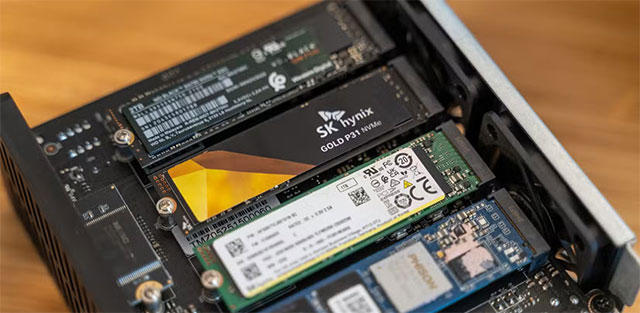
2. Ignoring sustained high temperature
SSDs can throttle performance when they become hot. Persistent operation outside the manufacturer's specified range can also reduce reliability, but there is no single safe temperature limit for every SATA, NVMe, laptop, and enterprise drive.
Read the temperature with the SSD manufacturer's utility, firmware tool, or a reputable SMART-monitoring application. Compare the result with the operating range in the exact model's documentation. A brief peak and hours of sustained high temperature are not the same condition.
If the drive runs unusually hot:
- Remove dust and restore unobstructed case airflow.
- Check whether cables, a graphics card, or a closed panel traps heat around the drive.
- Use the motherboard's M.2 heat spreader when its instructions call for one, including the correct thermal pad placement.
- In a laptop, use only a compatible thermal pad or shield; an incorrect thickness can bend the drive or prevent proper contact.
- Update SSD firmware when the manufacturer documents a relevant fix.
A heatsink is not mandatory for every SSD. Some low-power models work within specification without one, while faster NVMe drives under sustained load may benefit from better cooling.
3. Disabling maintenance or running the drive nearly full
TRIM lets the operating system tell the SSD which deleted blocks no longer contain useful data. This helps the controller prepare space for later writes. Current operating systems normally manage TRIM automatically, so leave their SSD optimization or retrim schedule enabled unless the drive or storage configuration has a documented incompatibility.
Keeping some free space also gives the controller more flexibility for garbage collection and wear leveling. There is no universal percentage that every user must reserve: SSDs differ in overprovisioning, workload, and firmware. The immediate rule is simpler—do not routinely fill the system drive to the point that updates, swap space, applications, or normal file operations cannot work reliably.
On Windows, you can check the TRIM setting and use Optimize Drives safely. Avoid old “SSD optimization” guides that recommend disabling services without measuring a real problem.
Monitor health, but keep a backup
SMART data can expose temperature, media errors, spare capacity, percentage used, and total writes, although the available attributes and their interpretation vary by manufacturer. Use the vendor's diagnostic utility when possible, and investigate a warning or a rapid unexplained change. This guide explains ways to check storage-drive health in Windows.
Health tools cannot predict every sudden controller, power, or electronic failure. Keep important files on another device or backup service and verify that they can be restored. A drive that reports good health is not a substitute for a backup.
SSD care checklist
- Buy endurance appropriate to sustained write-heavy work.
- Investigate runaway logs, caches, or sync jobs instead of fearing normal writes.
- Monitor temperature against the exact model's specification.
- Maintain airflow and install thermal hardware correctly.
- Leave TRIM and normal operating-system SSD maintenance enabled.
- Keep enough free space for the system and workload to function normally.
- Watch SMART warnings and firmware notices.
- Back up important data independently of the SSD.
Related Articles
 7 Habits Are Silently Killing You Every Day4 minutes read
 11 Daily Habits Silently Destroy Health without You Knowing7 minutes read
 You're Unknowingly 'Killing' Your SSD: Explained8 minutes read
 5 Dangerous Habits of Killing the Dream of Life That You Should10 minutes read
 Habits Are 'Killing' Your Laptop8 minutes read
 11 Bad Habits That Affect Health That We Need to Fix Right Away10 minutes read
Reader Comments 0
Sign in with email or Google to join the discussion.