What is VGA? Classification and how to choose a VGA card for your computer.
What does VGA stand for? What are dedicated and integrated VGA ports, and how do you choose a VGA card for your computer? Find out here.
- What is VGA?
- Basic terminology and specifications of graphics cards.
- How to check the graphics card information on your computer.
- Current types of VGA cards
- How to distinguish between onboard and dedicated VGA cards.
- 7 steps to choosing a VGA card for your computer.
- Tips for choosing a graphics card
- What is onboard VGA?
- What is a dedicated VGA card?
- Method 1: Check the VGA port.
- Method 2: Using the Right-click Menu
- Method 3: Apply the dxdiag command
- Method 4: Using CPU-Z software
- Step 1: Check if your computer is compatible with a graphics card upgrade.
- Step 2: Understand VGA graphics card terminology
- Step 3: Consider your usage needs.
- Step 4: Compare graphics cards and consider their intended use.
- Step 5: Identify the necessary software.
- Step 6: Determine the price for the VGA card.
- Step 7: Examine the cooling system.
- 3 best graphics cards for gamers in each segment
- 3 graphics cards for designers, categorized by price range.
- Affordable gaming graphics cards
- Mid-range gaming graphics card
- High-end gaming graphics card
- Affordable graphics card design
- Mid-range graphics card design
- High-end graphics card design
Have you ever wondered what VGA stands for and how to choose the right VGA card for your computer? VGA stands for Video Graphics Adaptor, which is not just a graphics interface component, but also the heart of image display on your computer. In this article, let's explore the details of its definition, characteristics, and computer tips to help you choose the right VGA connector for your needs.
What is VGA?
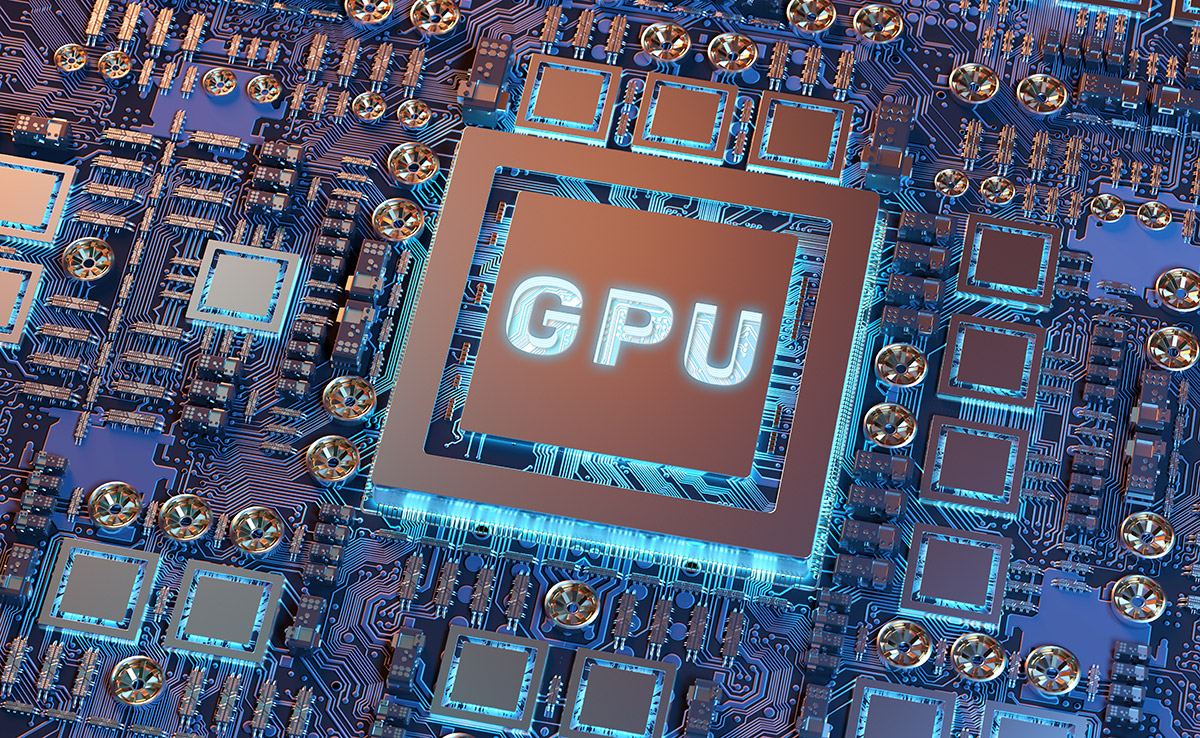
VGA , or Video Graphics Adapter, is a crucial component of a computer's graphics system. It plays a key role in processing and displaying images on the screen . From adjusting color and resolution to contrast and display quality, VGA helps create an impressive visual experience on the computer.
A high-performance VGA card not only ensures fast processing speeds but also delivers detailed and vibrant images. In the gaming community, choosing a graphics card is often considered a top priority. This is because it directly impacts the gaming experience and is usually a significant factor in a gaming PC setup.
When deciding to buy a new VGA graphics card for your computer, it's important to clearly understand your needs and desires. From gaming to working with graphics and video, each user has a different purpose. Below are some new, modern, and high-performance VGA models that you can consider:
Basic terminology and specifications of graphics cards.
GPU (Graphics Processing Unit): This is a graphics processor used to manipulate and access graphics memory, and to speed up the creation of images for display. Additionally, it helps process graphics more efficiently than a computer's standard CPU.
Core Speed: This parameter measures the speed of the GPU. A higher clock speed means faster processing.
VRAM (Video RAM): This is temporary memory used to store image data. VRAM holds information that the GPU needs, such as game textures and lighting effects, allowing the GPU to quickly access information and output video to the monitor, enabling display at higher screen resolutions.
Boost Speed: Simply put, boost clock speeds allow the graphics card to run at a higher clock speed than the base clock speed, which of course increases power consumption. However, it won't always run at the highest clock speed because there are limits to power consumption and safe temperature thresholds.
Memory bandwidth: This refers to the data transfer capacity of the memory. The higher this value, the better the performance of the graphics card.
Connector: This refers to the type of slot that manufacturers have designed for plugging in. Most current graphics cards use PCI Express 3.0 x16 or PCI Express 2.0 x16 ports.
How to check the graphics card information on your computer.
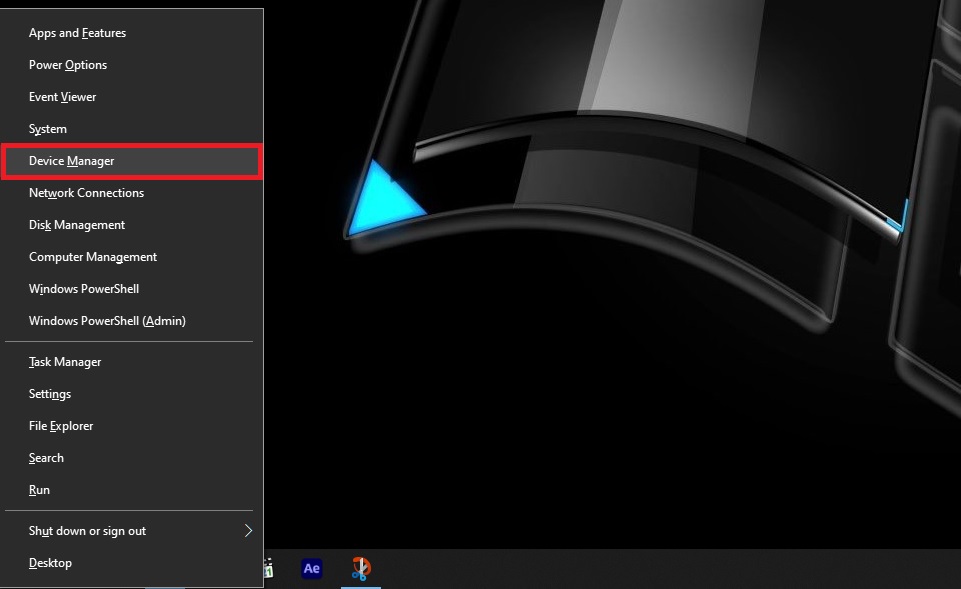
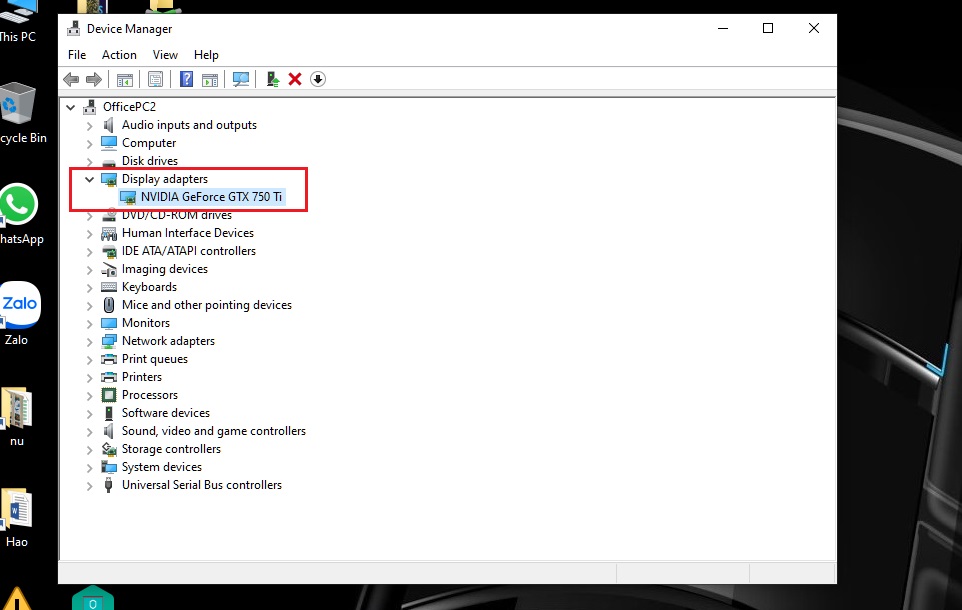
To check your graphics card on Windows, you can access the Device Manager.
Step 1: Press the Windows key and the X key on your keyboard , then select Device Manager .
Step 2: Double - click on the "Display adapters" section. You will see the type of graphics card displayed under this section.
Step 3: Right-click on the graphics card name that appears and select Properties .
Step 4: A graphics card information panel will appear, showing you the type of graphics card, whether it's functioning normally, and its drivers, etc.
Current types of VGA cards
Graphics technology in the computer world is constantly evolving. This has led to a diversification of VGA cards available today. Below is an overview of the most commonly used types of VGA cards in computers.
What is onboard VGA?
This is a type of graphics card integrated into the motherboard and central processing unit (CPU) of a computer by manufacturers. Its purpose is to perform graphics tasks. Onboard VGA cards utilize power from the CPU and RAM. Due to their integrated nature, these cards are usually cheaper.
Nowadays, with advancements in technology, the performance of integrated graphics cards has improved significantly. While you can play games and perform graphics tasks on an integrated card, the performance is often not as high as with a dedicated graphics card.
- Advantages: Over time, it experiences fewer errors due to being optimized for the motherboard and chipset. Furthermore, the card is easily compatible with other hardware.
- Disadvantages: Using RAM generates high temperatures due to continuous operation. Therefore, it can lead to system freezes. Thus, using an integrated graphics card will consume available computer resources. Furthermore, the card will not meet the requirements of demanding graphics software.
The onboard VGA connector is integrated into the computer's motherboard.
What is a dedicated VGA card?
Dedicated graphics cards (discrete VGA cards) are automatically designed and focused on image and graphics processing. They feature a separate cooling system and an independent GPU. This allows your computer to perform graphics tasks more efficiently. Therefore, the price of dedicated graphics cards for laptops is significantly higher than that of integrated graphics on the motherboard.
Currently, dedicated graphics cards are typically manufactured by two well-known companies: nVidia and AMD. They function similarly to integrated graphics cards, but operate completely independently and handle graphics processing more efficiently.
- Advantages: Uses its own GPU and memory, not affecting the computer's overall RAM. Specifically, a dedicated VGA card supports the processing of software with high graphics requirements, as well as games that demand good graphics performance.
- Disadvantages: Higher price compared to onboard VGA. Dedicated graphics cards often have less optimized cooling systems. This leads to the computer running slightly hotter than before.
A dedicated graphics card operates independently and handles graphics processing efficiently.
How to distinguish between onboard and dedicated VGA cards.
Distinguishing between integrated graphics (onboard) and dedicated graphics (discrete) is an important step when choosing or upgrading your computer's graphics card. Below are some ways to differentiate between onboard and dedicated graphics cards that you can refer to.
Method 1: Check the VGA port.
A simple way to distinguish between integrated and dedicated VGA is to check the VGA ports on your computer. Integrated VGA usually doesn't have a separate port on the motherboard. Instead, it will share ports with other parts of the motherboard such as USB, HDMI, DisplayPort, and audio ports.
Meanwhile, dedicated VGA cards usually have at least one separate VGA connector on the graphics card itself. This is where you can connect a monitor directly to the card.
By checking the VGA connector on your computer, you can easily distinguish between integrated and dedicated VGA.
A separate VGA card connects to a Mini PC.
Method 2: Using the Right-click Menu
Another fairly simple method to determine the type of graphics card used in your computer is to right-click on the Desktop to view the information.
For example, if your computer is using an integrated graphics card, you will see the corresponding information displayed.
Check the onboard VGA card on your computer using the right-click menu.
And this is the computer when using a dedicated graphics card.
Check the information of your dedicated VGA card on your computer using the right-click menu.
Method 3: Apply the dxdiag command
The first step is to open the Run dialog box and type the command dxdiag. Then, switch to the "Display" tab to check the information.
For example, if your computer uses an integrated graphics card, details about the type of graphics card will not be displayed. However, if your computer uses a dedicated graphics card, you will see details about the card manufacturer under "Device Type".
Check VGA information using the dxdiag command.
Method 4: Using CPU-Z software
In addition to being an accurate tool for viewing computer configurations, CPU-Z also allows you to check whether your computer is using integrated or dedicated graphics cards.
- Display Device Selection: If your computer has multiple graphics cards, this section will display options for you to select the appropriate card. If there is only one card, this section will be grayed out.
- Name: This is information about the manufacturer of the GPU (Graphic Processing Unit) - the graphics chip.
- Code name: This is the code name of the graphics chip being used in your computer.
- Size: This information indicates the capacity of the VGA card.
- Technology: Similar to the CPU specifications, the lower this value, the better.
- Type: This refers to the type of processor (e.g., 256-bit, 128-bit, 64-bit). The higher this number, the more powerful your graphics card is and the better it can handle graphics.
Use CPU-Z software to check your VGA card.
7 steps to choosing a VGA card for your computer.
Choosing a graphics card (VGA) for your computer is an important and complex process. This can be especially challenging for those unfamiliar with technology. Below are 7 specific steps to help you choose the right VGA card for your computer.
Step 1: Check if your computer is compatible with a graphics card upgrade.
To begin the process of choosing a graphics card, you need to ensure that your computer is capable of upgrading the graphics card. You can do this by checking the graphics card information by opening your computer or referring to the computer's technical documentation.
Graphics cards typically come in a variety of sizes. You can check this by opening your computer and comparing it to other graphics cards you're interested in.
Information regarding the power requirements of a graphics card is usually listed in the detailed specifications. You can find this information on the graphics card label or in your computer's technical documentation.
In many laptop models , the VGA graphics card is often integrated into the motherboard and cannot be replaced. This is especially true for Mac laptops, which are known for the difficulty in upgrading components.
Check if your computer can have its graphics card upgraded.
Step 2: Understand VGA graphics card terminology
Some related terms you need to know are:
- GPU (Graphics Processing Unit): Also known as a graphics processor. It performs graphics-related operations, accesses graphics memory, and speeds up image display on the screen.
- Core clock speed: This is a measure of the GPU's operating speed. The higher the core clock speed, the faster the GPU operates and the smoother the image processing.
- Video memory (Video RAM - VRAM): Used to store image data. Video RAM determines the frame rate and the ability to display at high resolutions. A larger amount of Video RAM will also improve performance.
- Memory bandwidth: Measures the data transfer speed of video RAM. This affects the ability to display objects quickly and can impact overall performance.
- Interface: This is the connection standard used to link the graphics card to the motherboard. Most new graphics cards use the PCI Express 3.0 interface.
- Power requirements: This is the amount of electrical power the graphics card needs to operate (usually measured in watts). Power requirements are crucial. They ensure the computer has enough power to supply the graphics card and other components to function stably.
Learn about the terminology related to VGA cards.
Step 3: Consider your usage needs.
High-performance graphics tasks such as graphic design, gaming, and 4K video playback will be significantly improved with a new graphics card. However, upgrading your graphics card may not be necessary if you primarily use your computer for streaming music, browsing the web, writing emails, or word processing.
For tasks such as 3D rendering or graphic design, a larger amount of VRAM is very helpful for displaying more complex and detailed textures.
Clearly identify your need for a VGA connection port.
Step 4: Compare graphics cards and consider their intended use.
Depending on your intended use, you should consider the advantages and disadvantages of each type of graphics card. For gaming, you should focus on data bandwidth (speed of data transmission and reception) rather than RAM capacity. Bandwidth is usually measured in megahertz or gigahertz (MHz, GHz), while RAM capacity is measured in gigabytes (GB).
Comparing different types of graphics cards
Step 5: Identify the necessary software.
Most applications, especially games, usually provide minimum hardware requirements. They also offer recommendations to ensure smooth operation. This can be a helpful guide, helping you determine the right graphics card.
Identify the software that requires the VGA card.
Step 6: Determine the price for the VGA card.
If possible, invest in a graphics card that is superior to your current needs. This ensures flexibility in using more complex applications in the future.
Hardware and software technology is advancing at an incredible pace. A low-cost graphics card can quickly become obsolete. Meanwhile, high-end cards may drop in price as new products are released to the market.
Most users, except for gamers or professionals in graphic design, can find a quality graphics card for under $400. High-end graphics cards can cost thousands of dollars, but for most users, that price is likely too high.
Choose a graphics card that fits your budget.
Step 7: Examine the cooling system.
High-end graphics cards often generate high temperatures due to their high power consumption. Most graphics cards come with built-in fans or cooling systems. However, you can still purchase additional fans if your computer system has airflow issues.
Improving the cooling system will also increase the computer's power consumption. The power supply may not provide enough power for the new graphics card and cooling system. At this point, you may need to consider upgrading your power supply.
Consider the heat transfer system.
Tips for choosing a graphics card
When buying a graphics card, you don't always have to choose the most expensive one; what's important is choosing one that suits your needs. First, how much VRAM is enough ? If you need to process 2K or 4K images, you'll need more VRAM than for HD or Full HD. For basic graphics-intensive Esports games, 2-4GB of VRAM is suitable. If it's a graphically demanding game and you want to maximize the settings to Full HD, you should choose 6GB. And if you want 2K or 4K resolution, choose 8GB for optimal image quality.
Furthermore, when choosing a VGA card, you should also consider memory bandwidth , and GDDR5 memory can provide double the bandwidth and speed compared to DDR3 memory. High-performance graphics cards tend to consume more power and generate heat, causing the GPU to overheat if there is no cooling system. Currently, there are two types of cooling systems: ventilation fans and internal cooling within the graphics card . Ventilation fans are commonly found on cheaper graphics cards and are prone to noise. Higher-end graphics cards, however, will have internal cooling systems.
Furthermore, using multiple graphics cards can lead to uneven and conflicting performance, resulting in certain processing delays. Additionally, multiple graphics cards generate significant noise. While multiple graphics cards are necessary for triple-screen or single 4K displays, they are inefficient on a single 1920 x 1080 screen. Another crucial factor is the power supply . Consider the number of sockets on your power supply and their corresponding connector types. Additionally, if possible, check the power supply's voltage to ensure it's compatible with your computer to avoid insufficient power supply or system overload.
3 best graphics cards for gamers in each segment
Affordable gaming graphics cards
If you're on a tight budget, the NVIDIA GTX 1050Ti series graphics card is the perfect choice. Considering the manufacturer's brand, the Asus Phoenix version is the best option. For around 3 million VND, you get a graphics card with a maximum clock speed of up to 1392 MHz. The Asus PH GTX 1050Ti model with a single cooling fan and 4GB of GDDR5 VRAM runs stably. When combined with a CPU with 4 cores or more, gaming becomes very easy.
Mid-range gaming graphics card
In the mid-range segment of 4-7 million VND, the GeForce GTX 1650 Super graphics card is one of the best options considering both price and performance.
Here are two outstanding models in the GTX 1650 Super graphics card segment for users to consider: the MSI GeForce GTX 1650 Super Gaming X 4GB GDDR6 and the Asus Phoenix GeForce GTX 1650 Super 4GB GDDR6. These two graphics cards suit two different user styles: one is geared towards gamers, while the other prioritizes space and efficiency, yet remains very reasonably priced.
High-end gaming graphics card
Depending on your budget and gaming needs, you can choose a graphics card that suits your individual budget. In the high-end segment, priced around 11,000,000 VND, you can opt for NVIDIA's top-of-the-line cards equipped with Ray-Tracing technology.
The Gigabyte GeForce RTX 2060 Super Gaming OC 8GB GDDR6 is considered a good gaming graphics card, both in terms of price and performance compared to other VGA card brands. The number of Gigabyte RTX 2060 Super users in Vietnam is currently larger than that of Asus and MSI, among others.
3 graphics cards for designers, categorized by price range.
Affordable graphics card design
The MSI GT 1030 Aero ITX is considered a budget-friendly graphics card, priced around 1-2 million VND, offering smooth gaming performance and fast, stable processing speeds. Therefore, if you need to use graphic design software, this is a suitable card for you.
Mid-range graphics card design
The GeForce GTX 1660 Super graphics card is the best choice for gamers and designers in the mid-range price segment of 4-7 million VND. Its standout features include integrated Windforce 2X cooling system, a sturdy backplate, compatibility with NVIDIA G-Sync HDR, DirectX 12, etc., resulting in sharp and smooth image processing.
High-end graphics card design
In the high-end segment, Nvidia's newly released graphics card will satisfy anyone. The GP102 Pascal generation GPU boasts 12 billion transistors and 3584 CUDA cores. With the GTX Titan X, users can not only play games but also perform graphics-related tasks effectively. Reference price: 27 million VND.
Through the article "What is a VGA Card? Classification and How to Choose a VGA Card for Your Computer" above, we have explored the types of VGA cards available today. You now have a clear understanding of both onboard graphics cards integrated into the motherboard and dedicated graphics cards with powerful performance. Hopefully, you will feel more confident when choosing and upgrading your computer's graphics card.
You've just finished reading the article "What is VGA? Classification and how to choose a VGA card for your computer." edited by the TipsMake team. You can save what-is-vga-classification-and-how-to-choose-a-vga-card-for-your-computer.pdf to your computer here to read later or print it out. We hope this article has provided you with many useful tech tips and tricks. You can search for similar articles on tips and guides. Thank you for reading and for following us regularly.