Table of Contents
The Account lockout threshold controls how many failed password sign-ins are allowed before Windows locks an account. You can configure it with Local Security Policy on supported Windows editions or with an elevated Terminal command.
This policy is mainly for local or domain password accounts. It should not be confused with Windows Hello PIN anti-hammering or Microsoft account protection, which use separate controls. You must be signed in as an administrator to change the local policy.
Choose a threshold carefully
A lockout slows automated password guessing, but a threshold that is too low can lock out legitimate users and can be abused for denial of service. Microsoft's account lockout guidance describes 10 invalid attempts as a reasonable starting point for many organizations, not a universal rule.
- 1–999: lock the account after that many failed attempts.
- 0: never lock the account through this policy. This reduces lockout-based denial-of-service risk but allows continued password guessing unless other monitoring and controls are in place.
Configure all three related settings together: the threshold, the lockout duration, and the time after which the failed-attempt counter resets.
Method 1: Use Local Security Policy
Local Security Policy is normally available in Windows 11 Pro, Enterprise, and Education. If it is not present on your edition, use the command-line method below.
Open the policy
- Press Win + R, enter secpol.msc, and press Enter.
- Go to Security Settings > Account Policies > Account Lockout Policy.
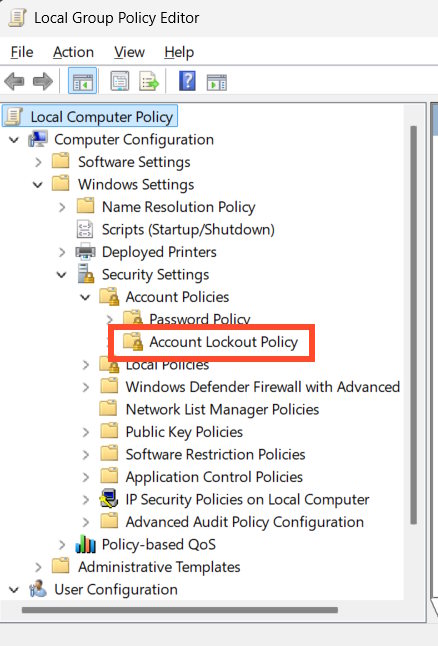
Set the failed-attempt threshold
- Double-click Account lockout threshold.
- Enter a value from 0 to 999 and select OK.
- Review the suggested values Windows displays for the related duration and reset-counter settings before accepting them.
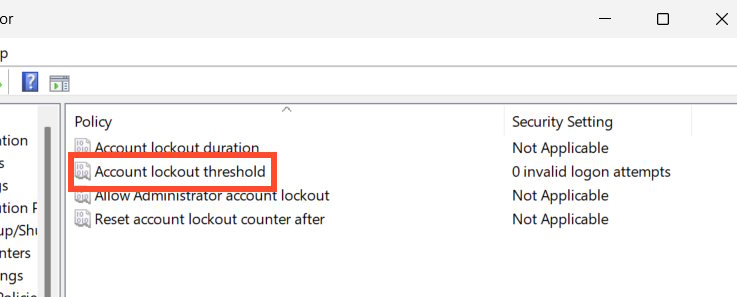
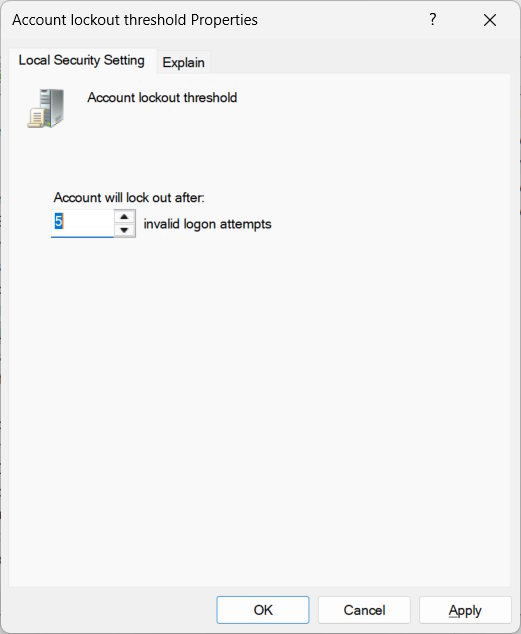
Set the lockout duration and reset window
In the same policy folder, configure:
- Account lockout duration: how many minutes a locked account remains locked. A value of 0 means an administrator must unlock it manually.
- Reset account lockout counter after: how many minutes must pass after a failed attempt before the counter returns to zero.
When the threshold is above zero, the lockout duration must be greater than or equal to the reset-counter interval.


Method 2: Use Windows Terminal or Command Prompt
This method is useful when the graphical policy editor is unavailable. Open Windows Terminal (Admin), PowerShell (Admin), or Command Prompt (Admin).
Check the current settings
net accountsThe output includes Lockout threshold, Lockout duration, and Lockout observation window. On a domain-joined computer, domain policy can override local values.
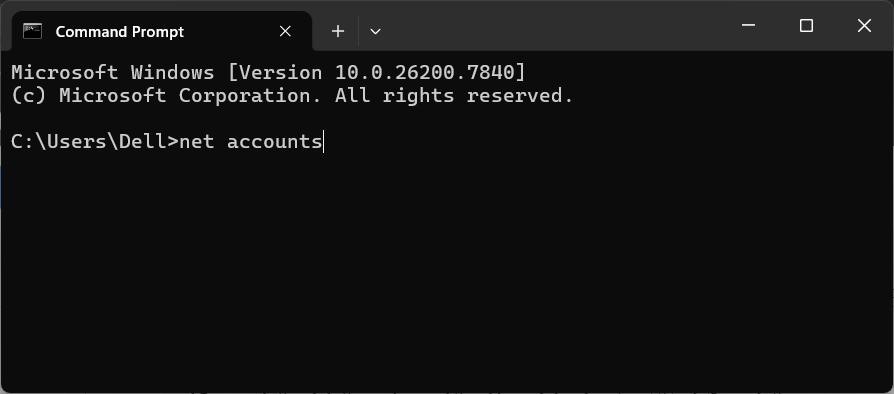

Change the threshold
Replace 10 with the number your policy requires:
net accounts /lockoutthreshold:10To disable lockout through this policy, use:
net accounts /lockoutthreshold:0
Change the duration and reset window
For example, to keep an account locked for 15 minutes and reset the failed-attempt counter after 15 minutes:
net accounts /lockoutduration:15
net accounts /lockoutwindow:15
Run net accounts again to verify the effective values.
Important limitations
- Domain policy wins: in a managed organization, Group Policy from the domain can replace local settings. Contact the administrator rather than repeatedly changing the local policy.
- Not every failure is a person typing: saved credentials in services, scheduled tasks, mapped drives, or apps can repeatedly submit an old password and trigger a lockout.
- Offline attacks are unaffected: account lockout does not protect an offline copy of password data. Disk encryption and strong credentials remain important.
- Built-in Administrator behavior can differ: Windows provides a separate policy controlling whether the built-in Administrator account is subject to lockout.
- PIN failures are separate: a message that a Windows Hello sign-in option is disabled may follow different TPM and anti-hammering rules.
What to do if an account keeps locking
- Stop guessing the password so the counter can reset.
- Check other devices, services, email clients, mapped drives, and scheduled tasks for saved old credentials.
- Review Windows security logs or ask the domain administrator to identify the source computer and sign-in type.
- Use the approved password-reset or account-unlock process.
Do not lower the threshold simply to test it on an account you need for administration. Keep a separate recovery path and document the final values so a future lockout can be diagnosed safely.
Related Articles
 How to Limit the Number of Failed Login Attempts on Windows7 minutes read
 How to Limit the Number of Wrong Login Attempts on a Windows5 minutes read
 How to Restore a Disabled iPhone: Complete Guide4 minutes read
 How to Fix the Error the User Profile Service Failed the Logon.8 minutes read
 Loadlibrary Failed with Error 87: Complete Guide8 minutes read
 How to Enable the Login Login Hidden on Windows 103 minutes read
Reader Comments 0
Sign in with email or Google to join the discussion.