Table of Contents
Upload an image in Google Search AI Mode, ask it to transcribe the visible text, copy the result, and review formatting and recognition errors.
Availability and privacy: AI Mode availability can vary by account, age, language, and region. Do not upload confidential, financial, medical, or identity documents unless the applicable privacy terms permit it. Google’s AI Mode help page shows the current image-upload control.
With this feature, you can easily digitize paper documents, notes, books, invoices, or printed texts without manual data entry. Therefore, to help everyone easily use this feature, today Tipsmake.com will introduce the article " Extract text from an image with Google AI Mode". Please refer to it.
Extract text from an image with Google AI Mode
Quick steps
- Access the Google search engine.
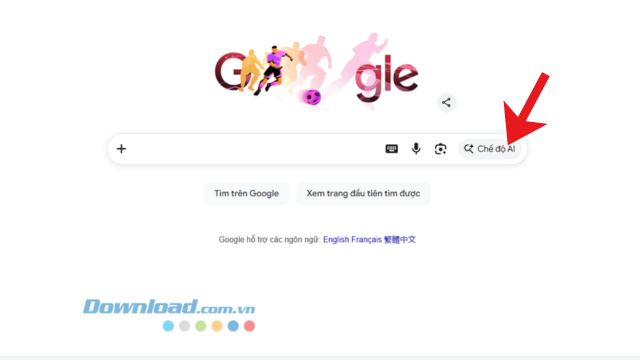
- Click on the AI Mode option.
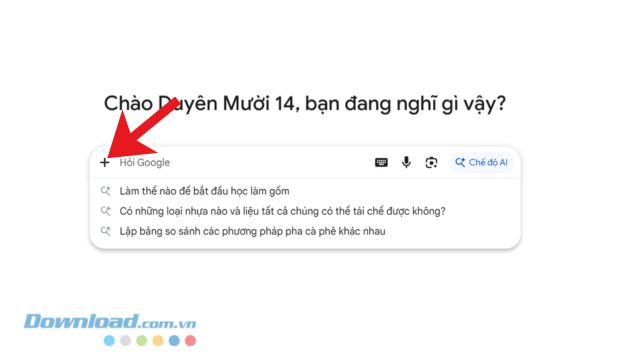
- Click on the "+" icon.
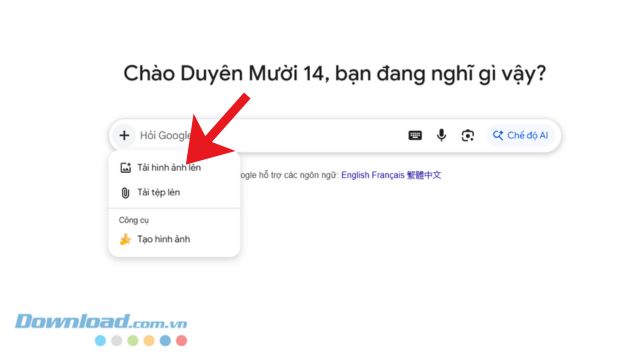
- Click on the "Upload image" option.
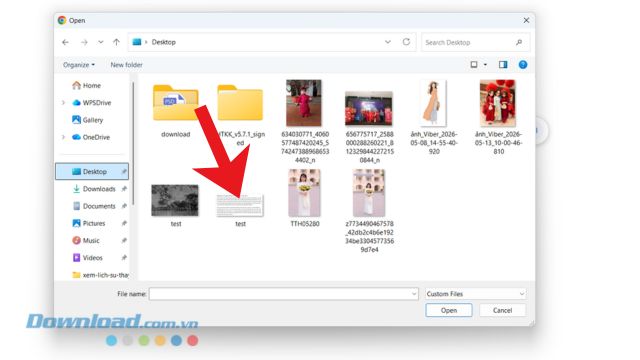
- Select any image containing text content.
- Enter the command to convert the content in the image.
- Click the AI Mode button.
- Copy the text content to word processing software for editing.
Detailed steps
Step 1: To do this, we will first access the Google search engine interface.
Step 2: On the Google homepage, click on the "AI Mode" option in the search box.
Step 3: Next, the user needs to click on the "+" icon on the left side of the search box.
Step 4: Next, click on the " Upload image" option.
Step 5: Now, select the image containing the text you want to convert to text.
Step 6: Now, enter the command below, then click the AI Mode button.
Convert all content in the image to text, preserving the formatting.
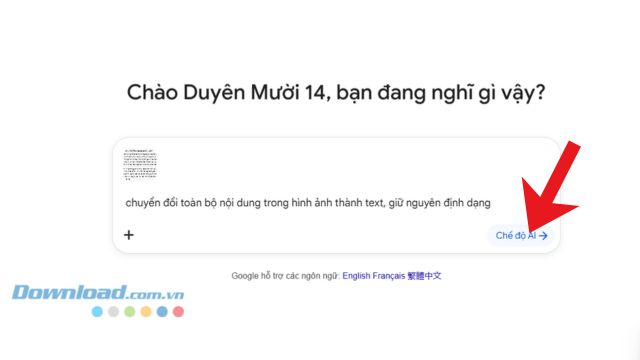
Step 7: Finally, wait a moment for the system to convert the image to text. At this point, you can copy the entire content to software such as Google Docs, WPS Office, Microsoft Word, etc., to edit the text.
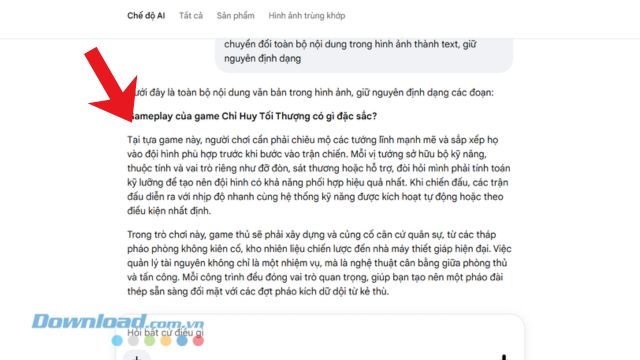
Some things to keep in mind when converting images to text using Google AI
- Images need to be high-resolution and clear. Avoid using blurry, shaky, underexposed, or unevenly lit images, as this will significantly affect the AI's ability to recognize characters.
- Even with increasingly intelligent AI tools, errors during the conversion process are unavoidable. You need to review the entire extracted text to ensure there are no spelling mistakes, missing punctuation, or formatting errors.
- Select the text container you want to convert precisely to increase accuracy and save time on later editing.
Good luck with your project!
Related Articles
 How to Convert Images to Standard Documents Using ABBYY FineReader2 minutes read
 How to Convert Images to Text in Google Sheets4 minutes read
 Google Photos Now Allows Searching Images by Text, Extracting5 minutes read
 How to Put a Picture Behind Text in PowerPoint8 minutes read
 How to Transfer Unsigned Text with Unikey4 minutes read
 Guide to Extracting Text from Images Using Canva AI4 minutes read
Reader Comments 0
Sign in with email or Google to join the discussion.