Table of Contents
The Windows net use command manages connections to shared network resources. You can use it to view existing connections, map a shared folder to a drive letter, reconnect that mapping at sign-in, or remove a connection.
Run it in Command Prompt or Windows Terminal. Standard mappings usually work in a normal session, although access to some administrative shares may require an elevated terminal and appropriate permissions.
View current network connections
Enter the command without additional arguments:
net useWindows lists active and remembered connections, including their drive letters and UNC paths. If no connections exist, it reports that the list is empty.


Map a shared folder to a drive letter
The basic pattern is:
net use DRIVE: "\COMPUTERSHARE"For example, the following command maps the shared folder Projects on FileServer to drive P::
net use P: "\FileServerProjects"Quote the UNC path when a computer or share name contains spaces. To let Windows select an available drive letter, replace the drive letter with an asterisk:
net use * "\FileServerTeam Files"Connect with another account
Use /user: when the share requires credentials that differ from the account currently signed in:
net use P: "\FileServerProjects" /user:DOMAINusername *The final asterisk tells Windows to prompt for the password. This is safer than placing a password directly in the command, where it may remain visible in the terminal or command history.
Control whether the mapping returns after sign-in
Add /persistent:yes to remember the connection, or /persistent:no to keep it limited to the current session:
net use P: "\FileServerProjects" /persistent:yesThe persistence setting also becomes the default for later net use commands that do not specify it.
Remove a mapped drive
Delete one mapping by specifying its drive letter:
net use P: /deleteTo disconnect every current network connection, use the following command and review the confirmation prompt carefully:
net use * /deleteUseful net use options
| Option | Purpose |
|---|---|
net use | Lists current and remembered network connections. |
DRIVE: | Assigns or identifies a drive letter, such as P:. |
\COMPUTERSHARE | Specifies the UNC path of a shared resource. |
/user:ACCOUNT | Connects with a specified local, domain, or Microsoft Entra account name. |
* | Chooses an available drive letter in the device position or requests a password in the password position. |
/persistent:yes | Remembers the connection for future sign-ins. |
/persistent:no | Does not remember the connection for future sign-ins. |
/delete | Removes the specified connection. |
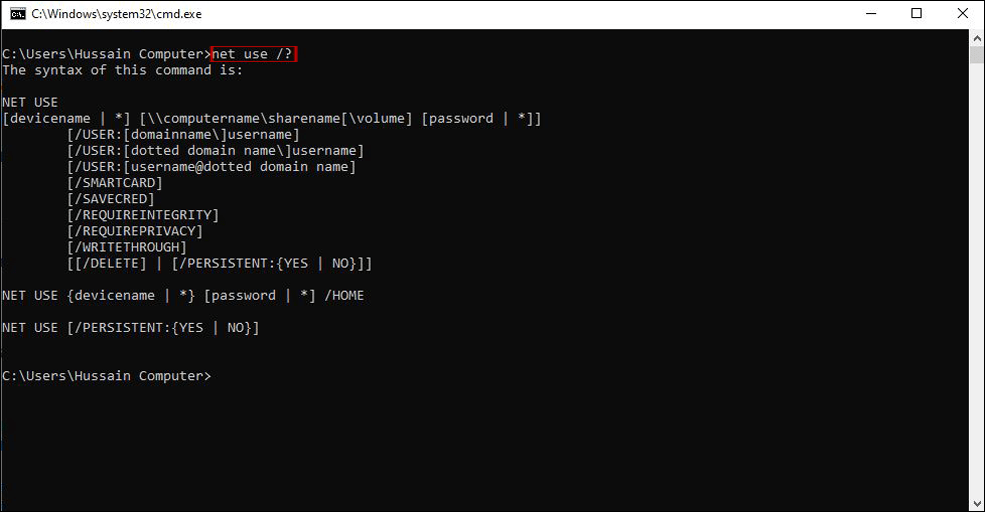
/? | Displays command syntax and available switches. |
Troubleshooting common errors
- System error 53: Confirm the server name, share name, network connection, and firewall rules.
- System error 67: Check that the share name exists and that the UNC path is typed correctly.
- System error 85: The selected drive letter may already be in use. Choose another letter or remove the existing mapping.
- Access is denied: Verify both the share permissions and file-system permissions for the account being used.
- Conflicting credentials: Windows may already have a connection to the same server under another account. Disconnect that connection before trying different credentials.
Use net use /? to see the syntax supported by the version of Windows you are running. Switch availability can differ between Windows editions and older releases.
Related Articles
 Sub-commands in Nslookup Windows Command (Part 2)6 minutes read
 Sub-commands in the Nslookup Windows Command (Part 1)6 minutes read
 Sub-commands in Nslookup Windows Command (Part 3)9 minutes read
 Command at in Windows: A Practical Guide17 minutes read
 Set Command in Windows: Explained9 minutes read
 Del Command in Windows: Tips and Examples5 minutes read
Reader Comments 0
Sign in with email or Google to join the discussion.