Table of Contents
This updated guide explores try these DNS tricks if your internet speed is slower than usual with practical details, clear explanations, and useful takeaways. If your Internet is so slow it is driving you crazy, the problem might not be your connection speed, but rather your DNS.
Most people use their Internet service provider's default DNS servers, but these are often slower, less private, and less reliable than the alternatives. Still, there are some useful tips and tricks you can use to speed up your connection.
5. Change DNS Provider
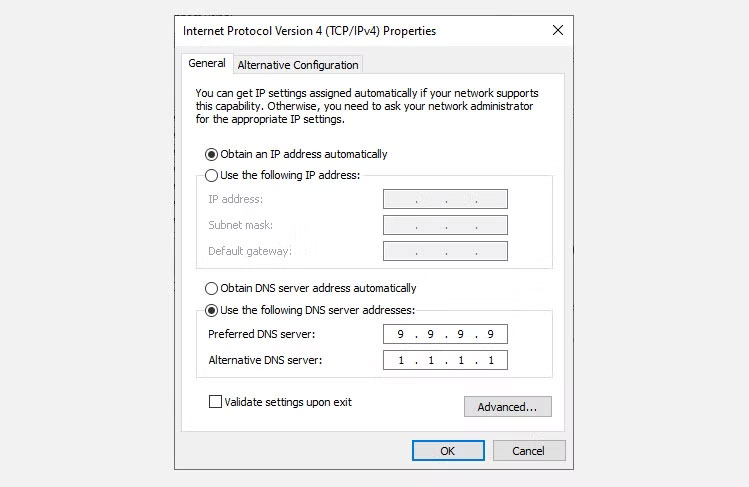
One of the simplest and most effective tips is to switch from your ISP's default DNS server to a third-party provider. There are many faster and more secure alternatives:
- Cloudflare DNS : 1.1.1.1 and 1.0.0.1 (fast, privacy-focused)
- Google DNS : 8.8.8.8 and 8.8.4.4 (reliable, well supported)
- Quad9 : 9.9.9.9 and 149.112.112.112 (fast, strong security, privacy focused)
- OpenDNS : 208.67.222.222 and 208.67.220.220 (adds optional content filtering and security features)
You can make this change in one of two ways:
- Router : This applies the new DNS settings to every device connected to your home network. This is the most efficient way to change DNS for your entire household.
- Individual Devices : If your router does not allow DNS changes (like many ISP-provided gateways), you can still change the DNS settings on your computer, phone, or tablet.
This small change can reduce website and application load times, especially if your current DNS is performing poorly.
4. Enable DNS Over HTTPS (DoH)
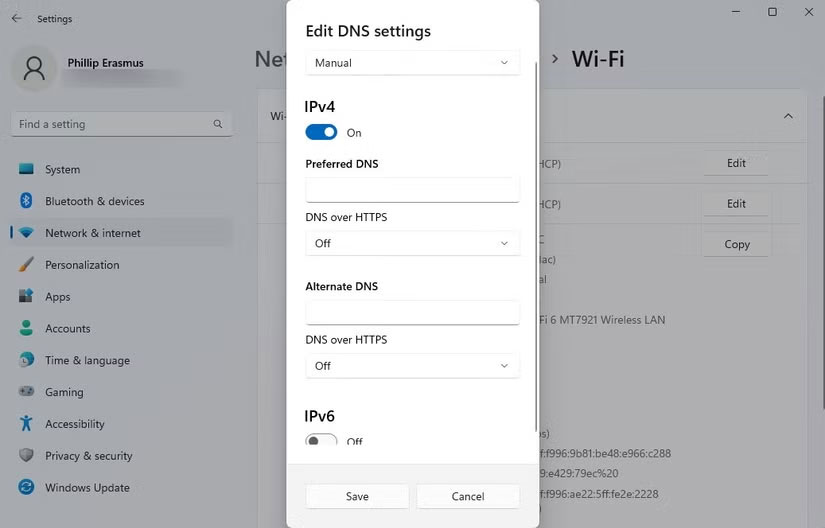
Changing your DNS server can speed things up, but encrypting your DNS traffic adds another layer of benefit: Privacy. Traditional DNS queries are sent in plain text, meaning your ISP or anyone else on the network can see what websites you're trying to access.
DNS over HTTPS (DoH) encrypts these queries, protecting your browsing habits from being tracked.
- Most modern browsers like Firefox, Chrome, and Edge support DoH.
- Many operating systems, like Windows 11, and certain routers support DoH.
- Cloudflare, Google, and other DNS providers support encrypted DNS by default.
Enabling this feature usually involves just toggling a setting in your browser or your operating system's network settings. for instance, you can easily enable DNS over HTTPS in Windows 11 with just a few clicks. As mentioned above, if your operating system does not natively support DoH, you can use one of the alternative DNS providers, as they will often encrypt your DNS queries.
3. Use a Faster DNS Server for Your Location
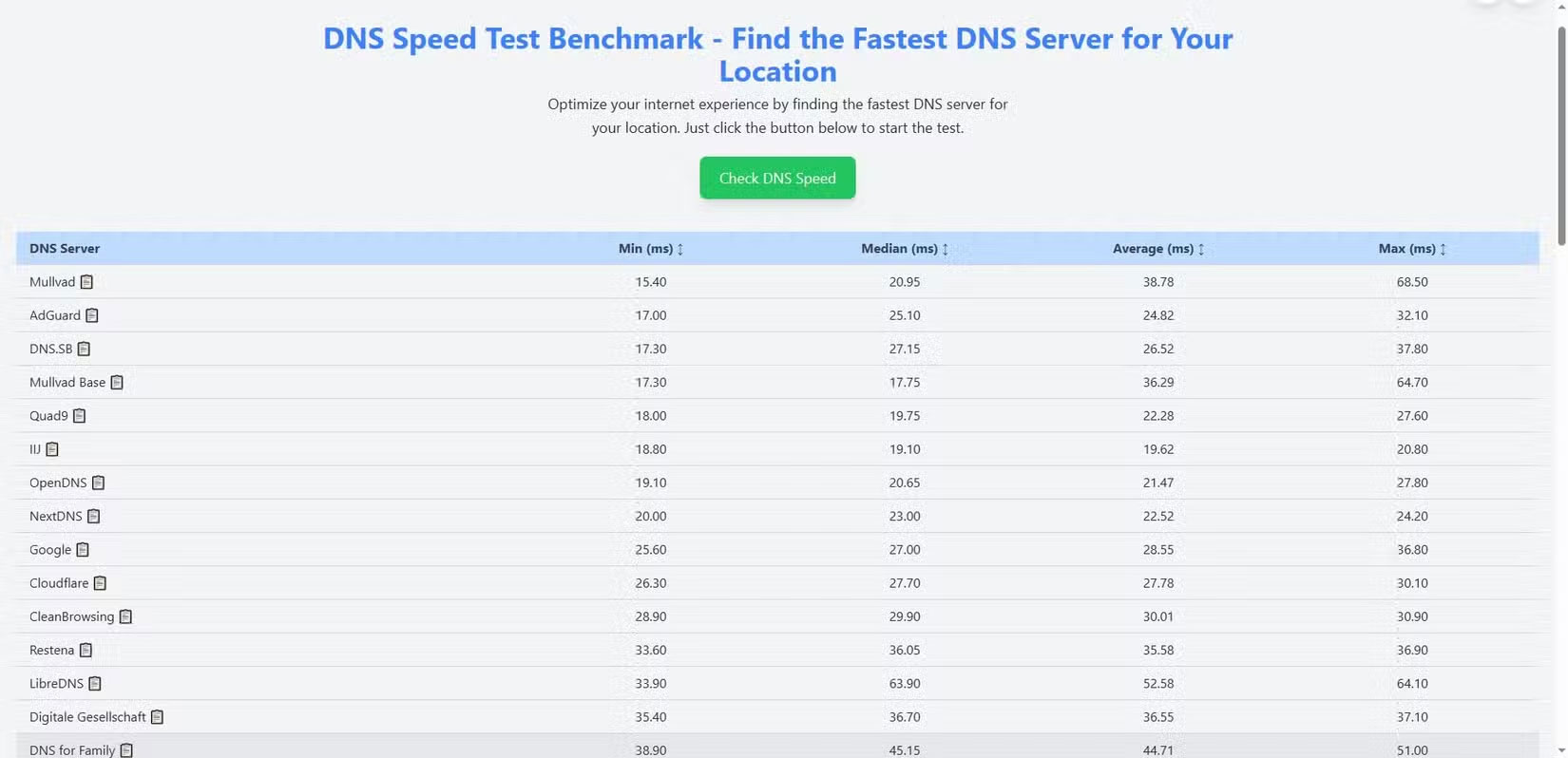
Not all DNS providers are created equal everywhere. Depending on routing paths, server load, and geographic location, some may be faster or more reliable in your area. To find the best option for your area, you can use free tools to benchmark DNS performance.
- DNS Speed Test Benchmark: A handy online DNS test tool that shows the fastest DNS speeds for your specific location. After running the test, choose the clipboard icon to copy the DNS information for the fastest server for easy use!
- DNSPerf : A web-based comparison site that shows global and regional DNS performance.
Once you've identified the fastest DNS for your area, you can manually switch to it to dramatically improve the responsiveness of your websites and applications. Note that there are desktop and command-line tools like NameBench, NAMEinator, and GRC's DNS Benchmark, but these two online DNS checkers are generally useful and accurate enough to find your fastest DNS provider.
2. Manually Set Up DNS on Streaming Devices, Game Consoles, Smart TVs, Etc.
If you use devices like Roku, Fire TV, or Smart TV and cannot change DNS settings at the router level (because of ISP portal lock), you can set up DNS manually on each device.
Most streaming hardware and game consoles let you set a static IP address and manually enter DNS servers. This can help reduce buffering and speed up application load times, especially when streaming high bitrate video.
This requires a little more work, but it is worth it if you stream a lot and cannot modify your network's router settings. We cannot provide specific steps for changing DNS on each device here, but a simple internet search for "[device name] change DNS settings" should help you find what you're looking for.
1. Clear DNS Cache
Sometimes your computer or device will store outdated or incorrect DNS information, which can cause websites to load slowly or crash. Clearing the DNS cache will force your system to query the DNS server again and often resolves odd connection issues.
In Windows:
- Open Command Prompt with admin rights.
- Type ipconfig /flushdns and press Enter .
In macOS:
- Open Terminal.
- Type sudo dscacheutil -flushcache; sudo killall -HUP mDNSResponder and press Enter.
This does not change your DNS settings, but it can help fix problems caused by outdated DNS data. You can view and clear the DNS cache on Linux x, although the process varies depending on your Linux distribution.
You do not have to be a networking expert to take advantage of these DNS tweaks. Something as simple as switching from your ISP's default DNS to Cloudflare or Google can result in faster load times, less buffering, and even improved privacy.
FAQ
What is the main takeaway about Try These DNS Tricks If Your Internet Speed Is Slower Than Usual?
The key is to understand the core idea, compare the available options, and apply the practical guidance that matches your situation.
What should beginners know about Try These DNS Tricks If Your Internet Speed Is Slower Than Usual?
Start with the essential steps and terminology. Avoid changing advanced settings until you understand how they affect performance, privacy, cost, or compatibility.
How can I use this information in practice?
Follow the relevant section in order, test one change at a time, and confirm the result before moving to the next step or recommendation.
Related Articles
 10 Simple Tips to Speed Up a Slow Mac: Features, Uses, and8 minutes read
 Why Is Upload Speed Usually Much Slower Than Download Speed?7 minutes read
 Common Mistakes When Performing Internet Speed Tests8 minutes read
 Programs: How to Fix Slow Computers12 minutes read
 The Latest Way to Speed Up Internet Connection 202215 minutes read
 Speed Up Computers: Tips to Speed Up Your Computer7 minutes read
Reader Comments 0
Sign in with email or Google to join the discussion.