Table of Contents
Google Keep works in a web browser at keep.google.com. Sign in with a Google account to create notes and checklists that can sync with Keep on supported mobile devices. A Chrome-specific account is not required, and the web app can be used in other supported browsers.
Open Google Keep and understand the layout
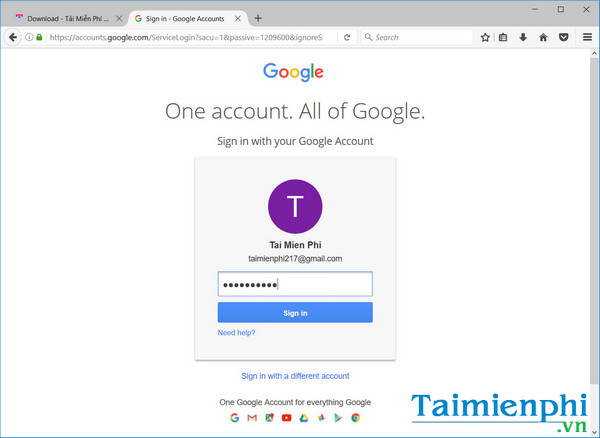
- Go to Google Keep and sign in to the Google account where the notes should be stored.
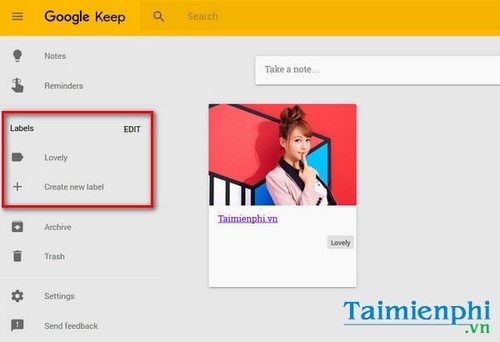
The sidebar provides access to notes, reminders where available, labels, Archive, Trash, settings, and keyboard shortcuts. The main area shows pinned notes first and other notes below. Use the grid/list control to change the layout.
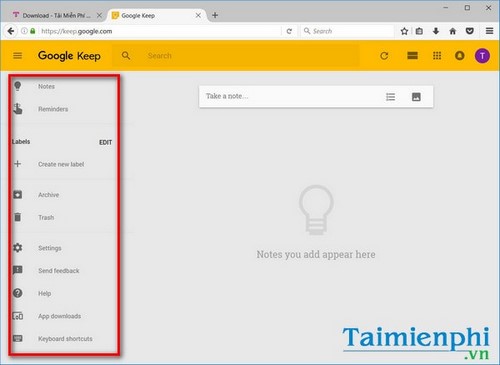
- Notes: active notes and lists.
- Labels: categories you create; a note can have more than one.
- Archive: notes kept out of the main view without being deleted.
- Trash: deleted notes pending permanent removal.
- Settings: list, sharing, display, and reminder-related preferences available to the account.
Create a text note
- Select Take a note.
- Add an optional title and enter the note.
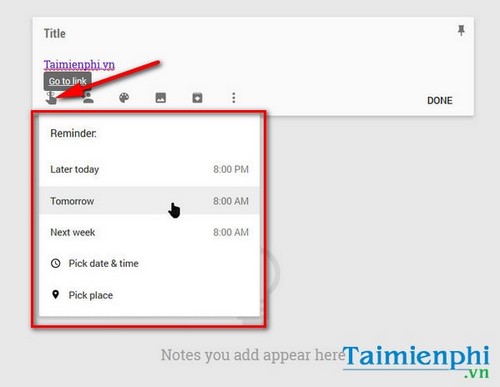
- Use the controls to pin, color, label, add an image, share, archive, or set a reminder when that feature is available.
- Select Close. Keep saves changes automatically.
Share a note with collaborators
Open the note, select the collaborator icon, enter a person's name, Google Group, or email address, and save.
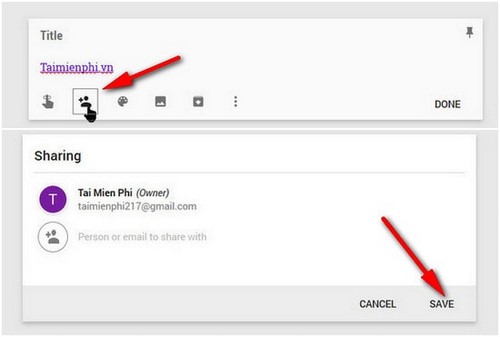
Collaborators can edit the note's text, list items, images, and drawings. Keep is not a read-only publishing system, so send the content another way if recipients should not edit it. Deleting a shared note you own can remove it for the other collaborators as well.
Use colors, images, and labels
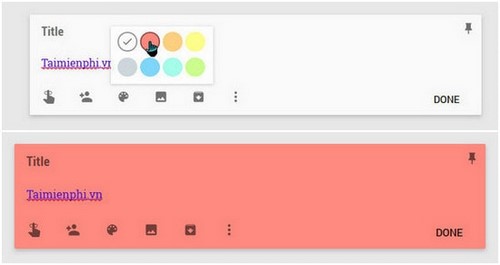
Select the background/color control to visually distinguish notes. Available colors and backgrounds have changed since the older screenshots below, so do not rely on a fixed number of choices.
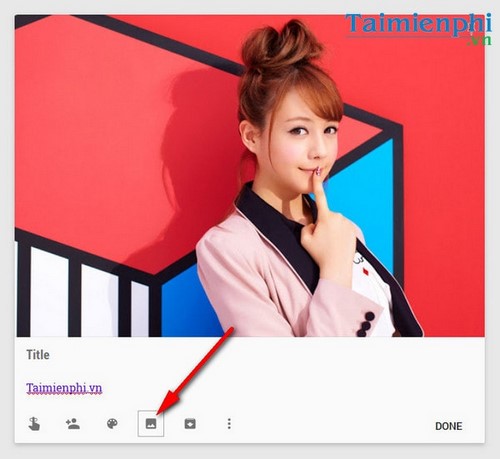
Use the image control to upload a picture. Remove an unwanted image from the note's image menu.
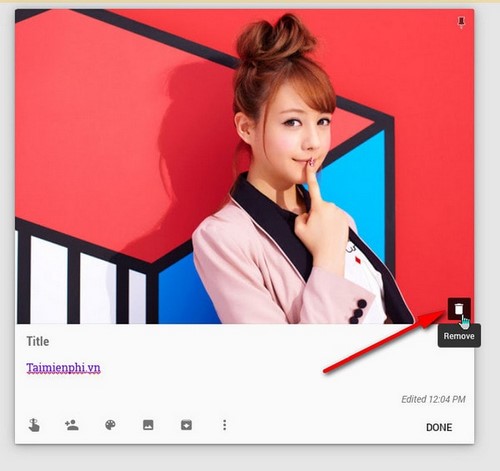
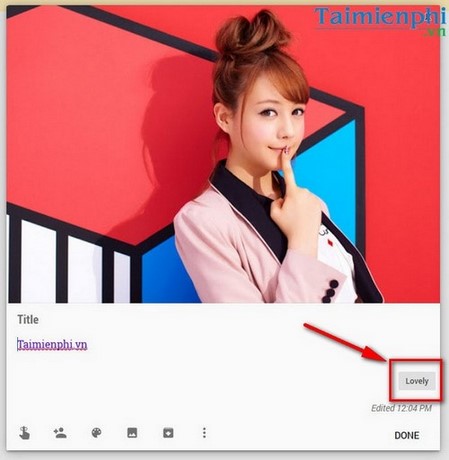
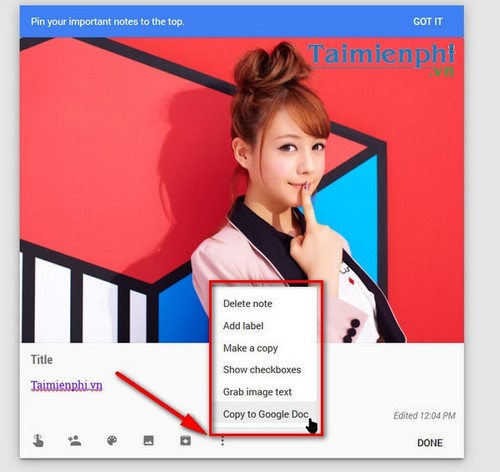
The More menu can include actions such as delete, add label, make a copy, show checkboxes, copy to Google Docs, or extract text from an image. Availability can vary by account and interface version.
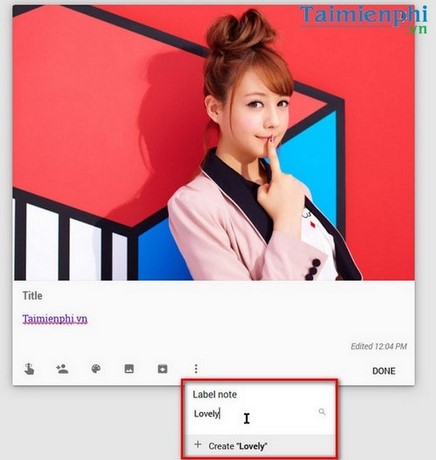
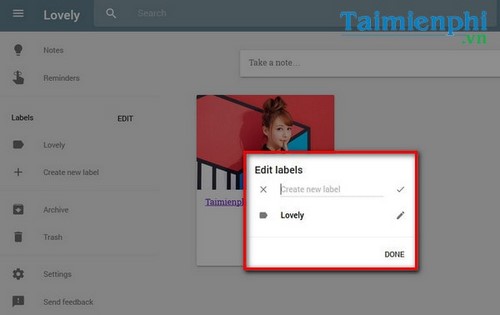
Labels organize related notes and improve filtering; they do not alter the content shared with a collaborator. Add a label from the More menu, or use Edit labels in the sidebar to create, rename, or delete labels.
Create a checklist
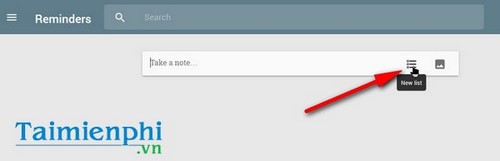
Select the new-list icon or open a text note and choose Show checkboxes. Enter one item per row, drag items to reorder or indent them, and tick an item when it is complete.
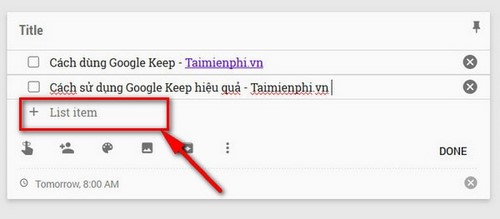
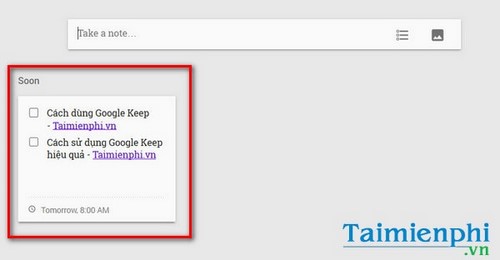
A Keep checklist is useful for groceries, packing, or a short process. It does not assign a separate time to each list item. For scheduled work with individual due dates, use a task manager such as Google Tasks.
Set and manage reminders carefully
Google is changing how Keep reminders integrate with Google Tasks. If the reminder control appears, choose a date and time; the related task may also be managed in Keep, Calendar, Tasks, or Gemini depending on the rollout. Location reminders described by older tutorials may no longer be offered.
Because reminder behavior is changing, check the current account interface before building an important workflow. TipsMake's update on changes to Google Keep reminders explains why Google Tasks may be the better place for time-sensitive actions.
Search and filter notes
Select the search field and enter a word or phrase. Keep can also filter by note type, labels, people, colors, reminders, images, and links, depending on the content in the account.
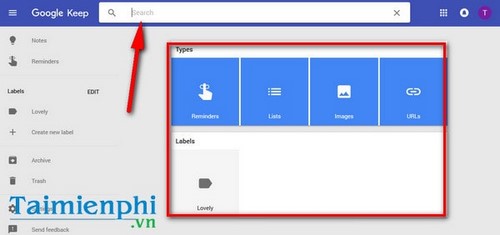
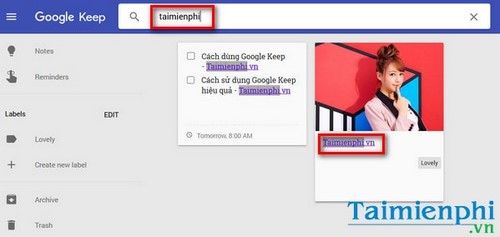
Use descriptive titles and a small, consistent label set. Pin only genuinely active notes, archive finished reference material, and search rather than creating near-duplicate notes.
Privacy and backup
- Do not store passwords, recovery codes, or confidential records in an ordinary Keep note.
- Before sharing, confirm the Google account and email address of every collaborator.
- Use Google Takeout when you need an export of Keep data.
- Remember that deleting a shared note can affect collaborators.
If you prefer notes that remain visibly placed on a Windows desktop, compare Windows Sticky Notes tips. Keep is better suited to lightweight cross-device notes and shared checklists than to complex documents or project management.
Related Articles
 Quick Notes on Android with Google Keep5 minutes read
 How to Write Notes Online in Notepad: Notes Software5 minutes read
 How to Write Notes, Comments on Google Sheets4 minutes read
 How to Save Notes as Photos with Marked.cc3 minutes read
 How to Create Notes on Google Chrome Does Not Need Software4 minutes read
 You Need to Prepare Tools and Note What When Disassembling a Laptop for the First Time?6 minutes read
Reader Comments 0
Sign in with email or Google to join the discussion.