Table of Contents
Outlook can hold a message and send it at a date and time you choose. In new Outlook, Outlook on the web, Outlook.com, and supported versions of Outlook for Mac, compose the message, select the arrow beside Send, choose Schedule send, and select a time. Classic Outlook for Windows uses a separate Do not deliver before setting.
Scheduling is useful across time zones and outside working hours, but it does not guarantee that a recipient will read or answer the message at that time. Check the recipient, attachments, time zone, and scheduled date before confirming.
Schedule an email in new Outlook or Outlook on the web
- Select New mail and address the message.
- Add the subject, body, and any attachments.
- Select the drop-down arrow next to Send.
- Choose Schedule send.
- Select a suggested time or choose a custom date and time, then confirm Send.
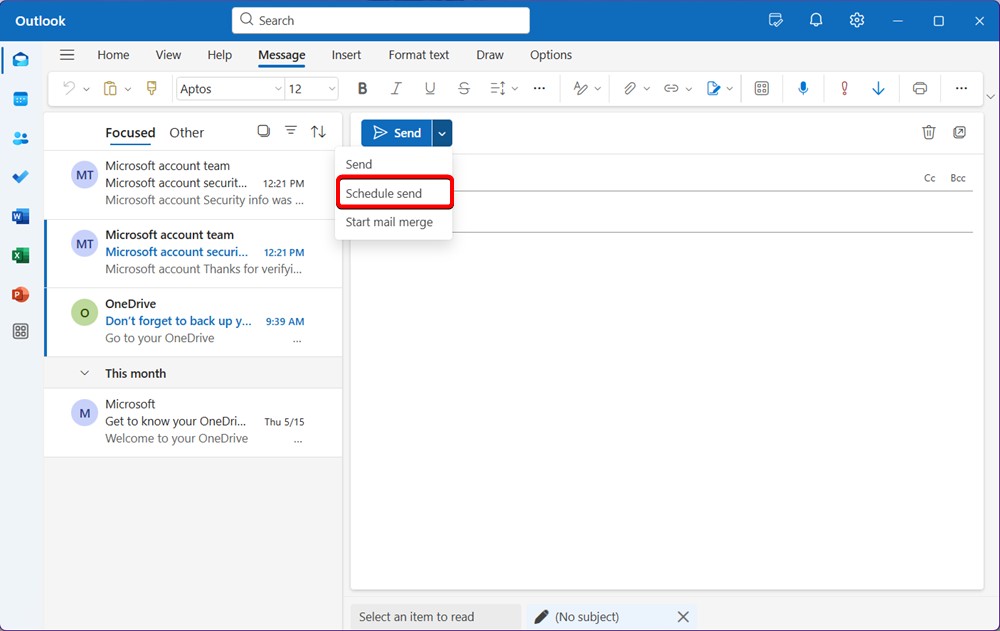
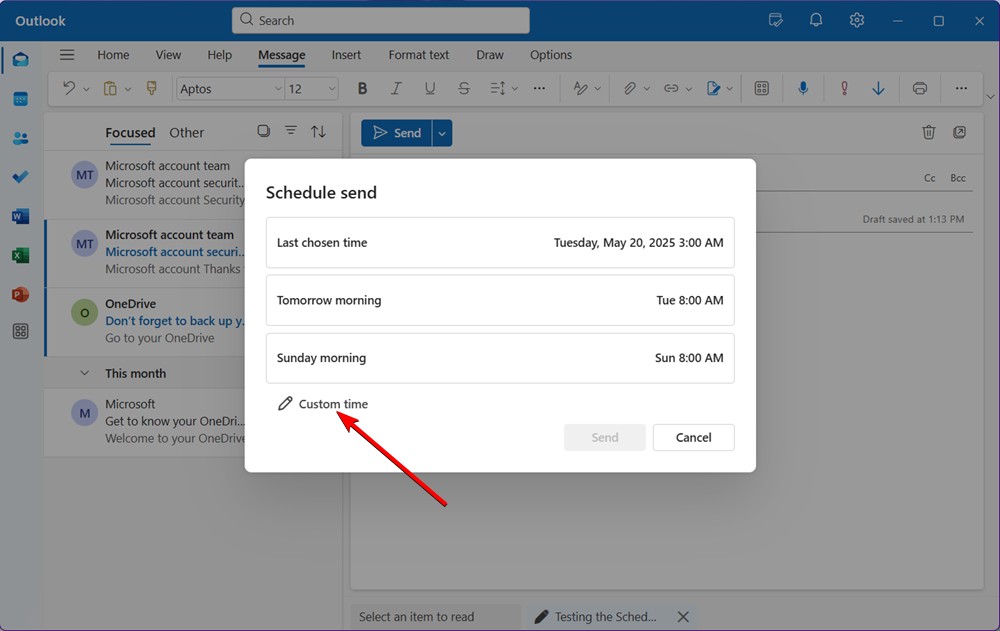
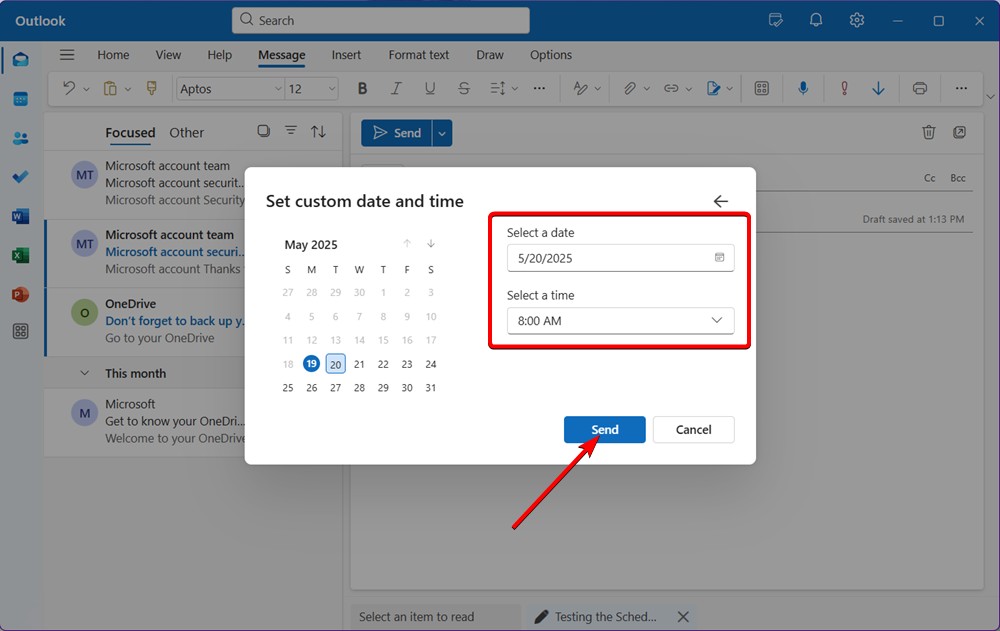
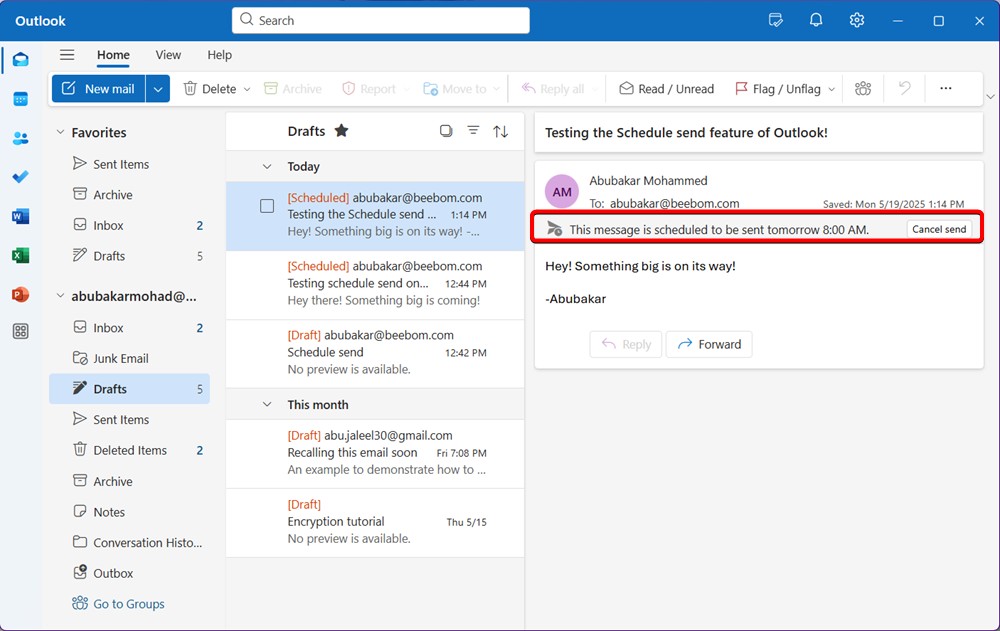
After you schedule it, Outlook on the web keeps the message in Drafts until the delivery time. Open the draft if you need to edit, cancel, or send it earlier. The exact controls shown after reopening the message can vary by Outlook version and account type.
Schedule an email in Outlook for Mac
- Create a message and add at least one recipient.
- Select the arrow on the Send button.
- Choose Schedule send.
- Enter the delivery date and time, then select OK.
Microsoft states that supported Outlook for Mac scheduling stores the message in Drafts and can send it even when Outlook is not open. If the option is missing, update Outlook and check whether it is supported for the selected account.
Delay one message in classic Outlook for Windows
Classic Outlook does not use the same Schedule send menu:
- While composing the message, open the Options tab.
- In the Tags group, select the Message Options dialog launcher. With a simplified ribbon, choose More commands to find the option.
- Under Delivery options, select Do not deliver before.
- Choose a date and time, then close the Properties dialog.
- Select Send.
The delayed message remains in Outbox. Microsoft notes that classic Outlook must be online and connected for this delivery method to work. If the computer is off or Outlook cannot connect at the chosen time, delivery may wait until a connection is available.
Schedule send in Outlook for Android or iOS
Mobile availability can vary by app version, account type, and staged feature rollout. If your compose window includes the command:
- Open Outlook, select New mail, and compose the message.
- Open the compose actions menu, which may appear as a plus sign or three-dot button.
- Select Schedule Send.
- Choose a suggested time or set a custom date and time.
- Select Schedule.
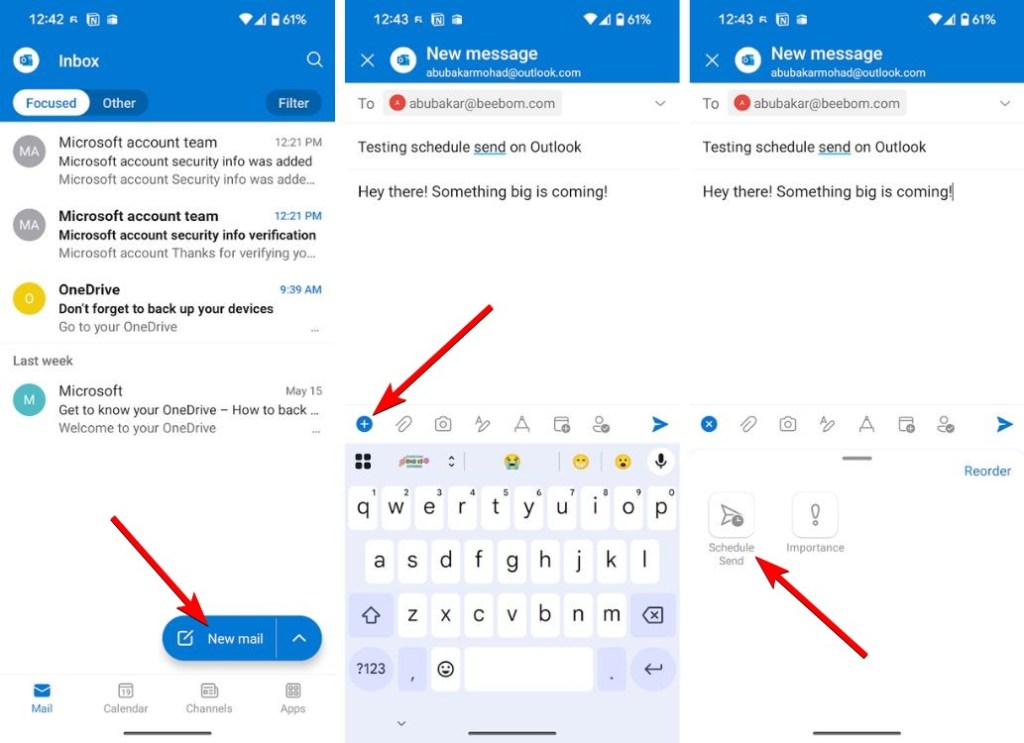
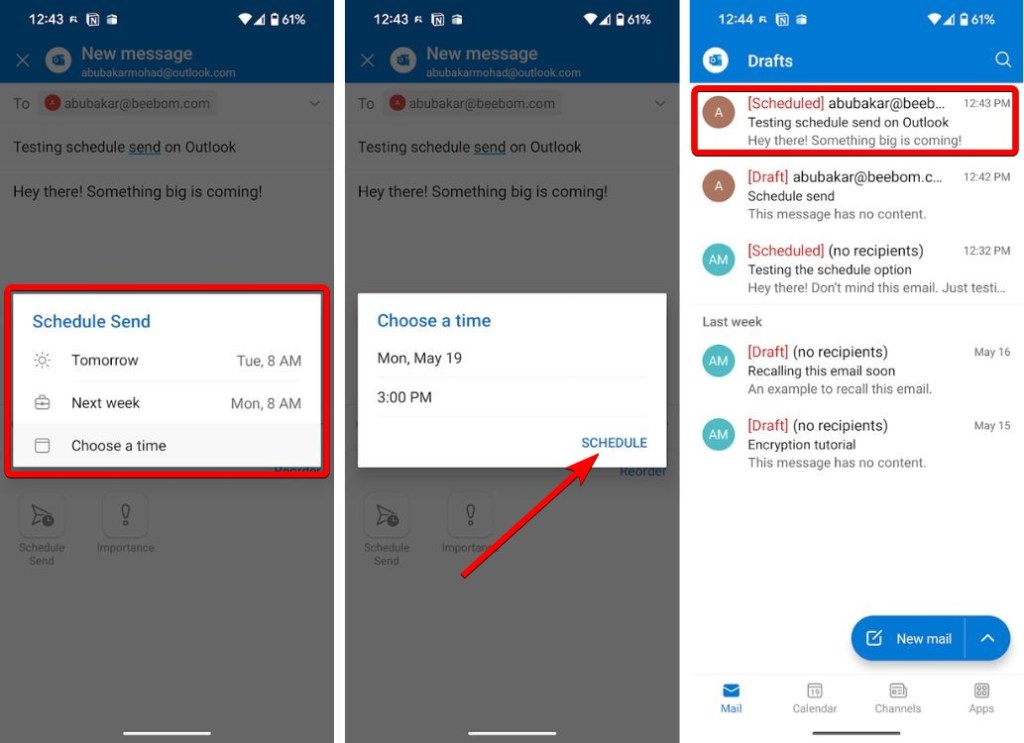
If Schedule Send is not displayed on your phone, update the app and use Outlook on the web instead. Do not assume the feature is permanently Android-only or unavailable on every iPhone; Microsoft changes mobile capabilities over time.
Edit, cancel, or send a scheduled message now
| Outlook version | Where the message waits | What to do |
|---|---|---|
| New Outlook, web, Outlook.com, supported Mac versions | Drafts | Open the scheduled draft and use the available edit, cancel scheduling, or send-now control. |
| Classic Outlook for Windows | Outbox | Open the message, return to Message Options, clear Do not deliver before, close the dialog, and select Send. |
| Mobile app | Usually Drafts or a scheduled section, depending on account and app version | Open the message and use the scheduling controls shown by the app. |
A scheduled message is not the same as recalling a message that has already been delivered. Once Outlook sends it, recall is available only in specific Microsoft 365 work or school situations and is not guaranteed.
Why Schedule send may be missing
- You are using classic Outlook for Windows, which uses Do not deliver before.
- The selected email account or organization does not support the feature.
- Your Outlook app is outdated.
- An administrator has limited the capability.
- The mobile feature has not reached that app build or account.
Scheduling checklist
- Confirm whether Outlook interprets the time in your current local time zone.
- Review To, Cc, and Bcc recipients before scheduling.
- Open every attachment and verify that cloud links grant the intended access.
- Avoid timing sensitive messages for weekends or public holidays without checking the recipient's location.
- Reopen the scheduled item once to confirm it appears in Drafts or Outbox.
Microsoft's official delay and Schedule send guide covers new Outlook, the web, Outlook.com, and classic Outlook for Windows. Mac users can consult the separate Outlook for Mac instructions.
Related Articles
 How to Scheduling Sending Emails and Delaying Sending Emails in7 minutes read
 How to Schedule an Event in Outlook3 minutes read
 Microsoft Outlook Acceleration Tips5 minutes read
 Instructions for Pinning Emails in Outlook: What to Know5 minutes read
 How to Schedule Email Sending in Outlook3 minutes read
 Instructions on Selecting Multiple Emails in Outlook: Explained4 minutes read
Reader Comments 0
Sign in with email or Google to join the discussion.