Table of Contents
Use Extract All in File Explorer for an ordinary ZIP file. Recent Windows 11 releases also handle common unencrypted RAR, 7z, and TAR archives. If Windows cannot open the file or it needs a password, try a dedicated extractor such as 7-Zip.

Which archive tool should you use?
| Tool | When to choose it |
|---|---|
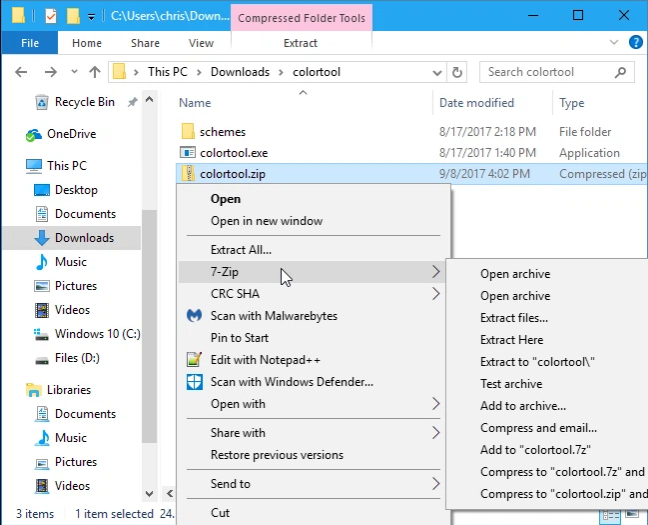
| 7-Zip | Free general-purpose option. Create 7z and ZIP archives and extract RAR, among other formats. |
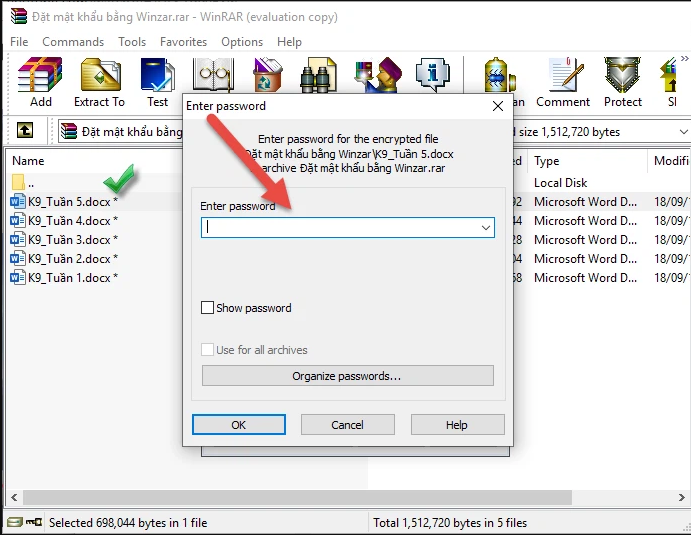
| WinRAR | Choose it if you also need to create RAR files. It is commercial software with a trial. |
| WinZip | Commercial option for a ZIP-centered workflow. Check its format support if you use ZIPX or another less common archive. |
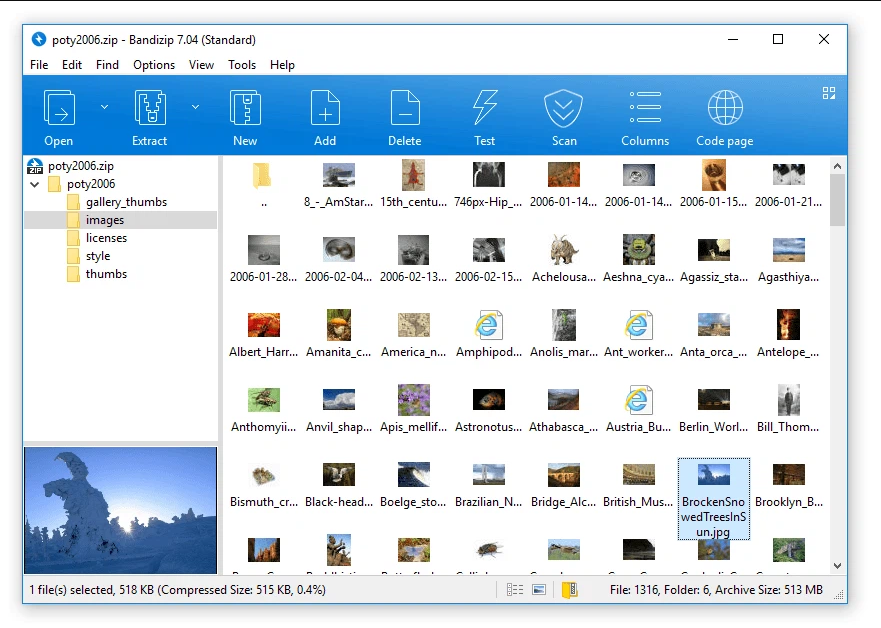
| Bandizip | Multi-format tool with a free edition. Useful if you want to browse an archive and drag out individual files. |
| PeaZip | Free, open-source option for browsing and extracting a wide range of archive formats. |
Extract the archive into its own folder
- Right-click the file and choose Extract All if File Explorer offers it. See the ZIP extraction guide for the built-in workflow.
- With a dedicated tool, choose an extraction option that creates a new folder, or open the archive in the tool and choose the destination. The WinRAR and 7-Zip walkthrough shows the context-menu options.
- If the file is a split archive, put all parts in the same folder and open the first part. Enter the password from the sender when prompted.
- Check that the expected files are present before deleting the download. Extracting an archive and running files from it are separate steps. Verify the sender before opening an executable.
If extraction reports a data or CRC error, check for a missing part, an incomplete download, or an incorrect password. Check available disk space too, since the extracted files can be much larger than the archive.
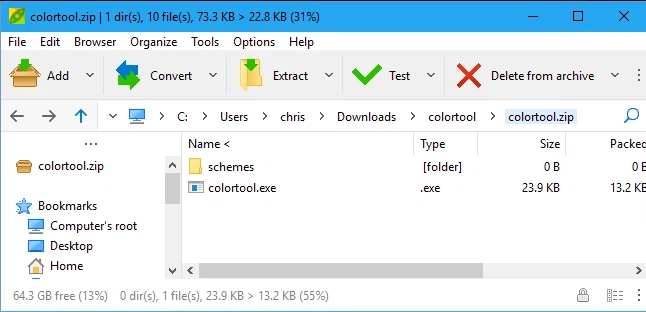
Archive tool interfaces
Related Articles
 Top best decompression software on Windows
 Online decompression without software
 Download the compression and decompression tool PowerArchiver 2018, which costs $ 22.95, and is free of copyright for 1 year
 TOP file decompression tools for Windows
 Archive Extractor - Free online decompression tool with over 70 different file formats
 7-zip has an official release for Linux for the first time
Reader Comments 0
Sign in with email or Google to join the discussion.