Table of Contents
You can pause updates in Windows 11 for up to 4 weeks and a minimum of 1 week. If you want to pause updates for more than that, follow the instructions below.
Windows will give you a fixed amount of time to pause updates in Windows 11. The maximum you can pause updates in Windows 11 is about 4 weeks and the minimum is 1 week. In case you want to pause updates for more than a certain number of days, follow the instructions below.
How to change the number of days to pause updates in Windows 11
You must be logged in as an administrator to change the maximum number of days to pause Windows Update.
Step 1:
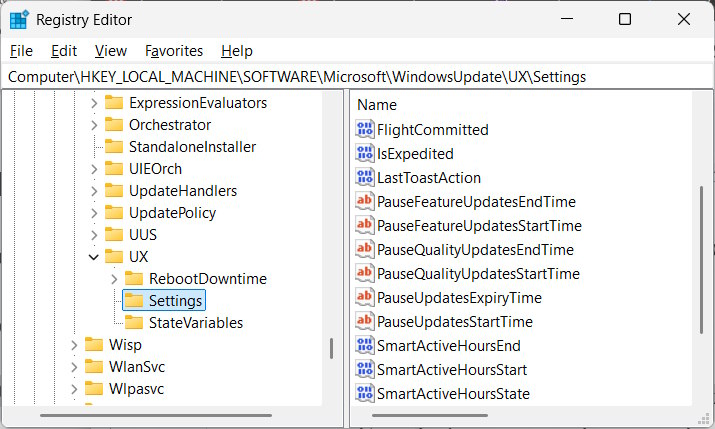
You Enter Registry Editor in the search bar To access. Then in the new interface you access the path below.
HKEY_LOCAL_MACHINESOFTWAREMicrosoftWindowsUpdateUXSettings
Step 2:
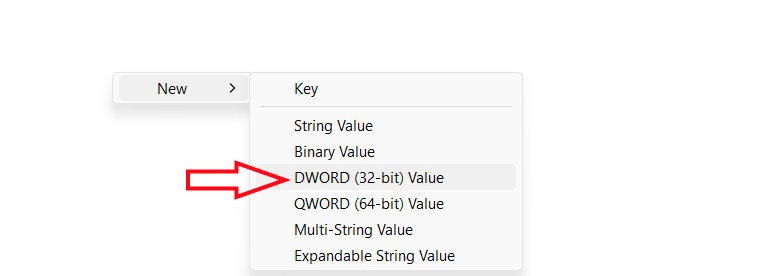
Next, Right-click on the empty area In the right pane of The Settings key , Select New and then click DWORD (32-bit) Value .
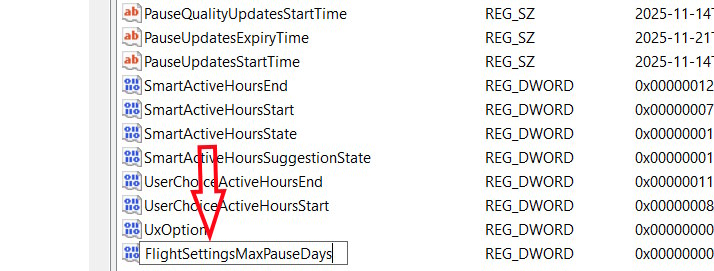
Now we Name the value FlightSettingsMaxPauseDays .
Step 3:
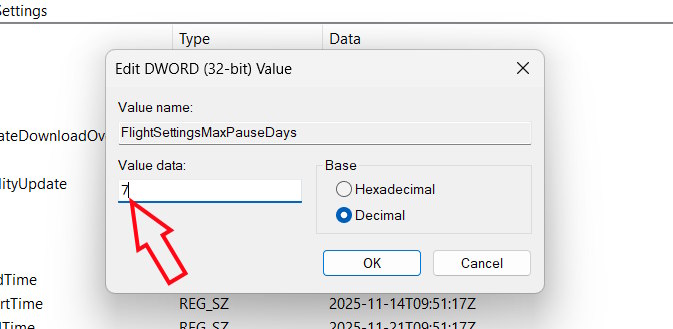
Double-click on this new value. Then in the new interface, Select Decimal . Continue at Value date , Enter the maximum number of days You want to pause updates in increments of 7 days.
The default is 7 days for Windows 11 Insider builds, and the default is 35 days for non-Inside builds.
FAQ
What should you know about the options in this guide?
In practical terms, you can pause updates in Windows 11 for up to 4 weeks and a minimum of 1 week. If you want to pause updates for more than that, follow the instructions below.
Which option is the best choice?
The best choice depends on your priorities, compatibility, budget, and the specific features discussed in the comparison.
What should you compare before deciding?
Compare core features, limitations, ease of use, compatibility, and long-term value before making a decision.
Related Articles
 Pause Windows Updates: Complete Guide6 minutes read
 How to Pause Updates on Windows 113 minutes read
 How to Enable / Disable the Pause Updates Feature for Windows Update in3 minutes read
 How to Pause Updates on Windows 10 Home3 minutes read
 How to Calculate the Number of Days in Excel - Functions, Formulas for4 minutes read
 9 Tips to Increase YouTube Video Rankings on Google12 minutes read
Reader Comments 0
Sign in with email or Google to join the discussion.