Table of Contents
With many ways to adjust Windows screen brightness, you can easily find the most suitable and fastest way. Below are instructions on how to adjust Windows 11 screen brightness.
You can find many ways to adjust the brightness of the Windows 11 screen, such as using shortcut keys or adjusting through the quick settings interface,. With many ways to adjust the brightness of the Windows screen, you can easily find the most suitable and fastest way. Below are instructions on how to adjust the brightness of the Windows 11 screen.
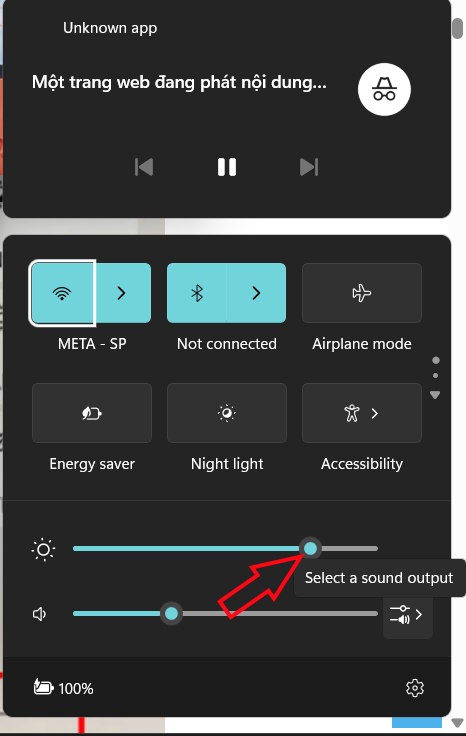
Adjust Windows screen brightness via Action Center
You just need to open the Action Center by pressing The Windows + A key combination , then adjust the screen brightness.
Adjust screen brightness via Windows Settings
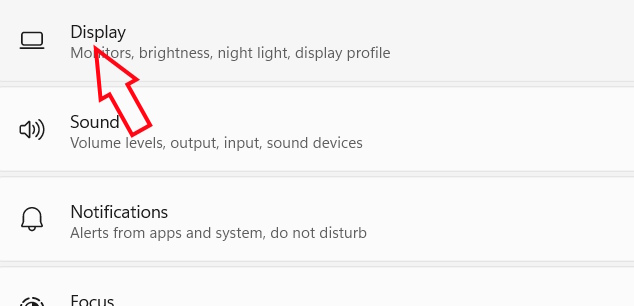
Open Settings on your computer, click on System , then Select Display To adjust the content displayed on your computer screen.
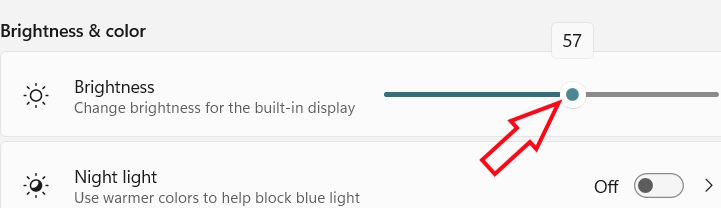
Then you also see the screen brightness adjustment bar on your Windows computer to change it to your liking.
Use Windows 11 brightness adjustment shortcuts
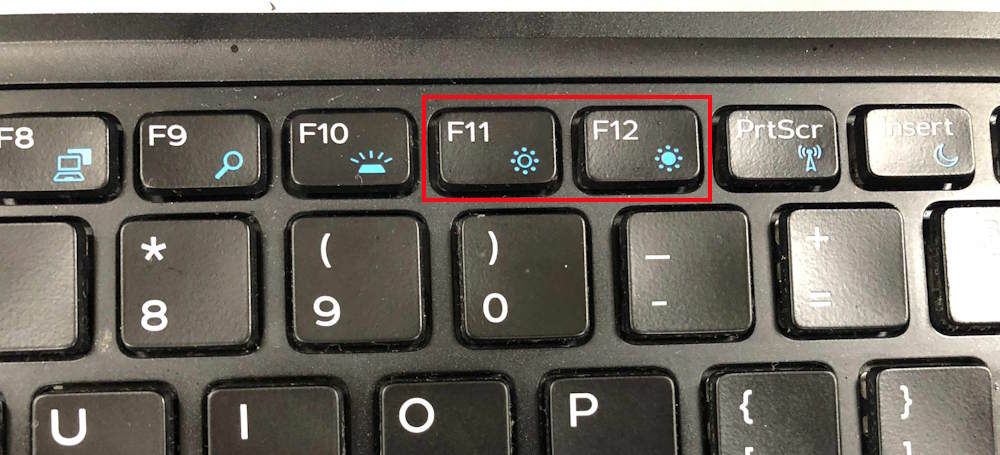
Most laptops have a keyboard shortcut to adjust screen brightness. The shortcut to adjust brightness varies depending on the laptop model.
For example, with Dell computers, you press the key combination Fn + F11/F12 to increase or decrease screen brightness.
HP, Lenovo or ASUS machines will have the shortcut keys F1/F2 or F3/F4. All screen brightness adjustment keys will have a sun icon to adjust.
Adjust screen brightness automatically
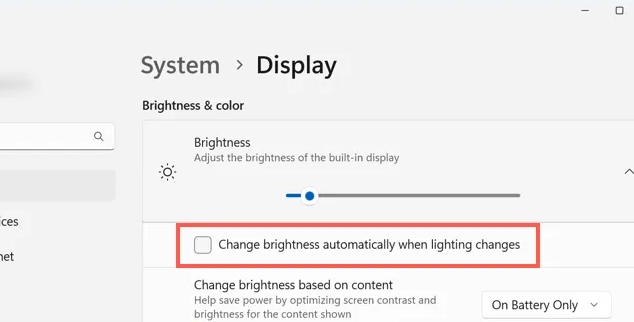
If your computer is equipped with a light sensor, Windows automatically changes the screen brightness.
Go to Settings › System › Display . Under Brightness & color, enable Automatically adjust brightness when lighting changes. On Windows 10, select Change brightness automatically when lighting changes.
Content adaptive brightness control
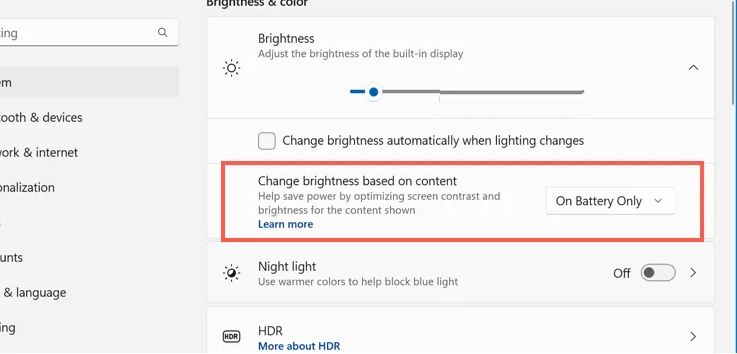
You can enable Windows to automatically adjust brightness and contrast based on the content you view.
Go to System > Display > Brightness And select Change brightness based on content .
You'll now see Off, Always, and On Battery Only options. Tap Always or On Battery Only to automatically adjust brightness and contrast based on what you're viewing.
FAQ
How do you adjust Windows 11 screen brightness?
In practical terms, with many ways to adjust Windows screen brightness, you can easily find the most suitable and fastest way. Below are instructions on how to adjust Windows 11 screen brightness.
What should you check before getting started?
Review the requirements, compatible device or software version, and any warnings described in the guide before making changes.
What should you do if the steps do not work?
Repeat the steps in order, confirm that your app or system is up to date, and review the troubleshooting details provided above.
Related Articles
 Adjusting the Screen Brightness on an HP Laptop4 minutes read
 How to Adjust Screen Brightness in Windows 11: Step-by-Step Guide4 minutes read
 Fix the Error of Not Adjusting Screen Brightness on Windows 104 minutes read
 Adjust Screen Brightness on Acer Laptop4 minutes read
 How to Change Screen Brightness on Windows 10 for Laptops and Pcs5 minutes read
 Adjusting Screen Brightness on an Asus Laptop4 minutes read
Reader Comments 0
Sign in with email or Google to join the discussion.