Table of Contents
Siri mode in Camera lets a supported iPhone use Visual Intelligence to answer questions about what is in front of you. It can help with text, books, objects and available quick actions, but you should check its interpretation before copying information or acting on it.

Check availability first
These instructions concern Siri AI and its Camera mode, not ordinary Siri voice commands or every version of Live Text. Siri AI is a beta feature on supported Apple Intelligence devices running iOS 27 or later. Device, language, region and account restrictions apply, so installing the operating system alone does not guarantee access.
See Siri AI features and setup requirements if the mode is missing. Where available, open Camera and choose Siri, point at the subject, then use the Ask control or a relevant action that appears.
Turn handwritten notes into editable text
Frame the page clearly, with even lighting and as little glare as possible. Ask Siri to transcribe the writing. A useful request is: “Transcribe this exactly, keeping the line breaks.”
Compare the result with the page before copying it to Notes or a document. Pay particular attention to names, dates, numbers and crossed-out words. If the writing is ambiguous, ask it to flag unclear words rather than guess.
App actions depend on support and permissions. If Siri cannot create a note or prepare an email, copy the checked text yourself. For text extraction without a conversational assistant, compare mobile OCR tools and Live Text.
Read food information with appropriate caution
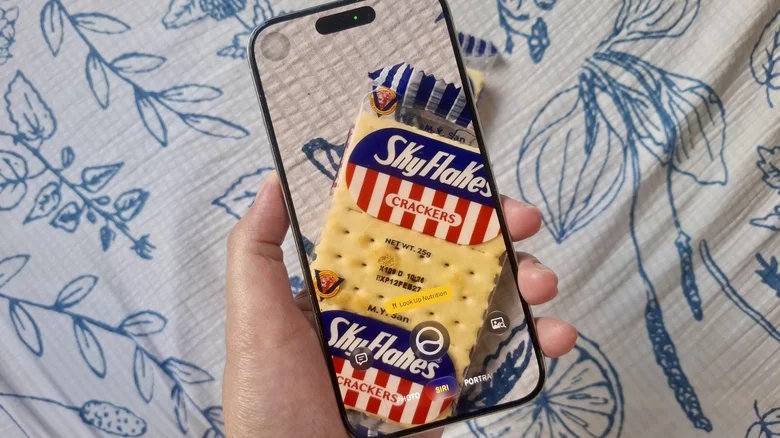
If a nutrition action appears, it may help explain visible packaging information or describe a dish. Frame the nutrition label and serving size rather than relying only on a picture of the food.
An image cannot reliably reveal every ingredient, portion weight or allergen. Use the manufacturer’s label for packaged-food details and do not treat an AI description or food rating as a personalized health assessment. For allergies or a medical diet, confirm ingredients through a reliable source instead of relying on camera recognition.
Identify a book and ask focused questions
Point at the cover and ask for the title and author, then request a spoiler-free summary if you want one. Check that Siri identified the correct book and edition before relying on its answer.
For purchase information, compare the title, author and format on the seller’s listing. An automatically generated description of reviews is less useful than reading the reviews themselves.
Check a restaurant bill before splitting it
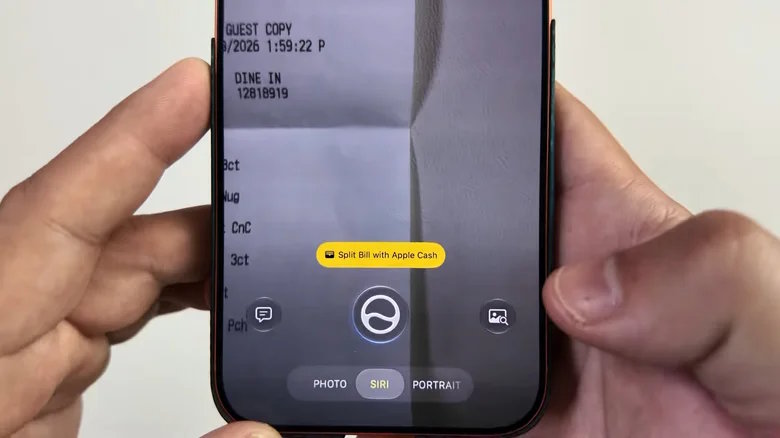
Capture the entire receipt, including subtotal, tax, service charges and total. Where a bill-splitting action is available, review the recognized amounts before continuing to Wallet or another supported action.
Confirm who pays for shared items and whether a tip is already included. Equal division is different from calculating each person’s individual order. Apple Cash availability has separate eligibility and regional requirements; Siri mode does not make payment features available everywhere.
Look up unfamiliar symbols
For a clothing label or appliance marking, take a clear close-up and include the brand and model in your question. Ask for the meaning of each visible symbol and a link to the relevant manual.
Check the answer against that manual. For vehicle warning lights, electrical equipment or other safety-related symbols, the manufacturer’s guidance should determine what you do next. A camera assistant can misidentify a symbol or miss context.
Get more useful results
- Show one subject at a time and avoid blurred or cropped text.
- Ask a specific question rather than “What is this?” when you already know the task.
- Review the captured information before sharing it or approving an app action.
- If recognition fails, try a clearer image or use a manual lookup.
Related Articles
 Siri AI on iPhone: What Is Available and What Is Coming
 10 changes the best settings that Siri can make on iPhone
 Good features with Siri on Mac
 How to Turn Off Siri on iPhone, iPad, Mac, and Apple Watch
 Instructions on how to take photos, record videos or selfie with Siri on iOS 10
 How many tricks have you missed using this iPhone?
Reader Comments 0
Sign in with email or Google to join the discussion.