Table of Contents
If WhatsApp Status is missing on your iPhone, first check whether the problem affects every contact or just one. A blank Updates feed can indicate a connection or app problem; one missing person's status may reflect expiry, a hidden update, or their audience settings.
This guide concerns photo, video, and text updates in the Updates tab. The “online” and “last seen” indicators in a chat use different settings.
Check expiry and hidden updates first
Status updates normally disappear after 24 hours, so confirm that the person has a current post. In Updates, look for the Hidden or muted-status section and expand it if present. Hidden statuses are moved out of the main list; they are not necessarily unavailable. Use the contact's available menu to unhide them if you want them back in the main feed.
Labels and layout vary by app version. WhatsApp's hide and unhide instructions describe the current behavior.
If many statuses fail to load
- Open a website in Safari to check whether the internet connection works.
- Try another trusted Wi-Fi connection or cellular data, and confirm WhatsApp is allowed to use cellular data.
- Close and reopen WhatsApp if it appears stuck. On Face ID iPhones, swipe up and pause to open the App Switcher, then swipe WhatsApp away. On models with a Home button, double-click it to reach the switcher.
- Update WhatsApp through the App Store and restart the iPhone if the problem continues.
If other users are also affected, check official service communications or a reputable outage-reporting site. Reports can suggest a wider issue but do not establish its cause or guarantee a repair time. Avoid reinstalling or resetting the phone as a first response.
If only one person's status is missing
Missing updates do not prove that someone blocked you. They may not have posted, the post may have expired, or their audience may exclude you. A profile photo or last-seen indicator is not conclusive evidence either.
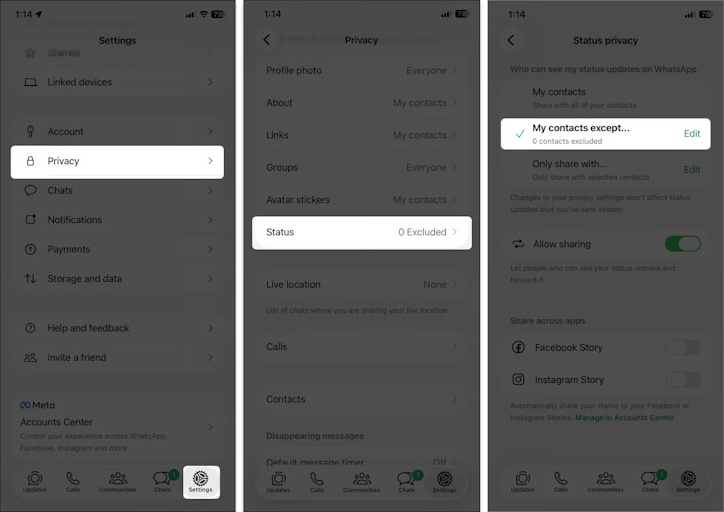
If appropriate, ask the person whether they intended to share the update with you. They can review WhatsApp Settings > Privacy > Status and the audience for their post. Your own outgoing-status audience does not override their sharing choices. Respect deliberate restrictions; there is no legitimate troubleshooting setting that bypasses them.
Check the contact and iPhone permissions
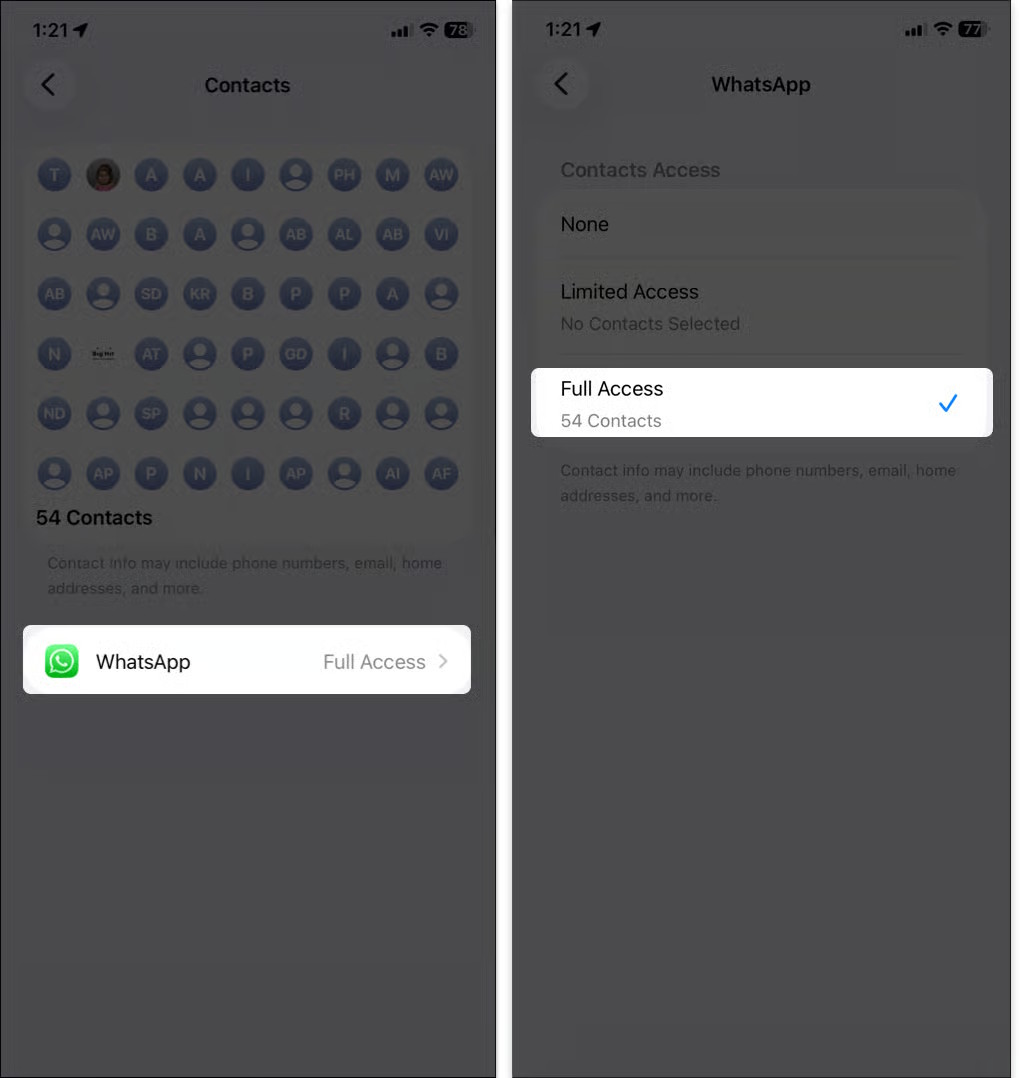
Confirm that you have the correct current phone number, including its country code, and check whether the contact is available to WhatsApp. On iPhone, open Settings > Privacy & Security > Contacts > WhatsApp.
If you use limited contact access, include the relevant contact rather than automatically granting the app your entire address book. Apple explains the options in controlling contact access. Then reopen WhatsApp and test again.
If the issue persists
Note whether messages still send, which contacts are affected, your app version, and whether the problem occurs on both Wi-Fi and cellular data. Contact WhatsApp through its in-app Help area with those details, without sharing private messages unnecessarily. Before any reinstall, confirm that your chat backup is current and recoverable.






Reader Comments 0
Sign in with email or Google to join the discussion.